
XMind Pro for macOS



Description
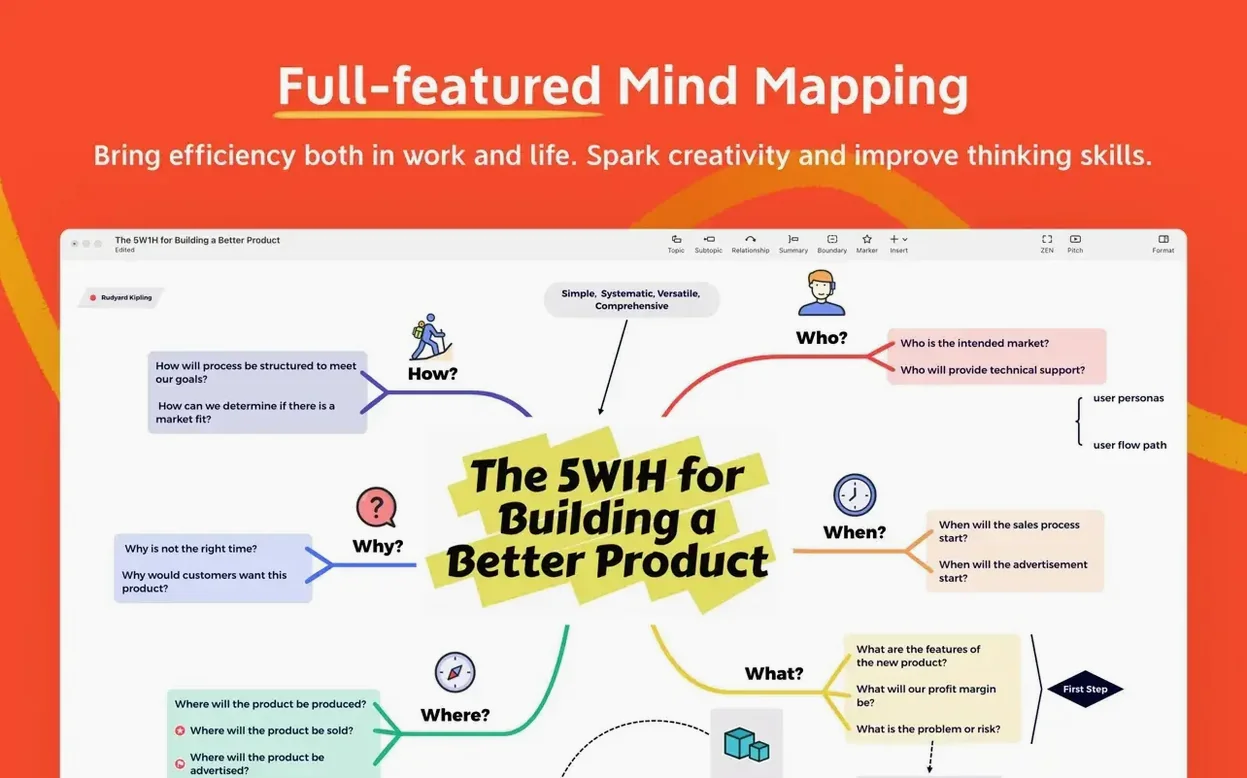
XMind Pro gets used by people who need to see a mess of ideas as something ordered. Product managers, students revising for exams, writers untangling a plot, anyone running a workshop. The point is that a thought you cannot quite hold in your head becomes a diagram you can look at.
It needs macOS 11 or later and runs on Apple silicon and Intel 64-bit Macs.
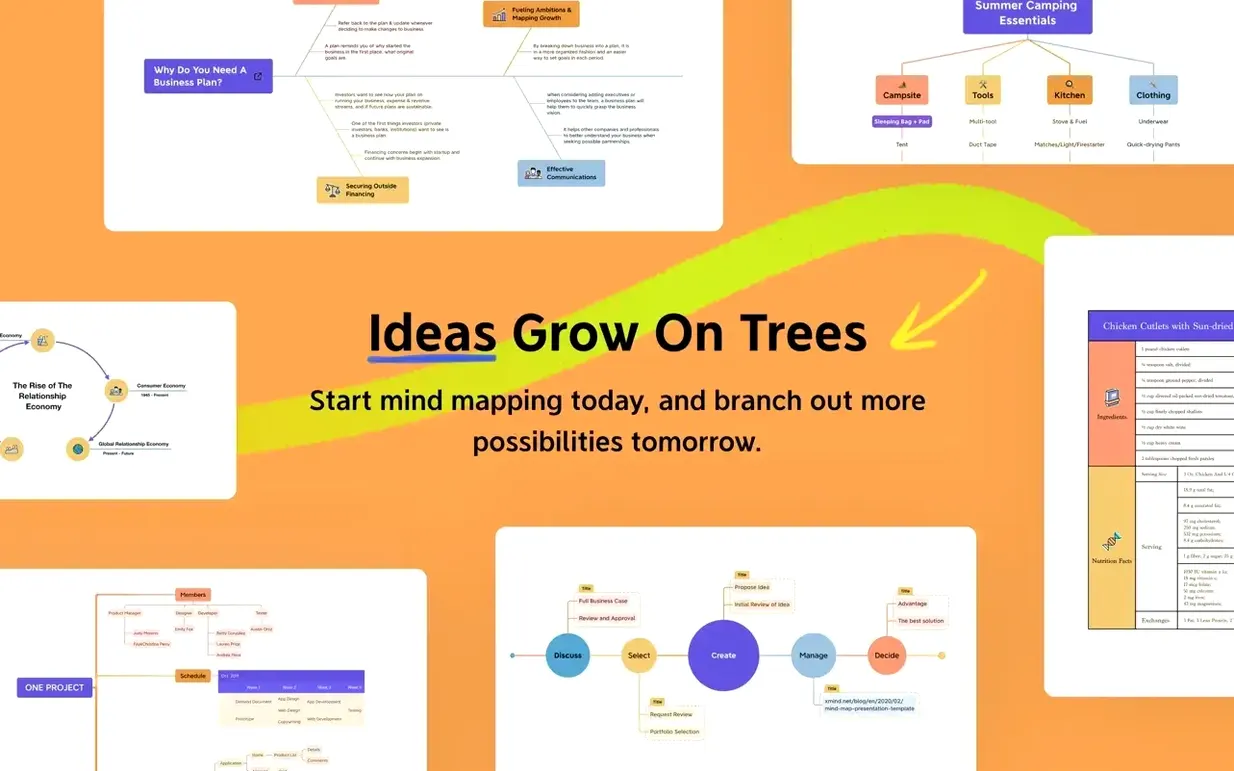
It works as a thinking surface rather than a drawing app. You start with one node, branch out, and rearrange until the structure makes sense. Alongside mind maps you get Ishikawa diagrams, tree diagrams, logic charts and tables, which cover cause and effect, hierarchy and process flow. Maps can be worked on together with other users.
Export to FreeMind, PNG or PDF so you are not stuck
XMind Pro does not lock you into its own format. Export a map as a FreeMind file and open it in tools that speak that format. Export as PNG or PDF when you need to drop a diagram into a Keynote deck or a Pages report without anyone asking for the source file.
macOS Quick Look understands XMind files once the app is installed. Select a .xmind file in Finder, tap the spacebar, and you see the map without opening the full editor. That is small but useful when you are hunting for the right brainstorming session from three months ago.
The app also talks to system reminders. Map nodes can be tagged with task markers — priority, progress, assignee — and the visual structure gives you a clear picture of who owes what. It does not push into Apple Reminders directly, but the markers make a task list you can work from. For most people, that is enough to avoid a separate project tracker for early-stage planning.
Rename “Central Topic” before you do anything else
The first thing that trips new users is the blank canvas. You open it, and there is one node sitting there labelled "Central Topic." Do not stare at it. Rename it with whatever you are actually thinking about — a chapter outline, a sprint plan, a holiday itinerary — and add four child nodes with Tab. Then move them around. That habit alone gets you past the empty-screen paralysis.
Pick a structure early. If you leave the default mind map for an Ishikawa diagram, the layout changes, but your nodes keep their relationships. Switching between structures midway through a brainstorming session often reveals gaps you had not noticed. Drag a branch to a different parent and watch the logic chart redraw itself. That is quicker than rewriting bullet points on a whiteboard.
On day one, turn on auto-save in the preferences. XMind Pro already saves as you go, but checking that setting means you will not lose a long session if the Mac restarts for an update. Day two: try the pitch mode. It turns the map into a full-screen presentation, one branch at a time. If you present thinking live to a team, it is cleaner than sharing a window full of sidebars.
Scrolling a 100‑node map got smooth on Apple silicon
Version 26.04.01337 brought noticeable speed improvements on Apple silicon Macs. Large maps that used to hesitate while redrawing now scroll smoothly. That matters when a map has grown to a hundred nodes and you are still adding branches during a meeting.
Recent releases also tightened up FreeMind compatibility. Imported maps now keep their styling closer to the original, which saves time if you are inheriting old files from a team that used different software. The collaboration layer got quieter about connection drops — it still wants a solid network, but the reconnection happens without a dialogue box interrupting your typing.
The task-marking system got more granular earlier this year. Priority and progress icons now sit in the node itself rather than only in a side panel, so scanning a dense map feels less like reading a spreadsheet. For anyone who tracks workload across a project map, that change alone is worth the update.
If you already sketch these on paper, XMind Pro is the same exercise with a working delete key.
Requirements
- macOS 11 or later
- Apple Silicon or Intel 64-bit Mac
FAQ
Does XMind Pro work on Intel Macs?
Yes. It runs on both Apple Silicon and Intel 64-bit Macs with macOS 11 or later.
Can I collaborate with other people in XMind Pro?
Yes. The app supports collaboration with other users.
What diagram types does XMind Pro support?
Mind maps, Ishikawa diagrams, tree diagrams, logic charts and tables.
Comments 0
Sign in or create an account to leave a comment.
No comments yet…
If you’ve installed it, say how it went. Mention your Mac and macOS version — it helps the next person more than you’d think.