
Wolfram Mathematica for macOS
Description
Wolfram Mathematica is a desktop and cloud technical computing system that handles symbolic, numerical and visual calculations in one notebook interface.
Cleaning CSV sensor data with a Hilbert transform
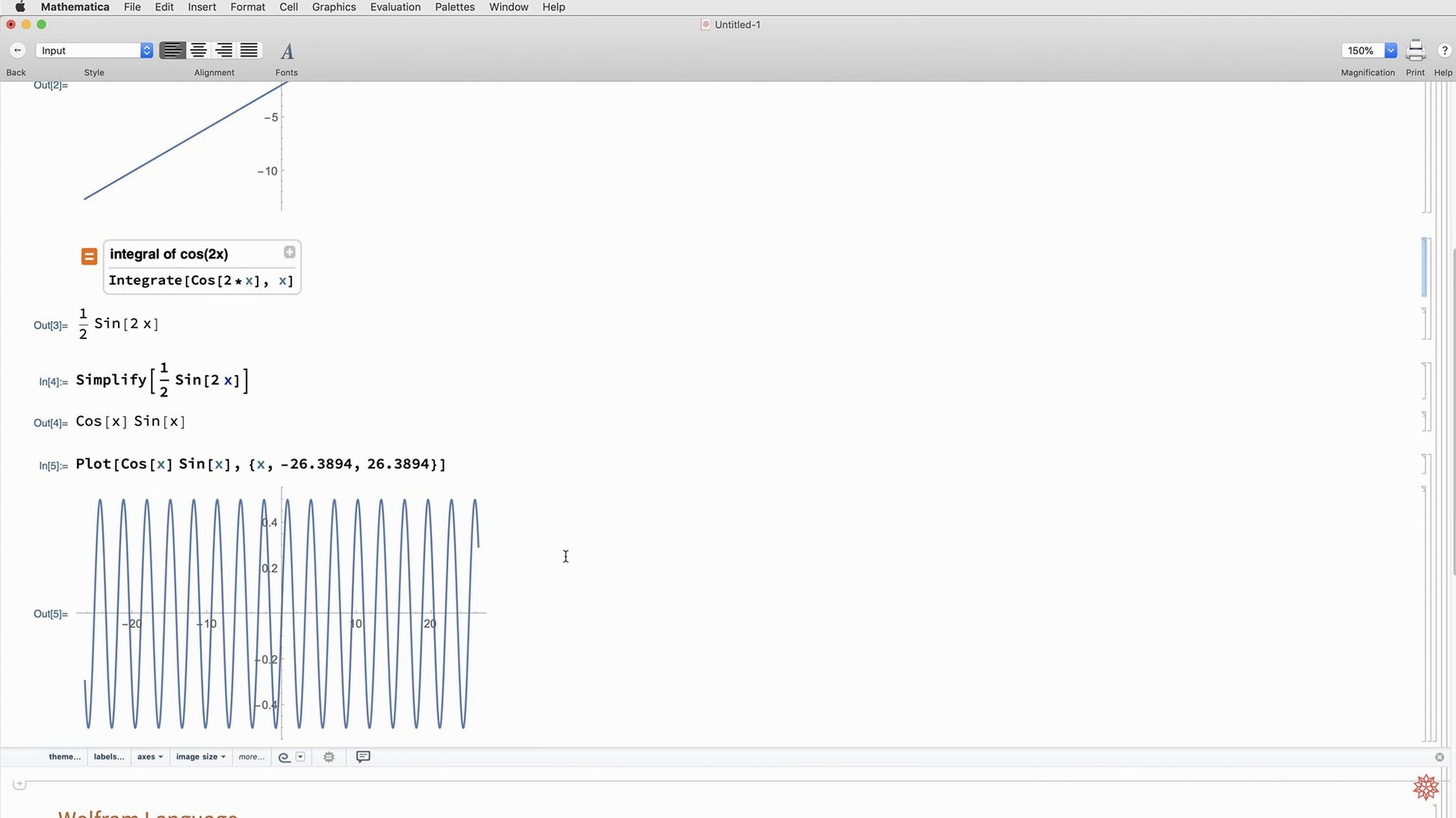
Take imported sensor data from a CSV. You'd clean the timestamps with a single line, run a Hilbert transform to find the signal envelope, then drop the result straight into a ListFitPlot. The plot, the data and the notes all live in the same document.
Can it pull in outside data?
Yes. It works with external data and has tools for acquiring, analysing and visualising it in the same notebook.
Apple Silicon support and automatic dark mode colours
It does. Version 14.3 supports Apple Silicon and Intel Macs running macOS 12 or later. Dark mode is now fully supported, with new standard colours that switch between light and dark environments automatically.
What about sharing the work?
Notebooks export to Markdown, so you can commit them alongside code repos. Cloud access through a browser means colleagues can open a notebook without installing anything locally.
A session in ten minutes
You open a fresh notebook. First line is some messy experimental data pulled from a CSV on the desktop — Import["results.csv"] gets it into a list. A quick ListPlot shows a noisy curve with an obvious drift.
You write a one-liner to strip the baseline, then apply the new Hilbert transform to grab the instantaneous amplitude. The notebook updates the plot inline. You scroll up, add a text cell explaining the step, and the whole thing reads like a lab book that does the arithmetic for you.
Someone asks for a vector map of the sensor locations. You pull in the coordinate list, call the new vector-based map functions, and drop the graphic into a slide deck — all without leaving the notebook. Before lunch, you export the key section as Markdown and commit it to the project repo.
Deriving, solving and plotting differential equations in one place
Researchers and PhD students who live in a world of differential equations and need a single place to derive, solve and plot. The symbolic engine handles the algebra while they focus on the physics.
Engineers doing signal work or control systems. The addition of Hilbert transforms and system model validation in 14.3 turns the notebook into a serious analysis bench. Python and R integration got faster too, so you can drop existing scripts in without rewriting everything in the Wolfram Language.
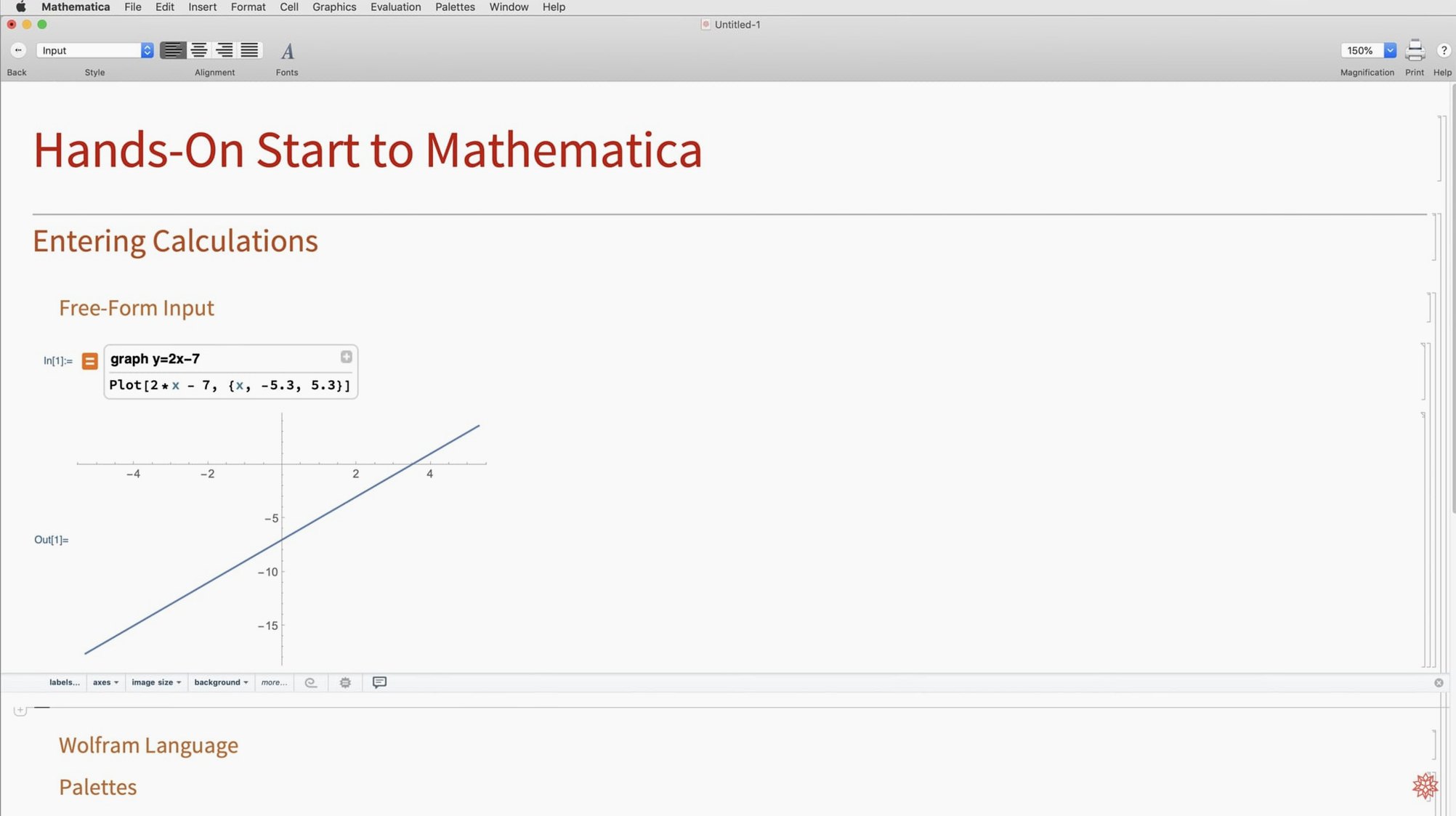
Data-driven tinkerers who grab public datasets, clean them, and want a visual answer inside an hour. The natural-language input means you can type "integrate sin(x) from 0 to pi" and get a result without hunting through menus.
Start typing plain English to beat the blank notebook
The interface feels heavy at first. A blank notebook gives no clues. The fix is simple: start typing. Even a plain English phrase like "plot a sine wave" usually works. Treat the notebook like a scratchpad, not a programming IDE.
Long evaluation times on big symbolic jobs. Some integrals or simplifications can spin for minutes. Interrupt with Cmd+. and try a numeric approach instead — NIntegrate often returns in seconds what the symbolic version chews on forever.
External data imports fail silently. A CSV with mixed delimiters or a missing header row can leave you staring at an empty list. Check the first few rows with Short[data] before plotting. If the format is weird, Import takes an explicit delimiter option that fixes most hiccups.
Dark mode confusion. Version 14.3 handles it properly now, but older notebooks you open may still carry hard-coded colours that look wrong against a dark background. Switch the stylesheet to one of the new standard colour sets and they snap into line.
What’s new
Adds full dark mode support with new standard colours for both environments. Introduces Hilbert transforms, Lommel functions and new matrix decompositions. Expands visualization with ListFitPlot, surface plotting functions, vector-based maps and mesh processing. Adds geodesic computation, LLMGraph, faster Python and R integration, ColumnwiseCombine, system model validation tools and Markdown export.
Requirements
- macOS 12 or later
- Apple Silicon or Intel 64-bit Mac
Comments 0
Sign in or create an account to leave a comment.
No comments yet…
If you’ve installed it, say how it went. Mention your Mac and macOS version — it helps the next person more than you’d think.