DaVinci Resolve Studio for macOS
Description
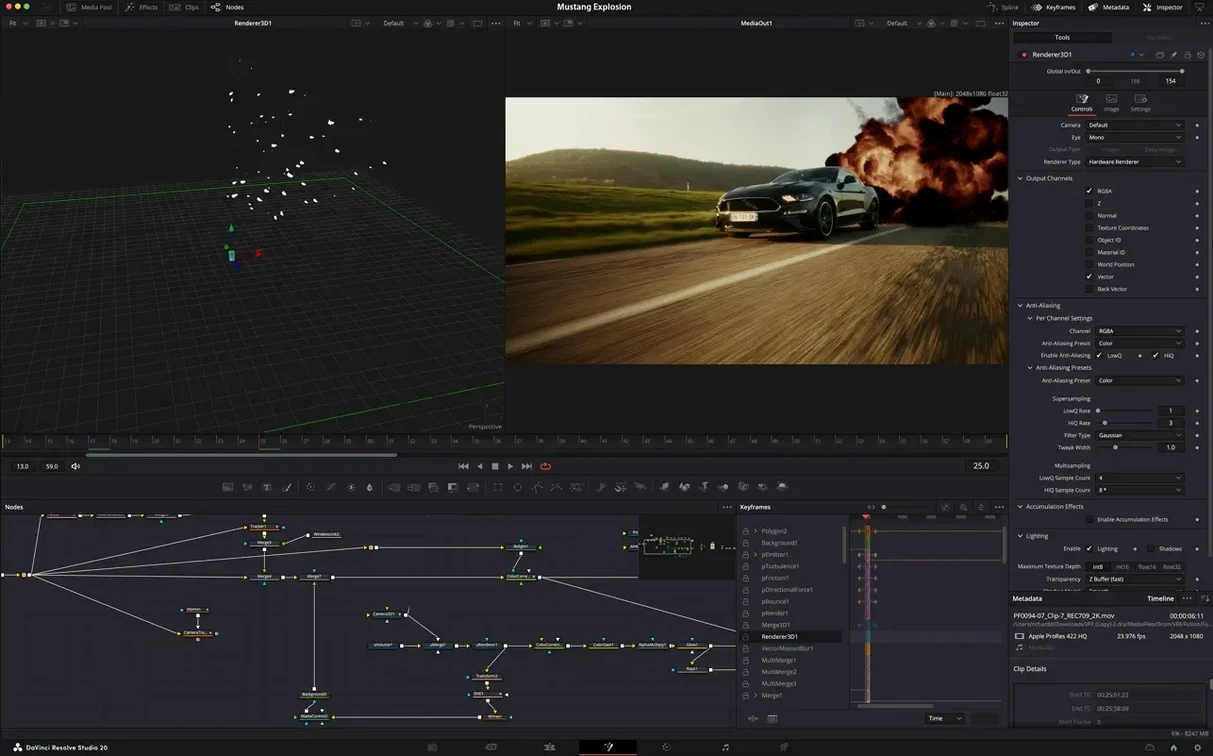
The 21.1 update isn't about reinventing the wheel. It gives you more of what already worked, with a handful of new tools that slot straight into a familiar workflow. Over 25 Krokodove graphics tools have been added, bringing extra nodes for motion graphics work inside Fusion. GPU-accelerated HTJ2K decoding is now handled by Kakadu, and hardware-accelerated HEIC decoding lands on Apple Silicon — both aimed at shaving time off media-heavy timelines. The Photo page also picks up expanded camera format support.
| Key detail | What you get |
|---|---|
| Version | 21.1 |
| Developer | Blackmagic Design |
| macOS | macOS 15 |
| Architecture | Intel and Apple Silicon |
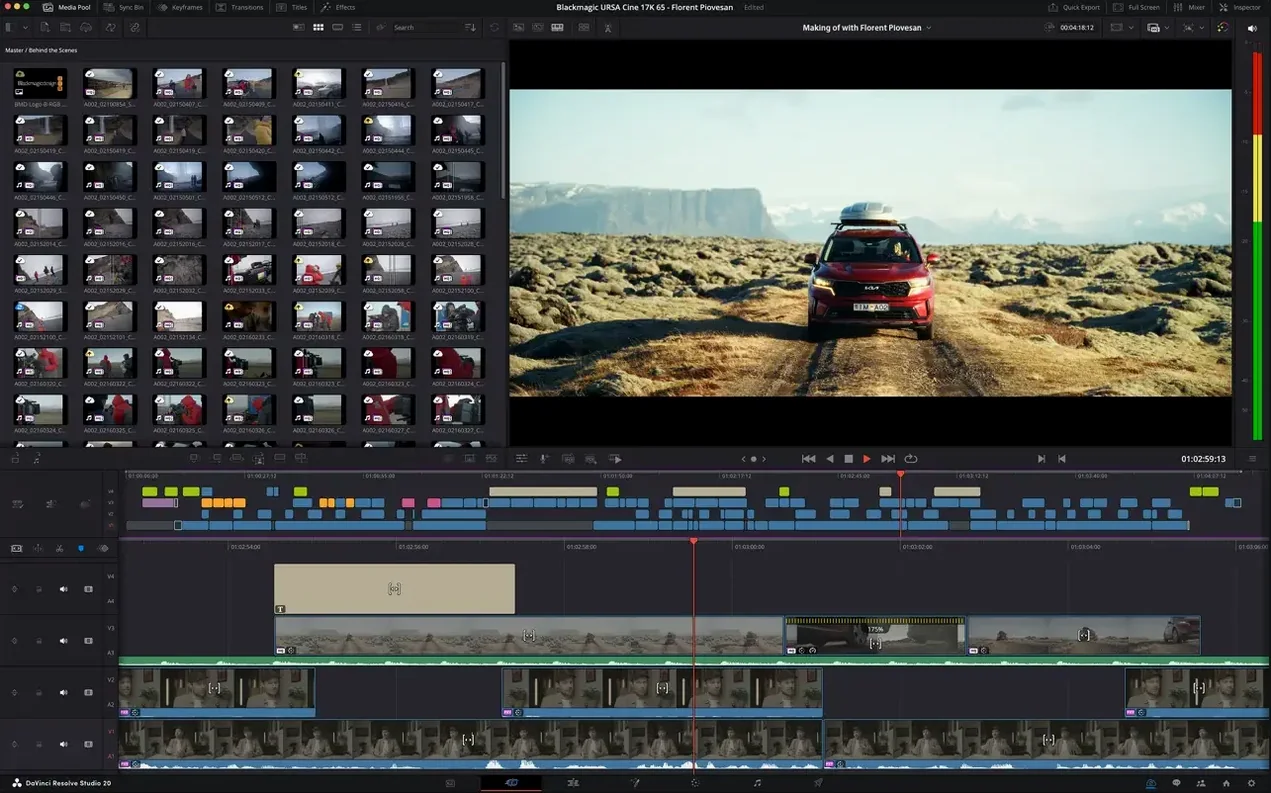
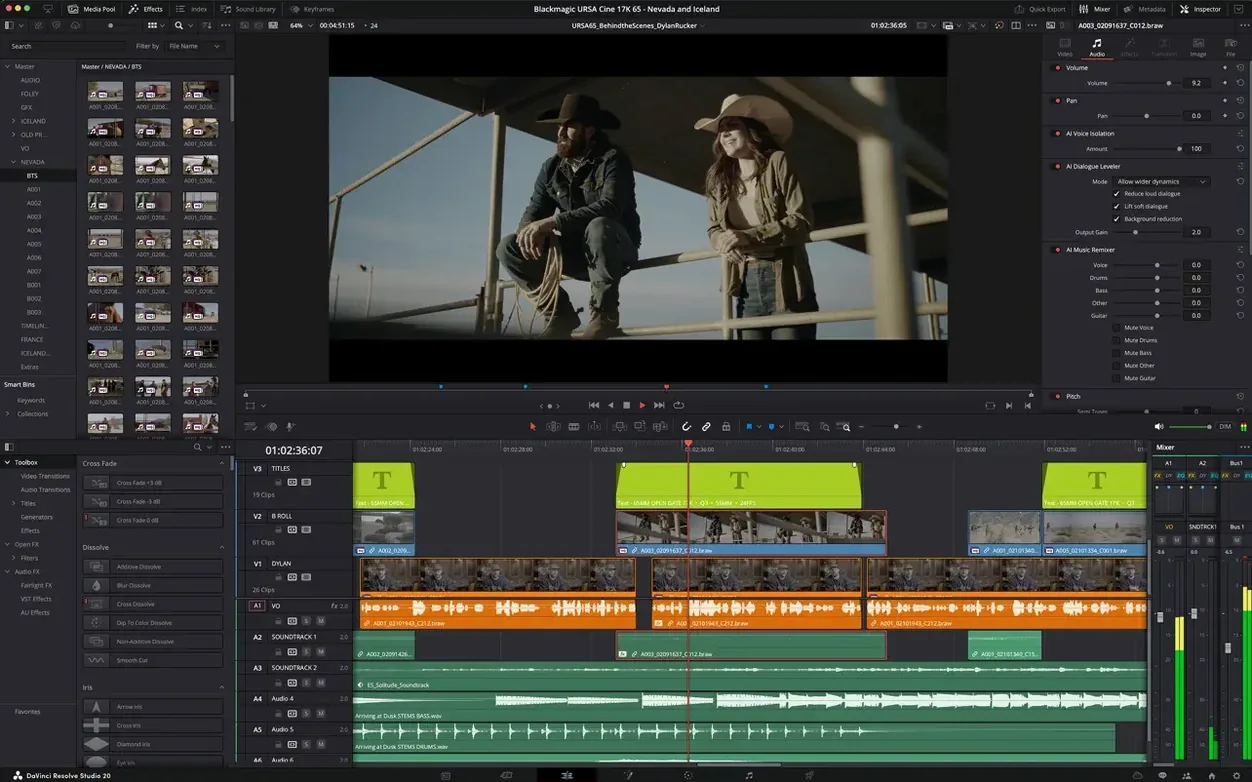
Everything else is what you'd expect from the Studio edition. Editing, colour correction, Fusion effects, Fairlight audio and delivery sit in one application, so you're not bouncing between separate programs. HDR grading tools are still there, along with the multi-user collaboration features the free version lacks.
Letting the AI assistant batch-render while you walk away
The AI assistant integration is the change you'll notice most on busy projects. Ask it to batch-render a folder of timelines while you step away, and it handles the queue without you babysitting progress bars. It also works for media organisation — point it at a messy bin of clips and it sorts by shot type or camera metadata faster than manual tagging ever did.
Those 25 Krokodove tools are Fusion-native nodes for motion graphics. If you build lower thirds or title sequences, you now have extra options for shape generation, particle trails and text deformation without reaching for a separate plugin. They feel like a direct response to editors who kept Fusion open only when absolutely necessary.
HEIC decoding on Apple Silicon means iPhone-shot stills and screen grabs drop onto the timeline with noticeably less stutter. On a large project with dozens of photos, the difference adds up. The HTJ2K acceleration is more niche, but if you work with cinema camera footage in that format, scrubbing is smoother and exports finish sooner.
The 100-plus editing and colour grading tweaks are smaller, cumulative things: a refined curve editor, smarter ripple delete behaviour, better keyframe interpolation defaults. You won't tick them off a list, but after a week you realise you're fighting the interface less.
Where Final Cut Pro stumbles on colour grading
Final Cut Pro. Apple's editor is faster to learn and more battery-friendly on a MacBook. Its magnetic timeline appeals if you assemble rough cuts quickly. Where it loses ground: colour grading tools are basic next to Resolve's node-based system, and Fusion-level compositing simply doesn't exist. You'll need Motion for anything beyond simple titles. Fairlight has no equivalent either — audio in Final Cut stays functional rather than precise.
Premiere Pro. Adobe's timeline feels closest to Resolve's Edit page in layout, and After Effects integration runs deeper than Fusion's standalone workflow. Premiere's strength is its plugin ecosystem and team-project cloud sync. The trade-off is render speed — Resolve's GPU acceleration is tighter, especially on Apple Silicon — and colour grading. Lumetri is fine for quick corrections; it's not a finishing suite.
Logic Pro (audio only). If your project is pure sound design or music mixing, Logic Pro offers more instruments, loops and MIDI editing depth than Fairlight. But you lose picture sync and all video tools. Fairlight inside Resolve is for audio post tied to picture — dialogue cleanup, ADR, mixing stems against a locked cut.
Where Resolve Studio pulls ahead is consolidation. One project file holds your edit, grade, mix and motion graphics. No round-tripping, no XML translation errors, no conform headaches when the client sends version three of a cut the night before delivery.
Handing off an AAF to a Pro Tools sound designer
Resolve talks to other software through industry formats rather than proprietary handshakes. Export an AAF for Pro Tools if a sound designer insists on it. Send an XML to a subtitle house without flattening your timeline. Open an exported EXR sequence in Blender for 3D compositing that goes beyond Fusion's scope.
The macOS colour management ties in cleanly. Resolve reads your display's colour profile on launch, and the viewer respects the system's reference mode on a MacBook Pro with XDR display. If you calibrate with an external probe, the app picks up the ICC profile without a separate LUT generation step.
QuickTime reference movies rendered from the Deliver page open natively in any Mac media player, which saves a step when a producer wants a preview file they can double-click. The Finder tags you add to project folders persist through renders — useful for marking approval states.
For stills and graphics workflows, round-trips with Affinity Photo or Photoshop work through TIFF or PSD export from the Color page. Grab a still, open it, retouch, save, and Resolve picks up the updated file if you've set the still duration to auto-refresh.
Middle-clicking a node to bypass it instantly
- Middle-click a node in the Color page to bypass it — faster than hunting for the tiny bypass button.
- Shift-scroll on any numerical field changes values in tenths. Option-scroll changes in hundredths. This works in the inspector, the colour wheels and Fairlight faders.
- The Cut page's source tape mode stacks all clips in a bin as one long reel. Double-tap the spacebar and it plays through everything — useful for stringout reviews.
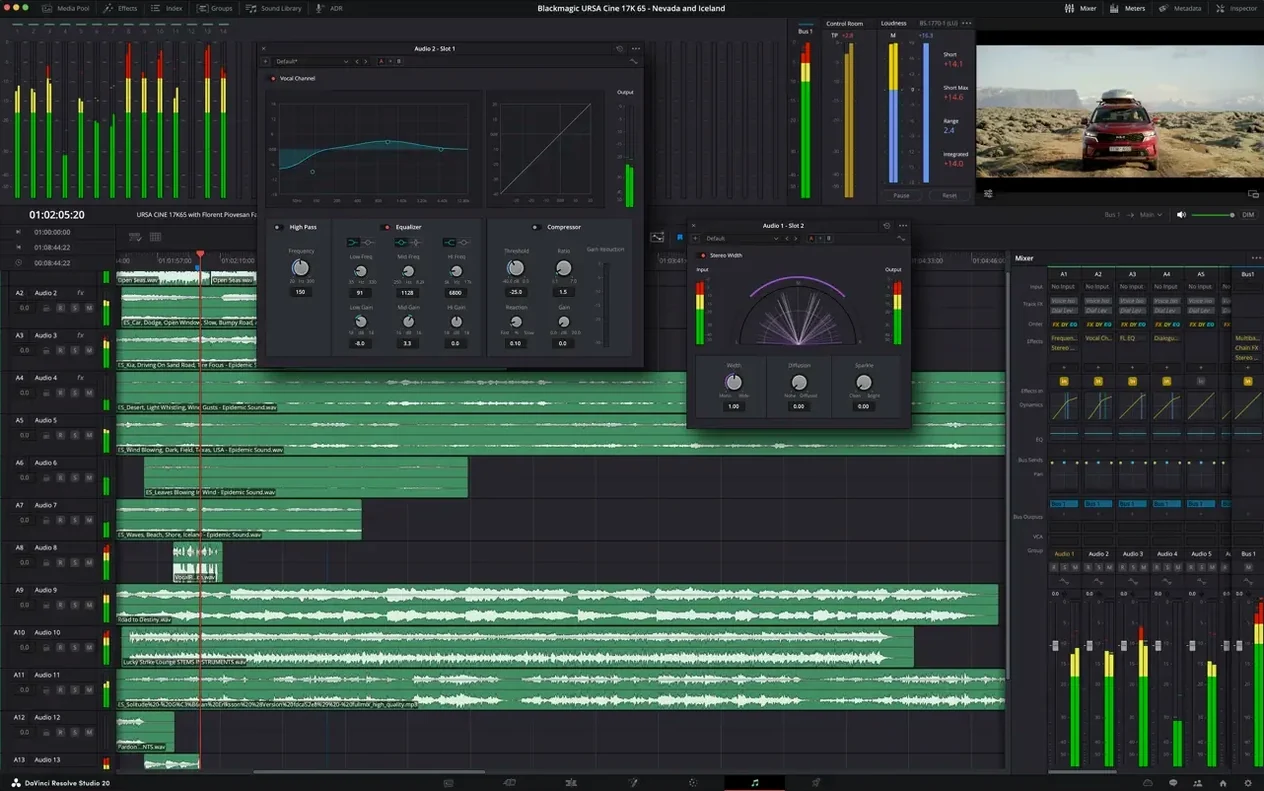
- Fairlight's loudness meter can stay docked while you edit picture. Right-click the meter and choose "float panel" to keep your LUFS readings visible across pages.
- On a Mac with a Touch Bar, Resolve shows page shortcuts that change with context. The Colour page shows gallery stills; Fairlight shows transport controls.
- Dragging a clip from the Finder directly onto the Media Pool's bin area imports it with the correct frame rate interpretation already applied — no import dialog needed.
- The
Cmd-Shift-Dshortcut on a selected clip in the timeline opens the duration dialog. Type a number in frames or seconds, hit enter, and the clip adjusts without ripple-trimming the rest of the edit.
A colour grading pass: start to finish
Say you have a short documentary interview locked on the Edit page. Three angles, mixed indoor lighting, shot on a Blackmagic Pocket Cinema Camera in BRAW. You need a consistent look across all three angles, plus a subtle grade that lifts the subject off the background.
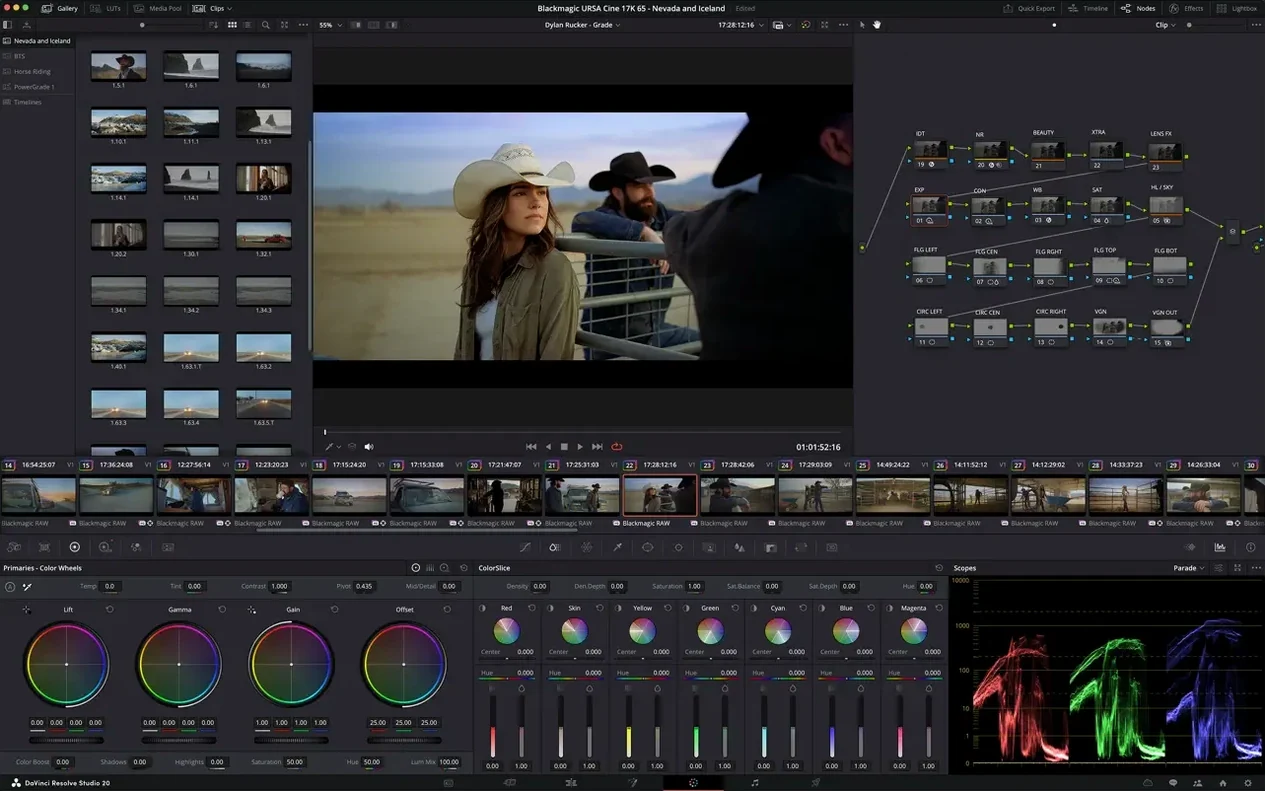
1. Switch to the Color page. In the Camera Raw tab, set Decode Quality to Full Res for the final pass, then adjust exposure and colour temperature on the first clip until skin tones read neutral on the vectorscope's skin-indicator line.
2. Add a serial node (Option-S). In the primary wheels, pull the lift down slightly and push the gain up half a stop. This gives the image a gentle S-curve without touching contrast manually.
3. Add another serial node. Use a power window — an ellipse around the subject's face — and track it forward. Lift the midtones inside the window by a quarter stop. Soften the edges enough that the change is invisible unless you toggle the node off. This is your subtle pop.
4. Right-click the clip thumbnail and choose "Save as still" to grab a reference. Move to the next angle. Right-click the still in the gallery and choose "Apply Grade". The nodes copy over. Adjust the power window position and tracking for the new framing, and tweak the Camera Raw tab if the second camera's sensor bias differs.
5. For the final look, add a timeline-level node at the top right of the node panel. This applies to every clip. Add a gentle teal-orange split using the colour wheels — push shadows toward teal, skin-tone midtones toward amber. Pull back the saturation slightly in the same node so the grade stays natural.
6. On the Deliver page, set format to ProRes 422 HQ, enable "Render at source resolution" and check "Disable edit and input sizing" for a clean master. Queue the job and let the AI assistant handle the render while you grab coffee.
Requirements
- macOS 15 or later
- Apple Silicon or Intel 64-bit processor
FAQ
Does DaVinci Resolve Studio 21.1 handle all post-production tasks?
Yes. It combines editing, colour correction, visual effects, motion graphics and audio post-production in a single Mac application.
Comments 0
Sign in or create an account to leave a comment.
No comments yet…
If you’ve installed it, say how it went. Mention your Mac and macOS version — it helps the next person more than you’d think.