
Scrivener for macOS
Description
Most word processors get twitchy once a document passes twenty pages. Scrivener was built for the opposite situation — books, scripts, theses and any project where you need to keep a hundred pieces of text in order without losing your mind. Version 3.5.2 runs on macOS 10.13 or later, natively on Apple silicon and Intel.
Good for:
- Breaking a long draft into manageable sections inside one project file.
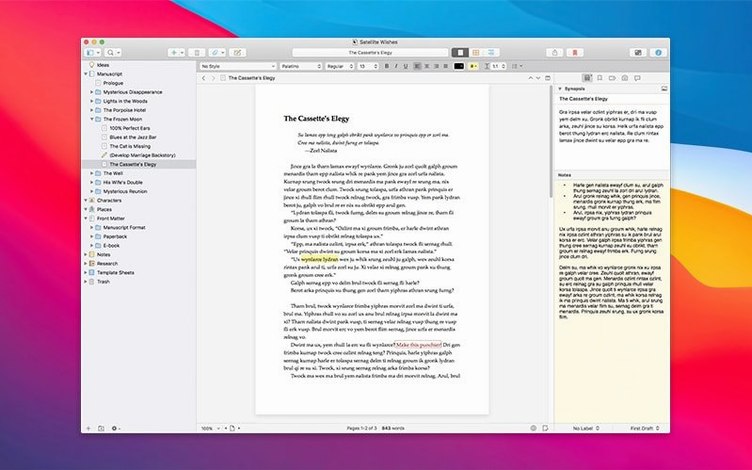
- Keeping research, notes and the manuscript itself in the same window — a Research folder comes with every new project.
- Experimenting without risk: snapshots let you freeze a document or a selected passage before you rewrite it.
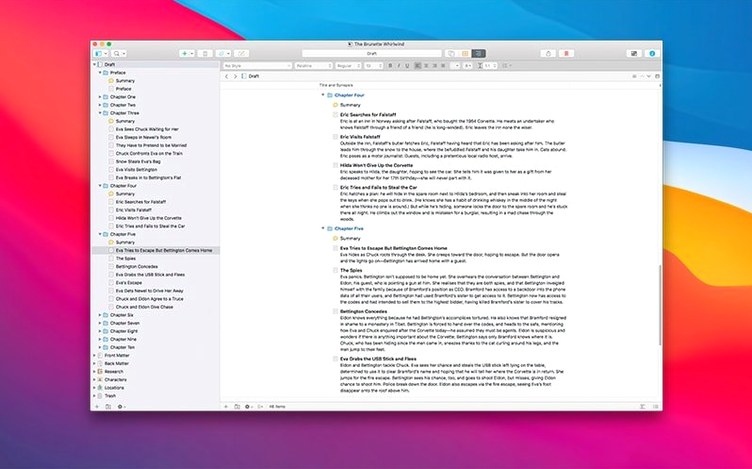
- Grouping chapters, scenes or ideas into folders that mirror your structure.
Keep in mind:
- Version 3.5.2 is a bug-fix release, so the toolset hasn't changed — it still works the same way it did in 3.5.
- The app expects you to actually organise things. It won't tidy up a messy project on its own.
Turn on centred typewriter scrolling before you draft
Scrivener ships with defaults that suit the developer, not you. A few minutes now saves real friction later.
Open Scrivener → Settings → Editing and turn on Typewriter scrolling. It keeps the line you're writing vertically centred instead of letting the cursor sink to the bottom of the pane. Small change, big difference for long sessions.
While you're in Editing, uncheck Show invisibles unless you actually want paragraph marks and spaces cluttering the screen. Most people don't.
Next, head to Settings → Corrections. Scrivener autocorrects by default, and some of its substitutions are peculiar. Scan the list and delete anything that would annoy you. The smart quotes toggle lives here too — leave it on for fiction, turn it off if you're writing code or markdown.
Under Settings → Backup, set automatic backups to run on project close rather than on open. Closing a project means you've just saved your work; that's the safest moment to make a copy. Change the backup location to a folder you can find without digging — your Documents folder, for instance, not the buried default.
Finally, tick Use label colour in binder under View → Binder Options. Colour-coded rows in the sidebar make chapter status visible at a glance: red for draft, green for revised, whatever system you prefer. You set the labels per document in the inspector.
A first workflow: drafting a chapter with research at hand
Here's a concrete way to work, start to finish, that uses the tools Scrivener actually gives you rather than fighting them.
- Create a new project from the Blank template. You get a Draft folder, a Research folder and a Trash folder. Leave them. Right-click Draft, choose Add → New Folder and name it Chapter 1.
- Right-click the Chapter 1 folder and add three new text documents: Scene 1, Scene 2 and Notes. You now have a structure visible in the binder.
- Drag a PDF, a web archive or a few images into the Research folder. Drag an image onto Scene 1's icon in the binder — it becomes a synopsis picture for that scene, visible in the inspector.
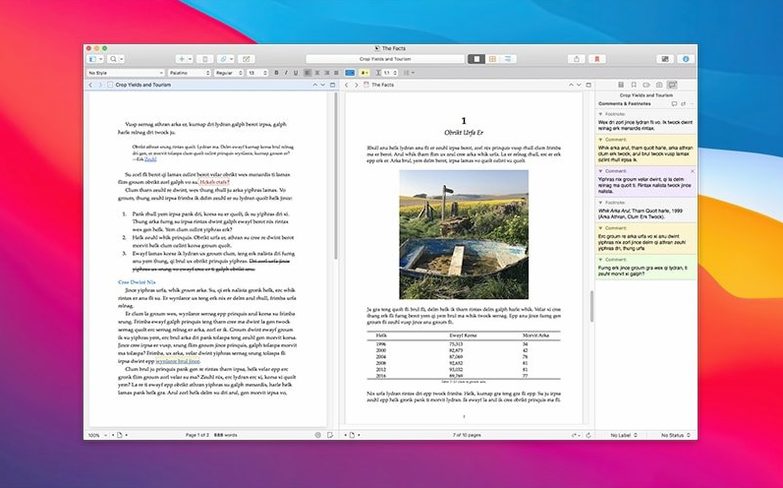
- Select Scene 1 and press Cmd-Opt-1 to open the editor and inspector side by side. Write in the main editor. Keep the inspector's synopsis card visible so you can type a three-line summary of the scene as you go — useful later when you're rearranging.
- When you need to check a fact from the PDF, click the Research folder entry in the binder. The PDF opens in the same editor space. Click back to Scene 1 when you're done. No window switching.
- Before you rewrite a paragraph you're unsure about, select it and choose Documents → Snapshots → Take Snapshot of Selection (or hit the shortcut you'll want to set — it ships unbound). Name the snapshot before revision. Now hack away. If the new version flops, roll back in the Snapshots inspector.
- At the end of the session, close the project. Scrivener auto-saves everything and, if you followed the backup setting above, writes a dated zip to your backup folder.
That workflow uses about a third of Scrivener's features and handles ninety percent of real-world drafting. The rest you learn when you need it — not before.
Drag scenes between folders without breaking anything
The binder is a file tree, not a pretty library. Drag things around freely. If a scene belongs in Chapter 2 now, move it. If a folder needs to become a document, right-click and convert it. The binder never punishes you for changing your mind, which is the point.
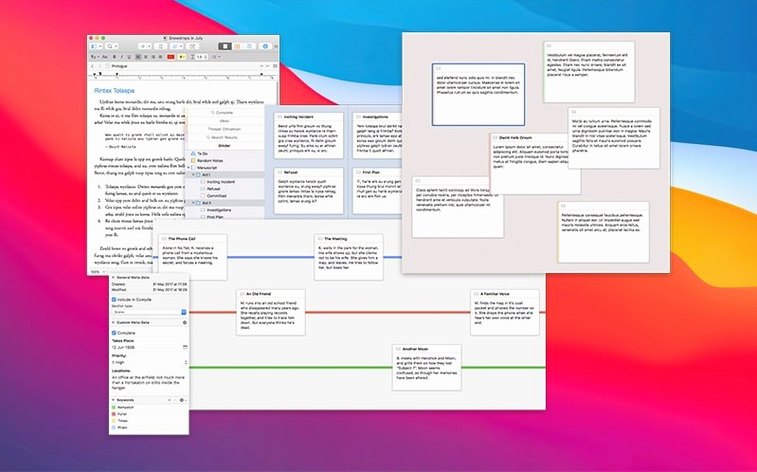
Resist the urge to use every feature at once. Start with three folders in Draft, one document in each, and a handful of PDFs in Research. Learn the Cmd-1 through Cmd-5 view shortcuts so you can switch between single-document, split-pane and corkboard views without hunting through menus. The corkboard (Cmd-2 on a folder) shows synopsis cards for each child document, and it's the quickest way to reorder scenes by dragging cards left to right.
If you're importing a long manuscript from Word, split it at logical breaks using Documents → Split → at Selection rather than scrolling through one endless file. Put the cursor where you want the cut, run the command, and Scrivener creates a new child document from everything after that point. Repeat until the binder holds manageable chunks.
Don't ignore the Project → Project Targets panel. Set a word-count goal for the draft and a session target for the day. A small progress bar in the bottom-right corner of the window tracks session words; it's oddly motivating.
If you search for a scrivener mac download and end up here, remember that version 3.5.2 is the latest bug-fix release — it doesn't add tools, it just makes the existing ones behave better. The same workflow works whether you grabbed this build or the earlier 3.5.
What’s new
Fixes a handful of bugs reported in the previous release. No new features.
Requirements
- macOS 10.13 or later
- Works on Intel and Apple Silicon Macs
Comments 0
Sign in or create an account to leave a comment.
No comments yet…
If you’ve installed it, say how it went. Mention your Mac and macOS version — it helps the next person more than you’d think.