Capture One for macOS
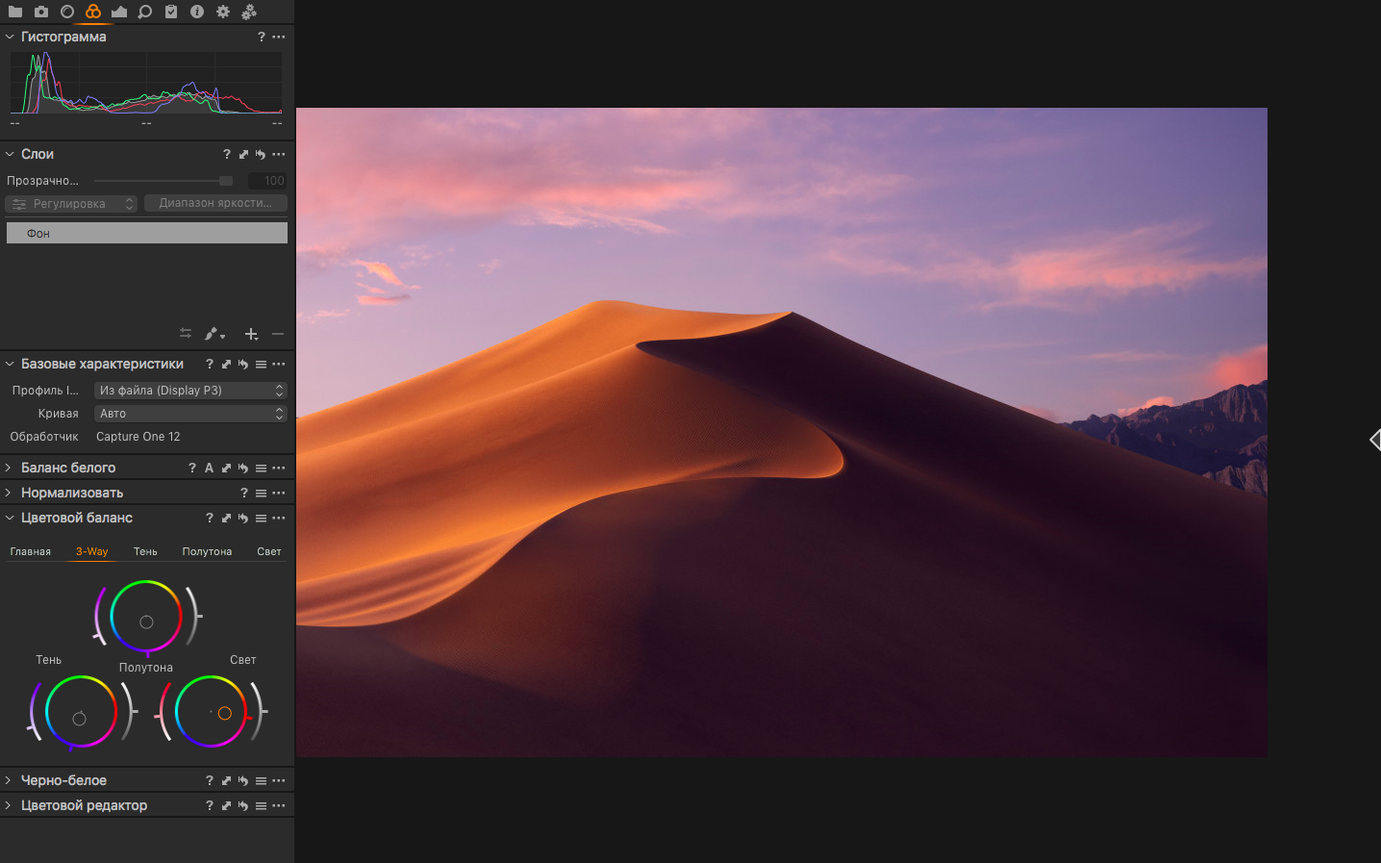
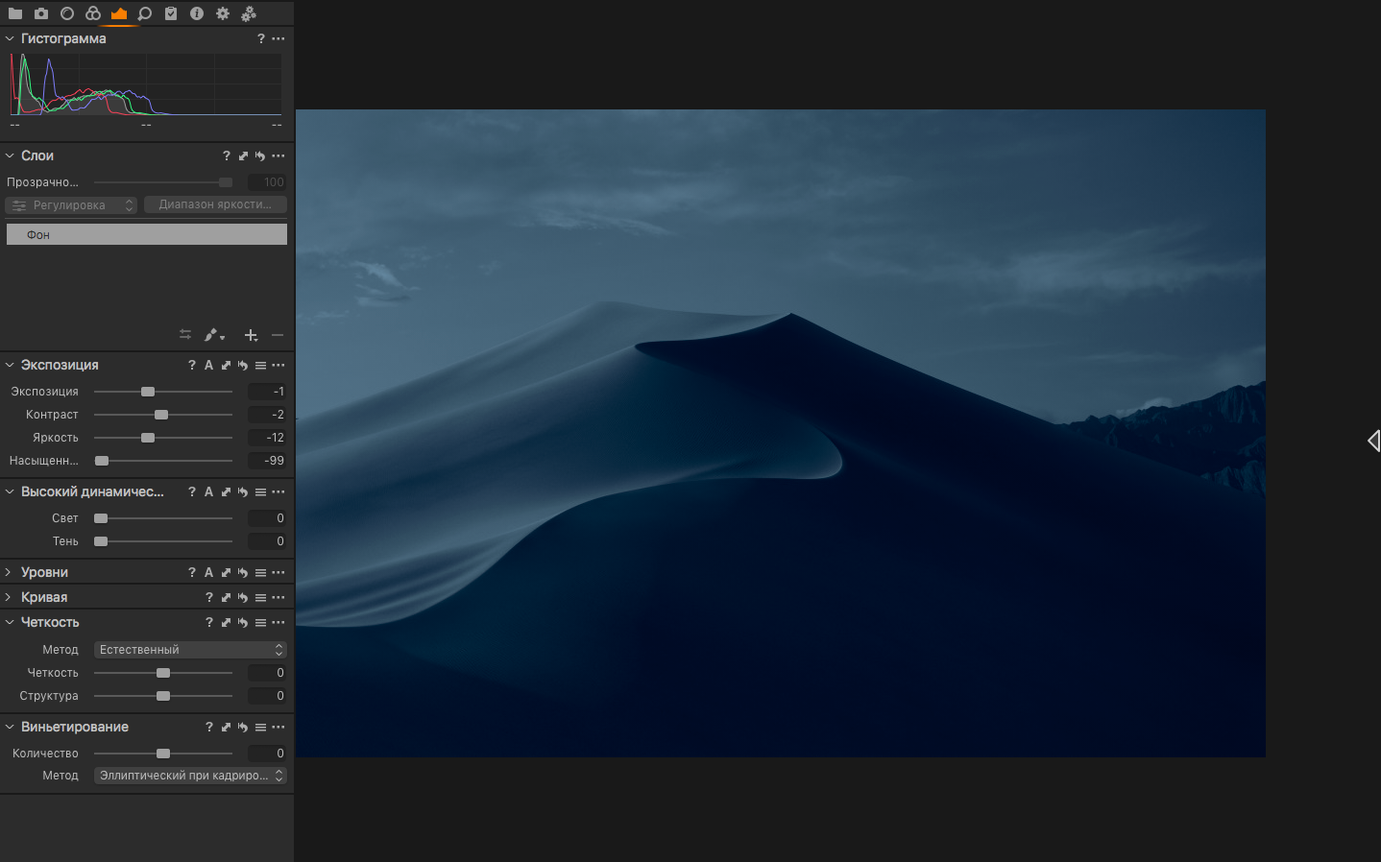
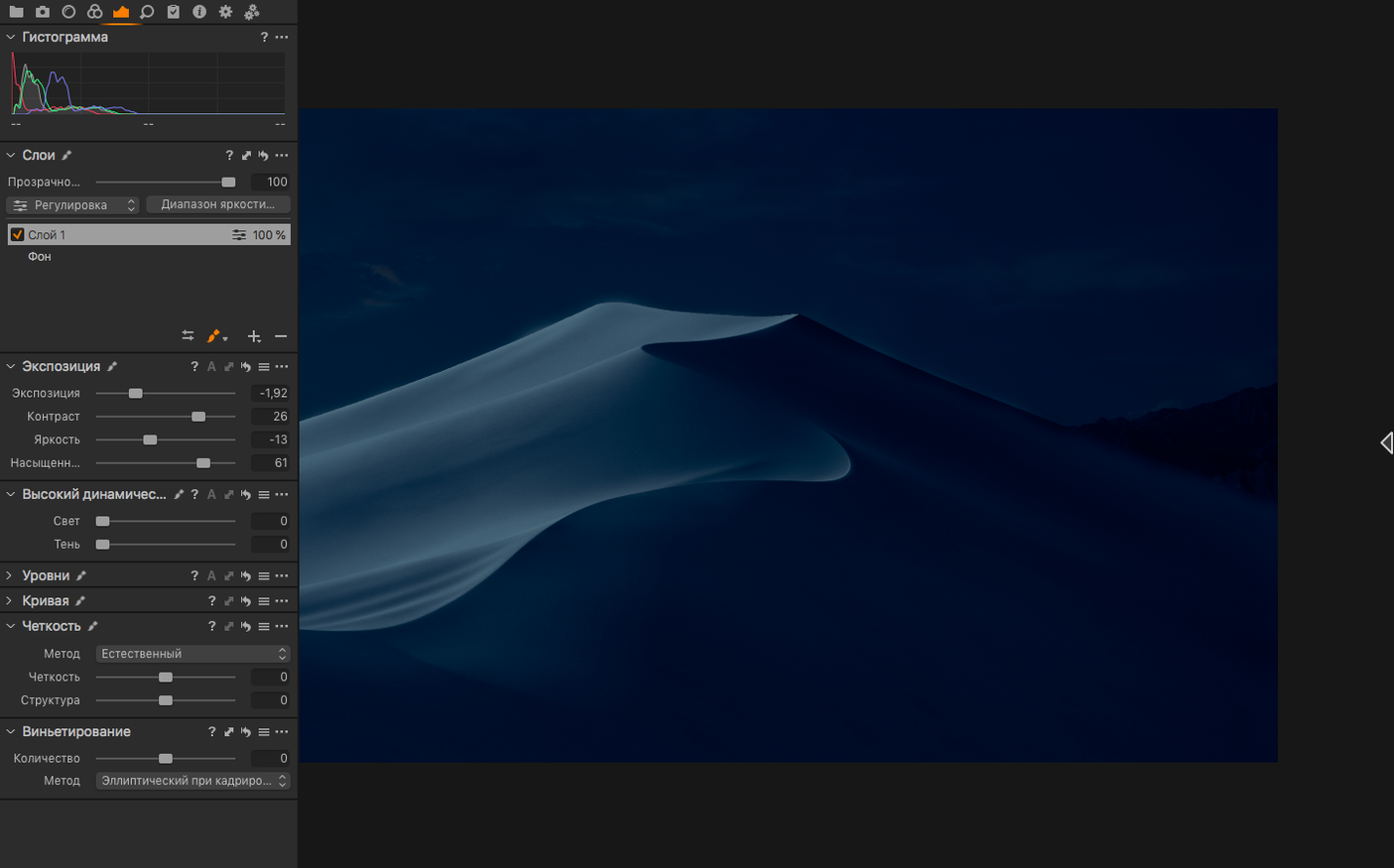
Description
Capture One is Phase One's desktop workhorse for tethered shooting, colour grading and RAW processing.
It demands macOS 12 or newer and runs natively on both Intel and Apple Silicon. If your Mac meets those basics, here's what you get from the latest build.
From card to contact sheet
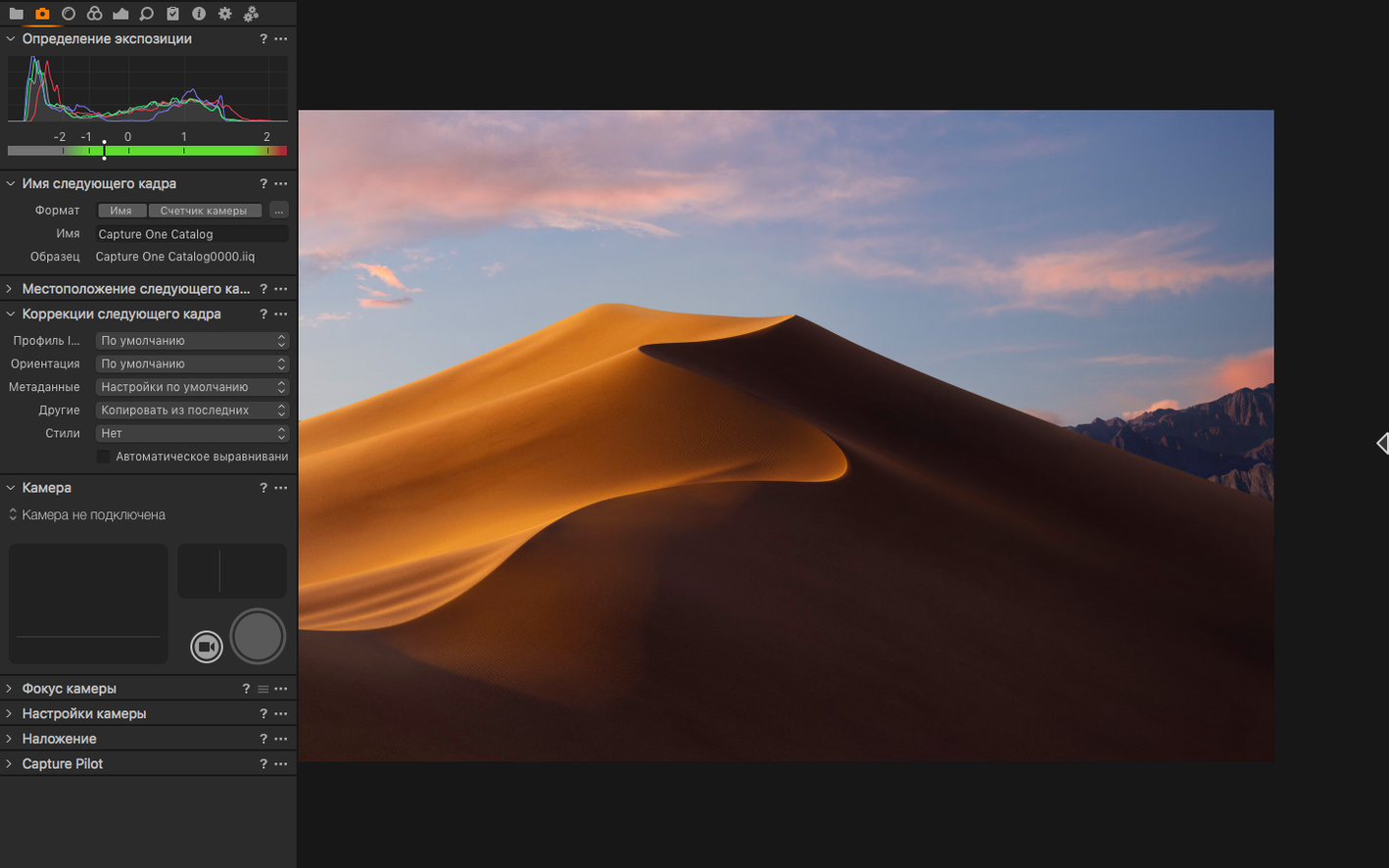
- Tether or import. The wireless tethering improvements in 16.8 make a real difference on location. Files land straight into a session.
- Set the white point. Grab the white balance eyedropper, click a neutral grey patch, and the colour temperature and tint sliders snap into place. One click usually beats manual sliders.
- Rescue the exposure. Pull back blown highlights or lift blocked shadows. The engine handles overexposed and underexposed frames better than most.
- Clean up noise. The enhanced denoise added in 16.8 is worth running before you sharpen. It holds onto texture surprisingly well.
- Cull with contact sheets. The new contact sheet layout lets you print or PDF a shoot quickly. Useful for client selects.
- Export. Convert single images or batches on the fly. Full-size TIFF in RGB or CMYK, or JPG for web.
Assisted review speeds up culling further, and the plug-in portal extends the tool with third-party helpers. Worth it if you need colour precision and reliable tethering on a Mac that's still current.
Lightroom wins on catalog muscle, not raw conversion
Three names come up every time someone asks about Capture One alternatives: Lightroom Classic, DxO PhotoLab, and RawTherapee. They overlap, but they don't compete on the same things.
Lightroom Classic wins on catalog muscle and the sheer volume of tutorials out there. Its healing brush and content-aware remove are ahead of Capture One's spot removal. The mobile sync is useful if you edit on an iPad halfway through a shoot. But its default RAW conversions look flatter. Capture One pulls more colour separation out of the same file without touching a slider. Tethering in Lightroom works, but it lags more often and gives you fewer camera controls. If you tether every day, the gap is real.
DxO PhotoLab has the best automatic lens corrections and its DeepPRIME denoising is still the benchmark for high-ISO shots. No catalog — it browses folders directly — which keeps things fast. But it has no tethering at all, no sessions, and its local adjustments are clunkier. It suits a landscape or wildlife photographer who processes one card at a time. Studio shooters will miss too much.
RawTherapee is open-source and surprisingly deep once you dig into its demosaicing options. The highlight reconstruction on some sensors is excellent. But the interface is a maze of technical sliders, and there is no official tethering support. It rewards patience; it punishes tight deadlines.
Capture One sits where colour accuracy, tethering speed and batch output meet. Sessions keep each job self-contained. The learning curve is steeper than Lightroom's, but the first hour of editing feels faster once it clicks.
A product photographer's first session
Imagine a product photographer shooting a new ceramic mug range for a small brand. Thirty mugs, three angles each. The camera — a mid-range Canon — is tethered via USB-C. Each shot lands directly into a Capture One session folder labelled by SKU.
White balance gets set once from a grey card under the studio strobes. That single eyedropper click saves twenty minutes of eyeballing colour casts later. The photographer then creates a correction variant for the first mug, lifts the shadows under the handle, and applies a slight clarity bump. Those adjustments get copied to all thirty variants. Each image still points back to its own RAW file, so cropping for a tall mug doesn't affect a short one.
By the time the client arrives to review, contact sheets are already printed straight from the session. The client circles three hero shots, and the photographer exports full-size CMYK TIFFs for the print catalogue and sRGB JPGs for the web shop — all from the same batch queue. No round-tripping, no file mismatches.
Switch from Auto curve to see what your files actually look like
- Base Characteristics curve. Capture One defaults to "Auto" which applies a contrast curve it thinks suits your camera. Switch it to "Linear Response" while you learn what your files actually look like, or pick "Film Standard" for a gentler starting point.
- Preview size. Go to Preferences > General and set preview size to 3840 px if you work on a 4K display. The default is smaller and masks softness.
- Auto select adjustments. In Preferences > General, turn off "Auto select" for the adjustments clipboard. It stops you from accidentally pasting settings when you meant to copy.
- OpenCL/GPU acceleration. Under Preferences > General, toggle hardware acceleration and restart. On some Macs it helps; on others it causes artefacts. Try both for a day each and keep the setting that stays stable.
- Next Capture Naming. Under the Capture tool tab, set your naming template before the first shutter click. Changing it later is a headache.
First days with Capture One — practical moves
Pick one shoot and stay inside a session, not a catalog. Sessions keep everything portable and stop you from accidentally linking to a database that might not open on another Mac. Learn sessions first. Catalogs can wait.
Set the viewer background to medium grey. The default dark theme looks slick but skews your perception of contrast. Right-click the viewer background and pick a neutral grey. Your exposure edits will be more consistent.
Use the Levels tool, not the Exposure slider, to set black and white points. The histogram in Levels shows you exactly where clipping starts. Exposure is fine for broad shifts, but Levels gives you a clamp.
Create a user style after your first successful edit — even a basic one with sharpening, clarity and a curve. Apply it on import. It won't suit every shot, but it sets a baseline you can tweak, which is faster than starting from zero each time.
Before you export anything for a client, check the recipe's "Open With" field. It's easy to overlook and it can silently route images to another application after export. Clear it unless you want that behaviour.
Finally, run the enhanced denoise on every high-ISO frame before you sharpen. The order matters. Sharpening early amplifies noise that the denoiser then has to work harder to remove. The 16.8 denoise does cleaner work when it gets first look at the RAW data.
What’s new
- Adds enhanced denoise for cleaner high-ISO files.
- Adds assisted review to speed up culling.
- Adds new contact sheet layouts for client selects.
Requirements
- macOS 12 or later
- Intel or Apple Silicon Mac
FAQ
What macOS does Capture One 16.8.6.25 need?
It requires macOS 12 (Monterey) or later and runs natively on Intel and Apple Silicon Macs.
Can I adjust white balance without guessing?
Yes. You can click a neutral grey point in the image with the eyedropper, or use the colour temperature and tint sliders manually.
What export formats does it support?
It exports to full-size TIFF in RGB or CMYK and to JPG, with single-image and batch conversion available.
Comments 0
Sign in or create an account to leave a comment.
No comments yet…
If you’ve installed it, say how it went. Mention your Mac and macOS version — it helps the next person more than you’d think.