Things for macOS

Description
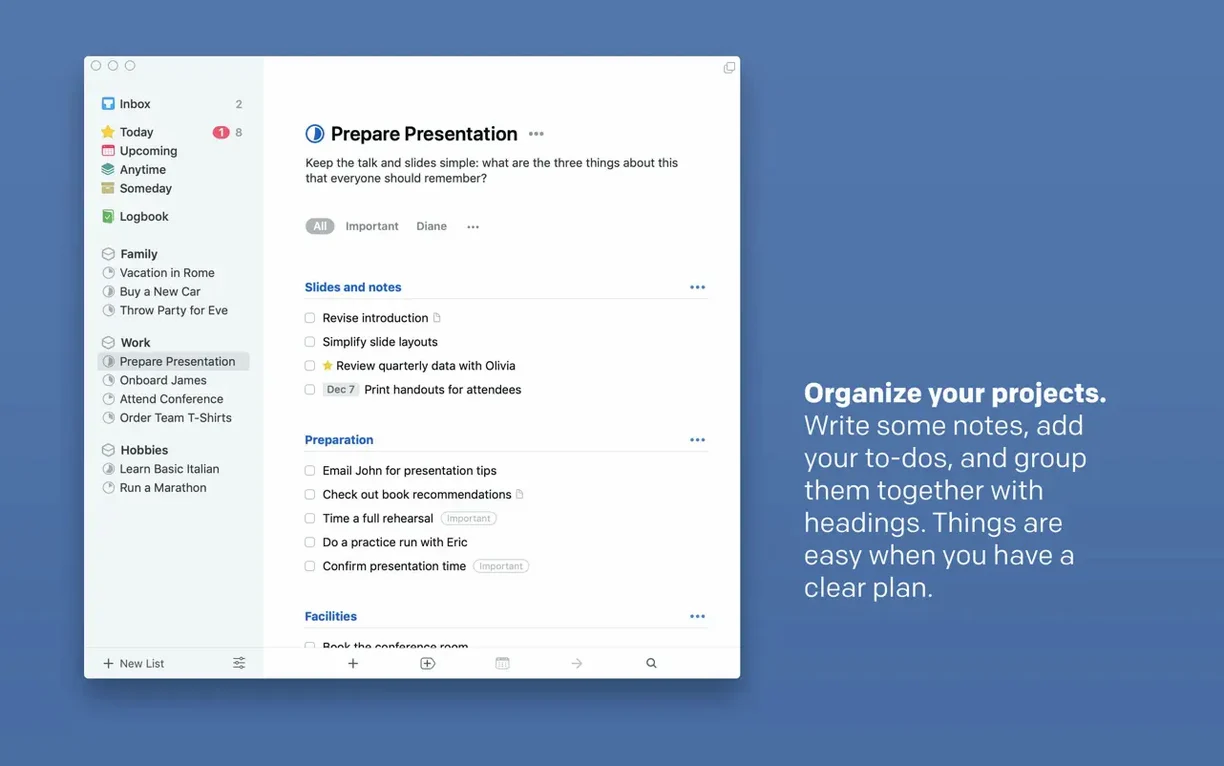
If you've ever lined up projects in Apple Reminders and wished the calendar had a view that didn't feel bolted on, Things has been that next step for years. It's a task manager that shows your calendar events and to-dos in one list without pretending to be anything else.
What you see
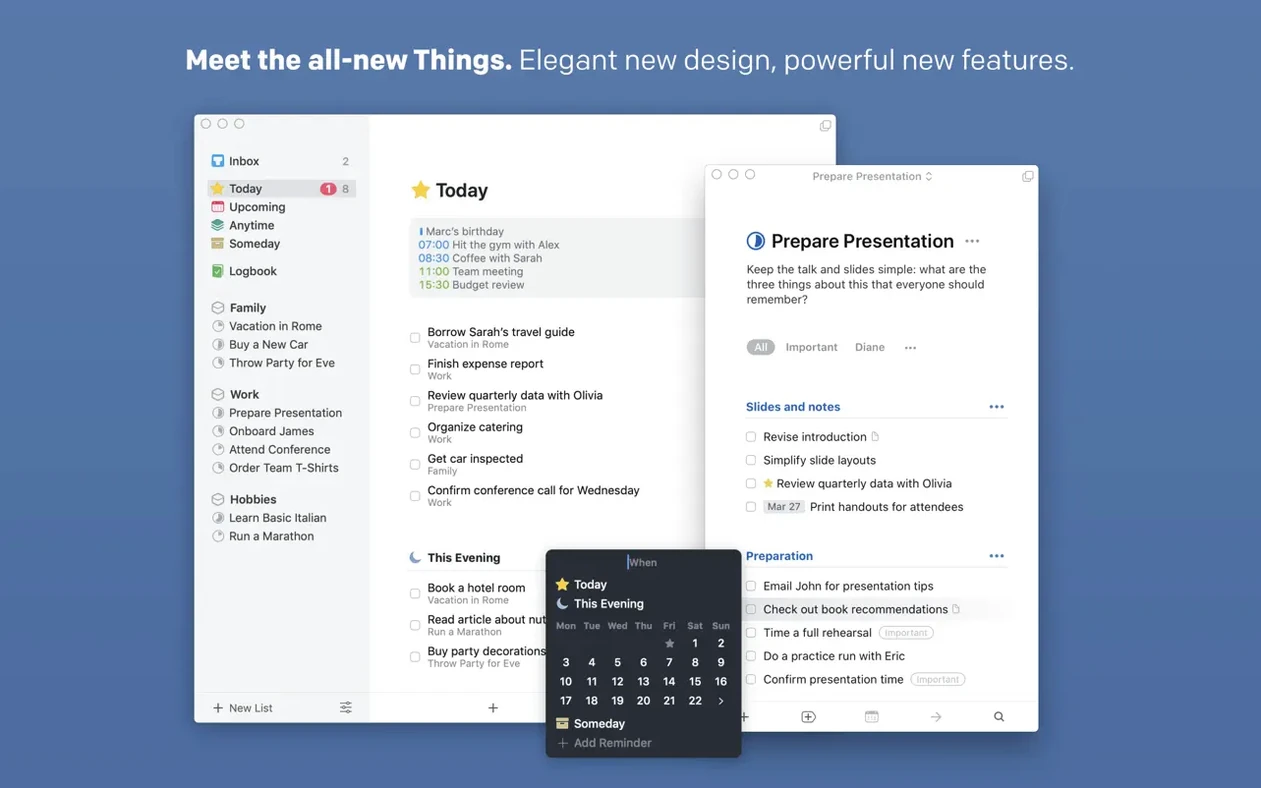
The new extra-tall widget means a longer glance at your day without opening the app. Calendar events sit beside tasks in the same list, so you aren't switching between two tools to see what's next.
When you snooze
Version 3.24 improved the snooze options. Pick a morning, afternoon, or evening slot—or a custom date—and the task disappears until then. It's the same quick-entry shortcut from any app that drops an idea into the inbox without breaking your flow.
How it connects
Full Spotlight integration means a task search from the menu bar finds what's due. Support for the new Siri AI on OS 27 lets you add or check items by voice. Under the hood, AppleScript and Handoff still work, Share actions are there, and the Touch Bar gets its few buttons if you're on a machine that has one.
Borrows your Calendar events and Reminders, no silo required
Things sits neatly between Apple's own apps. Calendar events flow in from the system calendar, not from a proprietary silo. Mail drops tasks into the inbox via the Share sheet or a quick drag from a message. Reminders can be imported wholesale if you're migrating, though the two don't sync live — it's a one-way move. Shortcuts on macOS picks up the same quick-entry action you'd trigger from the keyboard, so an automation that appends a daily weather-check task works without fuss.
The Things Cloud sync is quiet and stubborn about staying current. Handoff a task list from Mac to iPad and the cursor position follows. That sounds like a small thing until you're mid-edit and need to walk away from the desk.
Small things that help
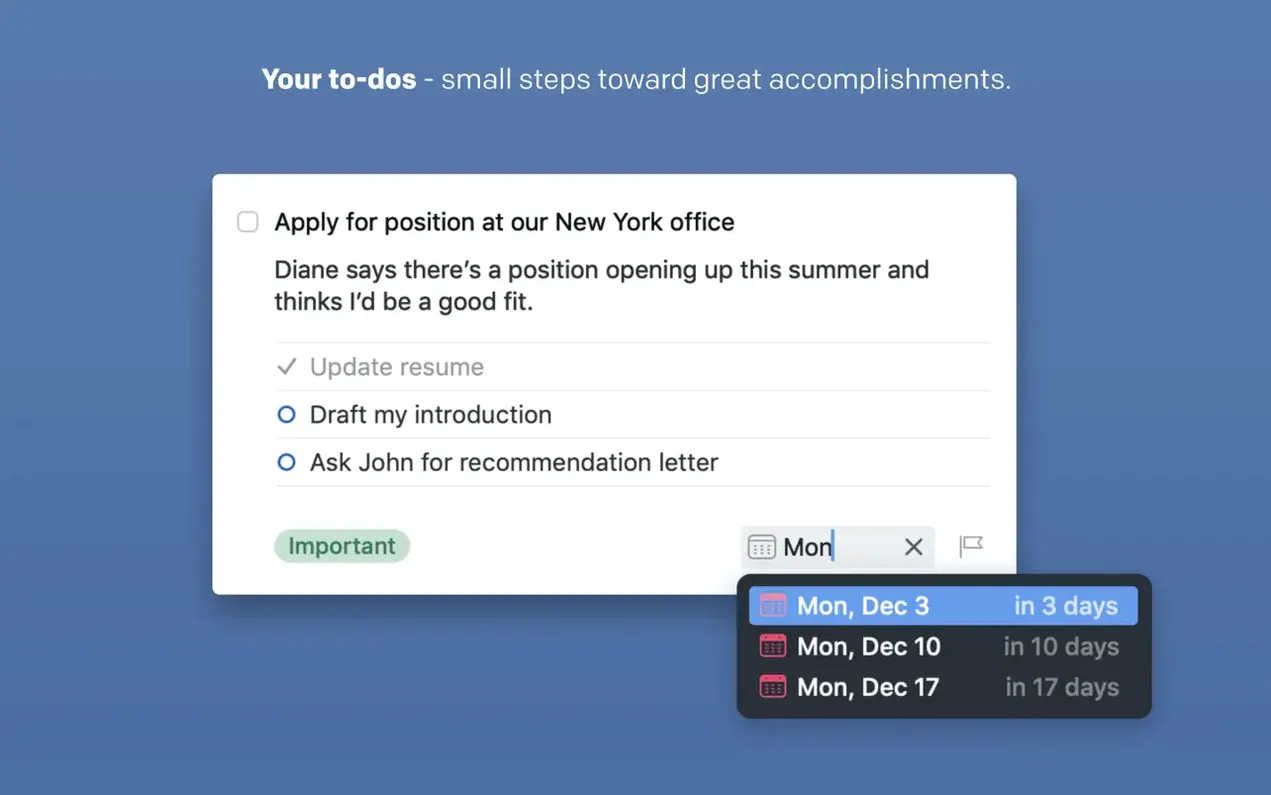
A few conveniences hide behind the clean interface. Type a date naturally — "wed 4pm" or "next tuesday" — and the parser sets the deadline without a date-picker dance. Swipe right on a task in the Today list to mark it done; swipe left to set a when date. The logbook keeps completed tasks searchable instead of vanishing them, so a project wrap-up six months later can pull what you actually did.
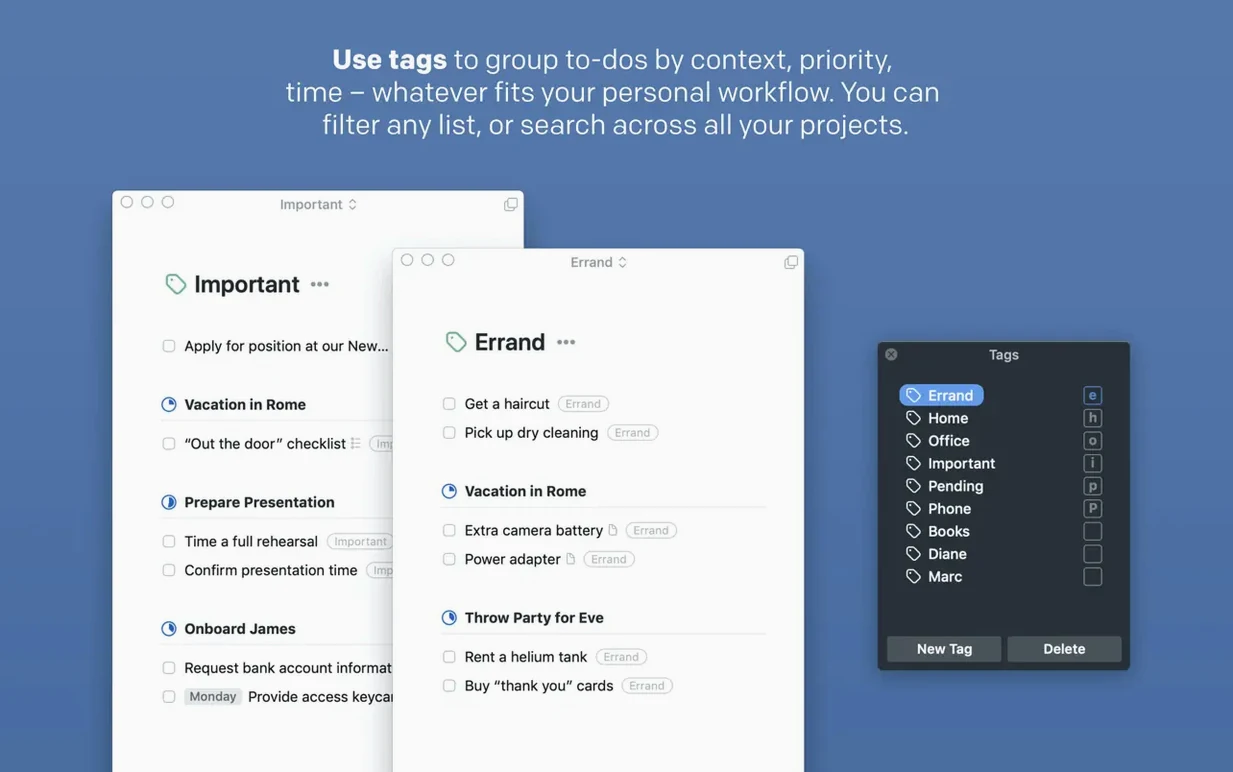
The tag system stays out of your way. Tags don't clutter the sidebar; they appear in a filter bar only when you need them. Combine "errand" and "phone" to surface calls you owe people while you're in the car. The same filter works across areas and projects, which means one saved search covers a lot of ground.
Cold launch under a second on Apple Silicon
The app launches cold in under a second on Apple Silicon and stays responsive even with a few hundred tasks across a dozen projects. Memory use tends to hover around 120 MB on recent versions — modest for an Electron-free app that syncs continuously. I've yet to see a beach ball from Things itself, though Spotlight indexing can spike briefly after the first 3.24 launch while it builds its local cache.
The new extra-tall widget updates without the lag that plagued earlier Notification Center entries. That alone makes the morning checklist glanceable before the first coffee. Keyboard navigation through projects uses standard Mac conventions — arrow keys, Return to drill in, Escape to back out — so it never fights muscle memory.
What’s new
Fixes and improvements for Things 3, keeping the task manager running smoothly on macOS.
Requirements
- macOS 10.15 or later
- Apple Silicon and Intel 64-bit
FAQ
Does Things 3.24 work with the new Siri AI?
Yes, the 3.24 update added support for the new Siri AI on OS 27 for adding and checking tasks by voice.
Can I see my calendar inside Things?
It can show calendar events and Things tasks together in a single list, so your day is in one place.
Do I need an account?
Only for sync. That needs a free Things Cloud account.
Comments 0
Sign in or create an account to leave a comment.
No comments yet…
If you’ve installed it, say how it went. Mention your Mac and macOS version — it helps the next person more than you’d think.