Typora for macOS
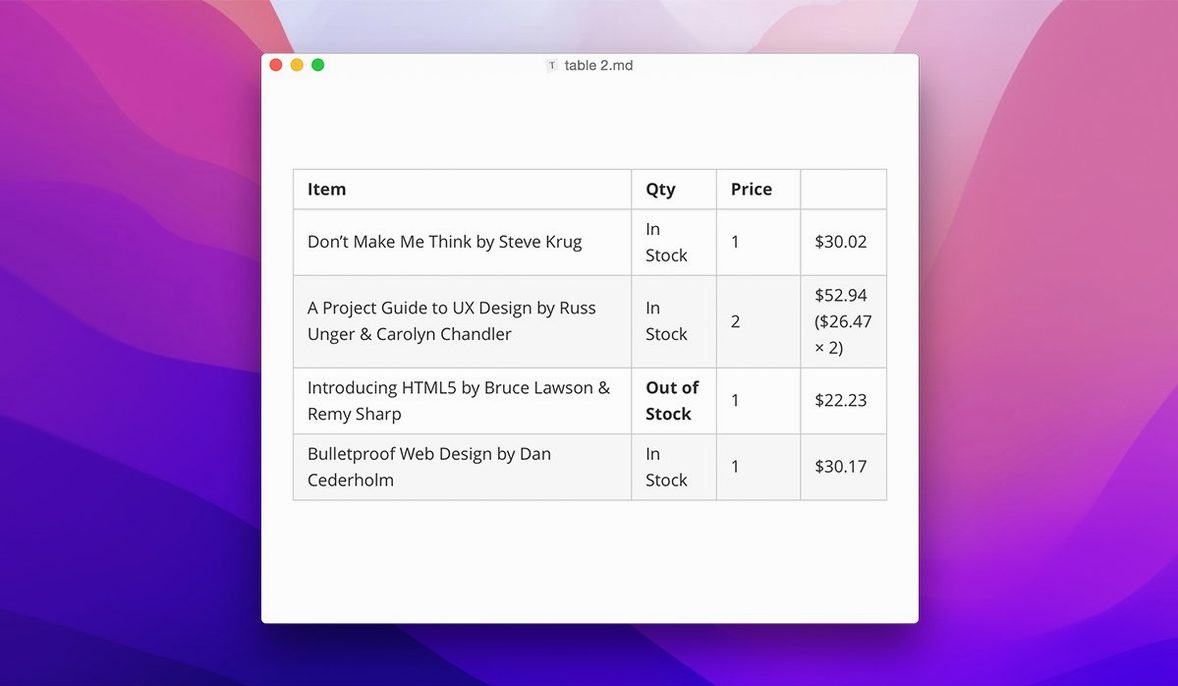
Description
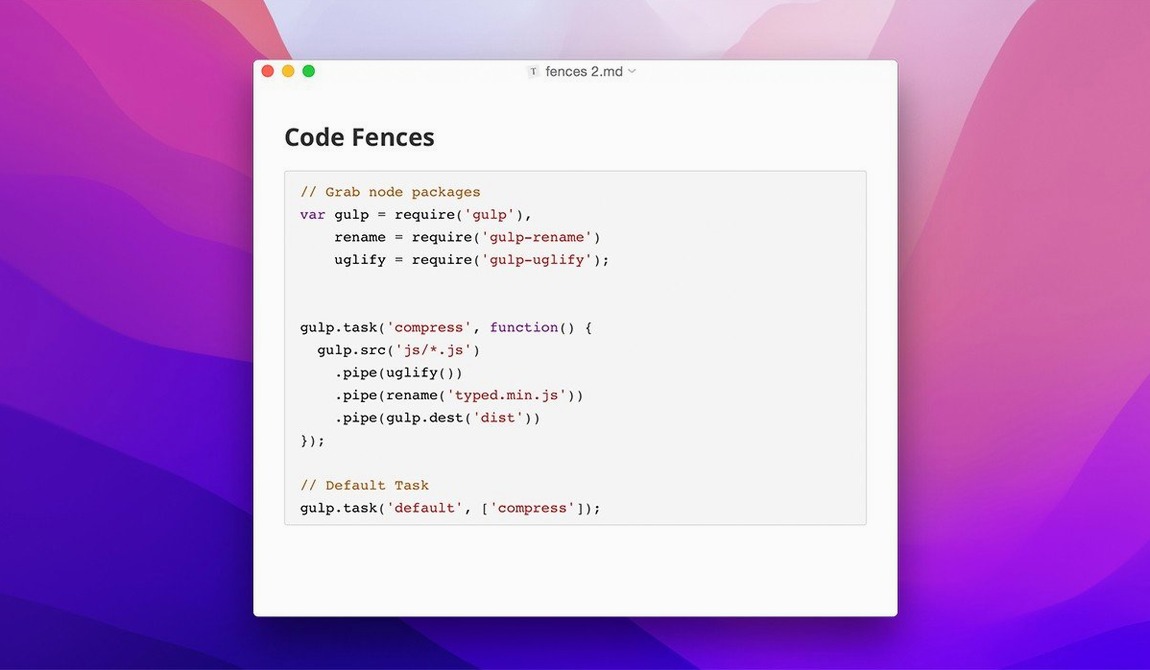
Students drafting lecture notes, developers assembling README files, and writers who resent fiddling with preview panes all end up here. Typora strips away the mode switcher, the markup symbols, and the second window that most Markdown editors force on you. What you type looks like the finished document, live.
Start with the sidebar
Open the file tree from the View menu. Version 1.14 added keyboard arrows for moving through it, plus a setting to show non-Markdown files. Drag a folder of notes onto the window and you can jump between chapters without touching the mouse. Right-click the sidebar for context-menu settings that arrived in the same update—handy for quickly switching the sort order or revealing a file in Finder.
Write and export without leaving the page
Pick a heading style from the paragraph menu and keep typing. No source markers flash at you, no separate preview tab needs syncing. When you need a copy for someone who lives in Word or wants a PDF, use File → Export. The pandoc export fix in 1.14.10 means source-mode exports now behave. The welcome panel no longer clips its content either, so the first-run experience matches the rest of the app: clean and complete.
Set as default for .md and still get Quick Look
Typora behaves like a native Mac citizen, not an Electron intruder. You can set it as the default app for .md, .markdown and .txt files from Finder’s Get Info panel, and Quick Look will still preview the raw text. Spotlight finds headings and body text inside your notes as soon as the file is saved—handy six months later when you only remember a phrase.
The editor talks to Shortcuts. Drop a “Open File” action into a workflow, point it at a daily log, and Typora opens to your last cursor position. If you use a launcher like Alfred or Raycast, the file-tree sidebar mirrors what you see in the Finder, so opening a project folder in one feels the same as the other.
Versioning plays nicely with iCloud Drive and any sync folder. Save conflicts appear as duplicates in the sidebar instead of silently overwriting work. If you keep a themes folder in Application Support, custom CSS loads on launch—no compile step, no restart needed. People pulling a typora mac setup often overlook how deep that theme hook goes: you can style the export output independently of the editing view with a second CSS file.
Runs fully offline with no account needed
Does it work offline? Yes. The whole editor runs locally. No account, no cloud service, no calls home. If you search typora tnt you already know the activation story; the app itself is self-contained and quiet on the network.
Will it break my existing Markdown? No. Typora saves plain .md files. Open one in any other editor and the raw syntax is exactly what you left. The preview is a rendering layer, not a new file format.
Does it handle large documents? A 50,000-word manuscript scrolls without lag. The outline panel auto-builds from headings, and the search bar filters paragraphs as you type. The 1.14 file-tree keyboard navigation makes jumping between chapters in a book-length project quick: arrow up, arrow down, Enter to open, no mouse.
Can I use my own fonts? Through themes, yes. Drop a CSS file with font-family declarations into the theme folder, select it from the Themes menu, and the editing surface updates immediately. Export styling can be different again if you write a second theme file for print output.
Workflow: lecture notes to shareable PDF
Here is a path from blank page to finished handout, start to finish.
- Open the folder. In Finder, drag the module folder onto Typora’s sidebar. The file tree shows every week’s notes as a flat list. Right-click the folder name and choose New File. Name it after the lecture date.
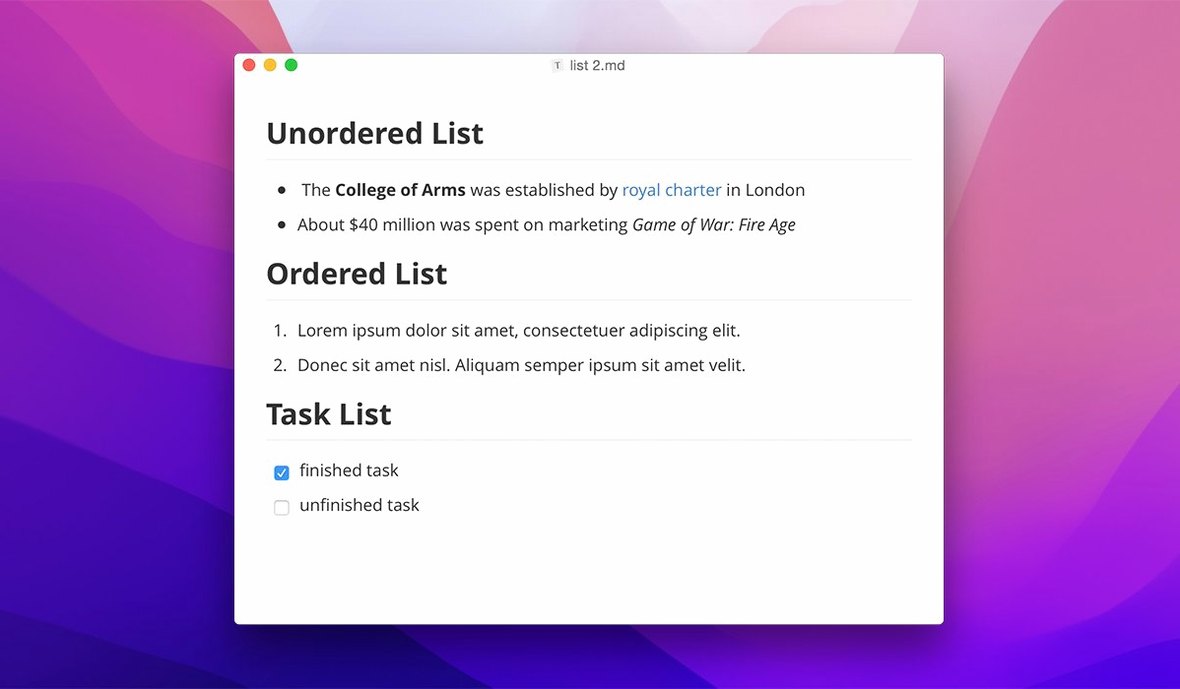
- Set up the heading structure. Type the module title as an H1, then the week’s topic as an H2. The outline panel on the right auto-populates. Hit Return twice, type an H3 for the first subtopic, and start writing bullet points underneath. Inline maths wrapped in
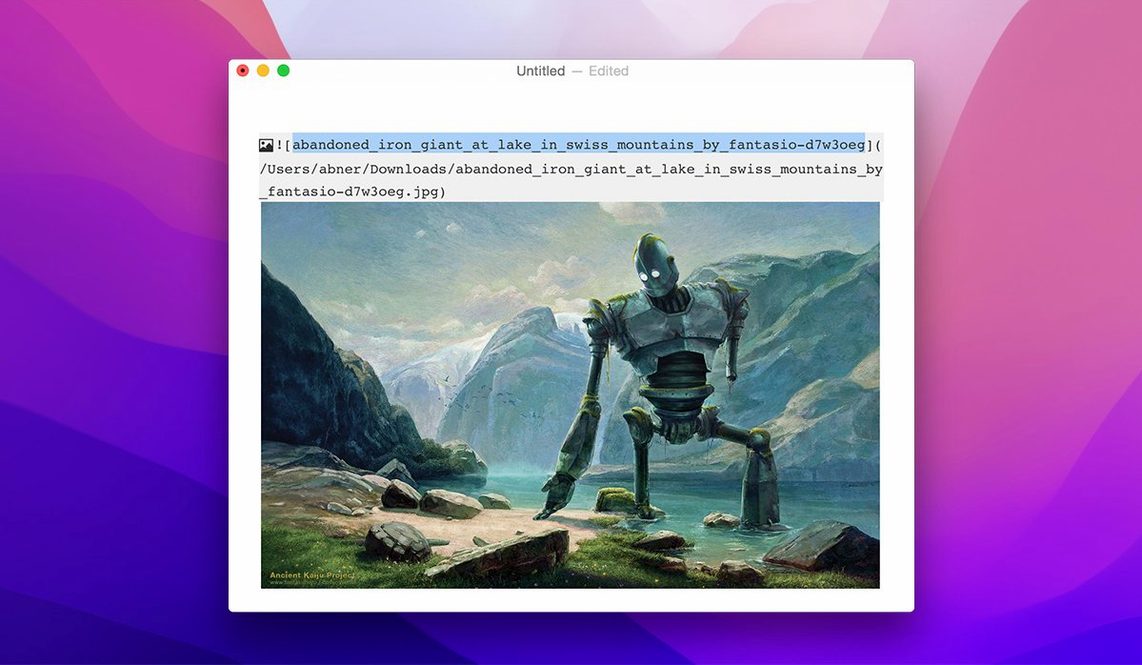
$$renders as you type—useful for equations mid-flow. - Drop in diagrams. Drag a PNG from the desktop onto the editing area. Typora copies it to a relative
./imagesfolder and inserts a Markdown image link. The image appears at full width. Add a caption with*Fig 1: ...*on the next line, then carry on with notes. - Review with the outline. Click any heading in the outline panel to jump there. If a section feels thin, type more bullet points. The live preview means you see the final look while you work—no toggling back to a raw source view.
- Export for the group chat. File → Export → PDF. The dialog remembers your last settings. A PDF lands on the desktop with the same heading hierarchy, styled through the current theme. Send it to the course group; no one needs a Markdown app to read it.
If someone asks you where to get it, a typora mac download search points here. Version 1.14.10 runs on anything from High Sierra upwards, Intel or Apple Silicon, so an old iMac in the library or a new MacBook Air both work. The installer is a standard disk image—mount it and drag the app across.
What’s new
Fixes content clipped in the welcome panel. Fixes pandoc export from source mode.
Requirements
- macOS 10.13.6 or later
- Intel or Apple Silicon Mac
FAQ
Does Typora run on older versions of macOS?
Yes. The current release needs macOS 10.13.6 or newer, and it runs on both Intel and Apple Silicon Macs.
Can I switch the interface language?
Typora ships in 31 languages, including Russian, German, Japanese, Arabic and Simplified Chinese, so you can set the menus to match your system.
Comments 0
Sign in or create an account to leave a comment.
No comments yet…
If you’ve installed it, say how it went. Mention your Mac and macOS version — it helps the next person more than you’d think.