Pixelmator Pro for macOS
Description
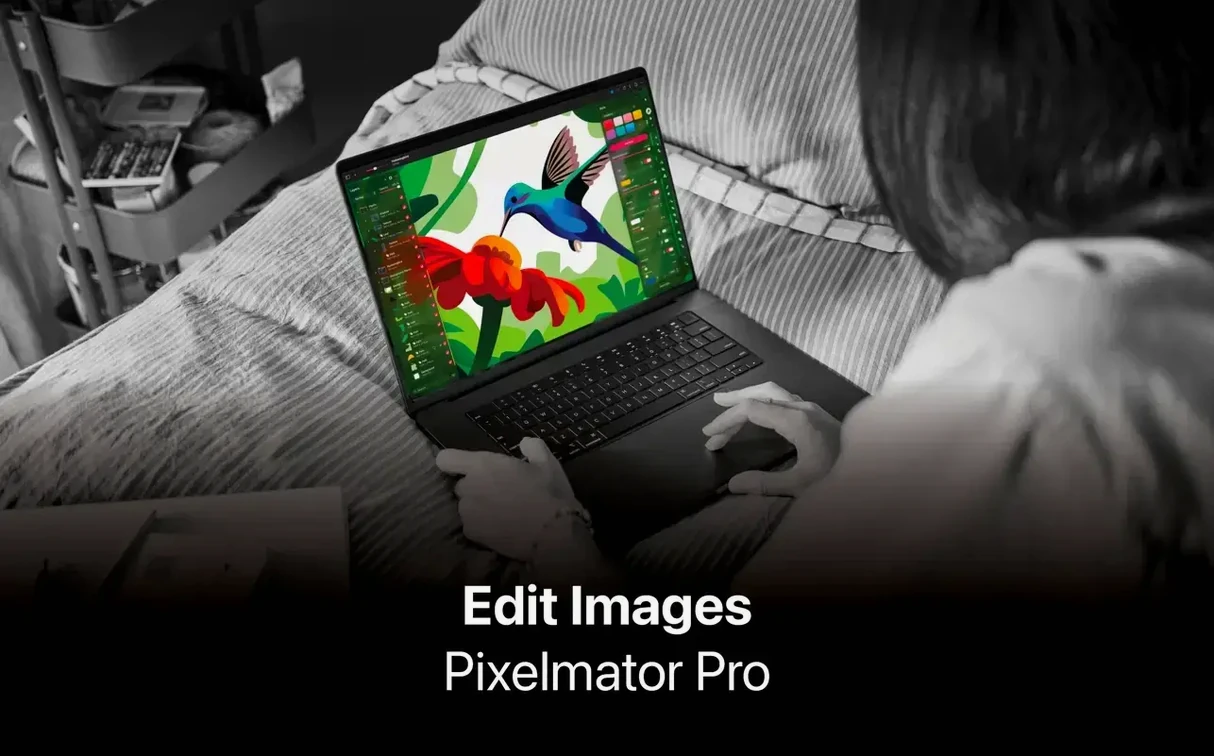
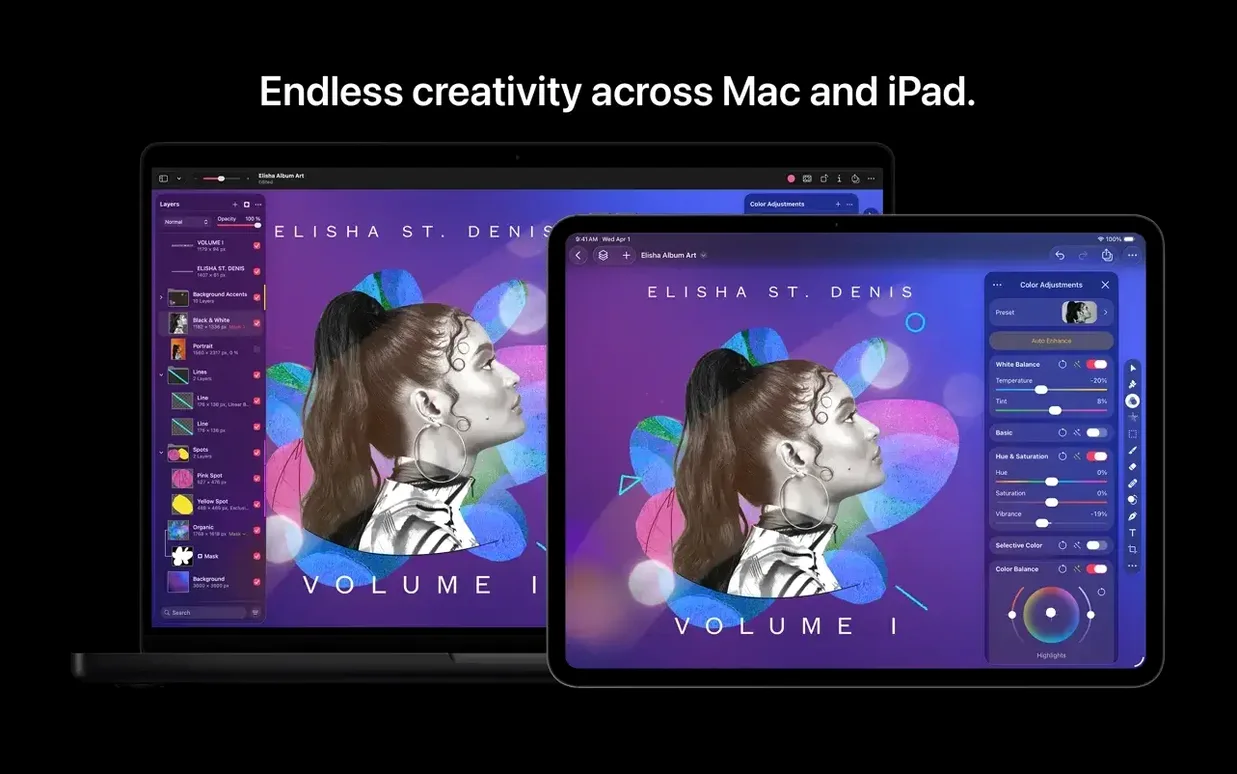
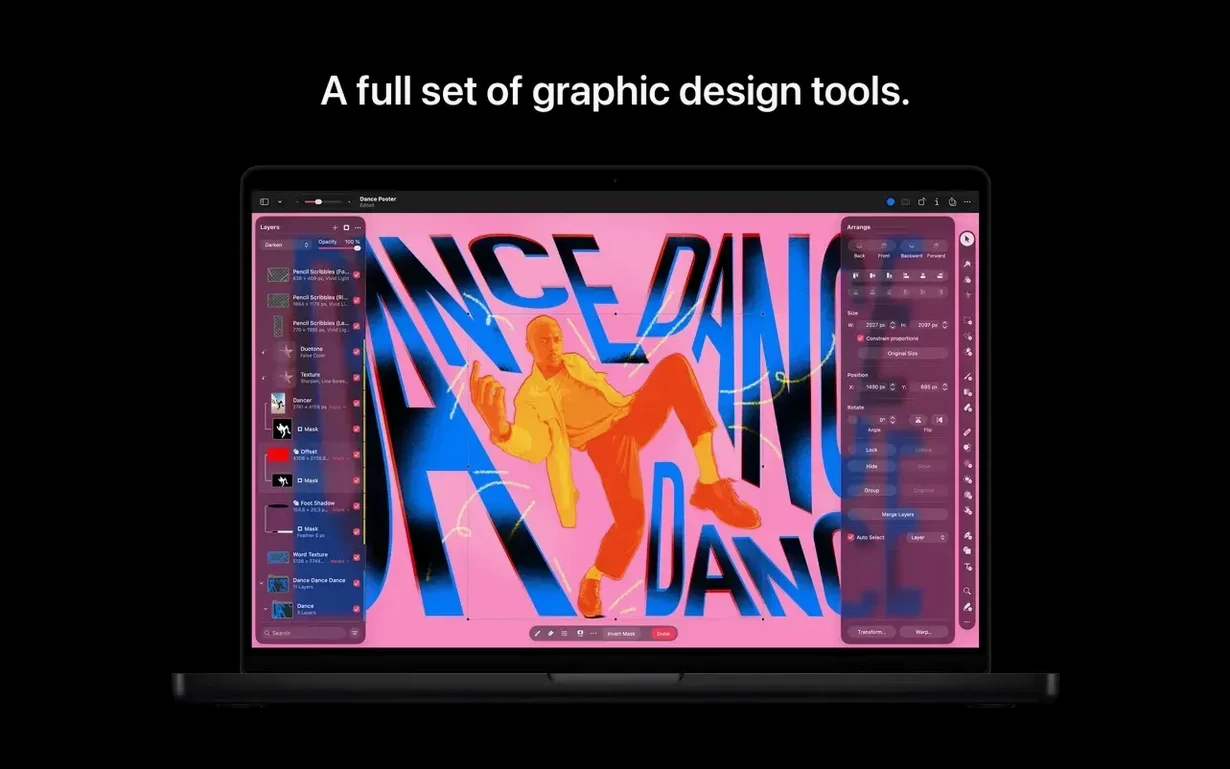
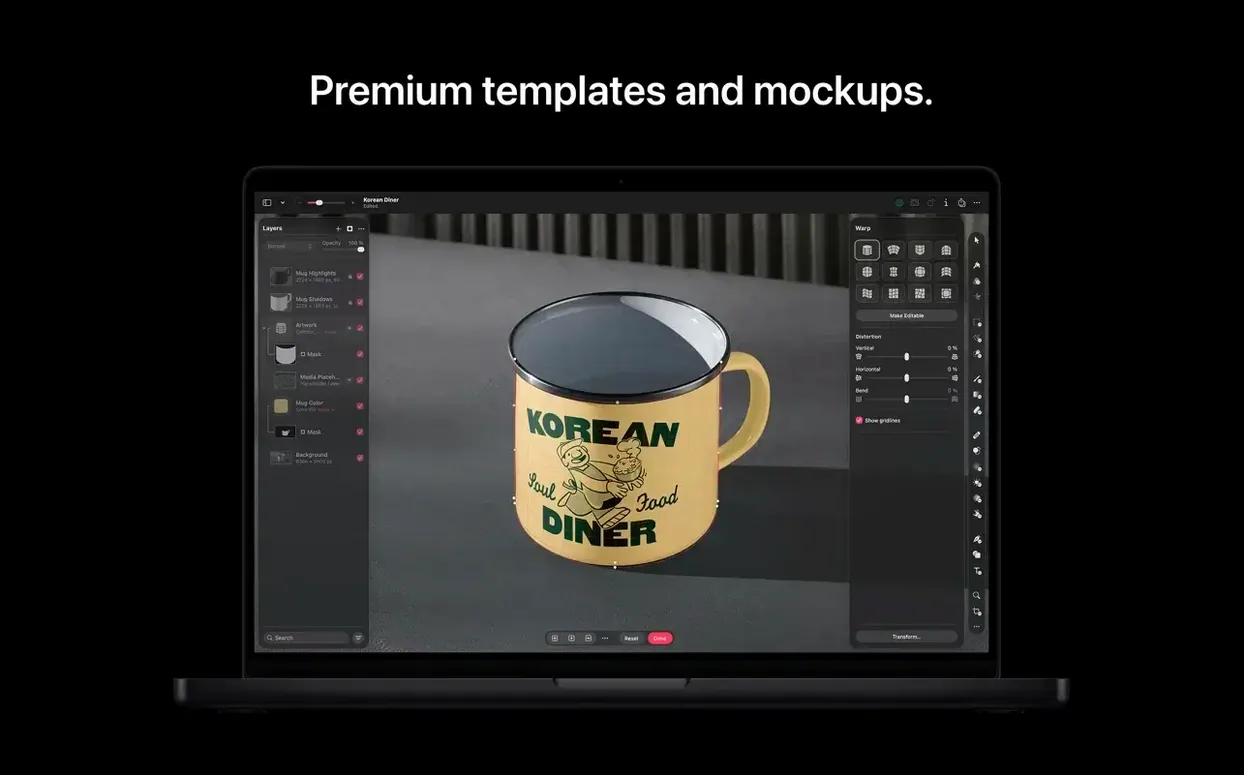
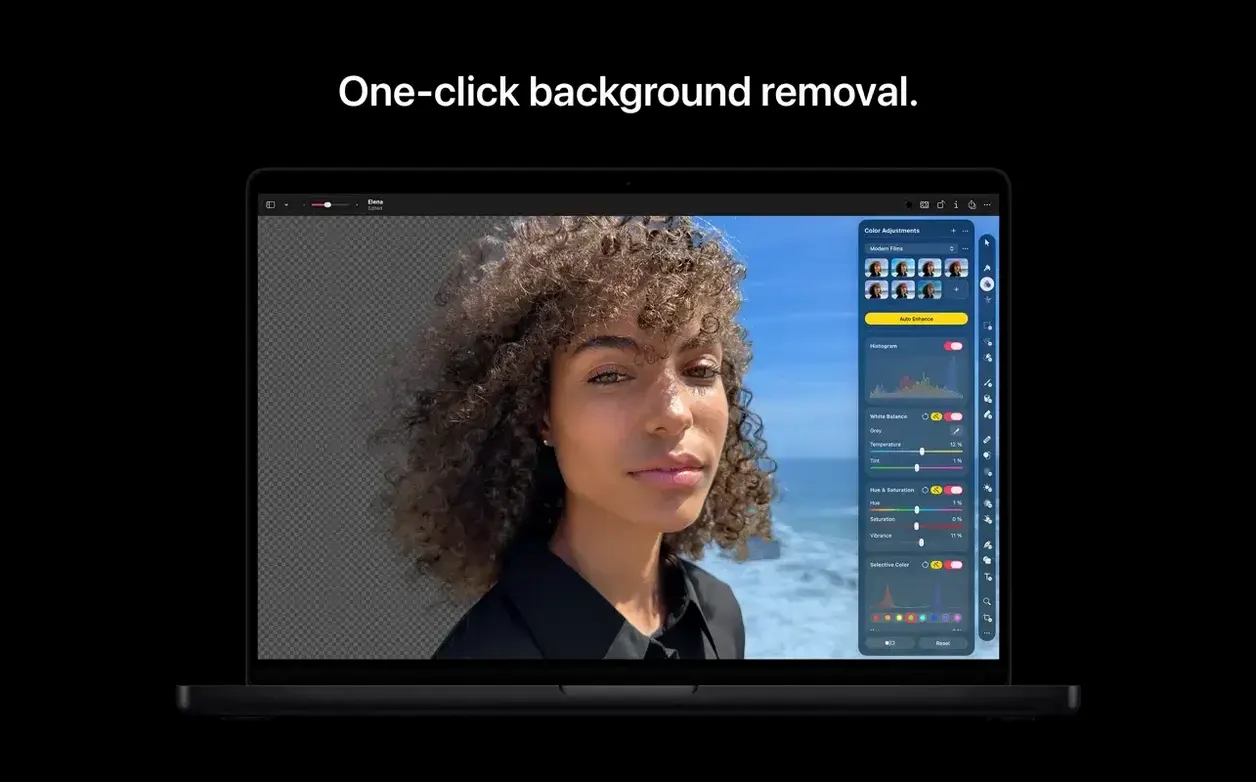
Pixelmator Pro is an image editor built for Mac, covering photo enhancement, compositing, drawing, painting, and text.
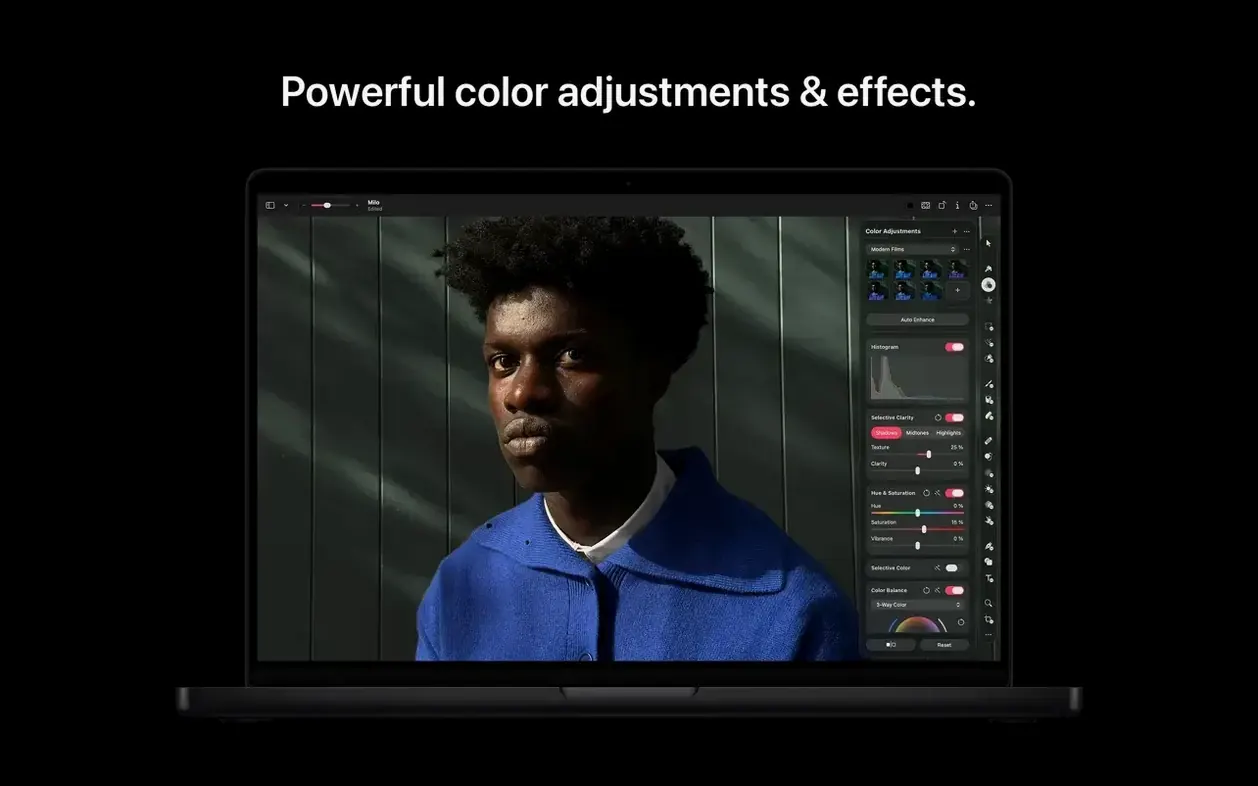
Now part of Apple Creator Studio, version 4.3 adds Content Hub for inserting photos, graphics, and shapes, plus text-to-image generation and custom vector shape creation. The Core ML-based enhancement does a decent job of fixing exposure and colour in one click. The repositioning tool lets you reshape objects or areas without much fuss.
VoiceOver-friendly Mac editor with ML-enhanced quick fixes
- People who want a Mac-native editor
- Quick photo fixes with the ML enhancement
- Creating composites and illustrations alongside basic photo work
- Anyone who uses VoiceOver or Switch Control — 4.3 improved support for both
Mac-only toolkit that lags on older hardware
- Available on Mac and iPad only
- Interface languages run to eleven, but the toolset isn't as deep as Photoshop's
- Opens fast but can lag on multi-layer projects on older Macs
Crop and straighten before touching colour sliders
Newcomers tend to jump straight to the colour adjustments panel before doing any cropping or straightening. Sort the geometry first. A well-cropped image often needs far less colour work than you think.
Another common one: applying adjustments directly to the image layer instead of using adjustment layers. The Layers sidebar has an Add button with a plus icon — use it. It keeps your original pixels intact and lets you tweak or remove an edit six steps later without starting over.
People also ignore the Info bar at the bottom of the window. It shows the colour profile, dimensions, and zoom level. If your export looks washed out in another app, check whether you are working in Display P3 and the other app expects sRGB. That mismatch catches beginners constantly.
Over-sharpening is the last one worth flagging. The Sharpen slider under Color Adjustments gets dragged to maximum far too often. Pull it to about 30%, then hold the Option key while dragging the Radius slider to see the edge mask. If halos appear around high-contrast edges, back off.
A simple product-shot cleanup, start to finish
Say you have a product photo on a white background, shot near a window. The white looks grey on one side, there is a dust spot on the lens, and you want a clean square crop for a catalogue.
- Open the image. The single-window layout puts the canvas centre stage.
- Select the Crop tool from the toolbar or press
C. Set the aspect ratio to Square in the tool options bar. Drag the handles to frame the product with a little breathing room. Press Return. - Go to the Color Adjustments panel. Click the White Balance picker and click on an area that should be neutral grey or white. Even a slight click here can pull the cast out of the whole image.
- The background is uneven. Add a Curves adjustment layer from the Layers sidebar. Lift the midtones slightly, then add a control point near the top-right of the curve and tug it left to brighten the near-white areas without blowing out the product highlights.
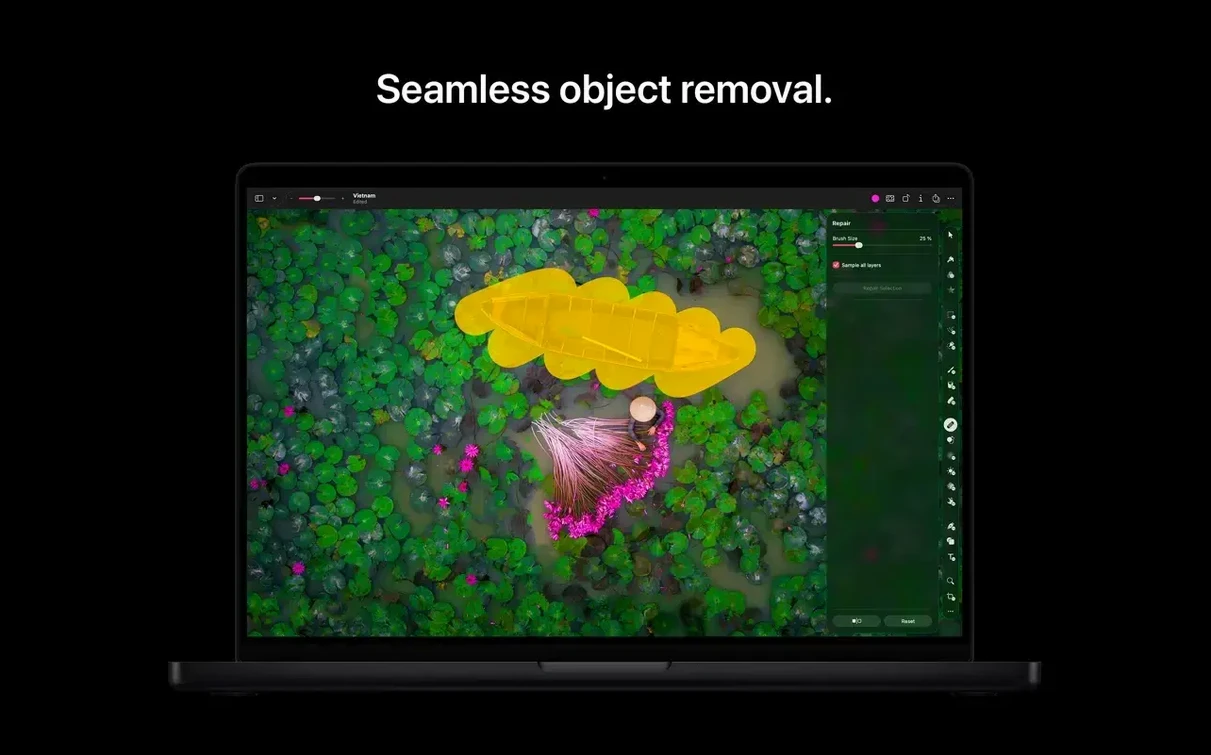
- Grab the Repair tool. Set the brush size to roughly twice the width of the dust spot. Paint over the spot. Pixelmator Pro samples nearby texture and blends it — no cloning needed for simple spots.
- Export via File > Export. Pick JPEG, Quality around 90%, and check Embed Color Profile. Save.
The whole thing takes under two minutes once you know where the tools live.
Swap dark transparency checkerboard for a white canvas
The default canvas background is a dark grey checkerboard for transparent areas. If you work with white-background images a lot, switch it. Go to Pixelmator Pro > Settings > General and change the Canvas Background to White. It is easier on the eyes and gives you an honest preview of how the final JPEG will look.
Turn on Show Rulers from the View menu. The rulers appear along the top and left edges of the canvas and make dragging guides into place far less guesswork. Guides snap to other layers automatically, which speeds up alignment.
In the Tools section of Settings, set the Zoom behaviour to Scroll with Modifier Key. This stops accidental zooming when you are two-finger scrolling across a large canvas. Hold the chosen modifier and scroll to zoom; plain scrolling pans the view instead.
If you regularly export to the same format, set File > Export defaults. Choosing JPEG at 85% quality with sRGB as the default profile saves you three clicks on every export.
Apple silicon launch under three seconds with no splash screen
Launch time on Apple silicon is under three seconds — about what you expect from a Mac-native app that ships as part of Apple Creator Studio. The window paints immediately, no splash screen delays.
On a Mac with 16GB of RAM, a 50-megapixel RAW file opens in around four seconds. Applying the ML enhancement adds roughly a second. That is competitive with Lightroom's Auto Tone and quicker than most open-source editors handling the same DNG. The app leans heavily on Metal and the Neural Engine, so the fans stay quiet during routine edits.
Memory use creeps up on layer-heavy projects. A composite with 40 layers and a few vector masks can push past 4GB of RAM. The app does not swap aggressively, but you feel a slight drag when moving large groups of layers. Flattening some of the finished sections helps if responsiveness dips.
Stability is solid. Over a working day of editing product shots, generating shapes from text descriptions in 4.3, and exporting batches via Automator, I have not seen a crash. The only oddity is that Generate Image occasionally returns a low-resolution placeholder before the full render arrives a beat later. It is not broken — just visibly asynchronous.
Battery impact is modest. An hour of light editing in a coffee shop with brightness at 70% took about 12% off the charge. Heavy use of the ML features — Generate Image and the Enhance tool in quick succession — drains faster, but still less than a web browser with twenty tabs open.
The app feels built to stay out of the way. It launches fast, renders edits on the GPU, and keeps the system responsive enough that you do not think about closing other apps first. That alone makes it worth keeping in the dock if your work touches images daily.
What’s new
Adds Content Hub for inserting photos, graphics, shapes, and illustrations. Adds Generate Image for creating images from text descriptions. Adds Generate from Image for text-based edits and transformations. Adds custom vector shape generation from text descriptions. Improves support for Switch Control and VoiceOver.
Requirements
- macOS 26 or later
- Mac with Apple silicon
FAQ
Which Macs run Pixelmator Pro 4.3?
It requires macOS 26 or later and a Mac with Apple silicon.
Comments 0
Sign in or create an account to leave a comment.
No comments yet…
If you’ve installed it, say how it went. Mention your Mac and macOS version — it helps the next person more than you’d think.