PDF Reader Pro for macOS
Description
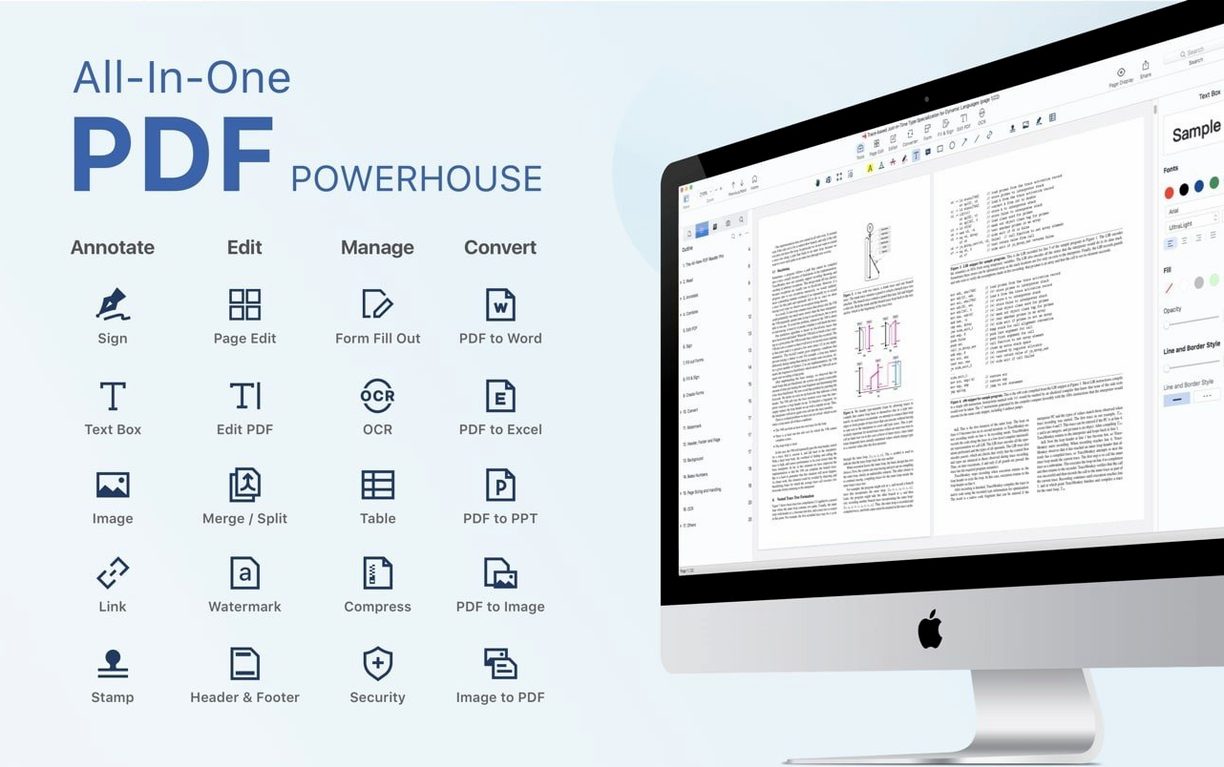
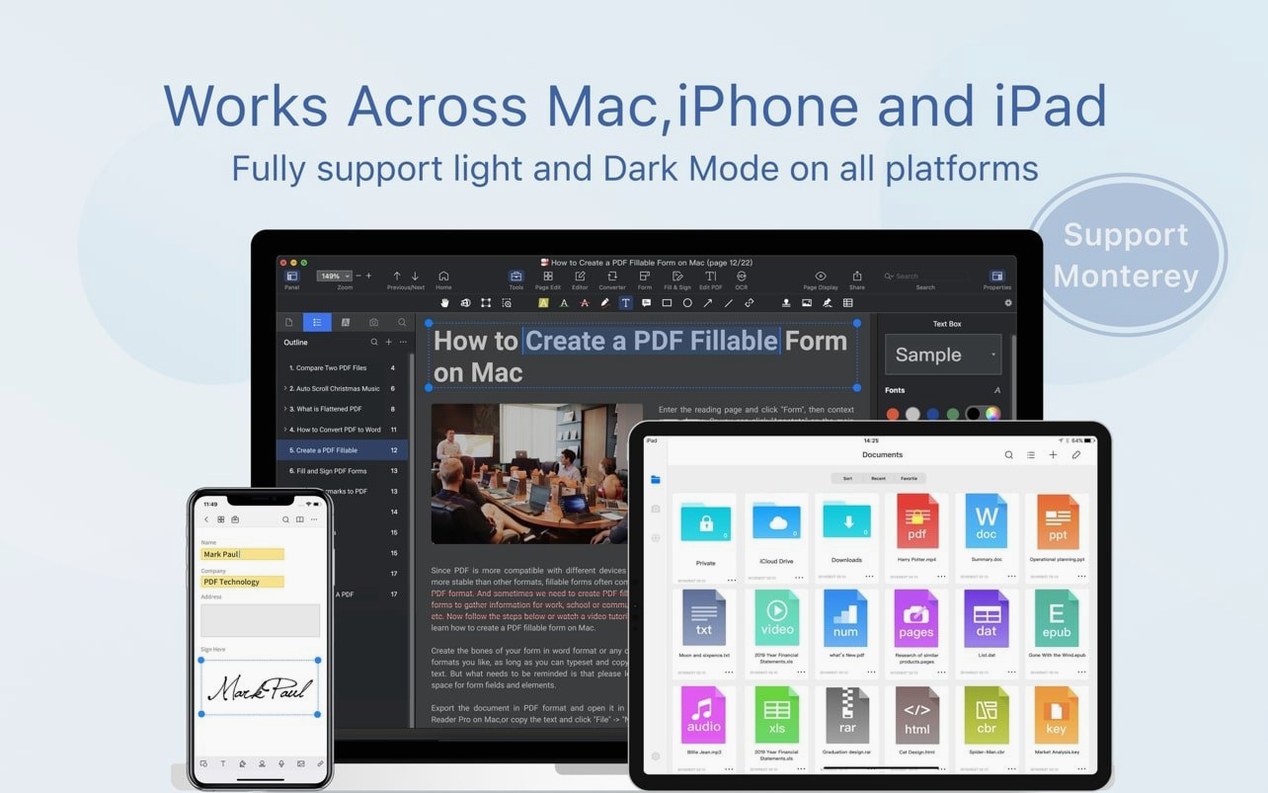
Most PDFs arrive as a wall of dead text. You can read them, but you can't do much else. PDF Reader Pro turns them back into something you can work with—highlighting a contract, filling in a form, or pulling out an image for a slide deck.
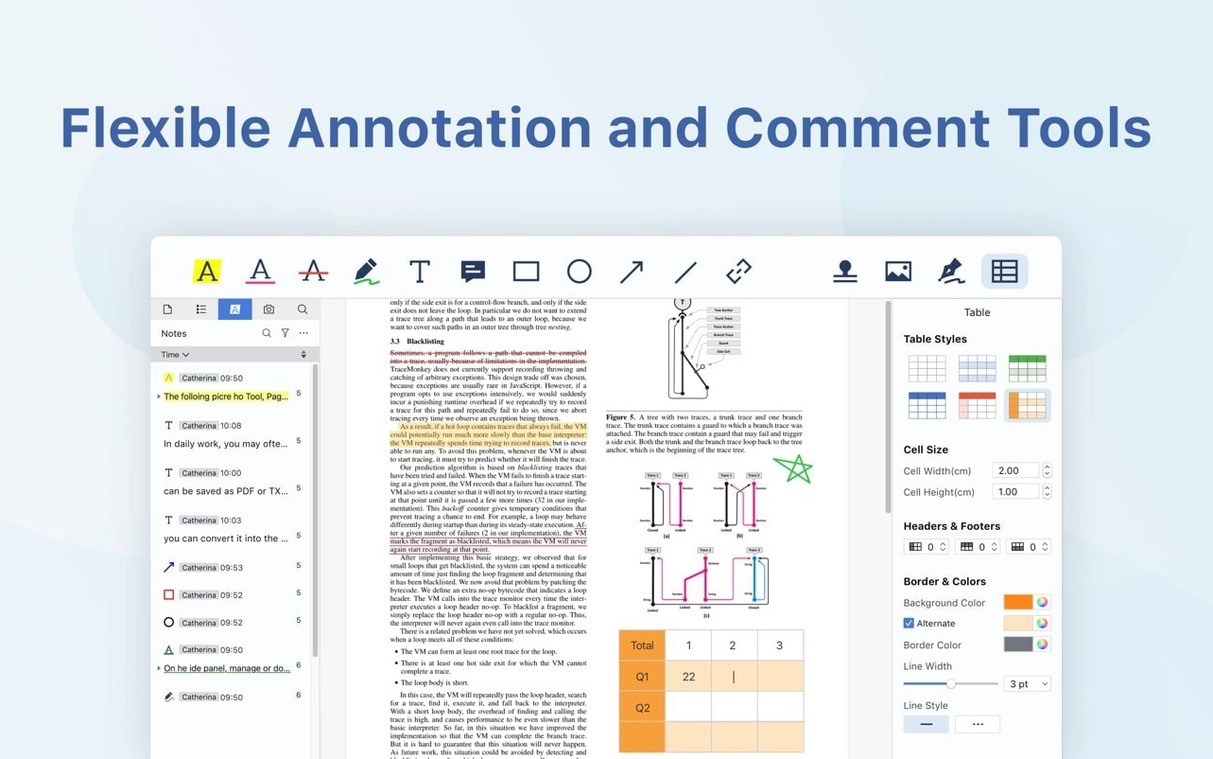
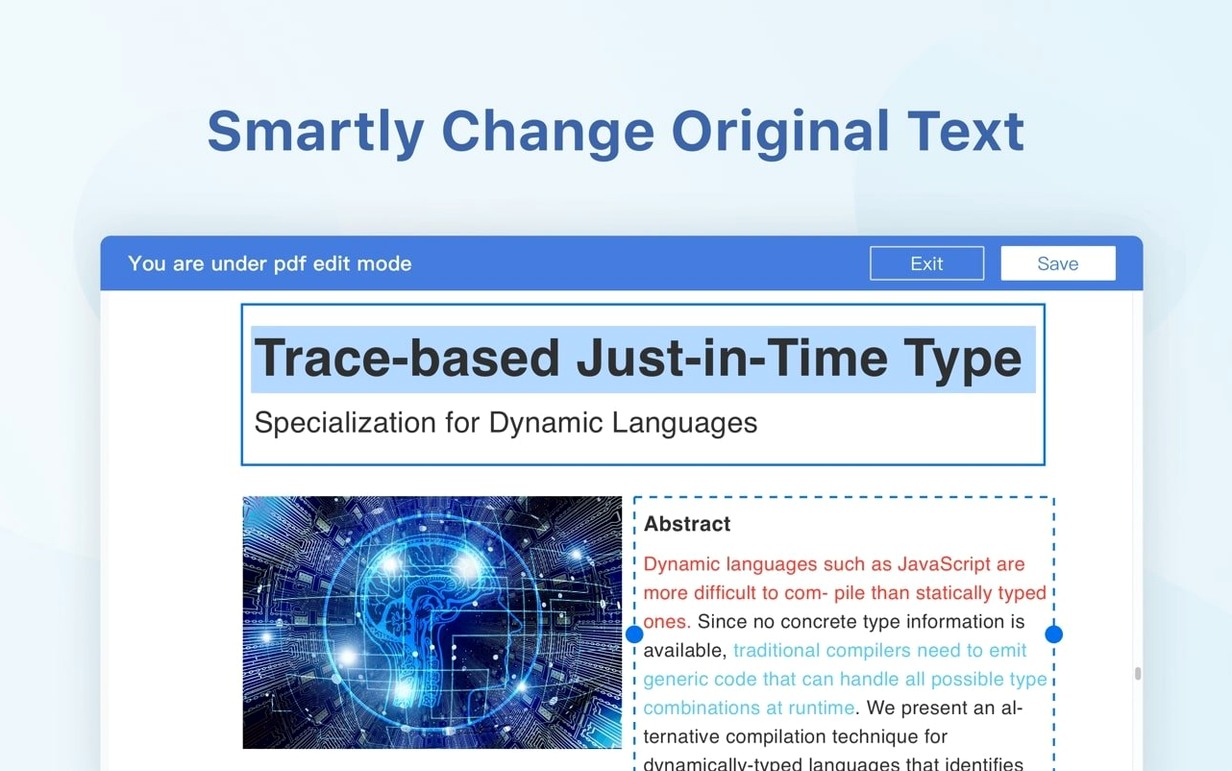
Start with the annotation tools. They're the part you'll use most. Underlining and strikethroughs work exactly as you'd expect. The sticky notes keep your thoughts tidy, and the bookmarks panel on the left stops a hundred-page report from becoming a scroll-fest.
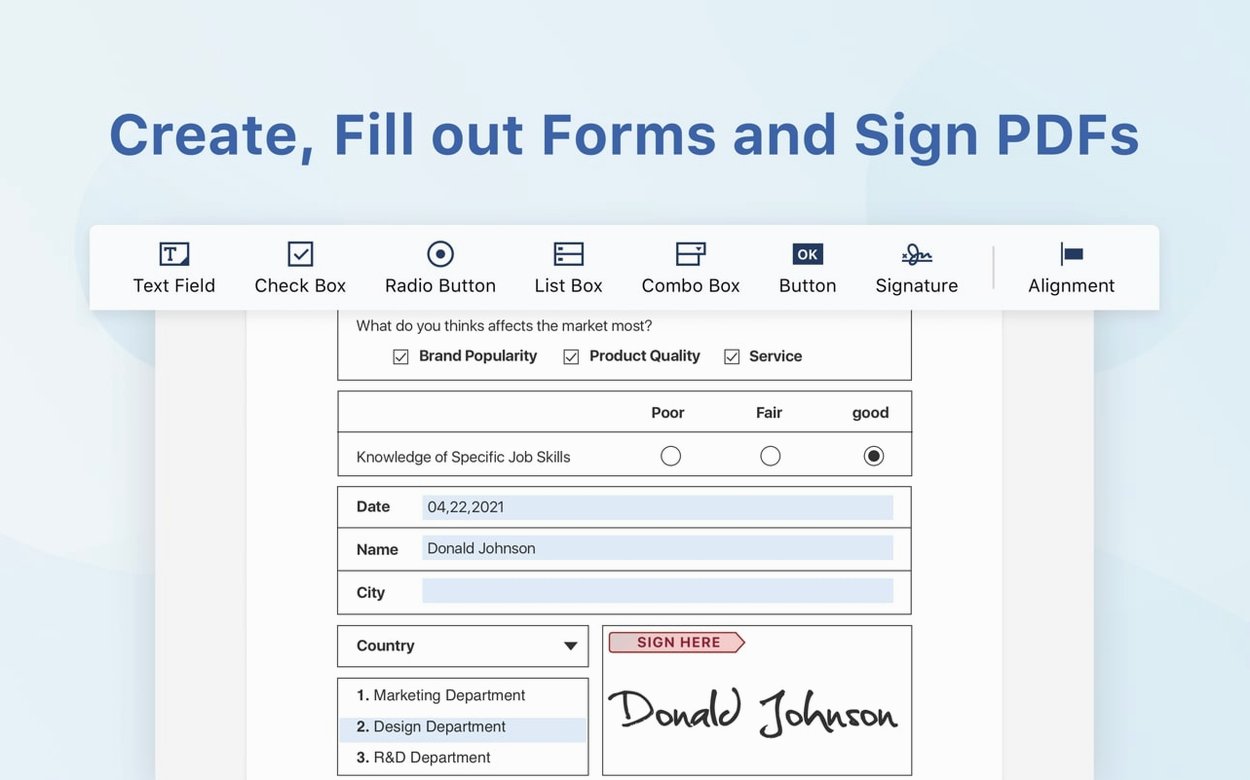
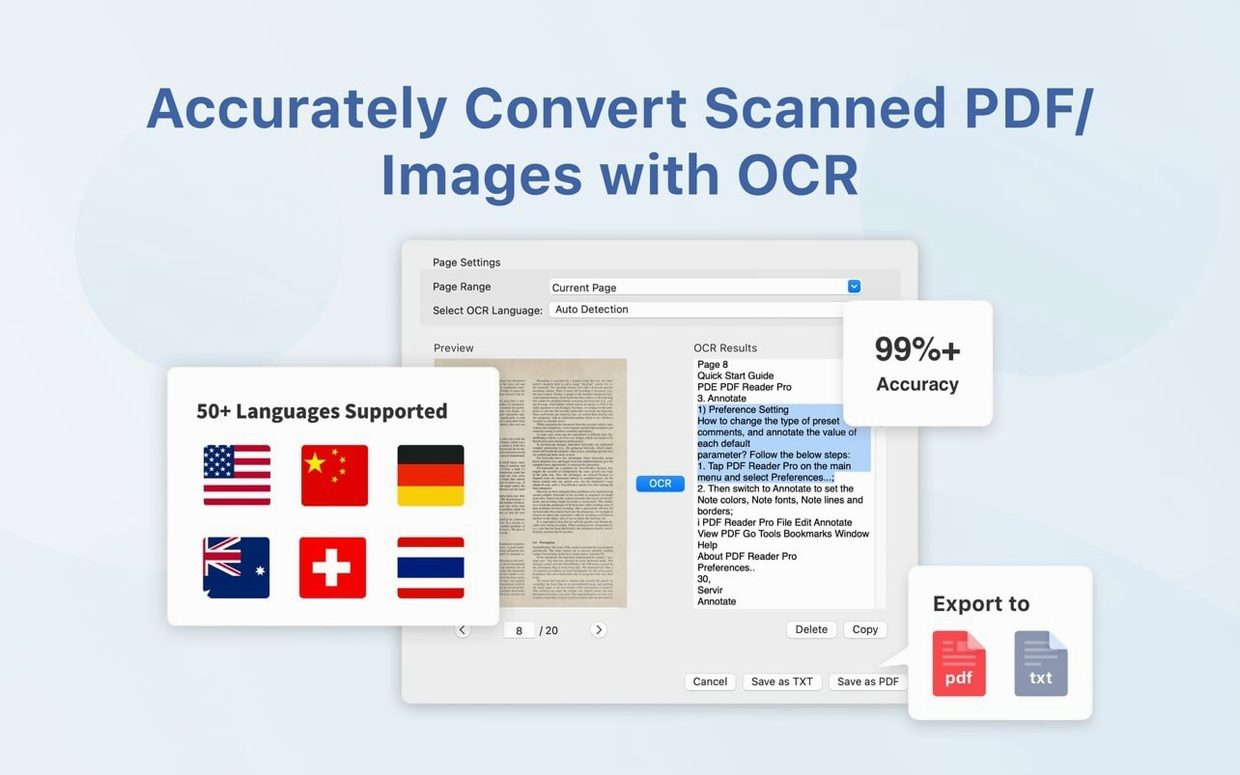
For the unavoidable admin, open any form and start typing. The app detects blank fields and lets you fill them without drawing text boxes manually. Once you've finished, the eSign workflows added in version 5.3.0 let you drop a signature and send it off. If you're stuck with a scanned document, run the OCR engine. It reads the image and gives you searchable text in a few seconds—handy for old invoices.
Presentation mode hides the editing chrome so you can walk through a deck without distractions. It runs on both Apple Silicon and older Intel Macs, provided you're on macOS 11 or later.
A 50-page report opens in two seconds
On a day-to-day basis, PDF Reader Pro stays out of your way. Open a fifty-page report and it renders in about two seconds. Scrolling is smooth, even through heavy architectural drawings or scanned pages where other editors start to stutter. RAM usage sits around 180-220 MB with a couple of documents open—low enough that you won't notice it alongside a browser full of tabs.
The OCR engine deserves a mention. It's not instant, but it chews through a ten-page scan in under fifteen seconds on an M1 Mac, and the text layer it produces is accurate enough for searching. I've seen it trip on old faxes with skewed lines, but clean scans come out fine. The app hasn't crashed once in a fortnight of daily use, and it handles the odd corrupted PDF gracefully—it tells you the file's broken rather than beachballing.
One small gripe: the text-to-speech feature loads the entire document into memory before it starts reading. On a 300-page novel, that means a five-second pause. For most office documents, you won't even notice.
Lightweight editor versus the aircraft carrier
Put it next to Adobe Acrobat Pro and the difference is philosophical. Acrobat does everything, but it feels like an aircraft carrier—slow to launch, menus nested three layers deep, and background processes that never quite quit. PDF Reader Pro does the eighty percent of tasks people actually need without the bulk. If you spend your day preflighting print files, stick with Acrobat. For reviewing, signing and converting, this is the lighter tool.
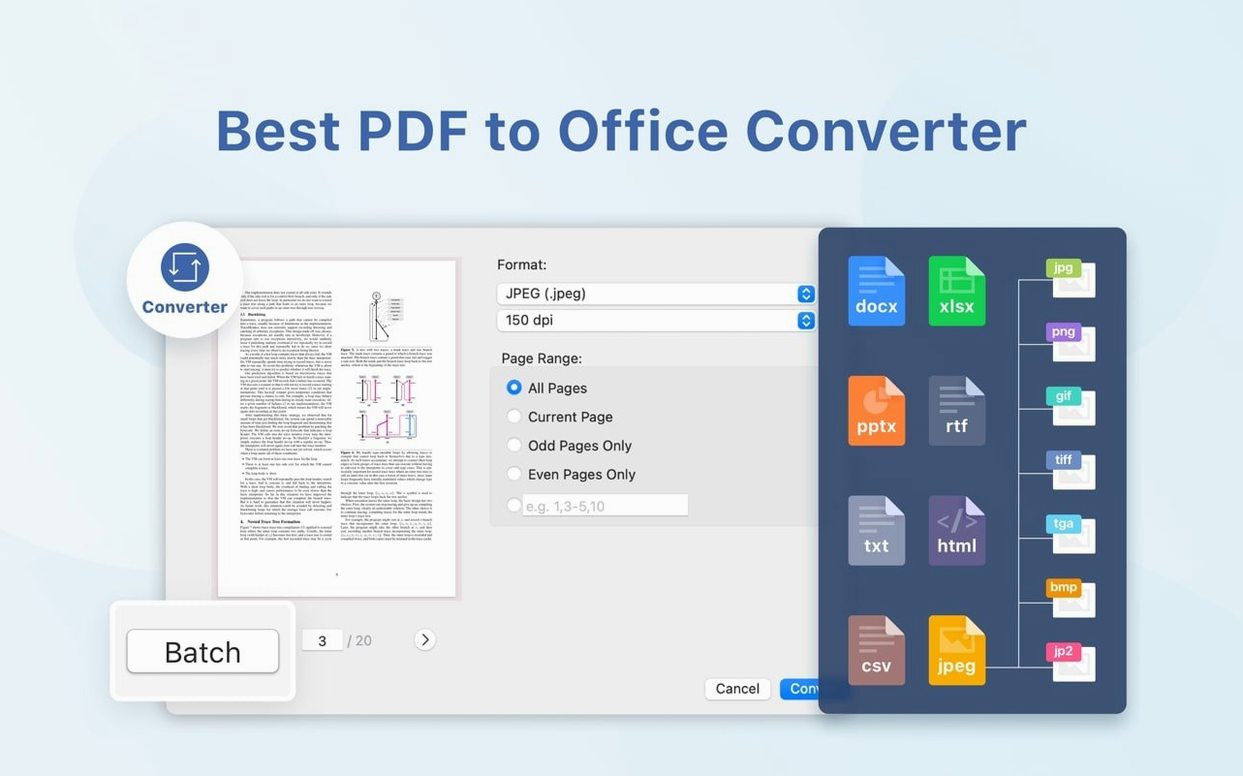
Against PDF Expert, the comparison is closer. PDF Expert's interface is cleaner and its scrolling feels a fraction snappier on huge files. But PDF Reader Pro pulls ahead on conversion quality—exporting a complex table to Excel keeps the columns aligned, where PDF Expert sometimes merges cells. You also get OCR included here; PDF Expert requires a separate purchase for that.
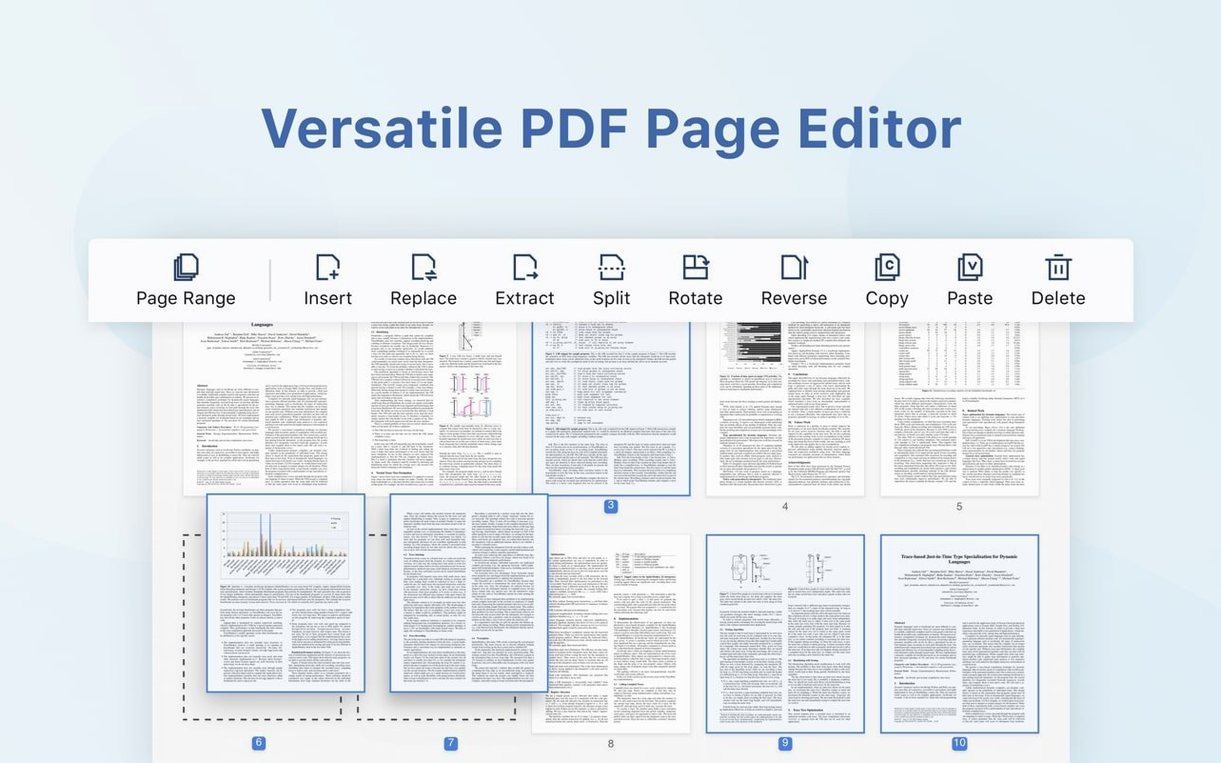
Preview, the built-in Mac app, handles basic markup and form filling. It's free and it's already there. What Preview can't do: merge ten invoices into one PDF, run OCR on a scan, export to PowerPoint, or apply a digital signature workflow. If those tasks come up more than twice a month, PDF Reader Pro earns its place in the Dock.
Ditch the factory red before your first markup
After you drag the app into Applications and launch it, spend ten minutes on these. They'll save you frustration later.
- Set your default annotation colour. Open Preferences and pick something other than the factory red. Your comments will stand out from everyone else's on a shared document.
- Test the OCR on a scan you know well. Grab an old scanned invoice and run it through. Check that the output text matches the original. This gives you a baseline for when accuracy matters.
- Link your Dropbox account if you use it. The sync is straightforward—files you save to the PDF Reader Pro folder in Dropbox appear in the app's sidebar. Useful if you switch between a desktop Mac and a laptop.
- Pin the bookmarks panel open for the first week. Drag it to a comfortable width. Once you build the habit of bookmarking sections in long documents, navigating becomes second nature.
- Try one export to Word. Even if you don't need it now, knowing how the conversion handles your company's letterhead or a multi-column layout tells you whether you can rely on it when a deadline appears.
Requirements
- macOS 11 or later
- Apple Silicon and Intel Macs
- Interface: English, Russian, German, Spanish, Italian, French, Dutch, Polish, Japanese, Traditional Chinese, Simplified Chinese
Comments 0
Sign in or create an account to leave a comment.
No comments yet…
If you’ve installed it, say how it went. Mention your Mac and macOS version — it helps the next person more than you’d think.