PDF Expert for macOS
Description
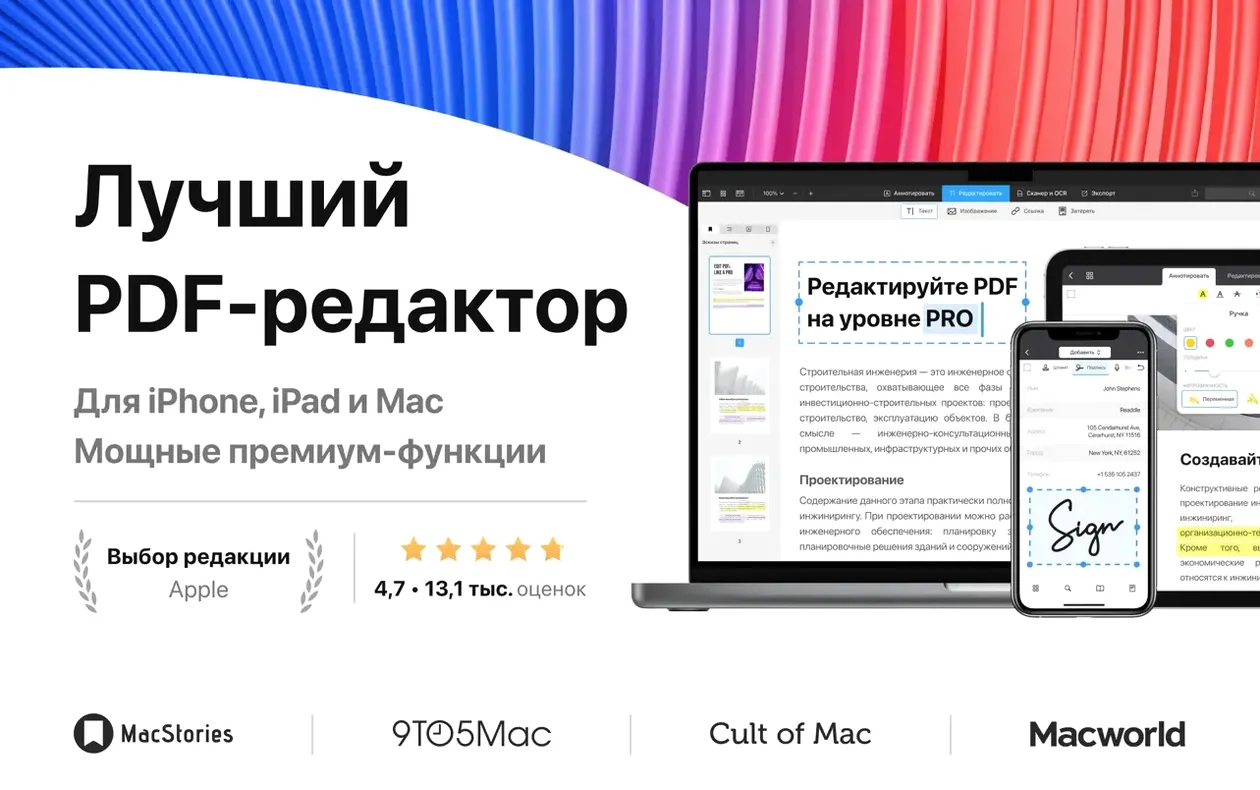
PDF Expert from Readdle is a straightforward PDF editor that sits alongside Preview and fills the gaps it leaves. Version 3.11.1 needs macOS 12 or later and runs on Apple silicon and Intel.
Fill out a form
Tap any field and start typing. It handles interactive PDF forms without the fuss, so you don't need to print and scan a thing.
Add a missing link
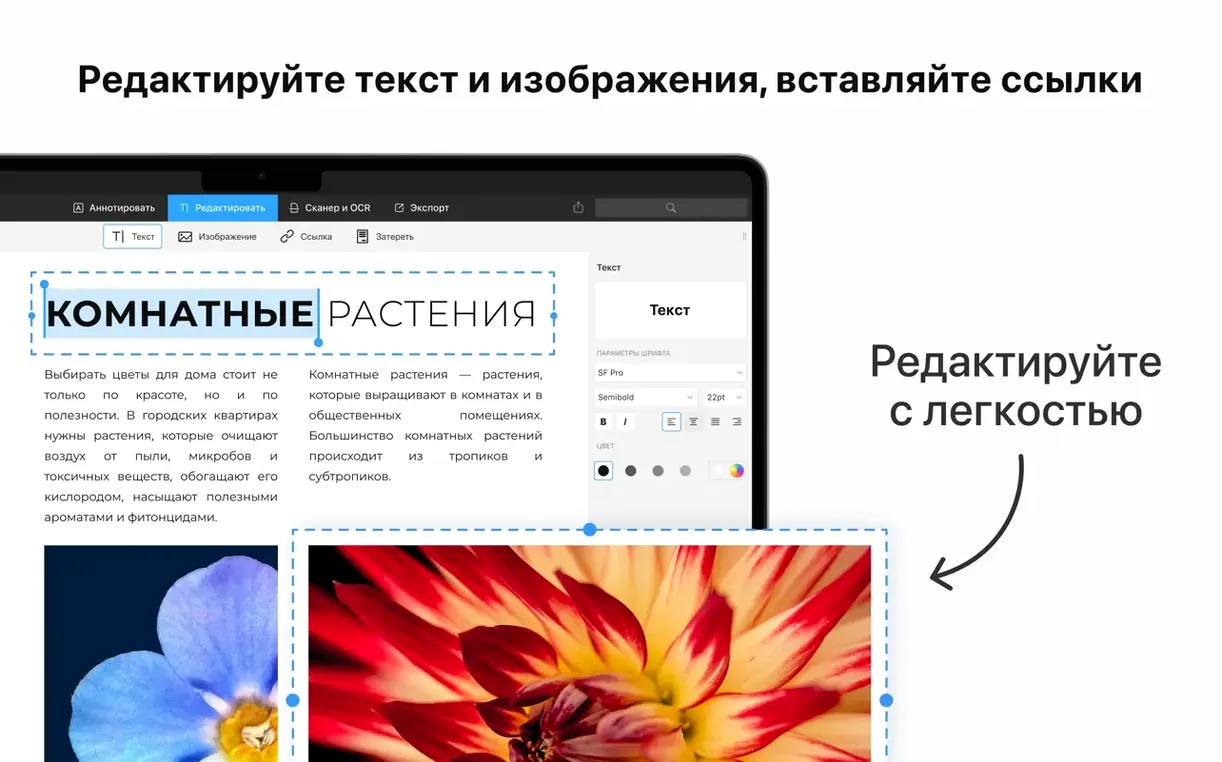
Select some text or an image, right-click, and turn it into a clickable link. Quick edits like that save a round-trip to the original document.
Turn a document into a PDF
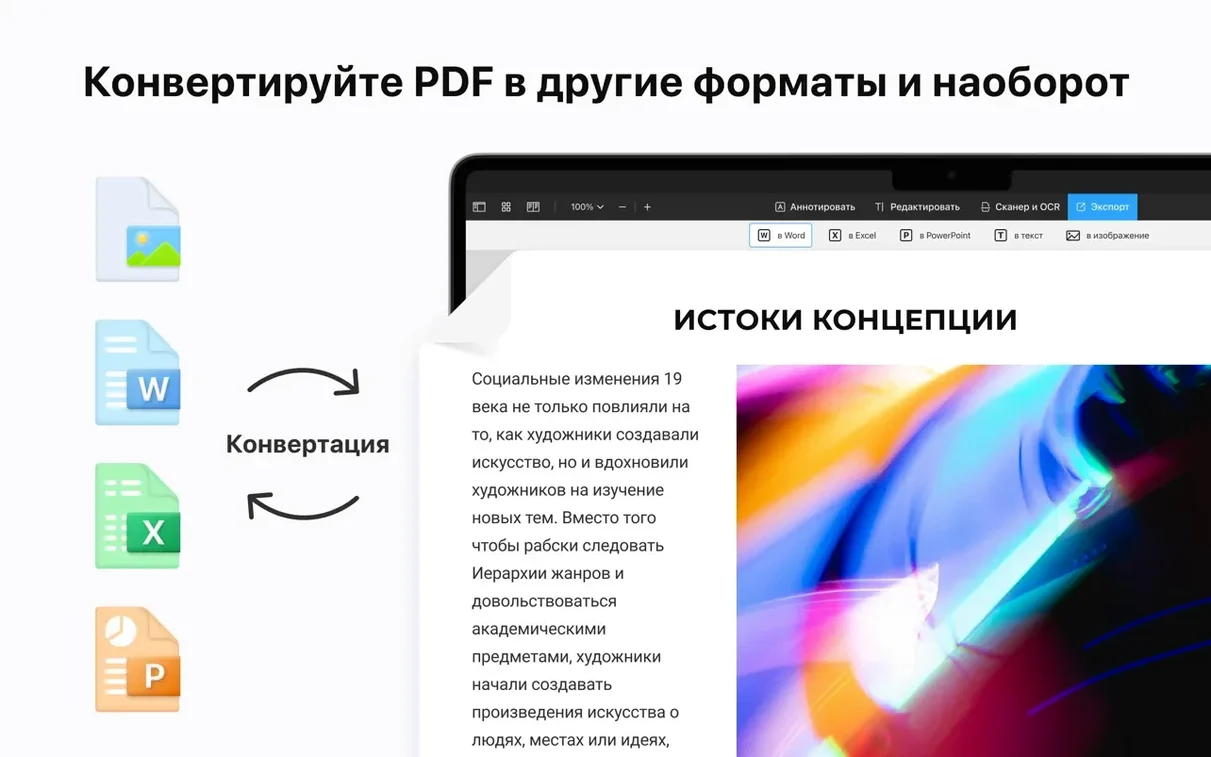
Drag in a Word, Pages or Docs file and it lands as a clean PDF. It's a handy converter to have when someone sends you the wrong format.
Tabbed documents and other hidden gems
Some of the best bits aren't shouted about. A few you might miss:
- Tabbed documents. Open several PDFs and they sit in one window, like browser tabs. Less clutter when you're cross-referencing contracts or research papers.
- Drag-out page thumbnails. Grab a page from the sidebar thumbnail view and drag it to the Finder to extract just that page as a fresh PDF. No export dialog needed.
- Quick rotation. A two-finger rotate gesture on the trackpad spins a page in 90-degree steps. Handy when a scanned invoice arrives sideways.
- Scroll-to-zoom lock. Pinch to zoom in, and PDF Expert remembers the zoom level when you scroll to the next page. Preview resets it; this doesn't.
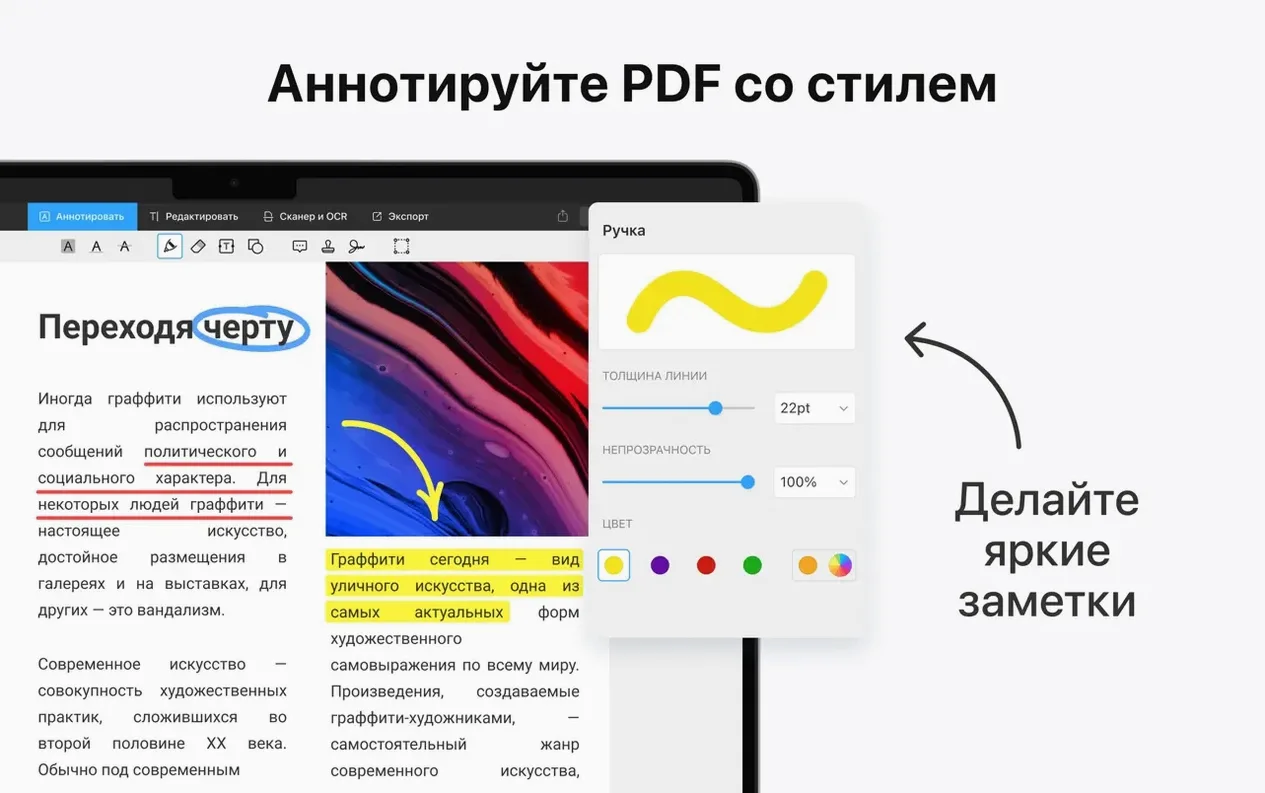
- Colour-coded annotations. Right-click a highlight or underline, pick a colour, and all annotations of that type can switch at once. Useful for colour-coding feedback rounds.
Smooth scrolling on Apple Silicon and Intel
The jump to version 3 brought a rebuilt engine under the hood. Here's what that means day to day:
- Apple Silicon performance. Scrolling through image-heavy PDFs now stays smooth. On Intel Macs, rendering large architectural plans feels less like wading through treacle.
- Text editing got quieter. Early versions of 3 could shift line spacing when you edited a paragraph. Recent builds keep the original layout more reliably, even with custom fonts.
- Handoff actually works. Open a PDF on your Mac, pick up the iPad, and the same file appears with the same scroll position. It's no longer a setting you enable and then forget about because it never kicked in.
- Form filling is less fussy. The app now respects radio buttons and dropdown fields in government forms that used to trip it up. Less "please print and complete by hand" frustration.
- Signatures sync. Save a signature on one device and it shows up on the others. No need to scribble with a trackpad three times.
If you're coming from an older PDF Expert TNT build, the difference is noticeable: fewer beachballs, less font mangling, and a dark mode that respects your system setting without prodding.
Annotate a contract and send it back
Here's a workflow that takes about three minutes.
- Open the PDF. Drag the contract into the PDF Expert window or double-click it in the Finder if the app is set as your default.
- Highlight the key clauses. Select the payment terms and obligation sections. Hit the highlight button in the toolbar or press
⌘+4. Choose a colour — yellow for queries, red for dealbreakers. - Add margin notes. Click the note icon and tap anywhere near a highlighted clause. Type your comment. The note stays collapsed as a small icon, so the page doesn't turn into a mess of sticky notes.
- Strike through a line. Found a clause you want removed? Select the text, right-click, and pick Strikeout. The text stays visible but crossed through, which is clearer than deleting it outright.
- Underline the agreed changes. Mark sections you accept with an underline. It signals to the other party that those parts are settled.
- Flatten annotations (optional). Go to File → Export and tick "Flatten annotations" if you want the marks baked in and non-editable. Useful for final rounds where you don't want anyone fiddling with your comments.
- Send it. Use the share button or drag the file straight from the window title bar into a Mail or Teams message. No detour through the Finder.
The whole thing feels closer to marking up paper than wrestling with a document editor. The toolbar stays out of the way when you're reading, and the keyboard shortcuts keep your hands off the mouse for the common marks.
Preview still handles a few niche tasks
Does it replace Preview completely? Not entirely. Preview still handles some niche image-to-PDF conversions and does quick form signature placements without a separate tool. But for editing text, adding links, merging documents and filling interactive forms, PDF Expert slots in where Preview stops. You'll likely keep both.
Will it mess up my existing PDFs? No. It saves changes back to the original file format. If you edit text inside a paragraph, the surrounding layout stays intact in nearly all cases. Scanned documents are treated as images, so you annotate on top rather than altering the scan itself.
Is it heavy on resources? The Apple Silicon build idles at around 120 MB of RAM with a few tabs open. Scrolling a 200-page manual pushes CPU usage briefly, then it settles. On older Intel machines from 2017 onwards, it's still responsive for reading and light annotation, though heavy image editing benefits from newer hardware.
What if I share files with Windows users? The PDFs it produces are standard. Annotations made in PDF Expert show up correctly in Acrobat Reader on Windows. Flattened annotations are just ink on the page, so they work anywhere.
Does it handle scanned documents well? If you need OCR to make scanned text searchable, you'll need the Pro subscription feature set — the base app doesn't do text recognition. But you can still annotate, highlight and fill forms on scanned pages without issue.
Can I use it offline? Yes. Unlike some PDF Expert Mac cracked builds that phone home constantly, the app works entirely offline for reading, editing and annotating. Syncing signatures and Handoff need a network, but nothing else does.
Requirements
- macOS 12 (Monterey) or later
- Apple Silicon or Intel 64-bit Mac
Comments 0
Sign in or create an account to leave a comment.
No comments yet…
If you’ve installed it, say how it went. Mention your Mac and macOS version — it helps the next person more than you’d think.