
Pages Creator Studio for macOS

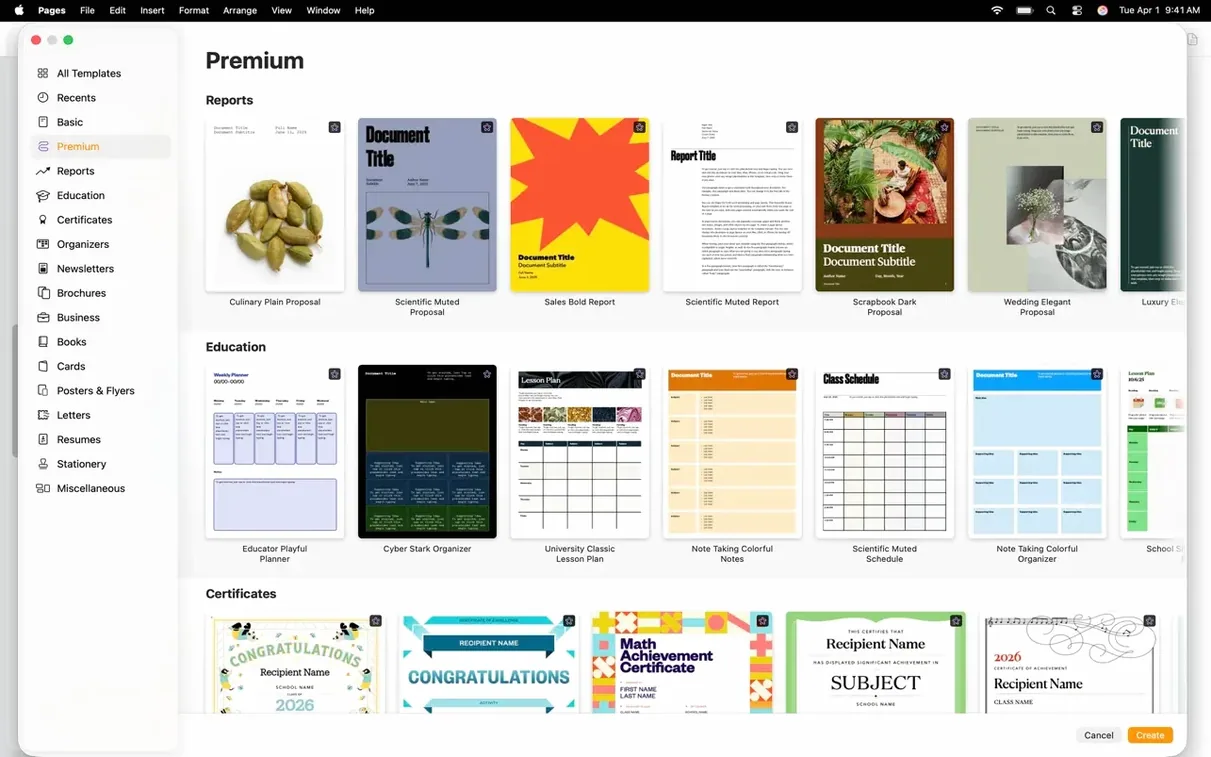
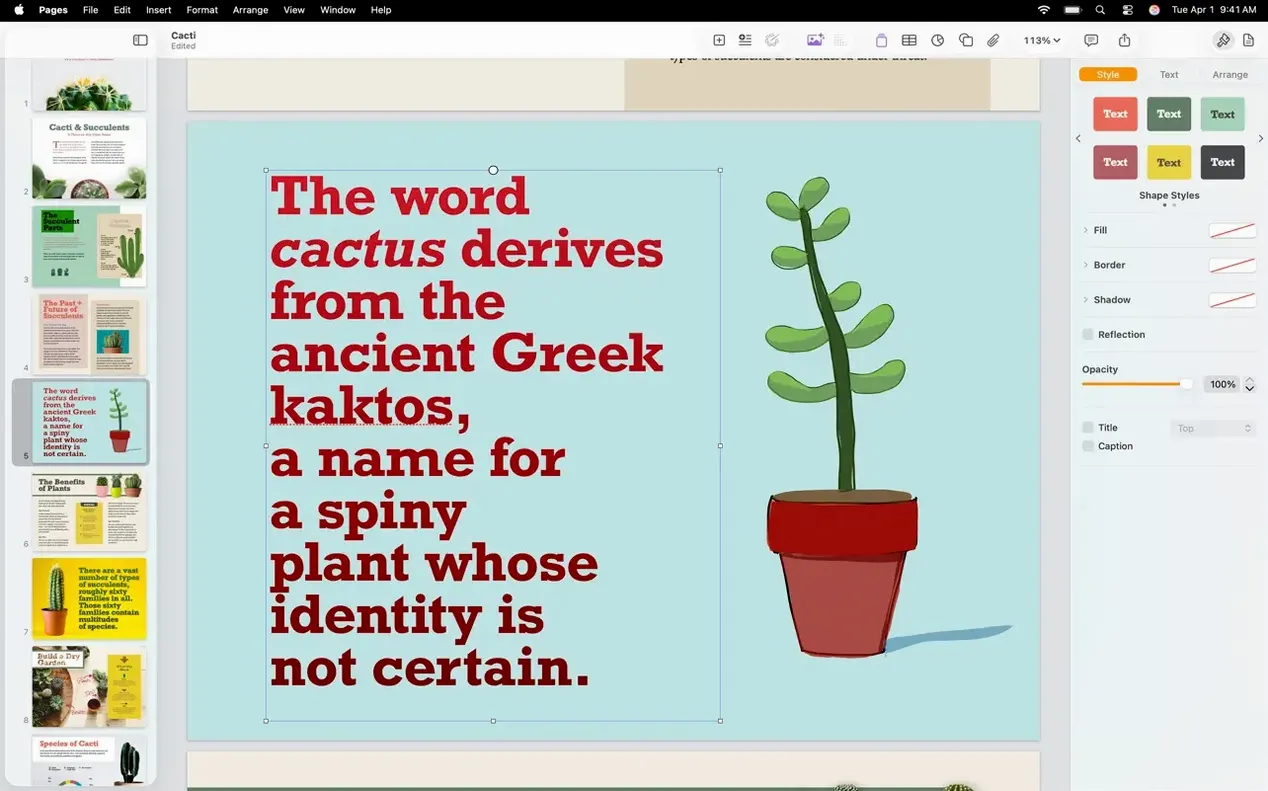
Description
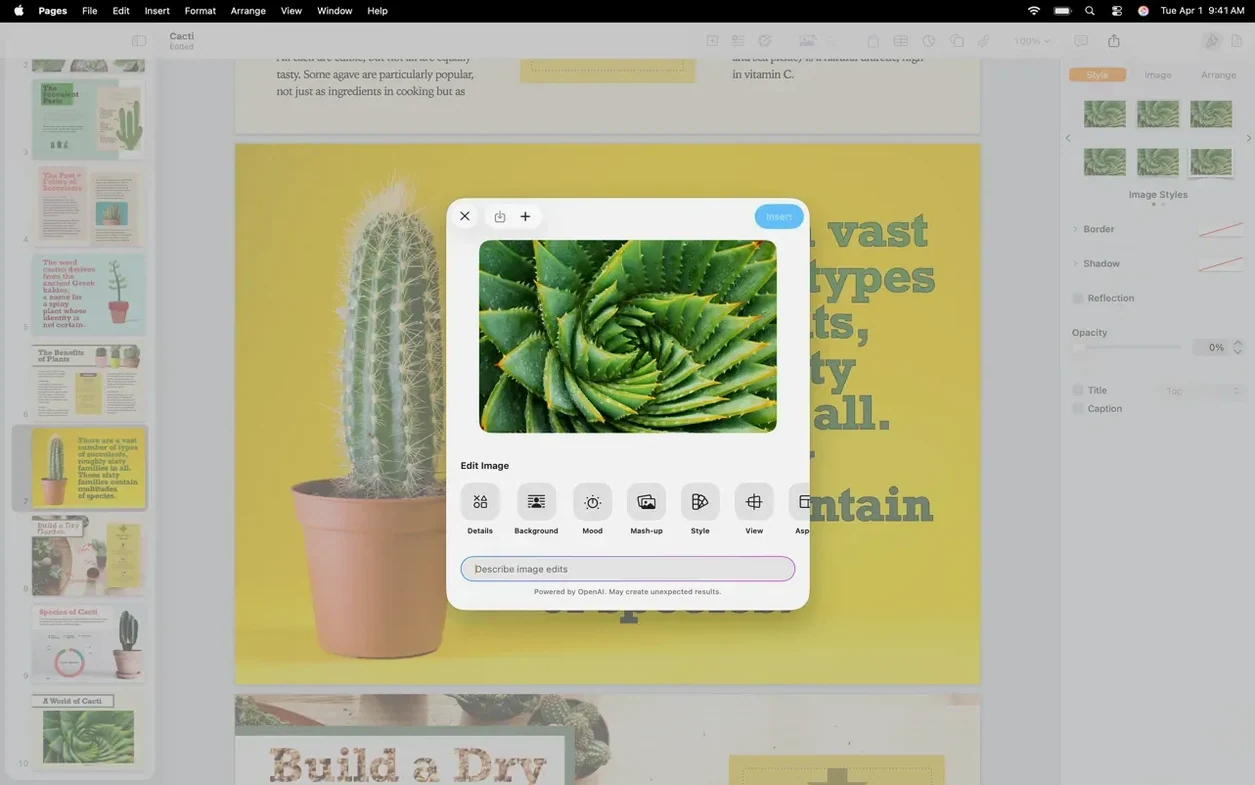
Version 15.3.1 isn't a headline-grabber, but two additions matter if you work with images. You can now open a picture from your document straight into Pixelmator Pro, edit it there, and see the result back in Pages without manual exporting. There's also a shape generator that turns a text description into an editable custom shape—less hunting through the shapes library.
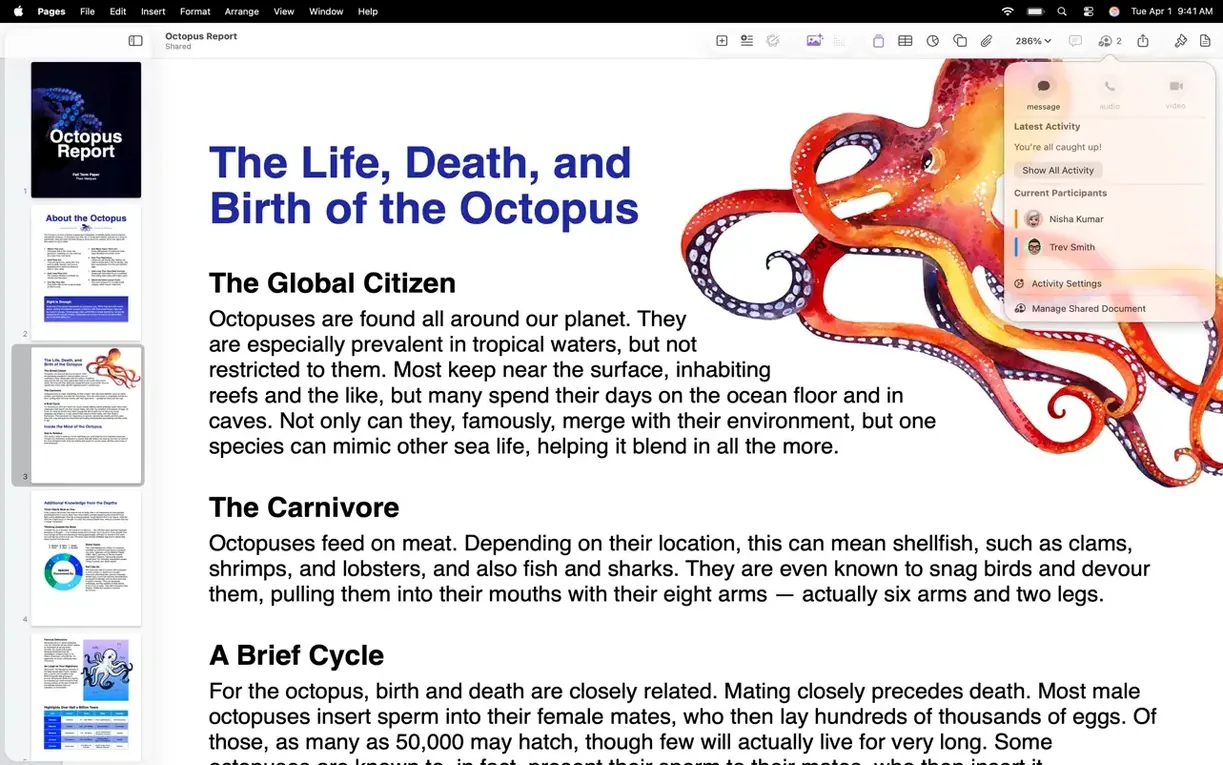
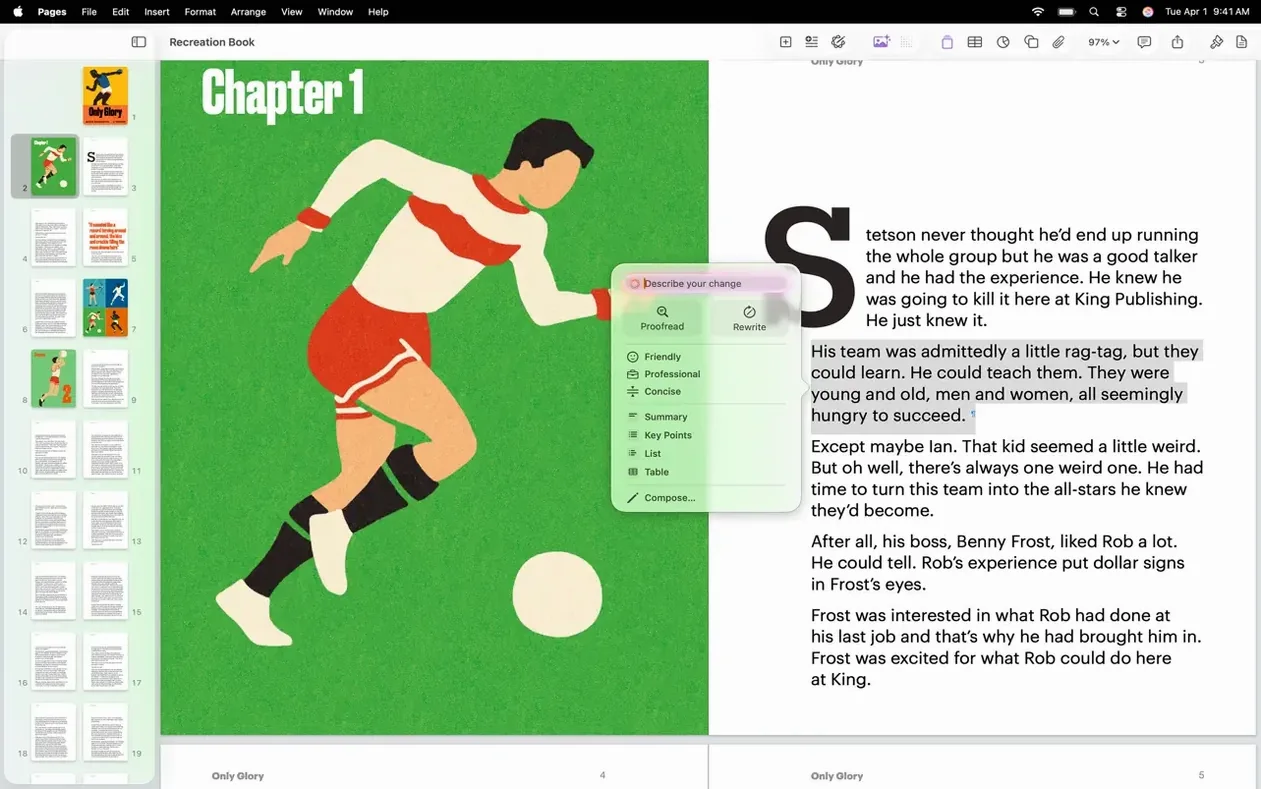
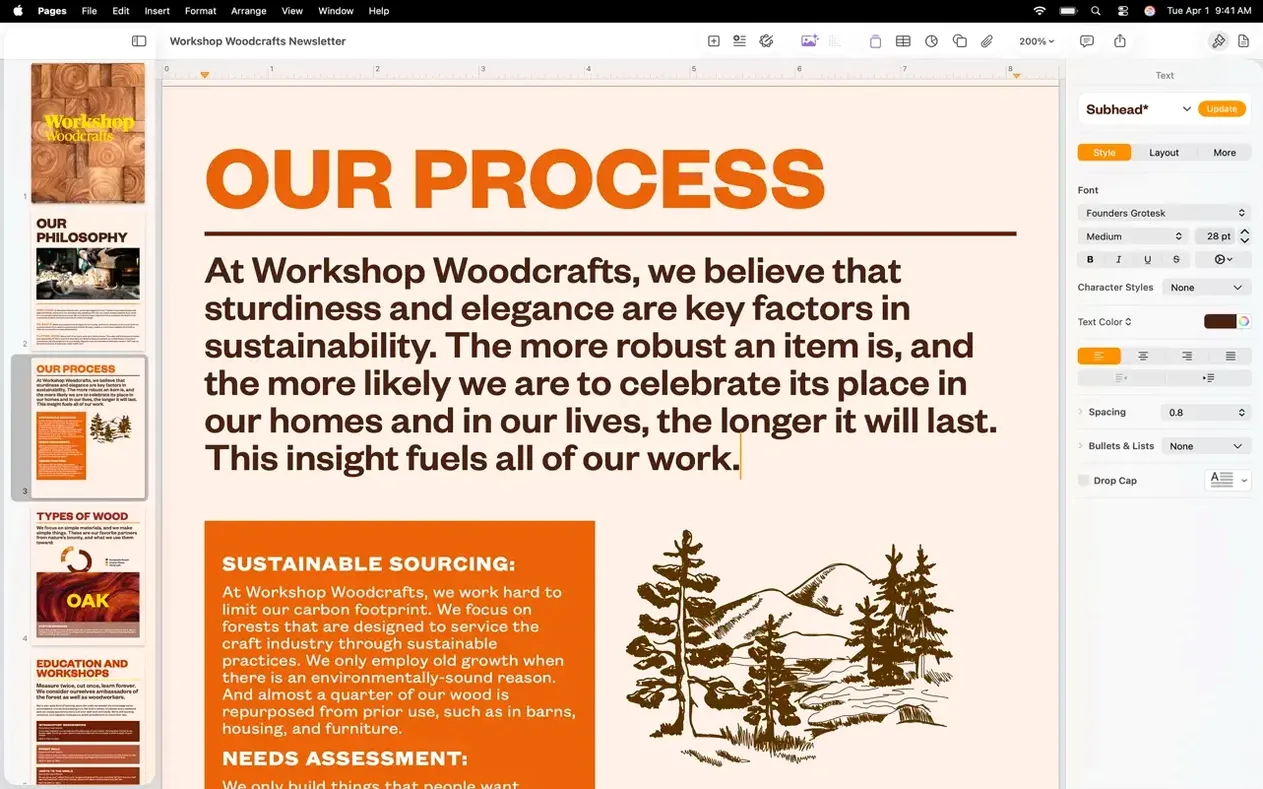
Image replacement from the Content Hub got a bit more straightforward too. The rest of the update is the usual bug fixes and performance tidying. What hasn't changed is the broader toolkit: real-time collaboration still works, as do page layout controls, charts, tables, and the automatic list and object arrangement. Masks and instant background removal remain available for quick image clean-up.
Documents can mix text, images, video, and drawings. Font and colour controls are where they've always been. The interface ships in 32 languages, from Arabic to Vietnamese. It needs macOS 15.6 or later and runs on Apple silicon and Intel.
Turn a phrase into an editable vector shape
The shape generator in 15.3.1 is more useful than it sounds. Type something like "a coffee cup silhouette" into the description field and Pages builds an editable vector shape you can resize, recolour or tweak with the pen tool. It saves the fifteen minutes you'd otherwise spend combining circles and rounded rectangles from scratch.
Pixelmator Pro integration works both ways. Right-click any image in your document and choose Edit in Pixelmator Pro—Pages hands over a copy, watches for changes, and pulls the edited version back when you save. No exports clogging your desktop in between.
A few other things are easy to miss. Hold Option while dragging a corner handle to resize from the centre of an object. Triple-click a paragraph to select it whole. Command-Option-M opens the table of contents sidebar if you work with long documents and need to jump between sections quickly. The placeholder text command—Format > Advanced > Insert Placeholder Text—drops in lorem ipsum without leaving the app.
Image replacement from the Content Hub, step by step
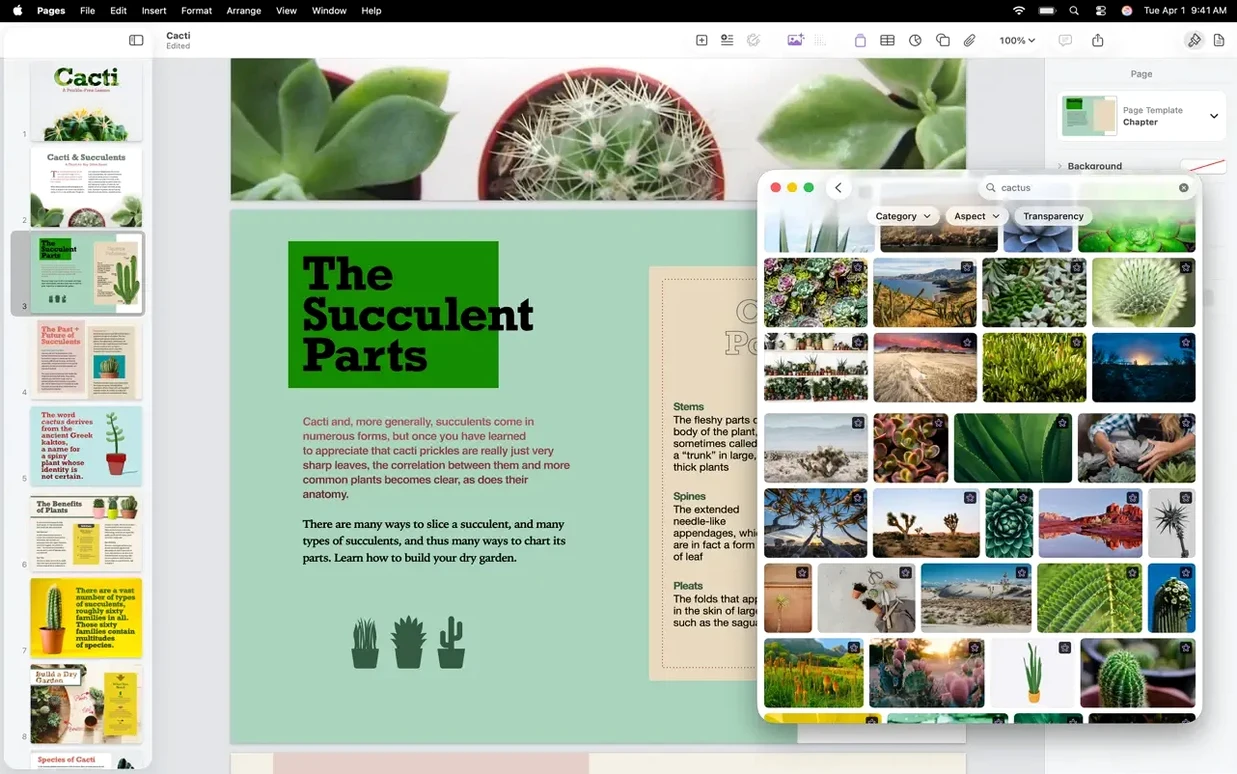
The Content Hub replacement workflow got a small rethink in this version. Here's how it plays out when you're dropping in a new photo for a report cover:
- Click the image you want to swap out. A thin blue border confirms it's selected.
- Open the Content Hub from the toolbar or use Shift-Command-C. The sidebar slides out with your photo library, recent images and stock options.
- Find the replacement image. Hover over a thumbnail and click the three-dot menu that appears. Choose Replace Selected Image.
- Pages drops the new image into the same frame, at the same size and position. Any mask, shadow or opacity settings carry over—you don't redo formatting.
- If the replacement crops awkwardly, double-click the image and drag within the mask to reframe. The original aspect ratio stays intact.
The improvement in 15.3.1 is that the Content Hub now respects the selection context more reliably. Earlier versions sometimes lost the connection and inserted the image as a new object instead of swapping it in place. That particular annoyance seems sorted now.
Quick workflow: a report with generated artwork
Say you need a two-page project summary with a custom header graphic. You have text ready, but no artwork. Here's one way through it:
Open a blank landscape document. Type a title and subtitle, then hit Format > Styles and pick a heading style that matches the tone. Go to Insert > Shape > From Text Description. Type "abstract mountain range with three peaks" and click Create. Pages generates an editable shape—drag it to the header area and stretch it across the width. Set the fill to a gradient using the Format sidebar, drop opacity to 40%, then send it behind the text with Arrange > Send to Back.
Paste your body text below. Select the first paragraph and create a drop cap via Format > Text > Drop Cap—it adds weight without extra design work. Insert a chart from the toolbar for any data, then pull a photo from the Content Hub to anchor the second page. If the photo needs cleaning up, right-click and send it to Pixelmator Pro for a quick crop or colour adjustment. Save there and the edited version lands back in your document.
Export to PDF when you're done. The whole thing takes under ten minutes once you know where the shape generator and Content Hub replacement live.
It's still the same Pages underneath—just with a couple of image workflows that feel less like detours.
What’s new
Opens images from Pages directly in Pixelmator Pro and shows the edit in the document.
Generates custom editable shapes from a text description.
Improves image replacement from the Content Hub.
Fixes bugs and improves performance.
Requirements
- macOS 15.6 or later
- Intel and Apple Silicon Macs
FAQ
What does the shape generator in Pages 15.3.1 do?
It creates a custom editable shape from a text description you type, so you can get a specific form without browsing the shape library.
Comments 0
Sign in or create an account to leave a comment.
No comments yet…
If you’ve installed it, say how it went. Mention your Mac and macOS version — it helps the next person more than you’d think.