OmniReader Pro for macOS
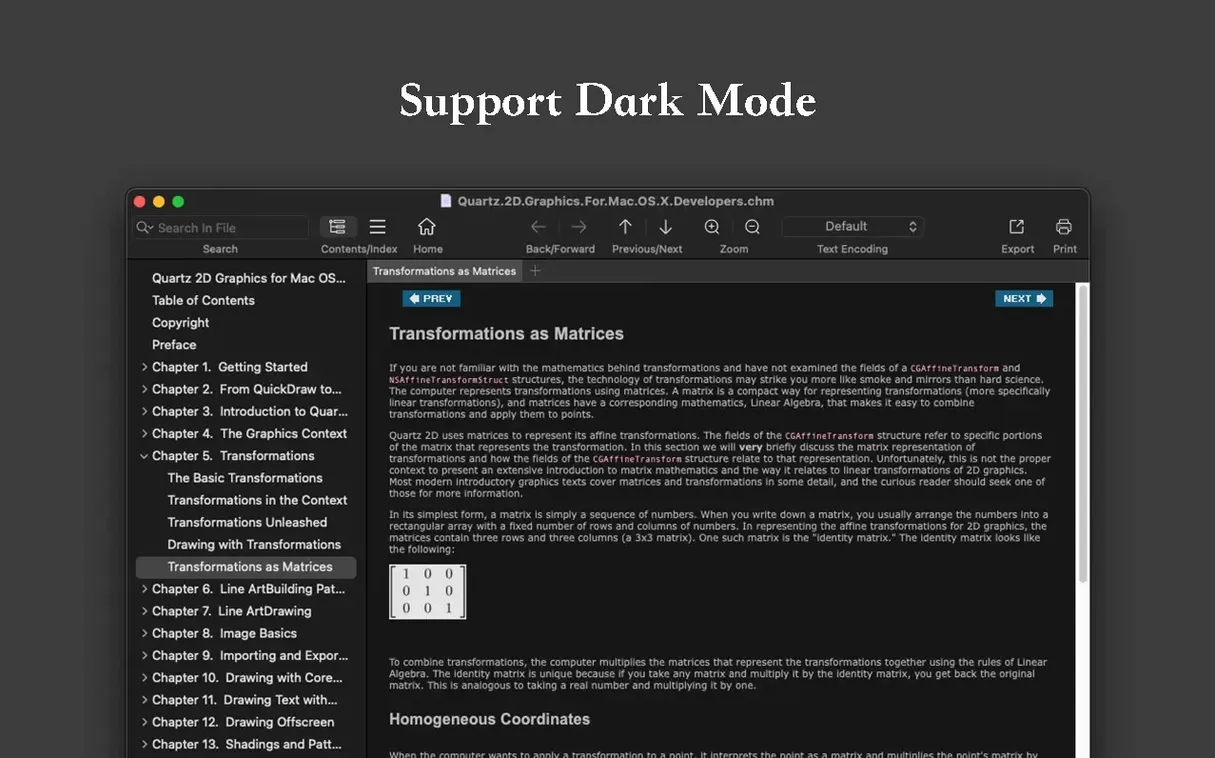
Description
You've downloaded a bundle of ebooks and a few work PDFs, but one title opens as gibberish and another has diagrams you need as separate images. OmniReader Pro is the tool you reach for when a basic reader isn't enough — it sorts out encoding messes, pulls images into a folder and keeps a sensible reading history so you can retrace your steps.
- Fix garbled text — handles file encoding so books that opened as nonsense in other apps display correctly.
- Extract all images — pulls every image from a document into a single file in one go.
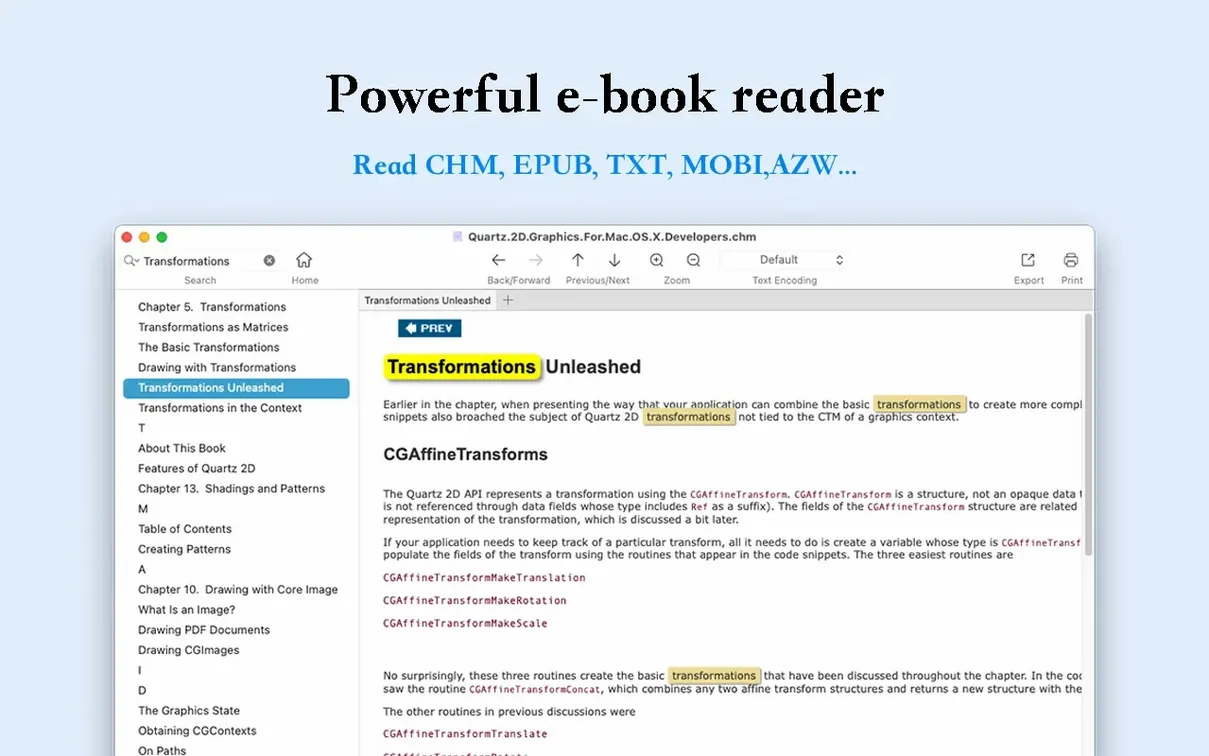
- Search with highlights — finds terms and highlights every match so you can scan results quickly.
- Forward and back history — keeps a trail of where you've been in a book, like a browser history for your reading.
- Export to EPUB and PDF — converts files into portable formats you can move to other devices.
The app also auto-adjusts images to fit and shows basic file info at a glance. It won't replace a full library manager, but for fixing, extracting and converting what you read, it puts useful tools in one place.
The rescue app for unreadable files from Mail, Calendar or AirDrop
OmniReader Pro doesn't try to be your only reading app. It's the one you open when something else fails. Calendar attachments, Mail downloads, files that arrived via AirDrop — drag them onto the dock icon and OmniReader takes over where Preview or Books gave up.
The export to EPUB and PDF means you're not locked in. Fix a garbled CHM, tidy it up, then send a clean PDF to Apple Books or an EPUB to your e-reader's sync folder. Image extraction feeds straight into Finder — pull out diagrams, drop them into Keynote or a Markdown editor, done.
macOS integration is straightforward. The app registers for EPUB, CHM and Kindle file types, so double-clicking a book in Finder opens it here if you've set it as the default. Spotlight won't index the contents, but OmniReader's own full-text search covers that gap. Print support hooks into the standard macOS print panel — page range, paper size, the usual options all work.
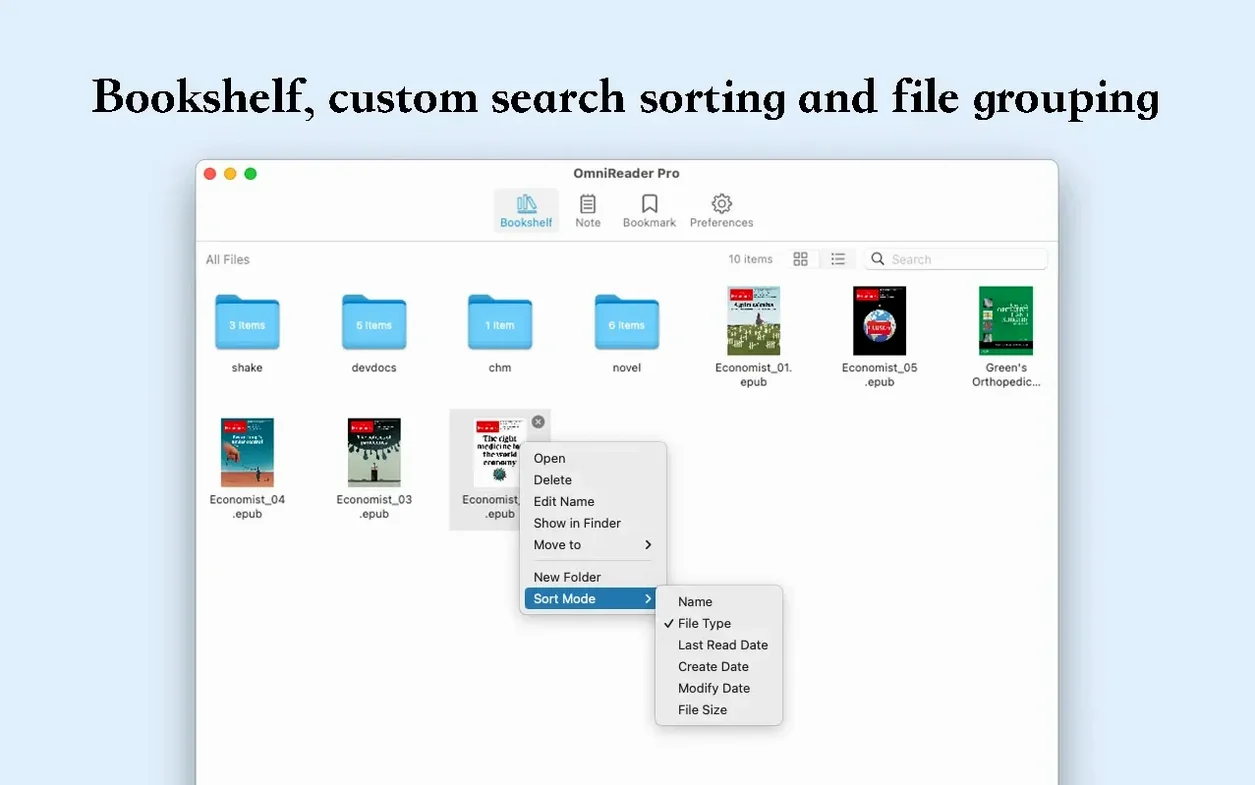
Drag in a whole project folder — EPUB, CHM and Kindle files at once
Say a colleague sends over a project folder with three ebooks — an EPUB, an old CHM reference file and a Kindle book you need quotes from.
- You open OmniReader Pro and drag all three files in at once. The sidebar lists them, each showing title and format.
- The CHM opens first. Text is scrambled. You open the encoding menu, try a few options — UTF-8 doesn't fix it, but Windows-1252 does. The book snaps into readable shape.
- You need all the diagrams from the Kindle book for a report. You select the file in the sidebar, choose the image extraction command. A Finder window opens — every image, named sequentially, in one folder.
- Back in the EPUB, you run a full-text search for a term you half-remember. Results fill the sidebar, each with surrounding context. You click through them, the forward/back buttons tracking your path so you don't lose your place.
- You print the relevant chapter to mark up by hand, zoom in on a tight table layout, then export the whole thing as a PDF for the colleague who doesn't have an EPUB reader.
Total time: maybe six minutes. No command-line tools, no online converters.
Keyboard page turning and a one‑click sidebar collapse
- Collapse the sidebar with one click — more screen for the text, especially on a laptop.
- Page turning with the keyboard — arrow keys work, so you're not always reaching for the mouse or trackpad.
- Auto image sizing means you don't get diagrams spilling off-screen, even in older books with odd formatting.
- Basic file info panel shows title, format and structure at a glance — useful when you're dealing with a folder of generically named files.
- Encoding handling remembers your last choice per session, so fixing one scrambled book doesn't mean re-selecting for every file you open afterwards.
None of these are flashy features. They're the kind of things you notice after a week of regular use — fewer clicks, less friction, less time staring at broken text.
Requirements
- macOS 10.13 or later
- Apple Silicon and Intel 64-bit
FAQ
Can OmniReader Pro fix garbled text in documents?
Yes. It supports file encoding handling, which resolves the garbled text you sometimes see when opening books from different sources.
Comments 0
Sign in or create an account to leave a comment.
No comments yet…
If you’ve installed it, say how it went. Mention your Mac and macOS version — it helps the next person more than you’d think.