Final Draft for macOS
Description
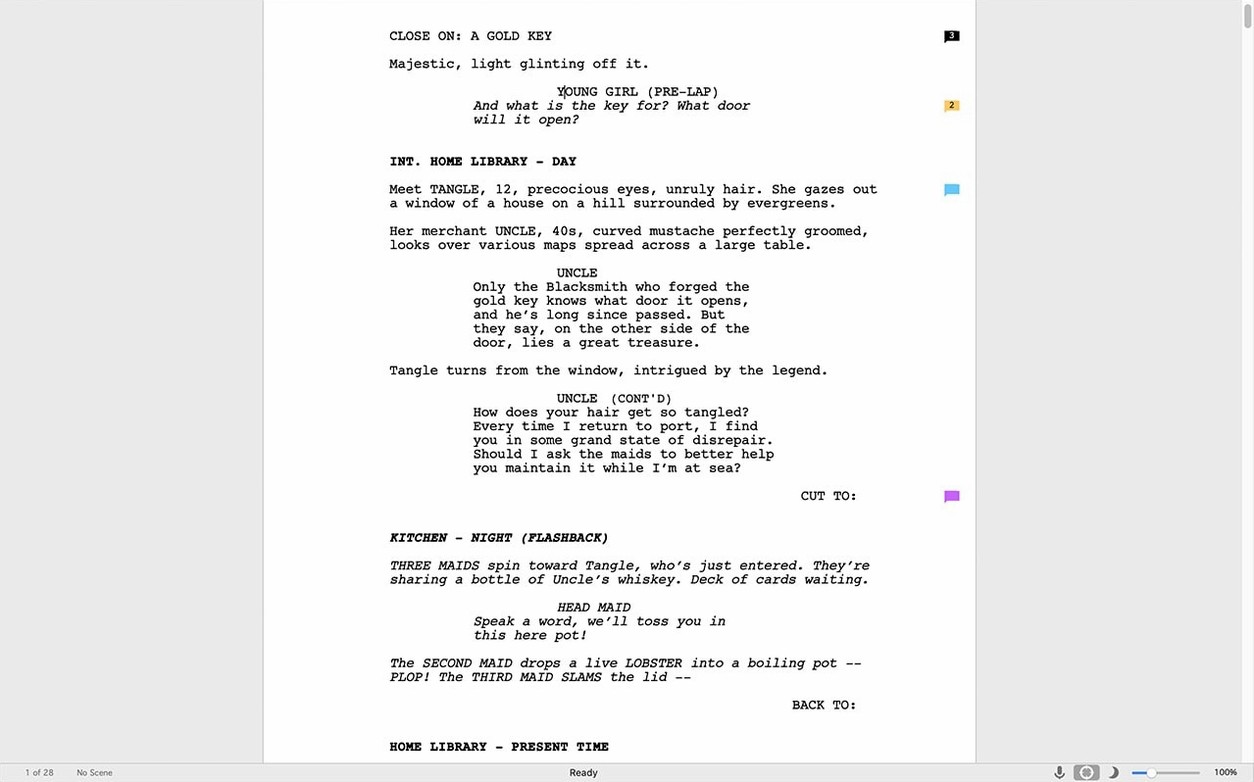
Final Draft 13 is screenwriting software that formats film, TV and stage scripts the moment you start typing. If you've used it for years, you already trust the pagination. The things that keep you fast are buried a little deeper.
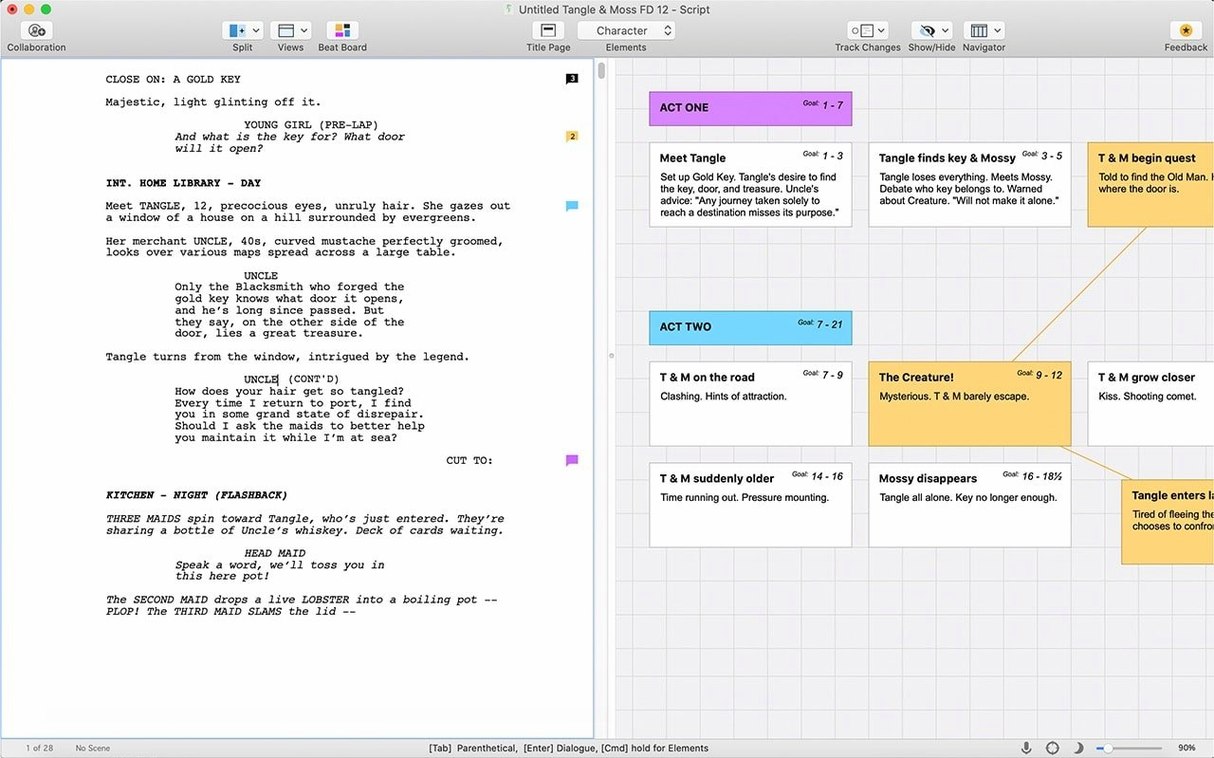
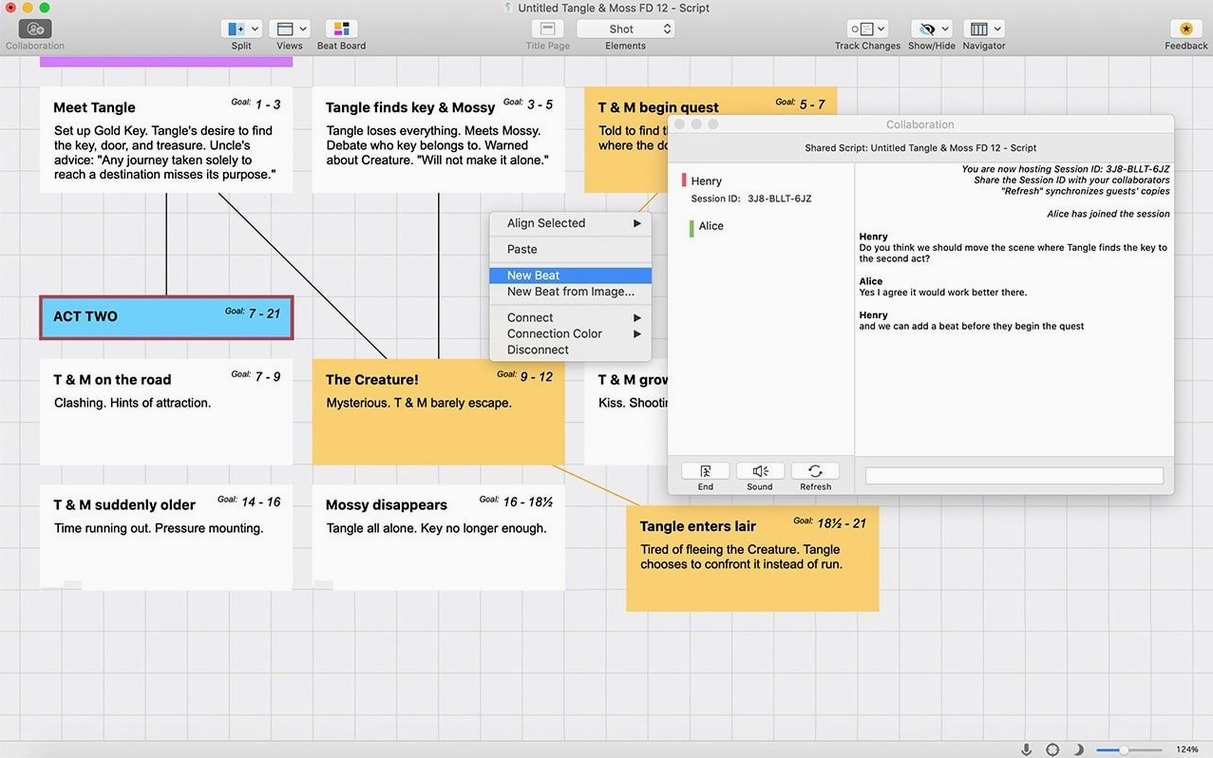
- Beat Board with outline linking. Drag a beat onto a script line and the connection stays live — move the beat later and the script marker moves with it.
- Revision mode sets. You can store multiple revision colour sets and switch between them. Production rewrites stop becoming a colour-coding headache.
- Tagging for reports. Tag characters, props and locations while you write, then spit out a report for a 1st AD instead of typing it by hand.
- Alternate dialogue containers. Store joke options and line variations inside the script without bloating the page count.
- Final Draft Go sync. The iOS app connects to your main script, so you can rework a scene on a train and it lands back on the Mac looking correct.
Version 13 needs macOS 12 Monterey or later on Intel Macs. The initial sign-in wants an internet connection, then you're off. No fuss, just the tools that keep a working draft moving.
In daily work, Final Draft 13 opens quickly and stays out of the way. On an Intel Mac running Monterey or newer, typing feels immediate — no lag between keystrokes and formatted text. The autosave is quiet and reliable. You will not notice it until you need it, which is how it should be.
Memory use sits low for what the app carries. A feature script with revision marks, tags and a populated Beat Board rarely pushes the machine hard. Fans spin up during PDF export or a long report generation, then settle. If you keep ten scripts open at once, expect some slowdown, but nobody sane does that.
Stability is where Final Draft earns its keep. Crash reports from version 13 are rare in normal use. The exception is older third-party templates dragged in from Final Draft 8 or 9 — those can misbehave, so rebuild them natively if you still use one. Autosave makes even that less painful than it sounds.
Hidden Tab-and-Enter element shortcuts
Some of the best features in Final Draft never announce themselves. They are tucked into menus and keyboard shortcuts that reward a little exploration.
- Tab and Enter cycle through elements. Write a character name, hit Tab, and the cursor jumps to dialogue. Finish the line, hit Enter, and you are back to action. Your hands never leave the keyboard.
- Ctrl+1 through Ctrl+9 switch element types instantly. Need a scene heading now? One keystroke. No mouse, no dropdown.
- ScriptNotes panel remembers everything you flag. Drop a note on a line, and it stays anchored even when you move scenes around. Good for notes from a producer who wants changes tracked.
- Dual dialogue with one command. Select two dialogue blocks and press Ctrl+D. The app formats them side by side for overlapping lines. No manual spacing guesswork.
- Dictation is built in, not an add-on. On macOS, enable dictation and speak dialogue. Formatting follows the element rules, so you get a clean script page instead of a paragraph mess.
It won't replace a novel-writing app
Does it replace my current writing app? For scripts, yes. Final Draft is not a general word processor. If you write novels, keep Scrivener around — Final Draft 13 talks to it, so you can manage the project in Scrivener and write the script in Final Draft without losing either.
Will my old scripts open? Files from Final Draft 10 and later open without trouble. Older versions, especially anything before version 8, may need a conversion pass. The app handles most of it on import, but check pagination afterwards. Page counts shift between major versions, and a producer will notice if your 110-page draft becomes 114.
How much screen space does it take? The interface is denser than a simple text editor. On a 13-inch MacBook, you will want Full Screen mode for writing sessions. The Inspector and Beat Board can be collapsed, and the toolbar hides with one click. After ten minutes of setup, you have a clean page.
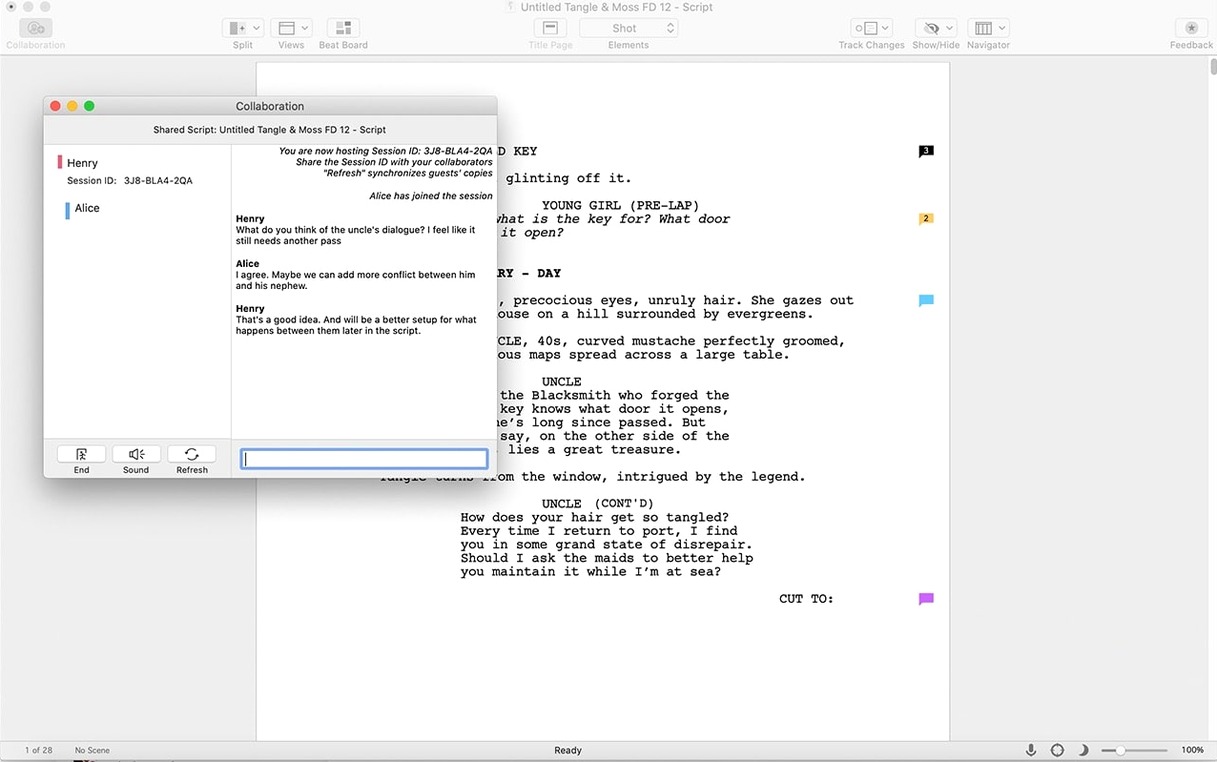
Can two people work on one script? Not at the same time in real time. Final Draft is not a live collaboration tool. You pass files back and forth, and revision mode tracks who changed what. For a writers' room, that is usually enough. For simultaneous editing, you need something else.
A real workflow: revision pass on a locked draft
Say you have a locked production draft and the director wants script changes that the line producer must see clearly. Here is how it goes in Final Draft 13.
- Open the locked draft and save a copy named with the date. Never work on the master file during a revision pass.
- Turn on revision mode from the Production menu. Pick a colour set — blue for the first pass, or whatever the production office uses.
- Make your changes. Every new line, deleted line and moved scene appears in the revision colour. Page numbers stay locked, so the crew can still find scene 42.
- Use ScriptNotes for anything that needs explanation. A note like "New dialogue on page 17, clear with sound dept." saves a phone call later.
- Run a revision report from Production > Reports. Pull the changed pages and a list of altered scenes. Send that PDF to the line producer, not the whole script.
- When the pass is approved, set the revision colour to a new one for the next round. The old changes stay visible until you clear them, so nobody loses track.
The whole pass, from opening the file to sending the report, takes less than half an hour for a typical set of notes. That speed is the entire point.
Pasting from Word gives you red warnings
The first mistake is fighting the formatter. New users paste text from Word or Google Docs and expect clean results. They get a wall of red — unknown elements, broken scene headings, dialogue parsed as action. Instead, paste as script text or retype the elements manually. Five minutes of cleanup beats an hour of fixing.
The second mistake is ignoring the Navigator. The left panel shows scenes in order, with synopsis fields you can fill in. Beginners scroll through 90 pages to find a scene. Experienced writers click the scene in the Navigator and jump straight there. Fill in the scene headings properly and the Navigator becomes your map.
The third mistake is using spaces to adjust margins or line breaks. That breaks pagination and creates inconsistent PDFs. Final Draft formats everything by element type. Trust it. If a page looks wrong, the problem is usually a wrong element, not the app's fault.
Finally, beginners forget that a script is a production document, not just a story. The tagging system, the reports, the revision colours — those are not extras for fancy users. They are the reason Final Draft exists. Use them from the first draft and the whole process gets easier.
What’s new
Adds minor stability fixes.
Requirements
- macOS 12 Monterey or later
- Intel Mac
- Internet connection for initial sign-in
Comments 0
Sign in or create an account to leave a comment.
No comments yet…
If you’ve installed it, say how it went. Mention your Mac and macOS version — it helps the next person more than you’d think.