YTD Video Downloader PRO for macOS
Description
New to YTD and staring at the window wondering where to start. Here are the first things to try.
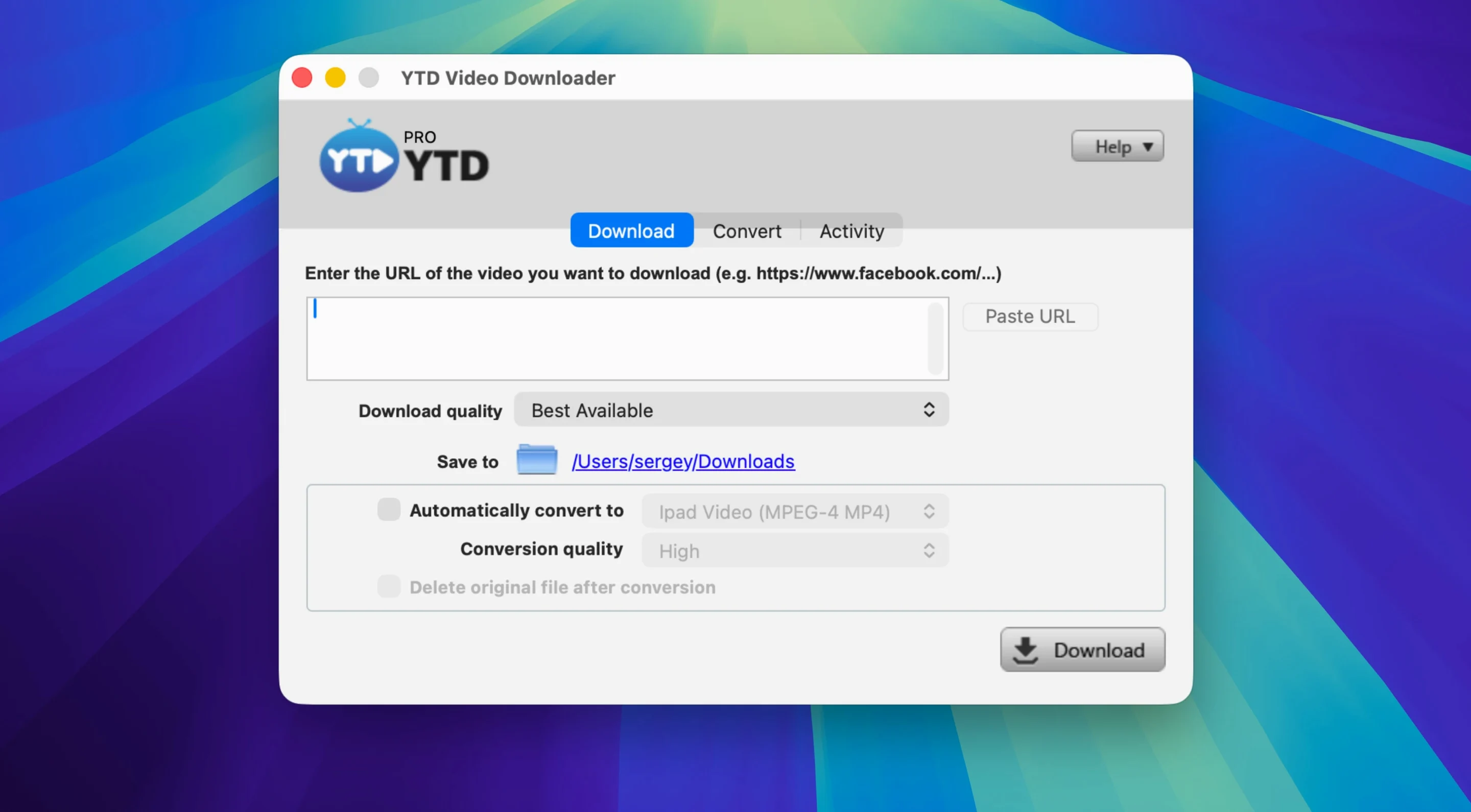
Paste Link button — Grabs whatever video URL you just copied and loads it ready to download. The app watches the clipboard, so copy a link from YouTube or Vimeo, click Paste Link, and the address appears.
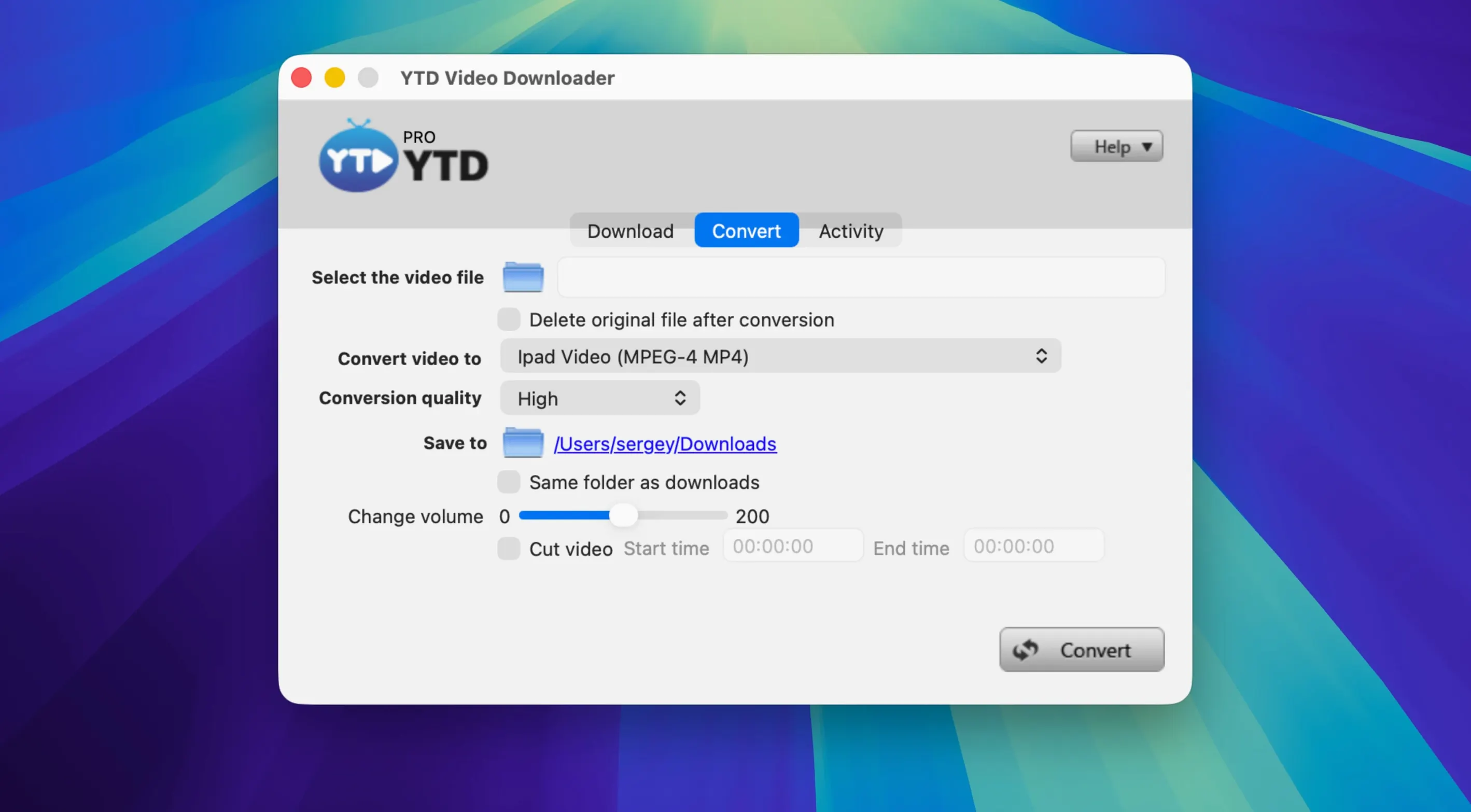
Format dropdown — Tells the app which file type to save. The built-in converter spits out .mp4, .mov, .avi, .wmv, .mp3, .3gp and .flv. Pick one before you hit download and the file lands in that format. No extra conversion step needed.
Conversion queue — Lets you turn a finished download into a different format later. Drop an already-saved file in, choose the new output from the same format list, and let it run locally on your Mac.
What versions 7.x settled into
Earlier 7.x builds spent a lot of energy chasing site changes. YouTube tweaks its delivery, TikTok rearranges metadata, and a downloader either adapts or breaks. By 7.8.0 the app had stopped sprinting and found a steadier rhythm. Clipboard detection got snappier — copy a link and the Paste Link button lights up within a second or two, not the four or five seconds older builds sometimes took.
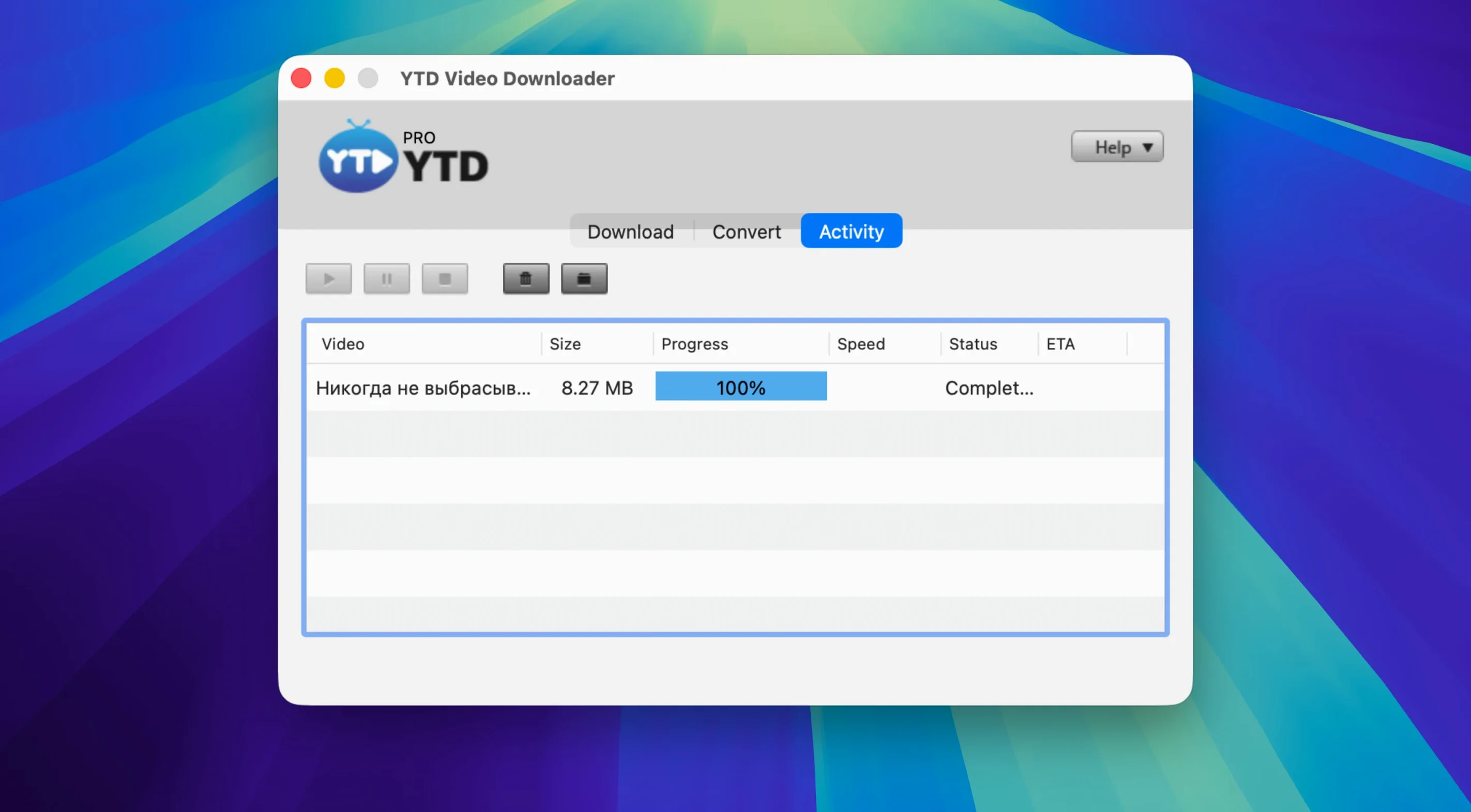
Playlist handling improved quietly. You could always throw a playlist URL at it, but 7.8.0 is less likely to stall on the forty-seventh video of a seventy-video list. The auto-retry after a dropped connection became more persistent without hammering the server. For people who queue up a long playlist overnight, that matters more than any headline feature.
The converter stayed local and straightforward. No cloud processing, no uploads. The format list didn't grow, which is actually fine — the seven outputs cover what most people need, and the app stopped pretending it was a full media encoder.
Who clicks with YTD
Someone who saves lecture recordings, conference talks or tutorials for offline use gets the most out of it. Paste a playlist of thirty videos, set the format to MP4, walk away. Come back to a folder of watchable files. No browser tabs left open, no buffering on a train.
Musicians and DJs who pull audio from video platforms use the MP3 conversion path heavily. Drop a performance video, grab the audio, load it into a set. The AAC option serves the same crowd when file size matters more than absolute fidelity.
People on metered or patchy internet — rural broadband, mobile hotspots, shared hostel Wi-Fi — benefit from pause and resume. Start a large download, pause it when the connection goes flaky, resume it later without losing progress. It is a feature that sounds small until you need it.
If your workflow is "watch once and move on," streaming makes more sense. YTD suits people who return to the same material, who annotate, who archive, who need the file to exist tomorrow regardless of whether the uploader deletes it.
Downie covers more sites, YTD handles more file types
Some people search for ytd for mac side by side with alternatives, so here is how they stack up in daily use.
Downie does one thing and does it fast. Its strength is sheer site coverage and the way it pulls subtitles and metadata along with the video. The trade-off is that it is a pure downloader. No converter lives inside it. You need a separate tool or a post-download script to change formats. YTD bundles conversion into the same window, which means fewer moving parts if you always want MP3 or a specific video format.
4K Video Downloader handles playlists cleanly and parses YouTube channels with less fuss than YTD. It also handles high-resolution and 3D formats that YTD ignores. But it leans harder on in-app prompts and nudges. YTD stays quiet — no logging, no nagging, just a window that downloads what you tell it to. For someone who finds constant upgrade prompts exhausting, the difference is real.
ClipGrab is the simplest of the bunch. It converts and downloads in one go, much like YTD, and its interface is friendlier for a first-timer. What it lacks is playlist support and the stubborn persistence of YTD's retry engine. A dropped connection mid-playlist in ClipGrab means manual cleanup. In YTD the retry logic handles it.
None of these apps are trying to be everything. YTD sits in the middle: converter and downloader in one, playlist support, a format shortlist that covers the common cases, and an interface that stops talking once you start working.
That is the core loop: paste, pick a format, download. The app supports more than fifty video platforms and does not log what you grab.
Requirements
- OS X 10.10 or later
- Intel processor
FAQ
Can it pull just the audio from a video?
Yes. Select .mp3 as the format before downloading and the converter strips the video track, saving only the audio.
Which video sites work with it?
It supports over fifty platforms including YouTube, Vimeo, Dailymotion, Youku and Yahoo Video.
Does it keep a history of everything I download?
No. The developer states the app does not log activity or download history.
Comments 0
Sign in or create an account to leave a comment.
No comments yet…
If you’ve installed it, say how it went. Mention your Mac and macOS version — it helps the next person more than you’d think.