Wirecast Pro for macOS
Description
The discontinuous-frame flag for NDI sources now appears where you'd expect it. That small change, alongside a PTZ camera detection fix, is what the 16.5.4 update delivers. The rest of the app behaves as it has for years: a deep tool for people who need to push a polished live feed out the door without a broadcast truck.
Place a logo
Drag a PNG onto the canvas and it sits cleanly over your output. No timeline keyframing needed — it stays put until you remove it.
Change text on air
Titles and lower-thirds are editable while you're live. Double-click, retype, and the audience sees the correction on the next frame.
Work around corporate blocks
If IT policy blocks the virtual microphone driver, the virtual camera now degrades gracefully instead of refusing to start. A niche fix, but one that stops a silent failure in managed environments.
Snags you might meet
A few problems crop up often enough to be worth spelling out. Most have quick fixes.
NDI sources don't show up. The 16.5 fix improved detection for certain PTZ cameras, but if a source still won't appear, check that both the camera and the Mac are on the same subnet. NDI discovery relies on multicast traffic, which some managed switches and VLANs block. A quick test: plug both devices into a dumb switch and see if the source pops up.
Audio drifts after half an hour. This usually means the clock on your audio interface doesn't match the system clock. Wirecast tries to compensate, but it can only do so much. Set the audio device to the same sample rate as the project — 48 kHz is standard for video work — and if drift persists, clock both devices from the same digital source.
The virtual camera output stutters. High GPU load is the usual suspect. Background rendering in Wirecast competes with other apps for the GPU. Close Chrome tabs with animated content, quit Photoshop, and if you're on an Intel Mac, consider lowering the canvas frame rate to 25 fps during long broadcasts.
Black screen on a capture card. Some Blackmagic and Magewell cards need a specific input resolution set before Wirecast sees the signal. Open the card's utility app first, confirm the feed, then add it in Wirecast.
Setting up a two-camera panel with screen-share and titles
You're streaming a panel discussion. Two cameras, one screen-share from a laptop, and a title card to open with. Here's how a session runs.
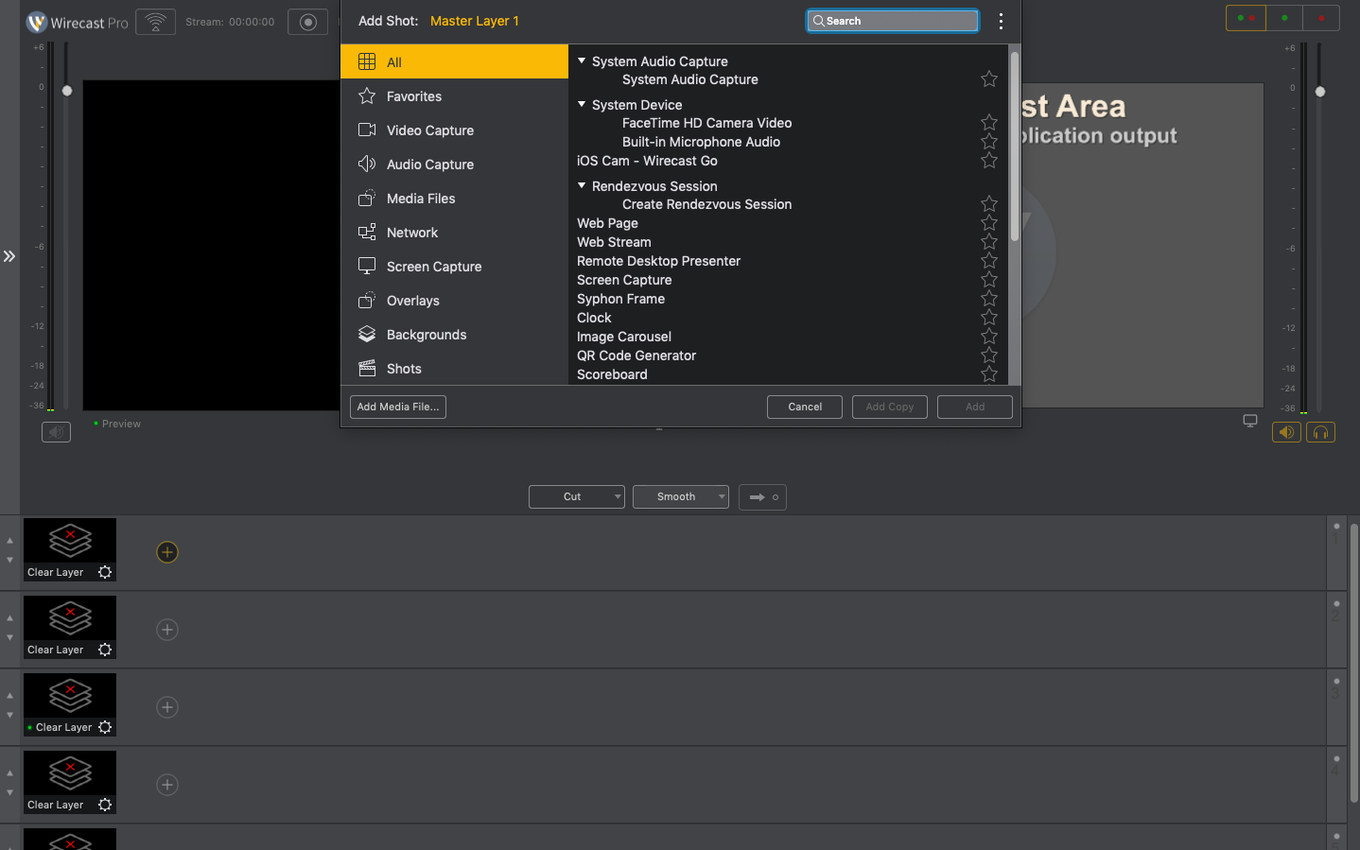
You open Wirecast and pick a blank document. The canvas defaults to 1080p30 — fine for this job. You add the first camera as a shot, then the second. Both appear as thumbnail sources in the top-left bin. You rename them "Wide" and "Close" so you don't mix them up later. The laptop feed comes in over NDI; you tick the NDI box in preferences, and it appears in the source list a few seconds later.
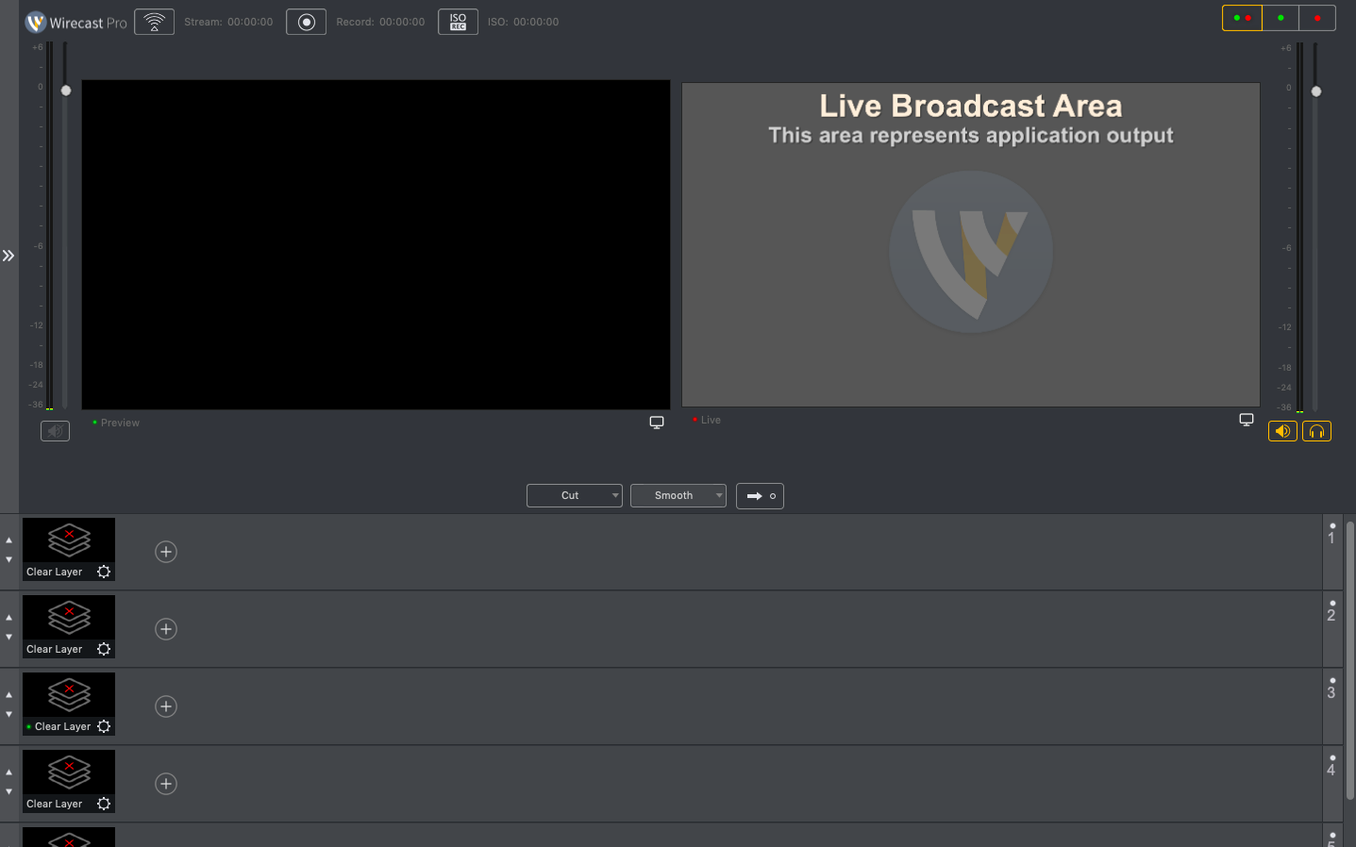
Before going live, you build a title shot. The built-in title templates live under the Graphics tab — you drag one onto the canvas, double-click the placeholder text, and type the panel name. You set it as the opening shot. Next, you place a small sponsor logo on the top-right corner as an overlay. Layer order matters: logo on top, titles beneath it, cameras at the bottom. You lock the logo layer so accidental clicks don't shift it mid-broadcast.
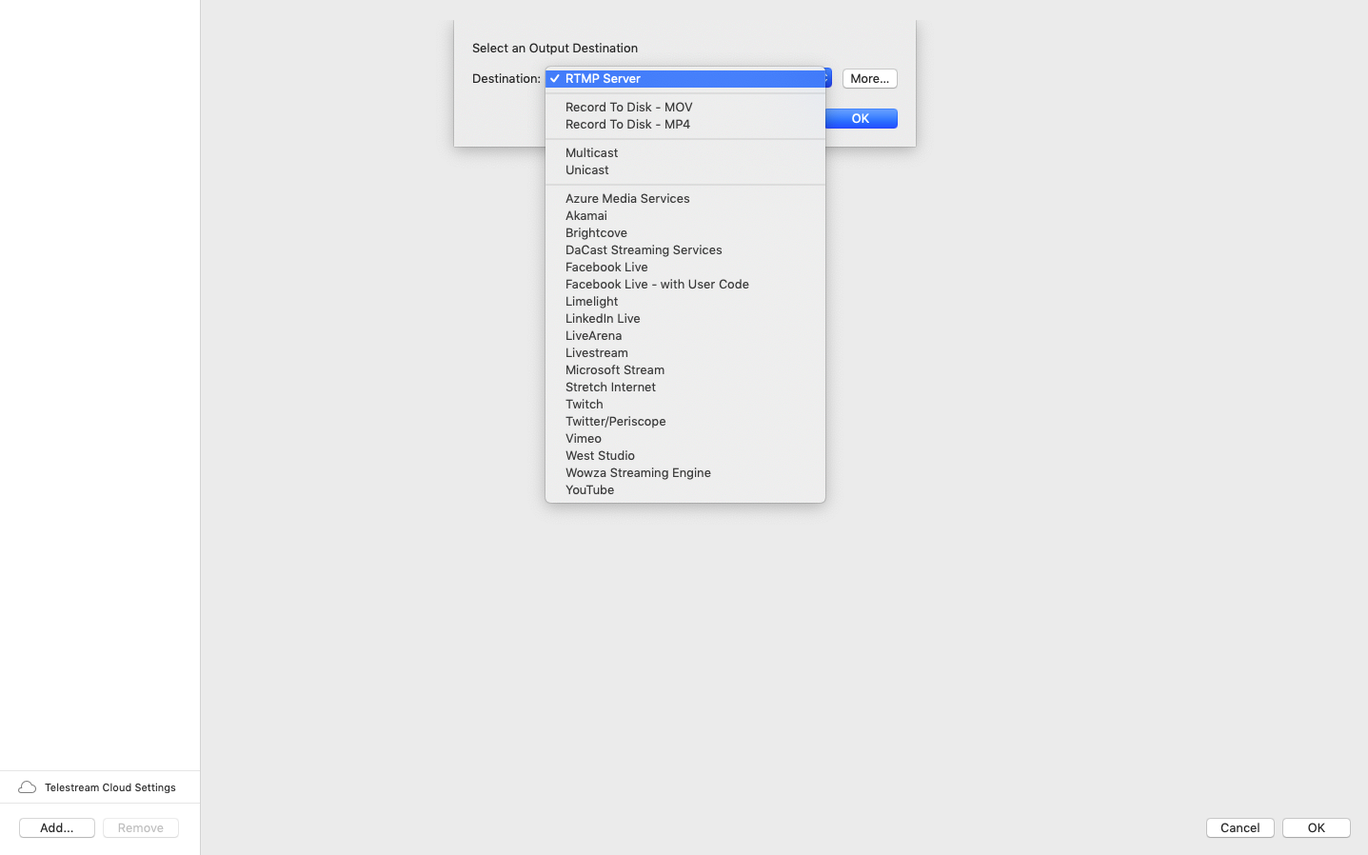
At five minutes to air, you hit the record button as a safety. Then you click Stream. The encoder connects to your RTMP endpoint, and the "On Air" indicator turns red. You switch from the title shot to the wide camera with a keyboard shortcut — number keys 1, 2, 3 — and the transition plays in half a second. For the Q&A, you use the shot editor to crop the close-up camera tighter on the speaker without cutting away.
When the panel ends, you switch back to the title card, hold it for three seconds, and stop the stream. The recording is a clean local copy ready for trimming.
Lock in your canvas size, frame rate, and default transition early
A few habits that pay off early.
Set your project defaults before you need them. Open Preferences, set the canvas resolution and frame rate, pick an audio sample rate, and choose a default transition. Saving a blank template with these settings means every new project starts with them in place. It saves ten minutes of fiddling before every stream.
Assign keyboard shortcuts for your main shots. The first ten sources map to number keys by default, but you can remap them. Put your most-used cameras and graphics on 1–5 so you can switch without looking at the interface. If you use a Stream Deck, Wirecast's companion plugin exposes shot switching and transitions as buttons.
Run a ten-minute test stream to a private endpoint. Before your first public broadcast, test everything. Audio levels, green tint from a camera, frame drops under load — they all show up in a test. Watch the test back as a viewer would.
Keep the sources bin tidy. After adding a dozen cameras, NDI feeds, audio inputs and graphics, the bin gets messy. Take two minutes to rename sources clearly and delete unused ones. When something goes wrong on air, you don't want to guess which "Source 7" is the camera that just died.
Check the Stats panel early. Under the Window menu, the Stats panel shows dropped frames, encoder load and bitrate. Glance at it during your test stream so you know what normal looks like. A sudden jump in dropped frames later tells you something changed — a network hiccup, a thermal throttle, a misbehaving source.
What’s new
Fixes detection of certain PTZ NDI cameras on macOS. Fixes virtual camera when the virtual microphone driver is blocked by corporate IT policy. Adds a discontinuous-frame flag for NDI sources.Requirements
- macOS 11 or later
- 64-bit Intel or Apple Silicon Mac
Comments 0
Sign in or create an account to leave a comment.
No comments yet…
If you’ve installed it, say how it went. Mention your Mac and macOS version — it helps the next person more than you’d think.