WinZip Mac Pro for macOS
Description
WinZip for Mac is a desktop tool for shrinking files, locking them with encryption, and sending them to cloud services without leaving the app. The current version, 12.0.7282, refines the engine that’s been handling Zip and ZipX archives for years. It still does the core job — getting large folders down to a sensible size — and it still talks to iCloud Drive, Dropbox and Google Drive once you connect your accounts.
| Key detail | What you get |
|---|---|
| Mac support | macOS 10.15 and later, Intel and Apple Silicon |
| Cloud connections | iCloud Drive, Dropbox, Google Drive built in |
| Encryption | Password-protect any archive you create |
The app also detects duplicate files while you work, so you don’t accidentally archive the same thing twice. And if someone hands you an archive in a format you don’t normally touch — LHA, RAR, 7Z, TAR, GZ or a handful of others — you can convert it straight into a Zip or ZipX file instead of hunting for a separate unpacker. It’s a practical set of tools for anyone who regularly moves projects between machines or sends batches of documents to colleagues. Worth a look if your current archiver feels a bit thin.
Lost cloud accounts, gatekeeper blocks, and archives that won't open
Most trouble with WinZip Mac comes down to three things: cloud accounts losing their connection, macOS throwing a gatekeeper warning at first launch, and archives refusing to open because the sender used a compression method the Mac edition handles differently.
If a cloud service stops showing your folders, disconnect and reconnect it. Open the cloud pane, remove the account, then add it back. That usually pulls a fresh authentication token and puts things right. For iCloud Drive specifically, make sure you're signed into the same Apple ID in System Settings — the app pulls that credential rather than asking for a separate login.
When macOS blocks the app on first run, head to System Settings > Privacy & Security and click Open Anyway. You only need to do this once. If an archive from a Windows colleague won't unpack, check whether it uses a split-volume span — the Mac edition reads single-file archives cleanly but sometimes stumbles on multi-part sets created with older WinZip Windows versions. Ask them to send it as one complete Zip file and the problem disappears.
Duplicate detection is useful but literal. It compares file names and sizes, not contents. Two photos named IMG_4402.jpg that happen to be identical in size will get flagged even if they're different shots. It's worth a quick visual check before letting the tool remove anything.
Zipping 340 MB of print PDFs and InDesign files for a Windows client
Say you've just finished a set of print-ready PDFs and a folder of linked InDesign documents. The whole thing sits at 340 MB and needs to go to a client who works on a Windows laptop. Here's how that plays out.
- Drag the project folder onto the WinZip dock icon. The app opens a new archive window and lists every file it found.
- Duplicate detection fires automatically — if you'd accidentally copied the same PDF twice, it would highlight that now. In this case, nothing is flagged.
- You tick the Encrypt box, type a password, and choose Zip as the format. The client won't need WinZip to open a standard Zip file.
- Click Save, give the archive a name, and decide where it lands.
- Instead of saving locally and then uploading, you pick the Dropbox tab inside the save dialog. The archive compresses and lands straight in a shared folder.
- You copy the Dropbox link, paste it into an email, and include the password in a separate message.
The whole sequence takes about thirty seconds. The 340 MB folder compresses to roughly 280 MB — PDFs are already fairly tight, so the gain is modest, but having one file to send beats attaching seventeen separate items.
If the client had sent you a RAR archive instead, you'd drag their file into WinZip, pick Convert to Zip from the tools menu, and get back a format your Mac reads natively without installing anything else.
A reworked interface that puts cloud connections in the sidebar by default
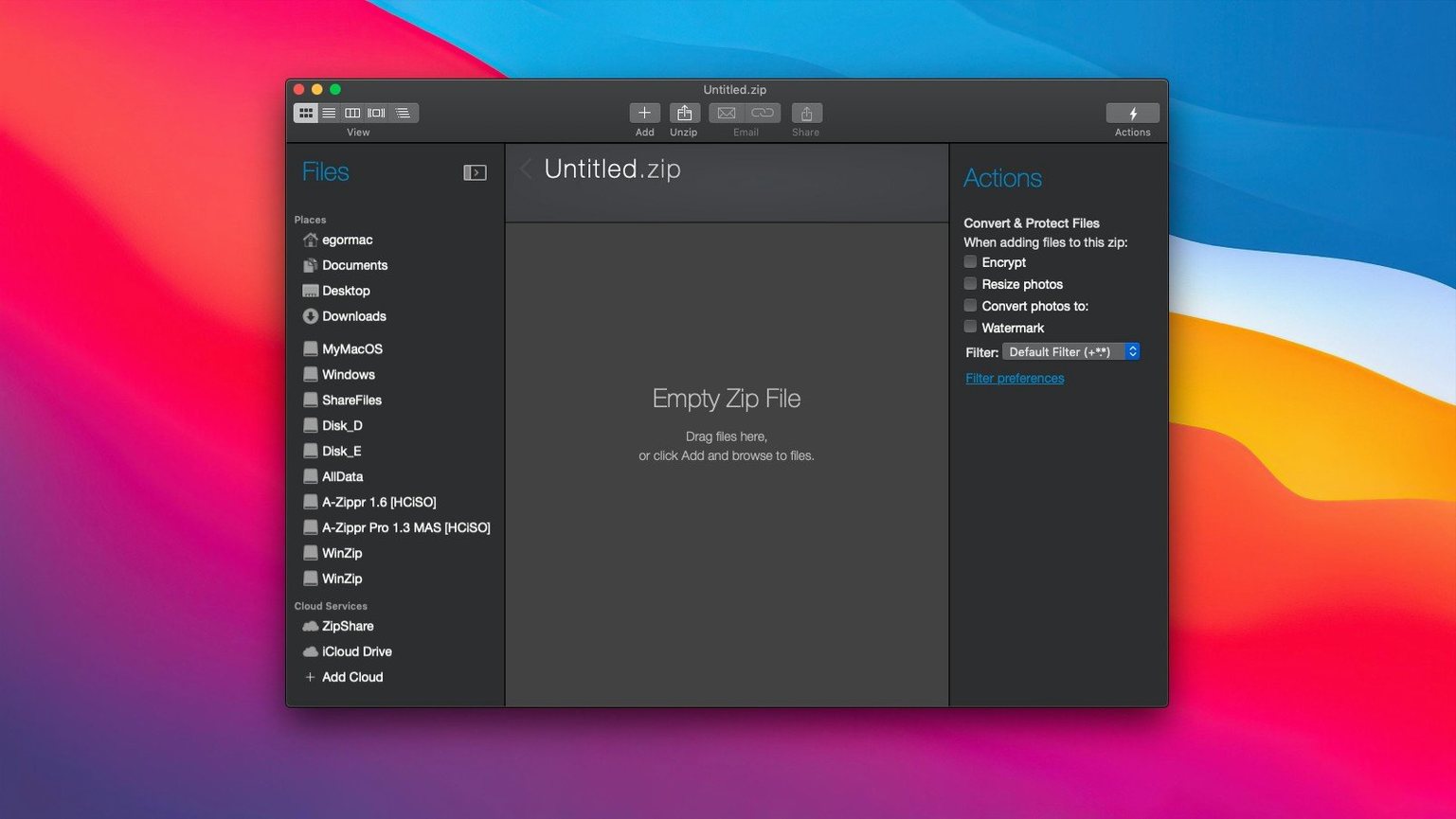
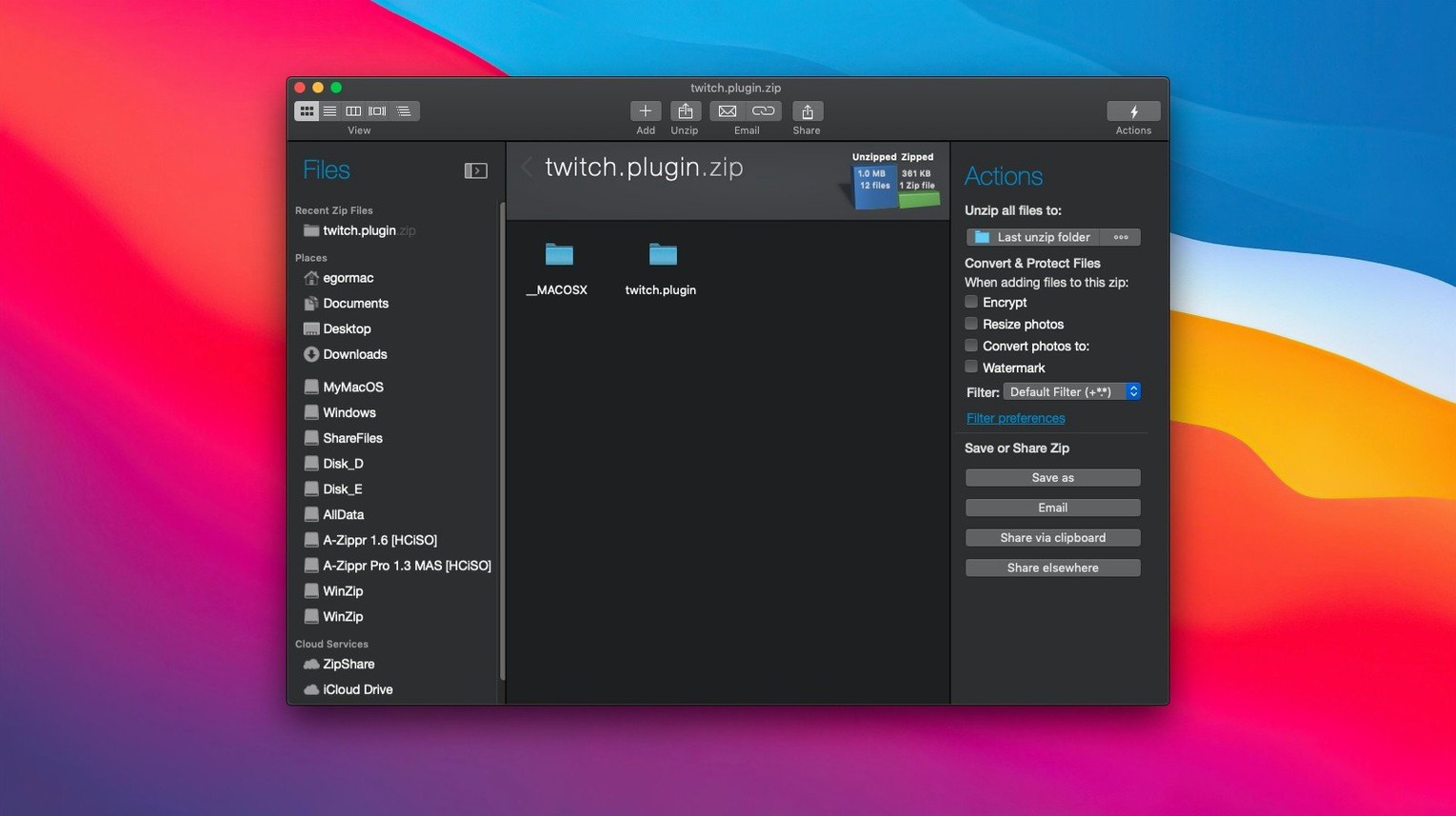
Version 12 brought a reworked interface that surfaces cloud connections more obviously. In earlier releases, the cloud pane was tucked away; now it sits in the sidebar by default. That small shift makes a difference when you're jumping between local folders and Dropbox several times an afternoon.
Apple Silicon support arrived in a previous update and is fully baked into 12.0.7282 — the app runs without Rosetta on M-series machines, which keeps memory use lower during large compression jobs. The clipboard support also got quieter: you can copy a group of files in the Finder, switch to WinZip, and paste them straight into a new archive. No dragging required. It's the sort of thing that saves five seconds each time, and those add up if you're packaging deliverables all day.
What’s new
Updates to version 12.0.7282.Requirements
- macOS 10.15 or later
- Intel 64-bit or Apple Silicon processor
FAQ
Does WinZip Mac Pro run on Apple Silicon?
Yes. The app supports both Intel 64-bit and Apple Silicon Macs running macOS 10.15 or later.
Can I convert old RAR or 7Z files with WinZip for Mac?
Yes. It converts LZH, LHA, RAR, 7Z, TAR, Z, GZ, TAZ, TGZ, BZ, XZ and Z archives into Zip or ZipX files directly.
Comments 0
Sign in or create an account to leave a comment.
No comments yet…
If you’ve installed it, say how it went. Mention your Mac and macOS version — it helps the next person more than you’d think.