Wondershare UniConverter for macOS
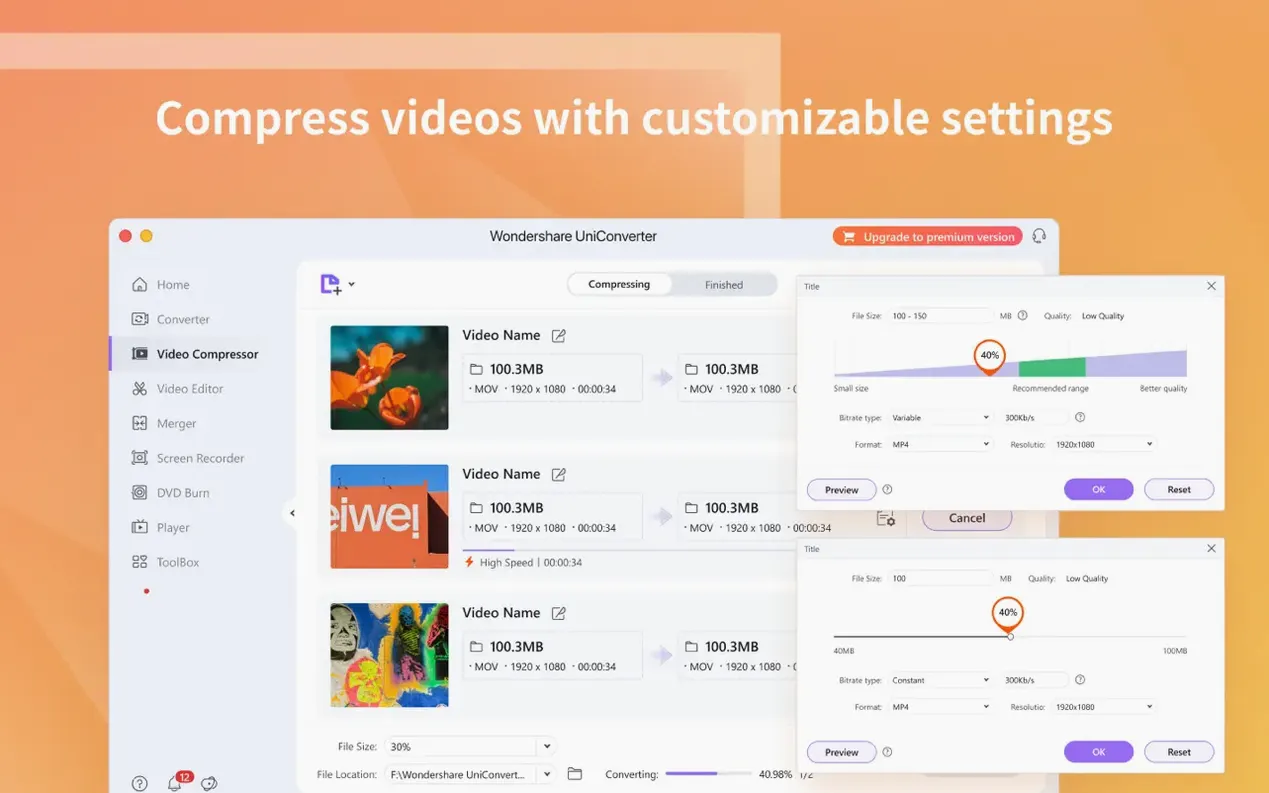
Description
A swiss-army knife for video that goes well beyond flipping formats, with tools for editors, disc archivists and anyone juggling a mixed bag of media hardware.
What does it offer for Final Cut and iMovie editors?
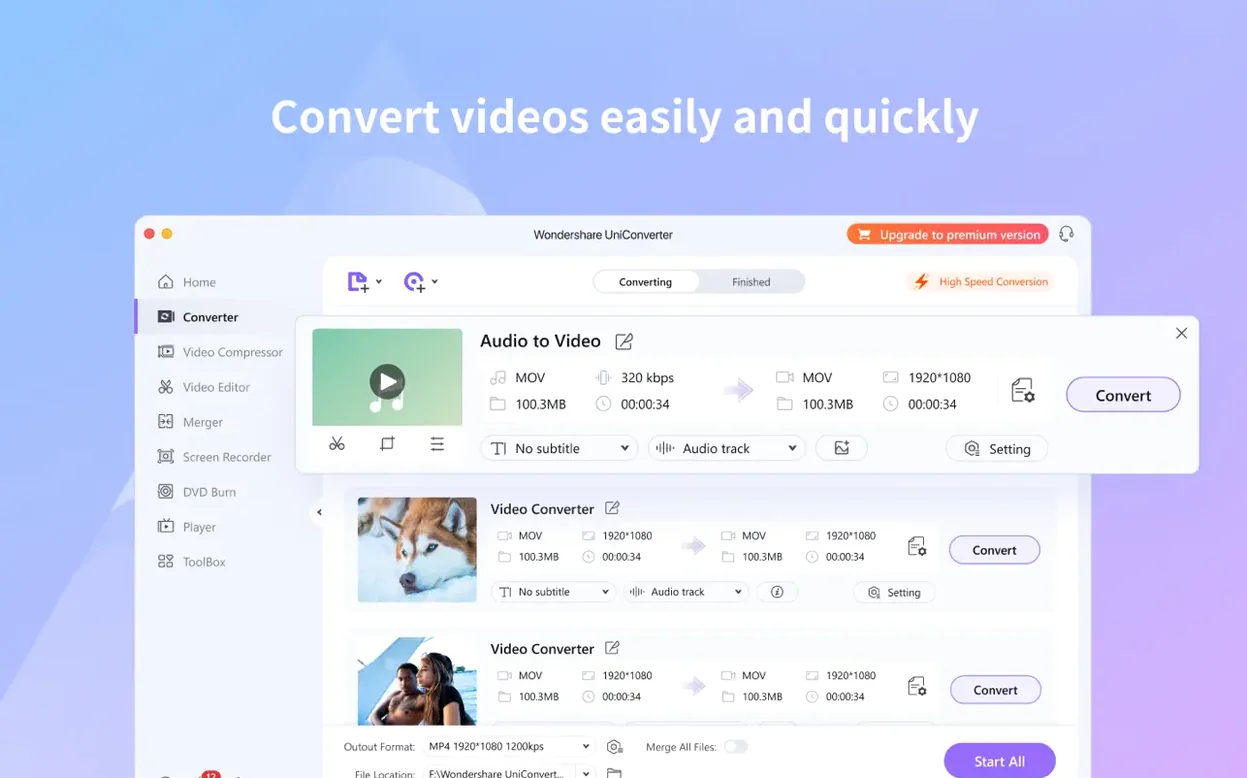
It bundles a native codec library for both NLEs. Rather than wrestling with unsupported footage, you feed UniConverter your file and get back something your timeline accepts without fuss.
Can it handle physical discs and 4K in one workflow?
Yes. It converts DVD video straight into common file formats and burns finished projects or video files back to disc. 4K footage is supported throughout, so you can go from a 4K timeline to a Blu-ray folder without switching tools.
How does file transfer to a phone or tablet work?
Wireless transfer to both Apple and Android devices is built in. No USB cable needed—just drop your converted file onto the device over the local network.
When your footage comes from five different sources in one afternoon
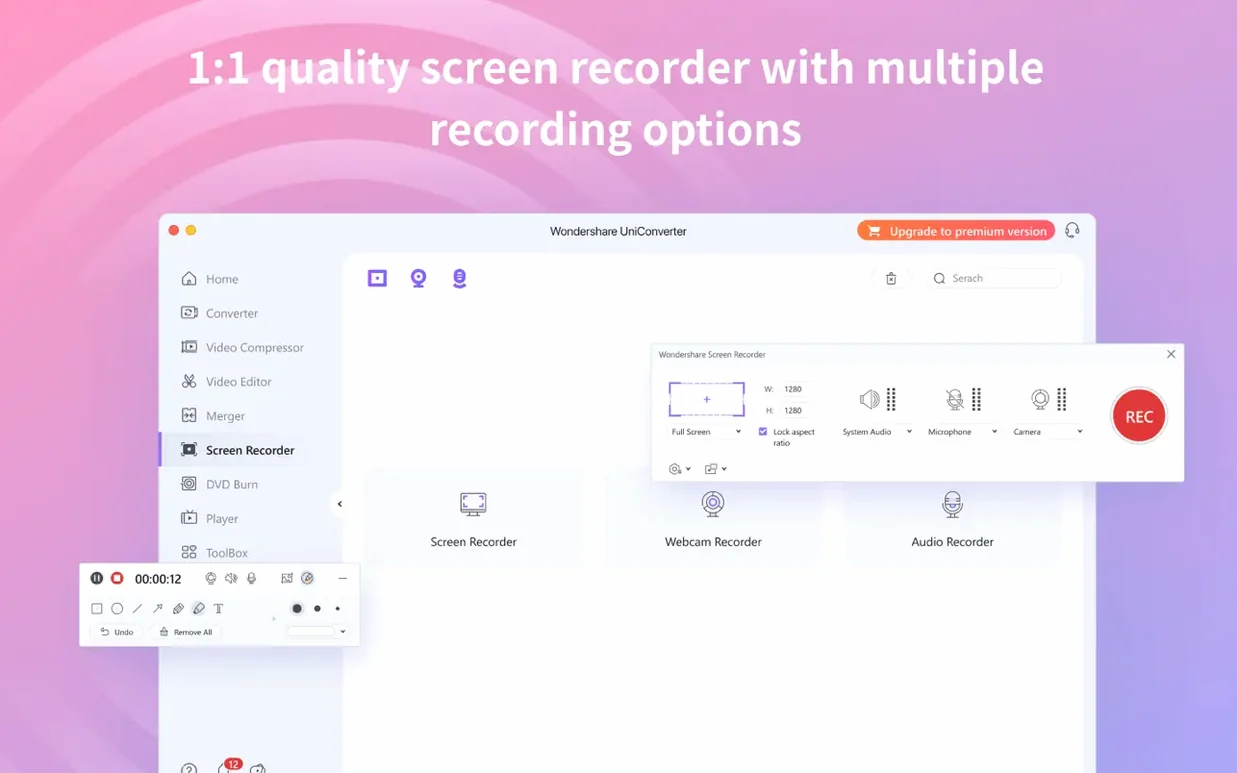
People who live in a mixed-format world. If you pull footage from a DSLR, a screen recording, a YouTube rip and an old DVD in the same afternoon, this is your kind of tool. Single-purpose converters fall apart when the source changes every hour.
Editors who use Final Cut or iMovie and keep hitting “unsupported file” warnings. The codec library alone saves enough swearing to justify the install. Throw in batch conversion and you can prep a whole shoot before lunch.
Anyone who still deals with physical discs. Ripping a DVD to an MP4, burning a finished project to disc for a client who asks for one, extracting an audio track from a concert DVD—UniConverter handles all of it without asking you to learn three separate utilities.
Not ideal if you only convert the odd phone video once a month. That’s a job for something lighter. UniConverter earns its keep when you’re doing three or four different media tasks a week, not one task a quarter.
Stop digging through a buried Wondershare folder for your converted files
The defaults are fine for a quick conversion, but a few tweaks make a real difference for repeat work.
- Output folder. It dumps converted files into a buried Wondershare folder by default. Point it at your desktop or a dedicated “Exports” folder. You’ll find things faster.
- Hardware acceleration. On Apple Silicon Macs, check that VideoToolbox is enabled in Preferences. It’s usually on, but if it isn’t, you’re leaving speed on the table.
- Auto-add to iTunes. Turn this off unless you genuinely want every conversion cluttering your Music library. Most people don’t.
- Conversion quality presets. Create a custom preset for your most-used format—say, H.264 at 15 Mbps for 1080p—once. Future you will thank you when you’re not sliding bitrate sliders at 11pm.
Drop a video onto the dock icon and it loads immediately
- Drag and drop onto the dock icon. You don’t have to open the app and navigate to a file. Drop a video straight onto the UniConverter dock icon and it loads immediately.
- Right-click a file in the queue for quick access to “Play source” or “Open output folder.” Saves digging through Finder.
- Name your merged files before you merge. When combining multiple clips into one, rename the first file in the list. The merged output takes that name, which beats ending up with “Merge_01.mp4” and having to rename it later.
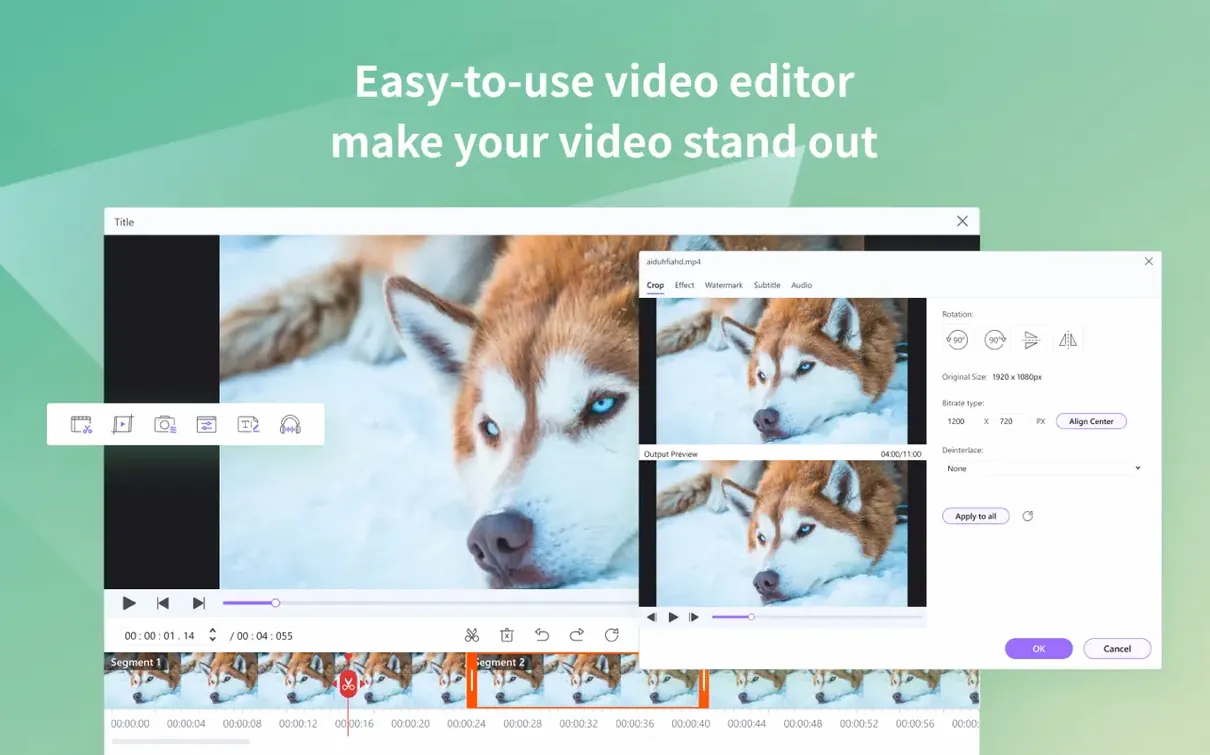
- Preview trimming with the space bar. In the trim window, space bar plays and pauses. Arrow keys nudge frame by frame. Much faster than dragging playheads with a trackpad.
- Metadata extraction. If you’re sending video to an iTunes library and want artwork, cast info and descriptions intact, tick the metadata option before converting. It pulls what it can from the source file automatically.
It downloads, edits and burns discs where HandBrake only converts
HandBrake. HandBrake is a free, open-source transcoder that does one job extremely well. It rips DVDs and converts video with fine-grained control over codecs and quality. What it doesn’t do: download online video, burn discs, edit clips, transfer wirelessly to devices, or offer a built-in player. HandBrake suits patient people who want a single-purpose tool. UniConverter suits people who want one icon to click for five different media problems.
MacX Video Converter Pro. A closer competitor in terms of feature breadth. Both handle conversion, downloading, and basic editing. MacX is lighter on system resources and feels more Mac-native. UniConverter pulls ahead on disc burning, codec support for pro editors, and wireless device transfer. If you never touch DVDs and don’t use Final Cut, MacX might be enough. If discs or NLEs are part of your week, UniConverter covers more ground.
Permute. A minimalist Mac converter that does one thing—convert media—with a dead-simple drag-and-drop interface. No editing, no downloading, no disc tools, no device transfer. Permute is perfect for quick, single-format flips and costs less brainpower to operate. UniConverter is the heavyweight alternative you reach for when Permute can’t do the job, which happens the moment you need to trim a clip or grab a video from a website.
What’s new
- Adds compatibility with OS X 10.11 and later.
- Adds native support for ARM and 64-bit Intel Macs.
Requirements
- OS X 10.11 or later
- Apple Silicon or Intel Mac
FAQ
Does UniConverter support Apple Silicon Macs?
Yes. It runs natively on both ARM (Apple Silicon) and 64-bit Intel Macs, requiring OS X 10.11 or later.
Can I remove black bars from a video?
Yes, the crop tool includes an option to trim away black bars and other unwanted edges from the frame.
How many formats does it actually support?
More than 159 formats are listed, covering common video, audio and device-specific presets.
Comments 0
Sign in or create an account to leave a comment.
No comments yet…
If you’ve installed it, say how it went. Mention your Mac and macOS version — it helps the next person more than you’d think.