Wondershare Filmora for macOS
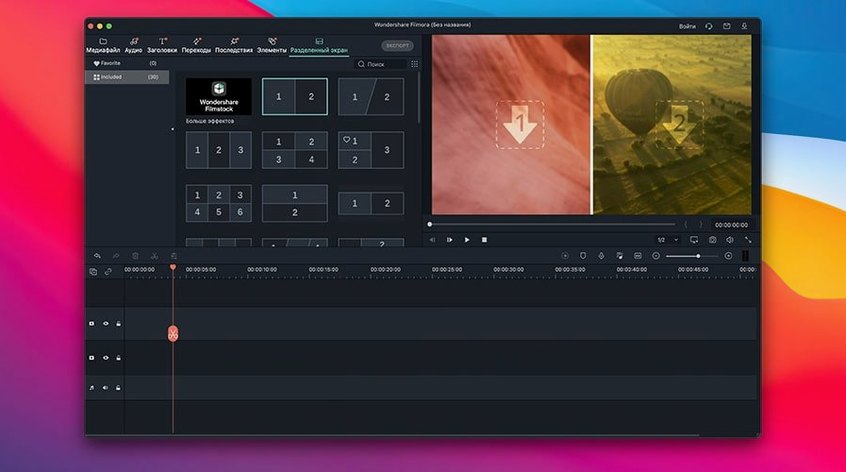
Description
Filmora is a Mac video editor from Wondershare that layers a straightforward timeline over a surprisingly deep effects engine.
Pull a skin or sky key, then save it as a preset
Curves, wheels, and HSL secondary grading are all present. You can pull a key on skin tones or a sky without leaving the app, then save it as a preset for a batch of clips.
What keyframing options does it give you?
Nearly every effect parameter and transform property accepts keyframes. The timeline shows them as adjustable diamonds, so you can ease position, scale, and filter intensity in the same clip.
Is the AI denoise worth using on real footage?
Version 14.8.10 rebuilt the denoise engine and it shows. It cleans low-light motion without turning people into wax, which was the old version's weakness.
Can you build custom effects stacks?
Yes. You can nest clips, layer NewBlueFX transitions, and apply draw masks as adjustment layers. Export options include direct upload to Vimeo and YouTube alongside standard local formats.
Drag a card folder onto the desktop and set the aspect ratio
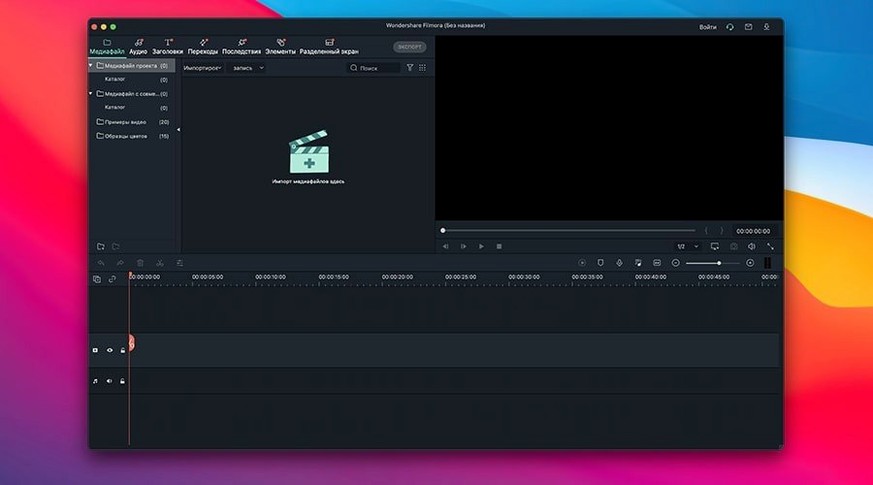
You've just come back from a weekend shoot with an SD card full of 4K clips. You drag the card's folder onto the desktop, mount it, and open Filmora.
- Create a new project and set the aspect ratio to 16:9 at 25 fps — match what the camera was set to.
- Drop twelve clips into the media bin. Filmora generates thumbnails quickly; on an M2 Mac it chews through 4K proxies without much fan noise.
- Drag a rough assembly onto the timeline. Nothing clever yet — just the best takes in order.
- Razor-blade the dead air at the start and end of each clip. The split tool is one keystroke, so you work through the timeline fast.
- Apply a basic Lumetri-style correction to the first clip, then copy the colour attributes and paste them across the rest. Five minutes in and everything already looks consistent.
- Drop a cross-dissolve between the first two clips. It snaps to the cut point without fuss.
- Add a title card at the start. Type, choose a preset, drag its duration to four seconds.
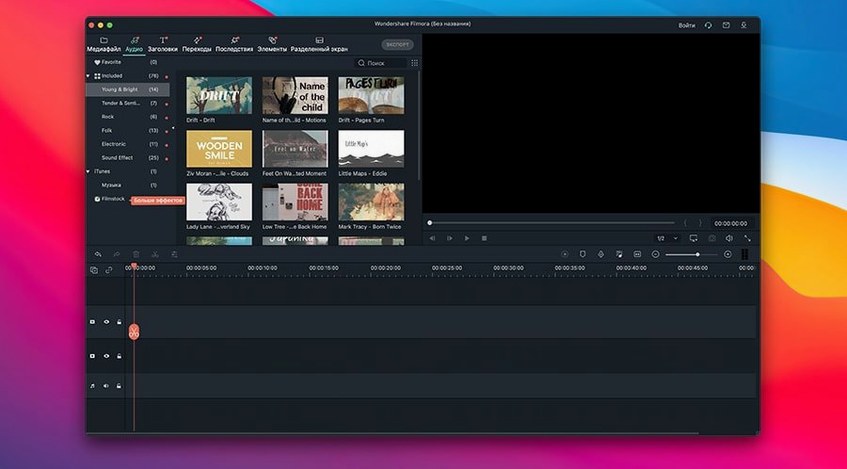
- Grab a royalty-free track from the built-in library and drop it onto the audio lane. Fade in, fade out, done.
- Export a master at 1080p for review. While that renders, you save the project file so you can tweak later.
The whole thing — from card to watchable rough cut — takes under twenty minutes. That's the rhythm Filmora aims for.
Turn a forty-minute screen recording into a clean tutorial
Someone running a knitting tutorial channel on YouTube doesn't care about node-based compositing. They care about turning a forty-minute screen recording into a clean twelve-minute video, with clear text steps overlaid and the background hum removed.
In Filmora, they drop the OBS recording onto the timeline, speed up the repetitive sections with the speed curve tool, and silence the hum with the noise removal slider. The title tool handles numbered step overlays without needing Photoshop. Export goes straight to YouTube at 1080p with the preset that bakes in a thumbnail frame. No round-tripping, no extra apps.
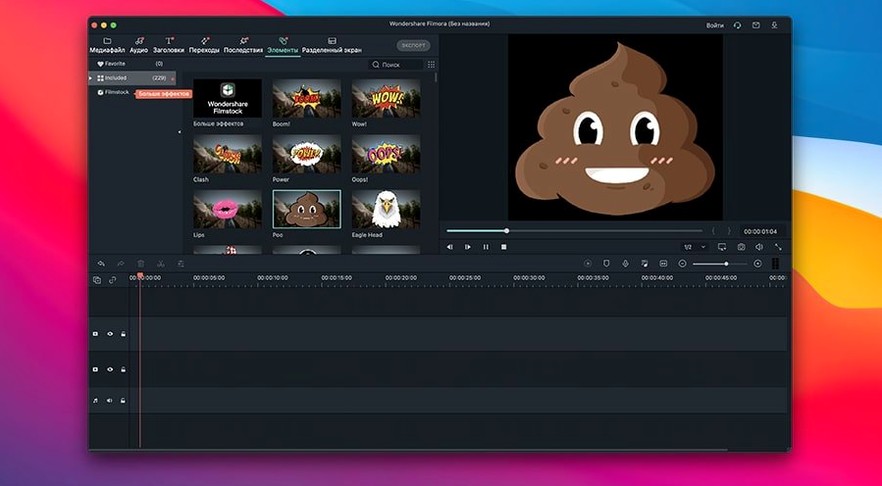
Why it works for them: the effects library has enough callouts, arrows, and lower-thirds to animate a tutorial without building anything from scratch. The timeline stays flat — no accidentally nested sequences that break the export.
Workflow: trimming a talking-head interview
You have a twenty-minute interview clip. The brief is a tight three-minute cut with b-roll overlays and a branded outro. Here's the route through Filmora.
- Load the clip into the media bin and preview it in the source monitor. Set in and out points for the best soundbites, then drag each selection to the timeline as a separate segment.
- Switch to the trim mode. Roll the edges of each clip to remove pauses and false starts. Filmora's waveform display on the audio track makes it easy to see where the speaker stops.
- Drop b-roll clips onto the track above. Reduce their opacity to 0% during the key soundbites, then fade them up over the linking sentences. Use the pen tool on the opacity line to draw quick fades.
- Apply a subtle vignette to the interview track so the speaker pops. Save it as a preset and apply to all talking-head segments at once.
- Add the company logo as a picture-in-picture overlay for the last ten seconds. The motion tab handles scale and position, and a dissolve eases it in.
- Render at 1080p H.264. The export dialogue remembers your last settings, so you hit one button and go make tea.
The whole timeline stays visible on a single screen — no horizontal scrolling through hundreds of tracks. For a solo editor who just needs to get the video out, that matters more than it sounds.
Assemble polished videos without sourcing third-party effects
Filmora suits people who need to produce finished videos regularly but don't want to live inside a manual. The interface favours speed over customisability, and the bundled assets mean you can assemble something polished without sourcing third-party effects.
Small business owners making social-media ads get value from the preset motion titles and callouts. Students producing coursework films benefit from the forgiving timeline and one-click colour presets. Streamers clipping highlight reels appreciate the direct platform export and the screen-recording integration. Anyone coming from a phone editor will find the transition to a desktop timeline gentle — the logic is similar, just with more keyboard shortcuts and a proper preview window.
Professionals who need multi-cam syncing, advanced audio routing, or open-format project interchange will find the ceiling quickly. That's not a fault; it's just not the chair they're sitting in.
Spinning thumbnails that never resolve
Some things trip people up consistently. Here are the ones that land in my inbox.
- Proxy files not generating. If the media bin shows spinning thumbnails forever, check that the source clips use a codec Filmora can read natively — H.264 and ProRes are safe; older AVCHD folder structures sometimes confuse it. Transcode the problem clips to H.264 with HandBrake first.
- Export stalling at 99%. This usually means a corrupted effect on one clip. Disable effects track by track to find the culprit, then re-apply it. If that fails, copy everything into a fresh project file.
- Audio drift on long clips. Variable-frame-rate footage from phones or screen recorders can drift over time. Run it through a quick constant-frame-rate conversion before importing.
- NewBlueFX plugin not showing up. The 14.8.10 update improved NewBlueFX optimisation, but the plugins still need separate installation. Run the NewBlue installer again and restart Filmora.
- Timeline playback stuttering. Lower the preview resolution in the playback menu to ½ or ¼. It doesn't affect export quality, just the live preview.
- Green or black frames after a transition. Push the transition slightly left or right by a frame — sometimes it's landing on a clip boundary without enough handle footage.
Most issues are codec-related or handle-related, not bugs. Solve those and the app stays out of your way.
Requirements
- macOS 10.14 or later
- Runs natively on Intel and Apple Silicon (M1–M4)
Comments 0
Sign in or create an account to leave a comment.
No comments yet…
If you’ve installed it, say how it went. Mention your Mac and macOS version — it helps the next person more than you’d think.