WidgetWall for macOS
Description
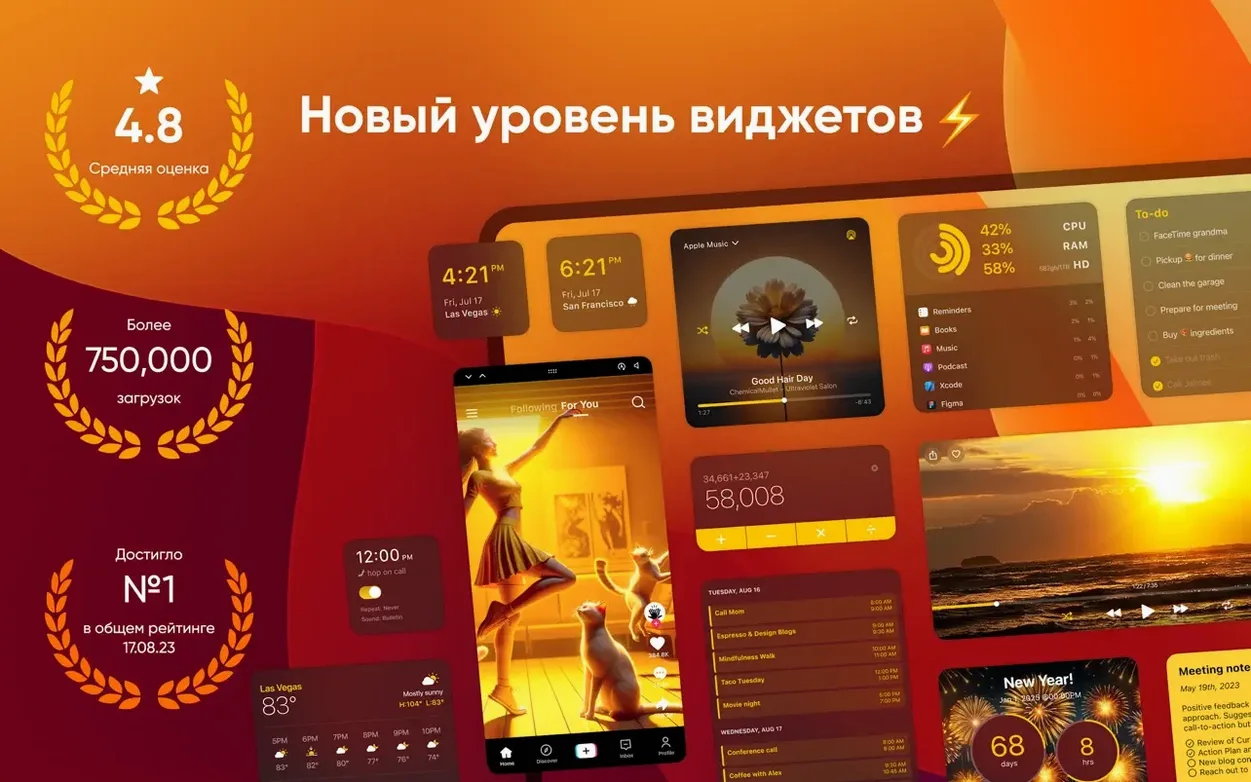
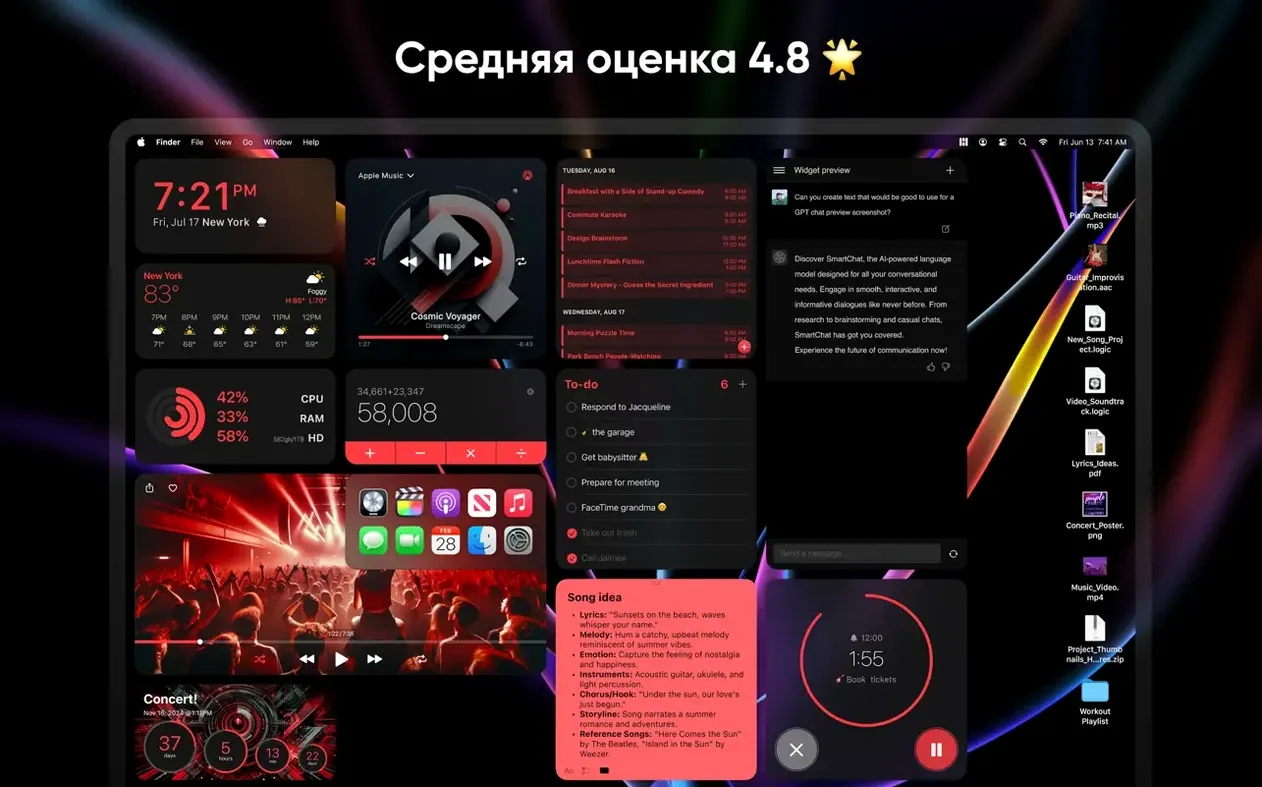
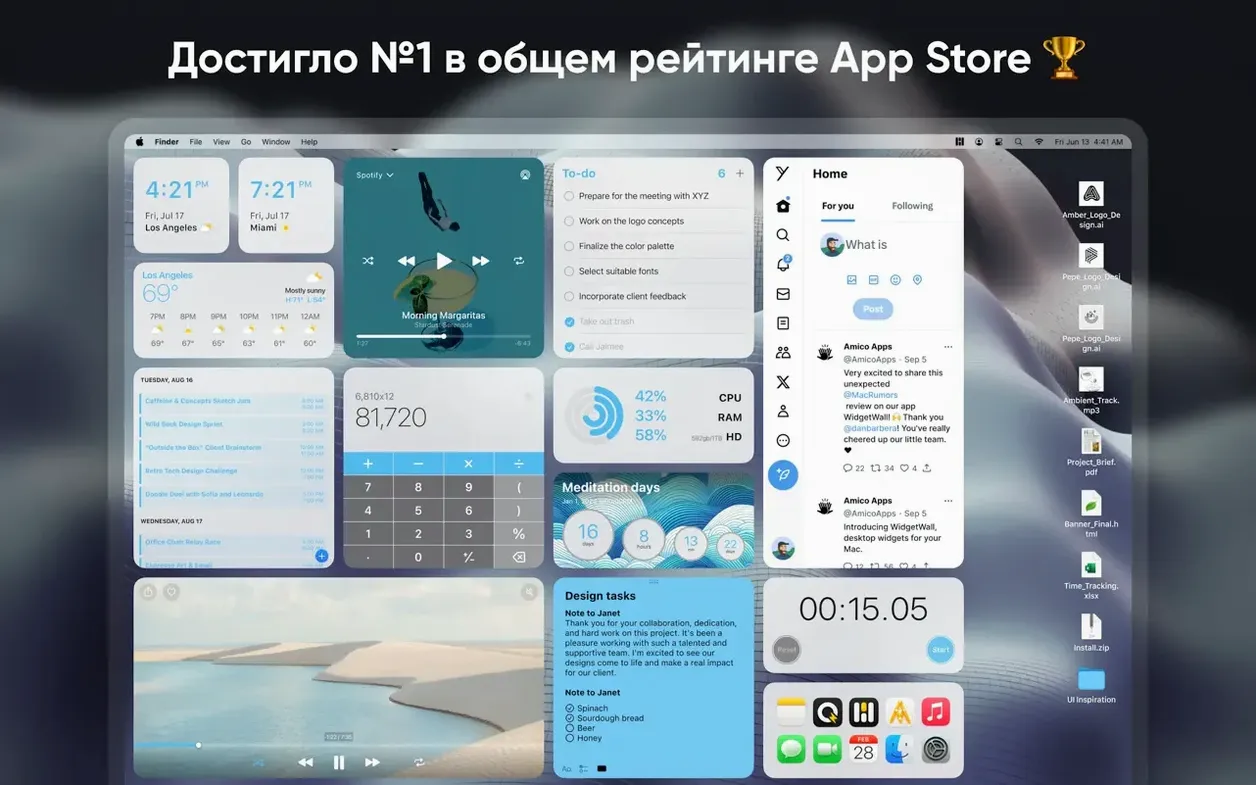
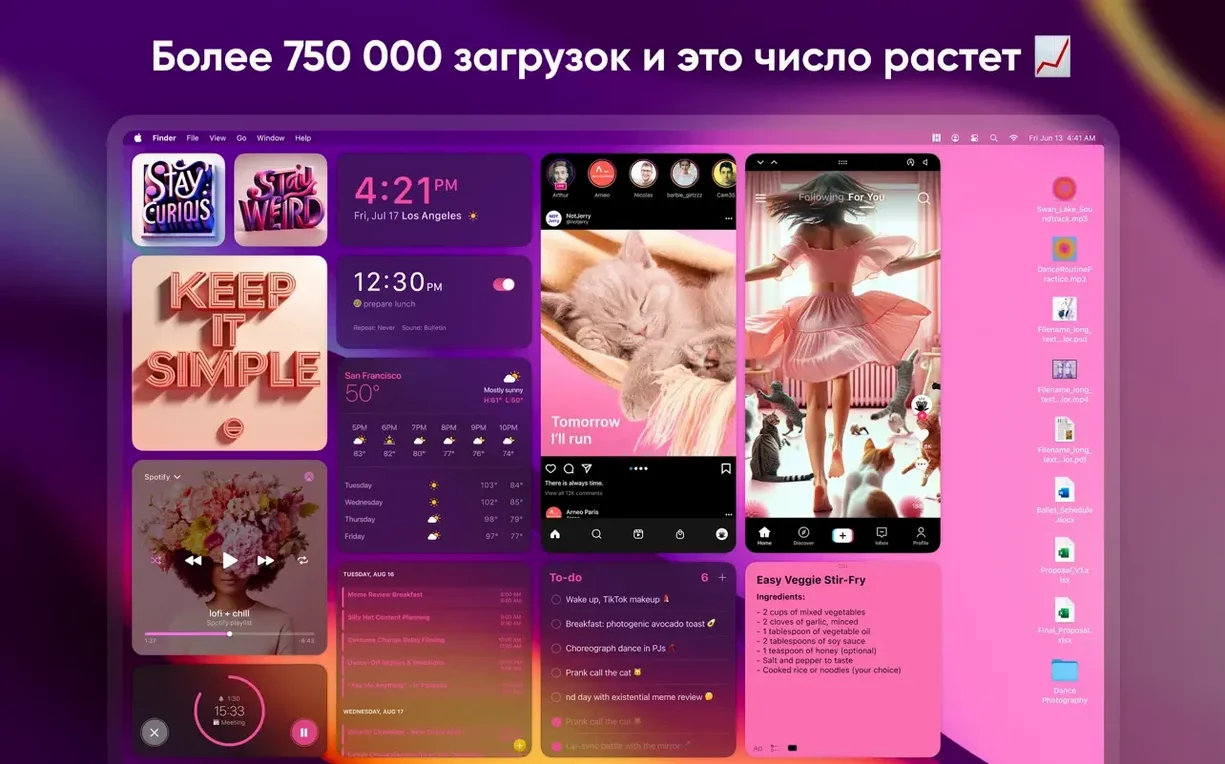
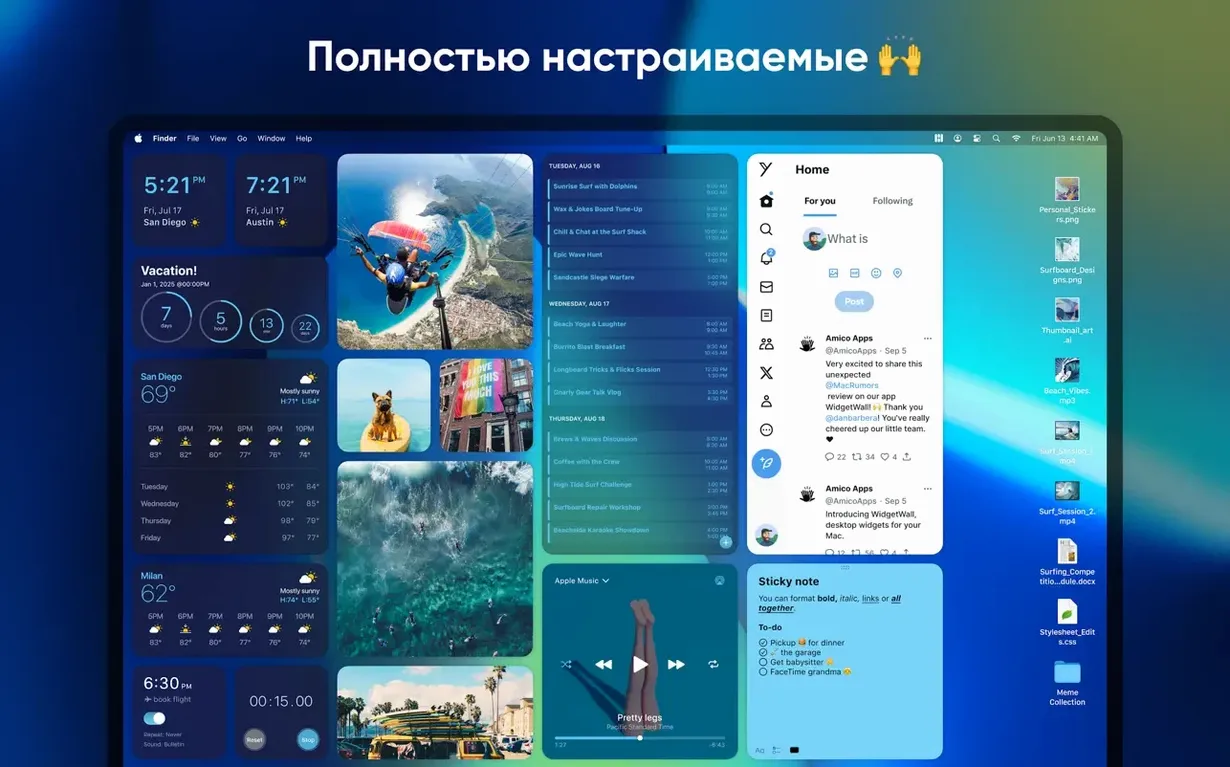
Apple pulled Dashboard years ago, and Notification Centre widgets stay hidden until you swipe. WidgetWall puts useful panels back on the desktop itself, always visible.
Keep time in front of you
Set up a Clock, Pomodoro Timer or Countdown directly on the wallpaper. No menu-bar hunting required.
Launch apps from the desktop
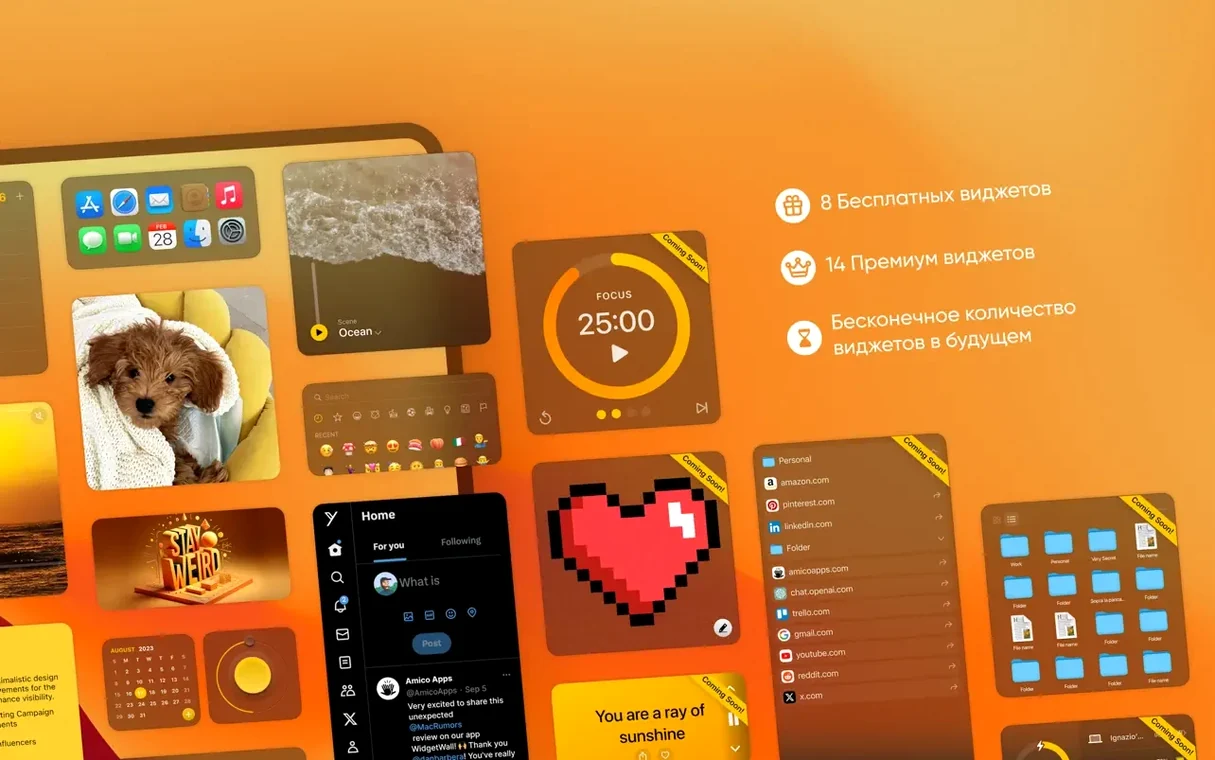
The App Shortcuts widget lets you open your daily tools with a single click, right where you land after login.
Check the weather without lifting a finger
Set up a focus timer from scratch
Say you want a Pomodoro session with white noise running and a quick-launch row for your writing tools. You can build that in WidgetWall without opening three separate apps.
- Right-click the desktop background and pick the medium Pomodoro widget. Set it to 25 minutes with a 5‑minute break.
- Add a small White Noise widget next to it. Pick rain or café chatter from the dropdown.
- Place an App Shortcuts widget in large size along the bottom edge. Drop TextEdit, Notes and Dictionary into the slots.
- Position the widgets so the timer is centre-left, noise is top-right and the dock sits below. Hit start on the Pomodoro.
The clock counts down on your wallpaper while the background sound plays. No window covers the timer because it lives on the desktop layer. When the break chime sounds, the shortcut row is still there for your next task. You can save this layout by leaving the widgets in place — WidgetWall remembers positions between restarts.
Drop in widgets instead of writing JavaScript
WidgetWall vs. Übersicht
Übersicht gives you full JavaScript control and community scripts, so you can build anything — if you are comfortable editing code. WidgetWall gives you ready-made widgets that you drop in and resize. Übersicht suits tinkerers who want to write their own system monitors. WidgetWall suits the rest of us who just want a Pomodoro timer on the desktop in two clicks.
WidgetWall vs. GeekTool
GeekTool is a veteran tool for displaying shell output, log files and images on the desktop. It is powerful for text-based panels but does not ship with interactive timers, shortcut launchers or weather widgets. WidgetWall covers everyday utilities without asking you to write a single script. If you need to monitor server logs on your wallpaper, stick with GeekTool. If you want a countup timer for a deadline, WidgetWall gets there faster.
WidgetWall vs. Desktop Stickers
Both overlap on the sticker and photo front — you can pin images and emoji to the desktop in either app. WidgetWall adds functional widgets: clock, calculator, reminders, music, browser. Desktop Stickers sticks closer to decoration. For a mix of utility and fun, WidgetWall pulls ahead.
Glance at a temperature that is actually current
Version 3.15.2 tightened the weather refresh logic. Earlier builds occasionally showed stale forecasts until you clicked the widget. Now the weather panel refreshes more reliably in the background, so the temperature you glance at is current.
Widget resizing got a polish pass a few releases back. Dragging a widget between small, medium and large no longer snaps back awkwardly on an external display. The layout holds its grid when you reboot or wake the Mac from sleep.
Music widget behaviour improved too. It now picks up Apple Music playback without needing a manual re-sync after every track skip. If you listen while you work, the track title and artist stay in step.
Smaller fixes: the Emoji Browser scrolls more smoothly on Intel Macs, and the Stopwatch no longer drifts a second behind when you leave it running for an hour. Nothing flashy — just the kind of quiet corrections that stop you reaching for the Activity Monitor.
The Weather widget sits on your screen and updates itself. You glance at it, same as looking out the window.
Requirements
- macOS 12 or later
- Apple Silicon and Intel 64-bit Macs
Comments 0
Sign in or create an account to leave a comment.
No comments yet…
If you’ve installed it, say how it went. Mention your Mac and macOS version — it helps the next person more than you’d think.