
WiFi Explorer Pro 3 for macOS
Description
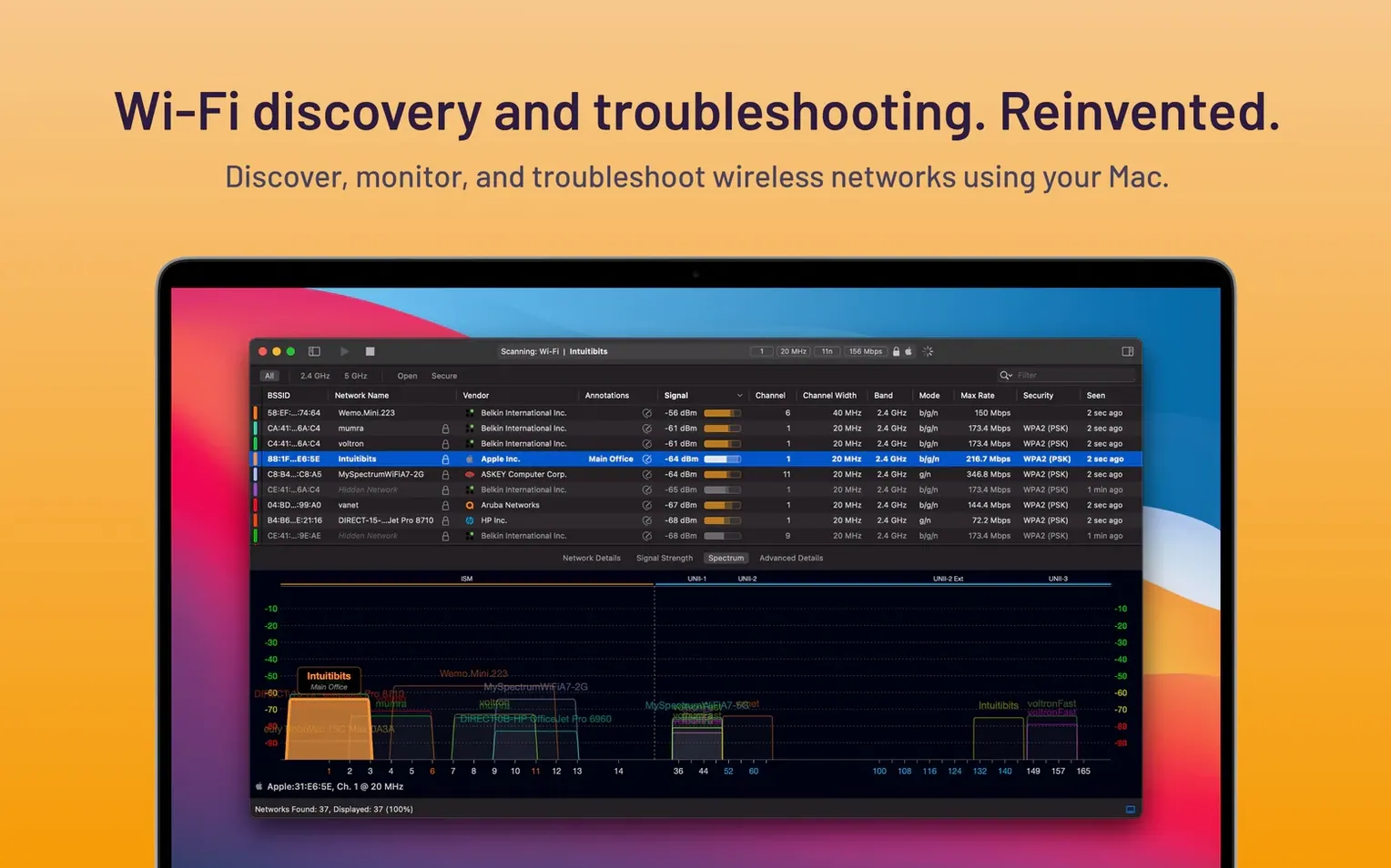
If you've used the standard WiFi Explorer to check your home network, Pro 3 is the toolkit you reach for when the job outgrows a simple scan. It's the professional version, built for IT and WLAN specialists who design, validate and troubleshoot wireless networks across 2.4 GHz and 5 GHz bands.
Version 3.10.5 tidies up a few technical loose ends that matter on a busy site survey. The channel width display for 160 MHz and 80+80 MHz networks now reads correctly when Extended NSS BW signalling is in play, and a bug that misidentified some non-Apple access points as Apple hardware has been squashed. Spanish localization is sharper too.
Design and validate networks with a live, sortable table
- Designing and validating wireless network deployments
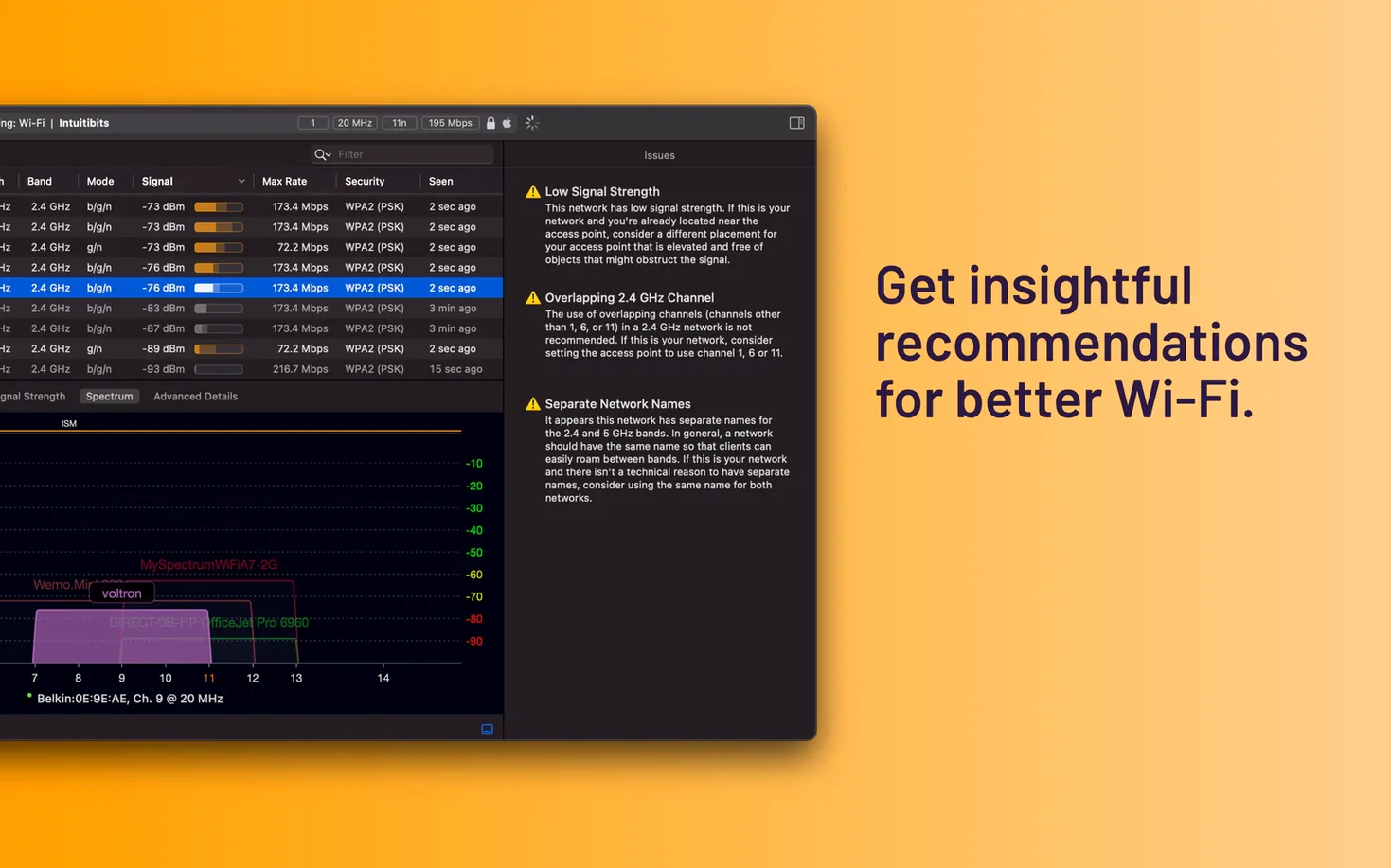
- Troubleshooting with a built-in guide for common problems
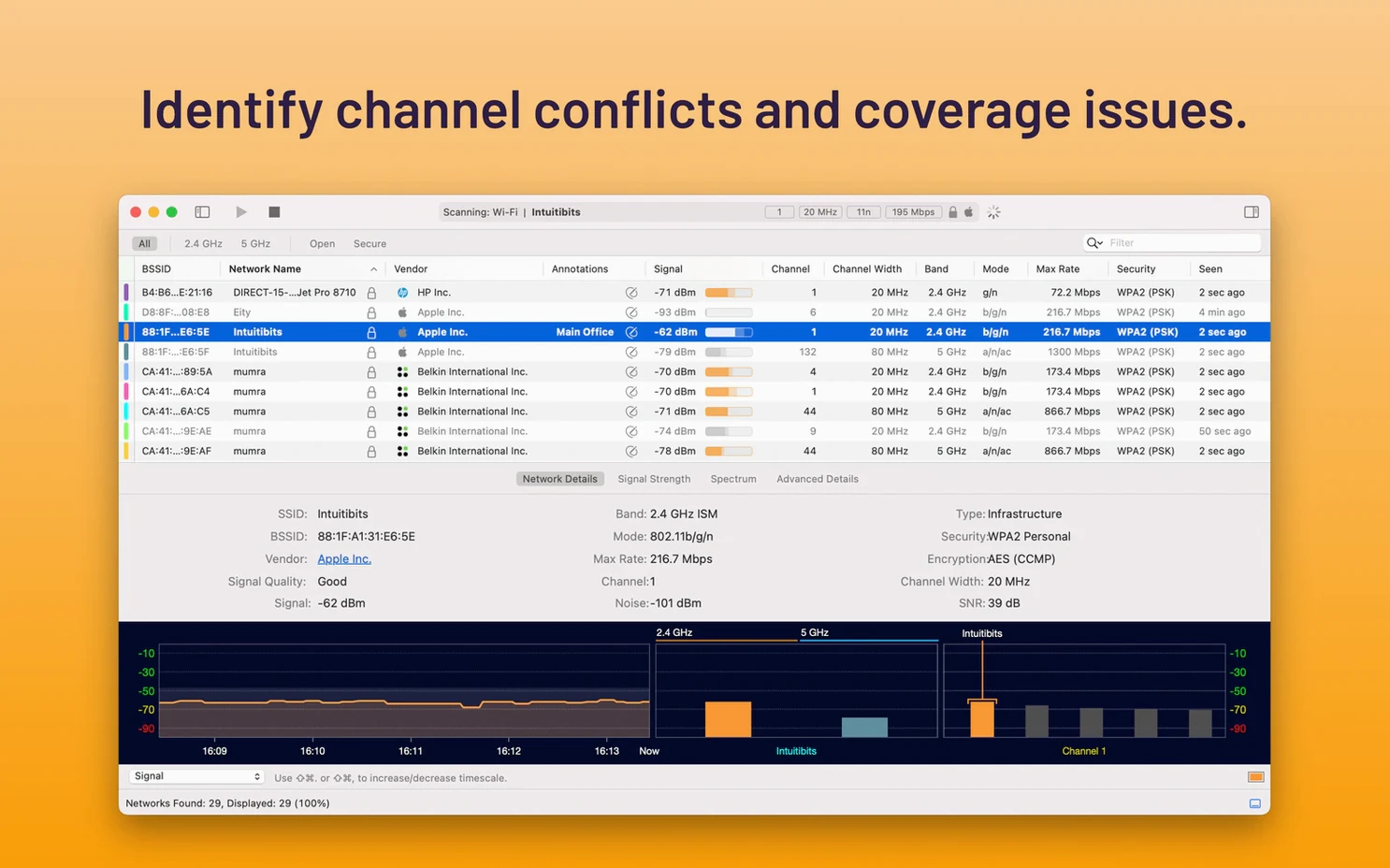
- Sorting and customising visible columns to focus on the data that matters
- Running natively on Apple silicon and Intel Macs
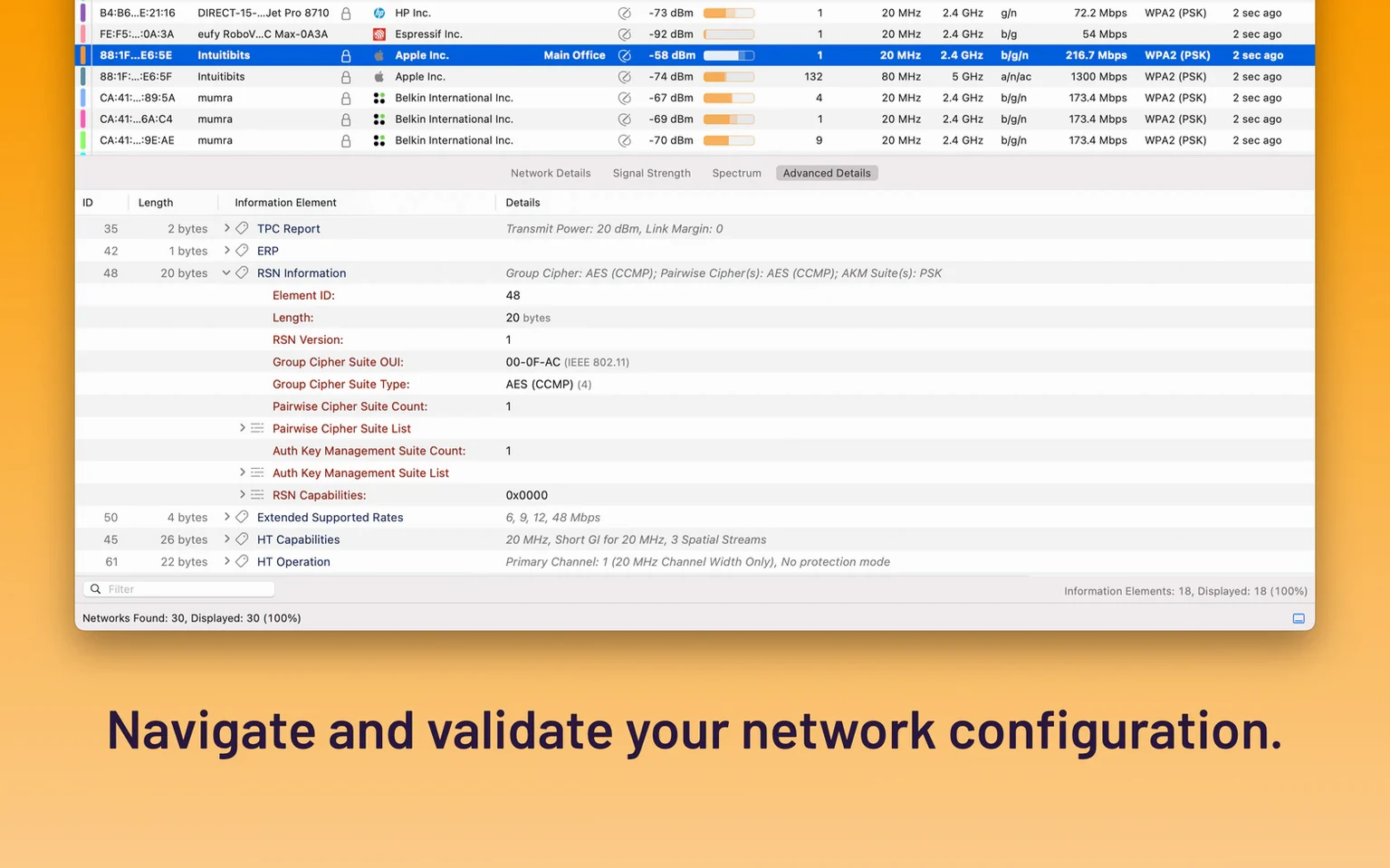
Decodes Extended BSS Load element data
- Requires macOS 10.14.6 or later
- Decodes Extended BSS Load element data, which is deep WLAN territory
Watch a live table for an hour, not just a snapshot
WiFi Explorer Pro 3 sits alongside the built-in Wireless Diagnostics that ships with macOS. Where Apple's tool helps you collect a snapshot for a support ticket, Pro 3 gives you a live, sortable table you can watch for an hour while you walk a floor. The two complement each other well — run Wireless Diagnostics to grab a system report, and keep WiFi Explorer Pro 3 open to see what changes when you move an access point.
The app exports CSV without fuss. That means scan results drop straight into a spreadsheet or a floor-plan tool for heatmapping. No proprietary format to unpick. If your workflow already uses Ekahau or NetSpot for surveys, Pro 3 fills the gap as a lightweight scanner you launch in seconds, before you commit to a full passive survey.
Column customisation is the quiet feature that ties everything together. Hide the fields your other tools already cover. Show only channel width, signal-to-noise ratio and security type. Now you have a focused view that matches what your deployment checklist actually asks for, without scrolling past columns you never use.
If you work across multiple Macs, the fact that one download wifi explorer pro 3 for mac gives you a universal binary for both Apple silicon and Intel hardware keeps things simple. Same installer, same behaviour, whether the machine is a brand-new MacBook Pro or a dusty Intel Mac mini tucked in a comms cupboard.
Runs on macOS 10.14.6 or later
Will it interfere with my current Wi-Fi connection?
No. WiFi Explorer Pro 3 reads beacon frames and probe responses passively. It never injects traffic, never tries to associate with networks it scans, and won't cause your Mac to disconnect from the access point you're currently using. You can run it during a video call and nobody will notice.
Does it need special hardware or drivers?
It uses the built-in Wi-Fi adapter. No external dongles, no kernel extensions, no drivers to approve in System Preferences. The only requirement is macOS 10.14.6 or later, which covers any Mac that supports the modern Wi-Fi frameworks the app relies on.
I already have the regular WiFi Explorer. Should I keep both?
That depends on what you do day to day. The standard version handles quick home checks. Pro 3 adds remote scanning, deployment validation and the diagnostics guide. If you only need to see which channel your neighbour's router is on, the lighter app is fine. If your job involves words like "attenuation" and "BSS transition", Pro 3 earns its place in the Dock.
What’s new
Adds decoding support for the Extended BSS Load element. Improves Spanish localization. Fixes the channel width shown for 160 MHz and 80+80 MHz networks that use Extended NSS BW signaling. Fixes some non-Apple access points being reported as Apple. Includes other minor fixes and improvements.Requirements
- macOS 10.14.6 or later
- Apple silicon or Intel Mac
Comments 0
Sign in or create an account to leave a comment.
No comments yet…
If you’ve installed it, say how it went. Mention your Mac and macOS version — it helps the next person more than you’d think.