WALTR PRO for macOS
Description
WALTR PRO 4.0.122 is a maintenance release. No new features landed — it tidies up behind the scenes so the app keeps working smoothly on current macOS setups. If you were waiting for a reason to update, this one is about stability, not headlines.
Drop an MKV and it lands in Apple TV, converted
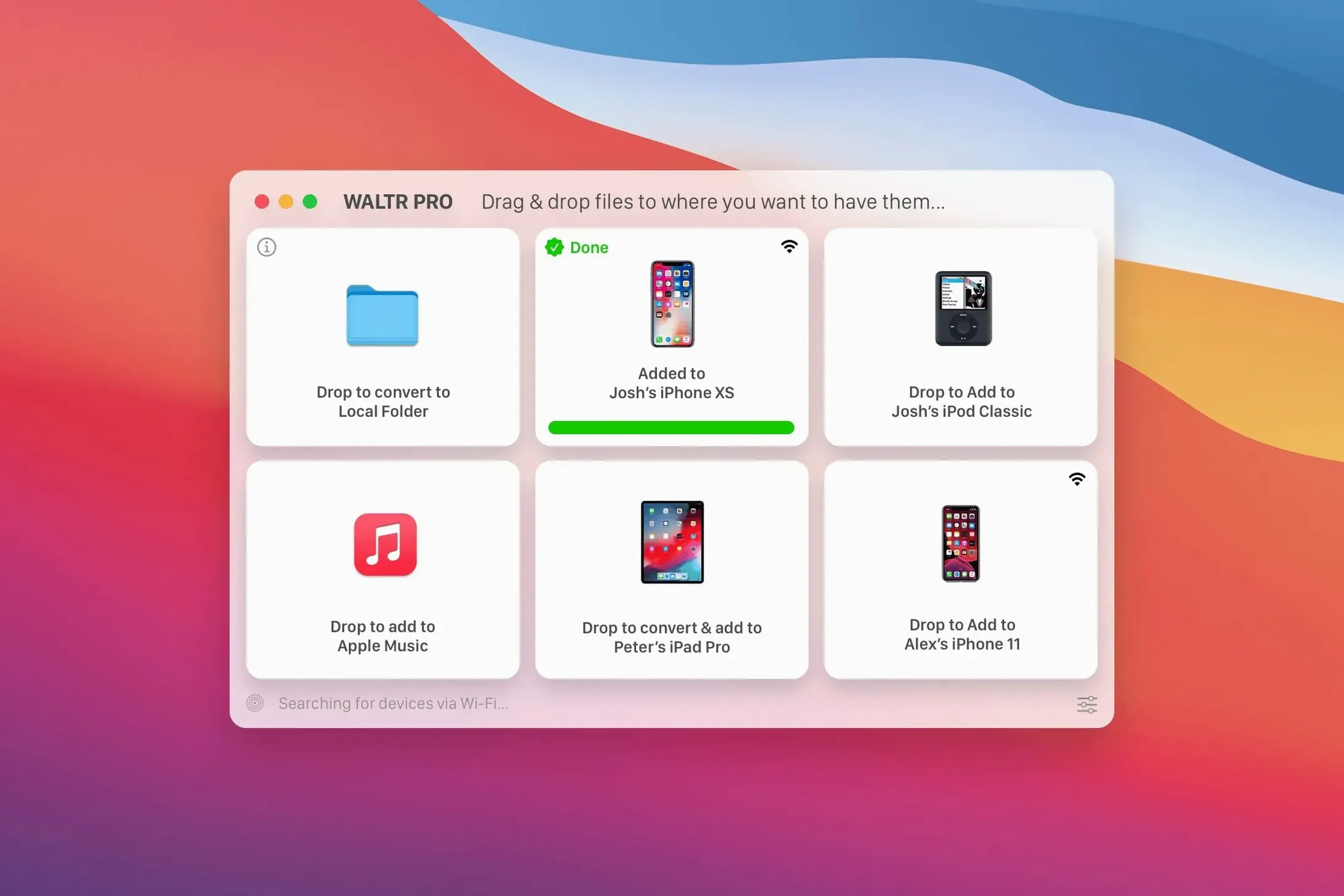
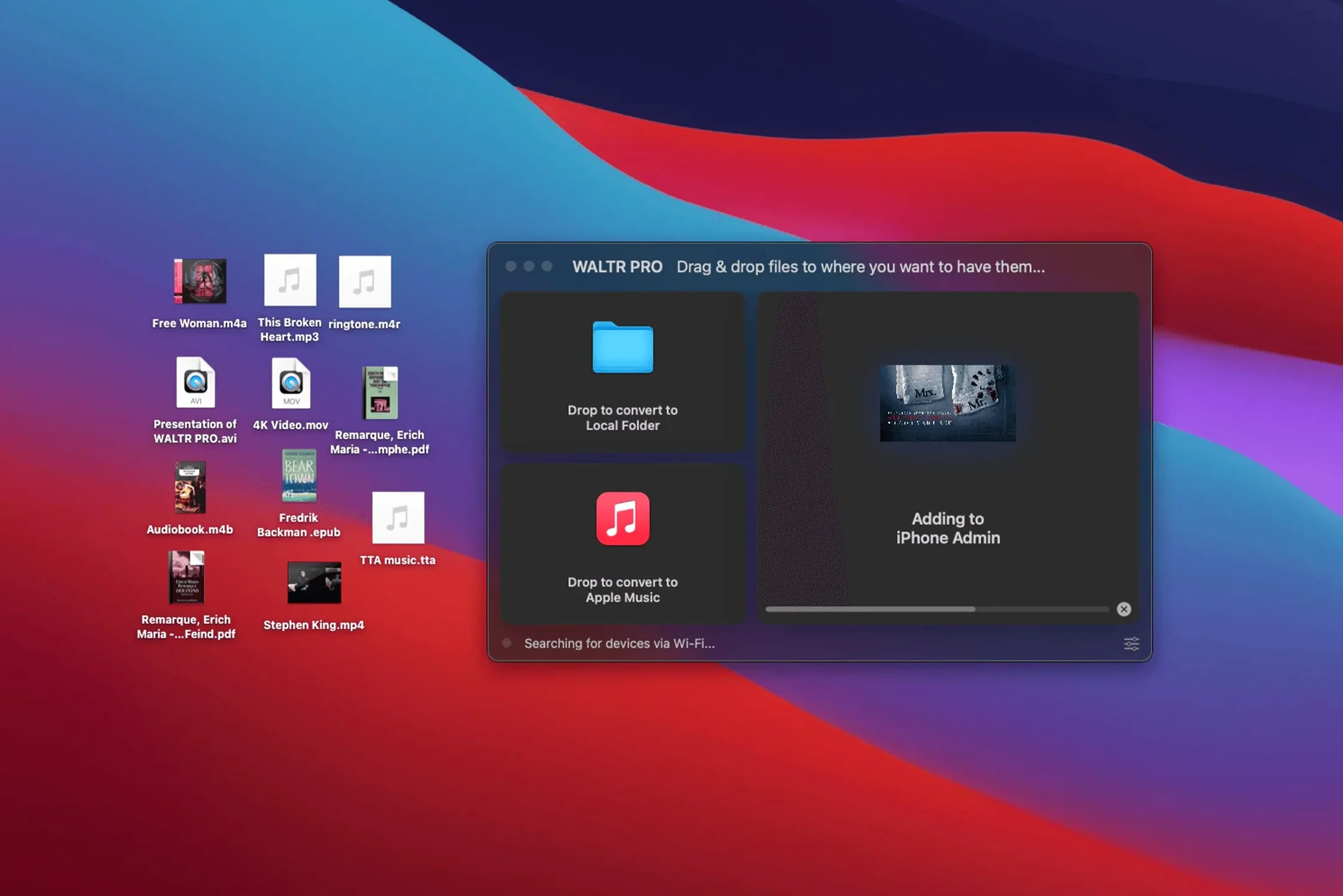
It gets media files onto an iPhone or iPad without iTunes or Finder syncs. You drop an MKV, FLAC, or AVI onto the window and the app converts it on the fly, then pushes it straight into the device’s TV or Music app. Wi‑Fi transfer means no cable, as long as both Mac and iOS device are on the same network. File types it handles include MP4, M4V, AVI, MKV for video and MP3, FLAC, ALAC, WMA, CUE, M4A, and M4R for audio.
Move obscure video formats and hi‑res FLAC without hunting for converters
Anyone who keeps a local media library and wants a less fiddly way to move files across. If you have a collection of obscure video formats or hi‑res FLAC albums, WALTR PRO skips the step where you normally hunt for a compatible converter. It’s not a file manager — it’s a one‑way bridge from Mac to Apple device.
Your folder structure stays untouched — drag from anywhere
WALTR PRO doesn’t try to be a Finder replacement. It leaves your folder structure alone and reads files wherever they live — Desktop, external drive, network share. Drag something in, the converted copy lands on the device; the original stays untouched. That makes it predictable when you’re already managing media with something else, like an old copy of MusicBee or a folder full of concert bootlegs in FLAC.
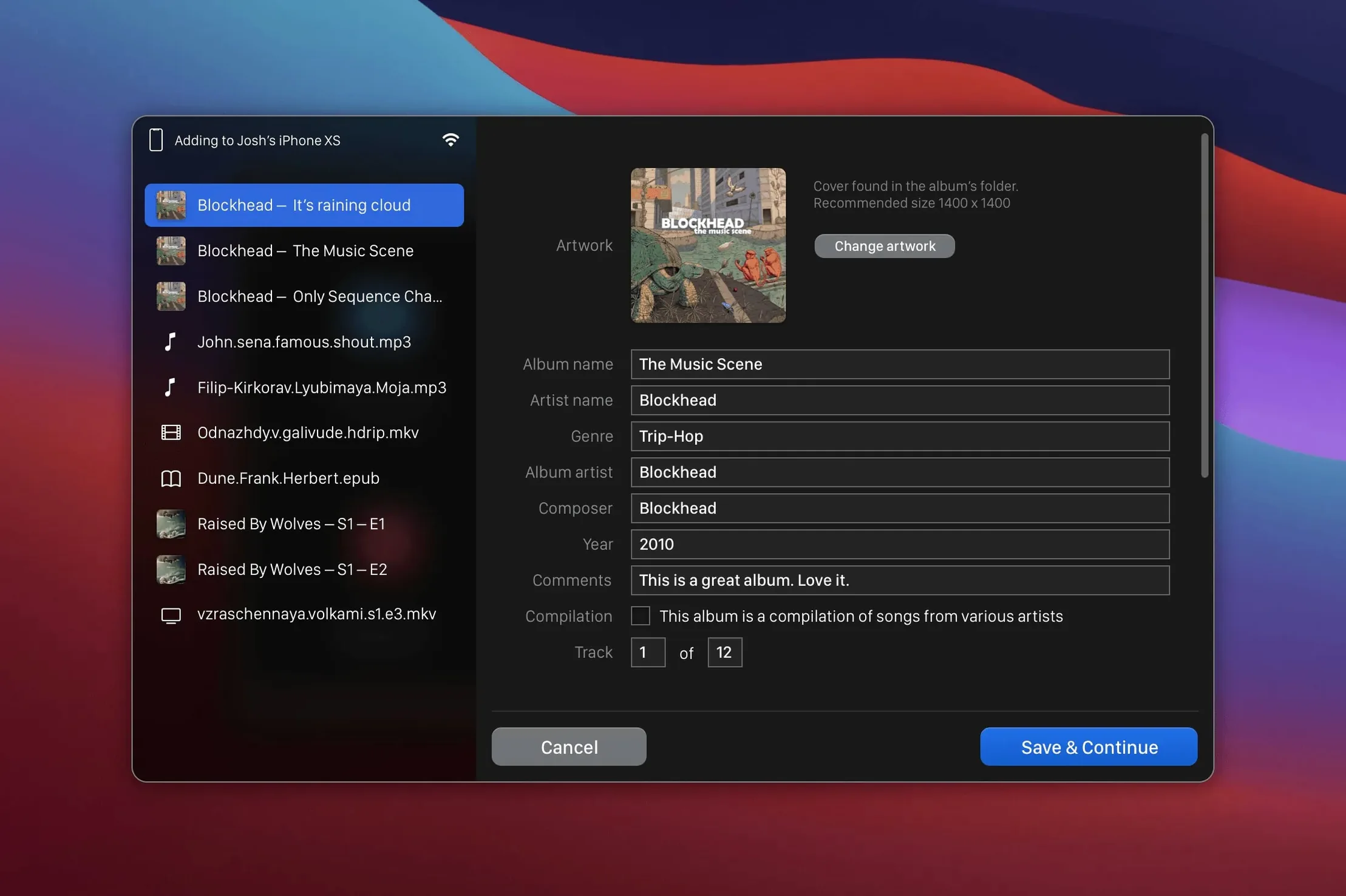
On the macOS side, it quietly leans on the system’s codec libraries for formats Apple already knows, then fills the gaps with its own conversion for the troublemakers — MKV, AVI, FLAC, CUE. The wireless transfer hooks into Apple’s Bonjour service, so you don’t configure IP addresses or ports. If your device appears in the Finder sidebar, WALTR PRO can see it too. It also understands the difference between ringtones, music, and films, routing M4R files to the ringtones section without you needing to explain the file type.
One quirk worth knowing: if you use Apple Music or iCloud Music Library, tracks added this way won’t sync back to the cloud — they stay local to the device. For people keeping a separate offline library, that’s actually a plus.
No contacts or backups, just drop‑convert‑transfer
WALTR PRO vs AnyTrans. AnyTrans is a broader tool — it manages contacts, messages, backups, and media. That flexibility means more menus and more ways to go wrong. WALTR PRO does one thing: drop, convert, transfer. If you only need to move media files, the narrower focus means fewer clicks and less interface to wade through. AnyTrans occasionally stumbles on MKV subtitle tracks; WALTR PRO burns them in during conversion by default, which is usually what you want for playback in the TV app.
WALTR PRO vs DearMob iPhone Manager. DearMob encrypts backups and handles photo management, which WALTR PRO ignores entirely. For audio and video, though, DearMob’s format support is narrower — it won’t touch a CUE sheet or a WMA file without an extra conversion step. WALTR PRO takes them as-is. The trade-off: DearMob offers more device management; WALTR PRO stays in its lane and does the media transfer part faster.
WALTR PRO vs Finder sync. Finder sync (or iTunes on older macOS) is the no-install baseline. It handles MP4 and AAC without fuss. The moment you throw an MKV or FLAC at it, Finder shrugs. WALTR PRO exists for that gap. If your library is already all MP4 and M4A, you won’t see a benefit. If you’re converting files manually before syncing, WALTR PRO collapses two steps into one drag-and-drop.
Both devices must share the same Wi‑Fi band
- Wi‑Fi confusion. The device won’t appear unless both the Mac and the iPhone or iPad are on the same network. Sitting on 5 GHz while the Mac is on 2.4 GHz counts as different networks on some routers. If the device is missing, check the band first.
- Dropping a whole folder of mixed files and expecting albums to stay organised. WALTR PRO transfers files individually. It doesn’t preserve folder structure or nested directories. Drop a folder of ten tracks and they’ll land in the Music app as ten separate items, not grouped under an album unless the metadata already ties them together.
- Assuming the free version covers MKV and FLAC. People sometimes hunt for a waltr pro free download expecting full format support. The earlier non-Pro WALTR handled fewer formats; MKV and FLAC conversion is specific to the Pro version. If you grab a waltr pro crack or waltr pro torrent from some forum, just make sure it's the 4.0.122 build so it runs properly on current macOS.
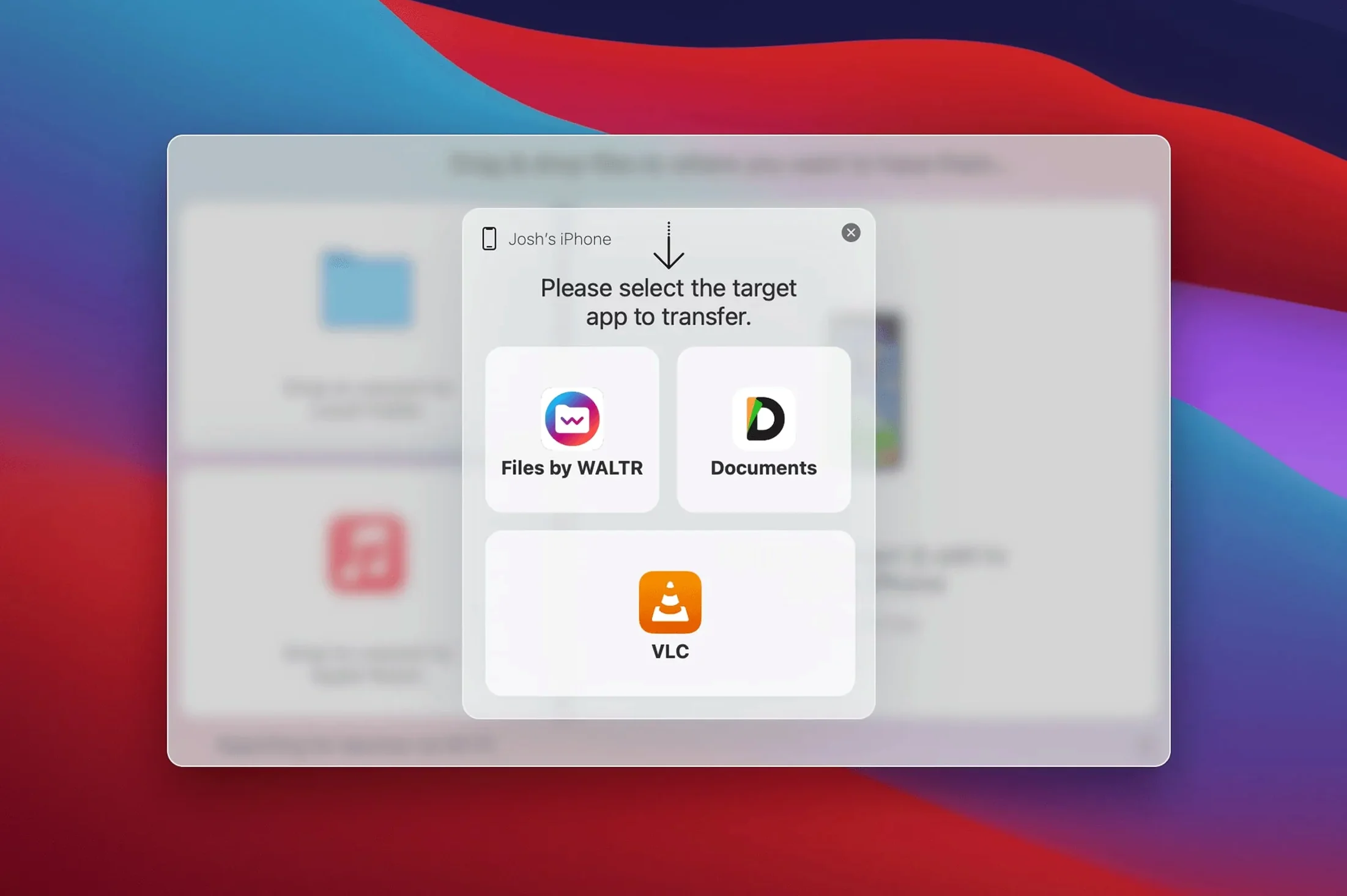
- Not checking the destination app before dropping. WALTR PRO decides where a file goes based on its type — ringtones, music, or video. If you want a music video to appear in the Music app rather than TV, you need to switch the destination manually in the app. Drag first, wonder later is how a music video ends up in the wrong place.
- CUE sheet expectations. WALTR PRO reads the CUE file and splits the audio accordingly, but the timing depends on how tidy the CUE data is. A CUE file with gaps or non-standard formatting can produce tracks with odd start points. Test one album before queuing up an entire discography.
Requirements
- macOS 10.13 or later
- Intel Mac
- Wi‑Fi network for iOS transfers
FAQ
Does WALTR PRO need a cable to transfer files?
No. It uses Wi‑Fi for wireless transfer to iOS devices, as long as both the Mac and the device are on the same network.
What audio and video formats does WALTR PRO handle?
It supports MP3, MP4, AVI, CUE, WMA, M4R, AAC, M4V, M4A, FLAC, ALAC, and MKV.
Which macOS version do I need?
WALTR PRO requires macOS 10.13 or later on an Intel Mac.
Comments 0
Sign in or create an account to leave a comment.
No comments yet…
If you’ve installed it, say how it went. Mention your Mac and macOS version — it helps the next person more than you’d think.