Vivid for macOS
Description
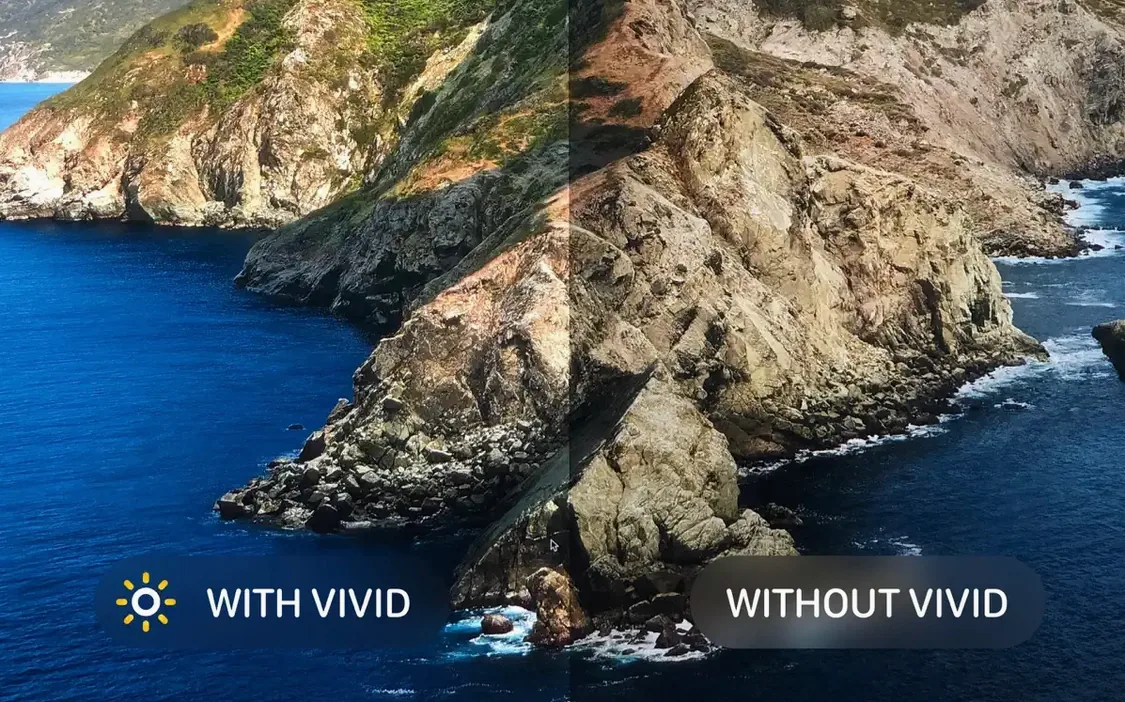
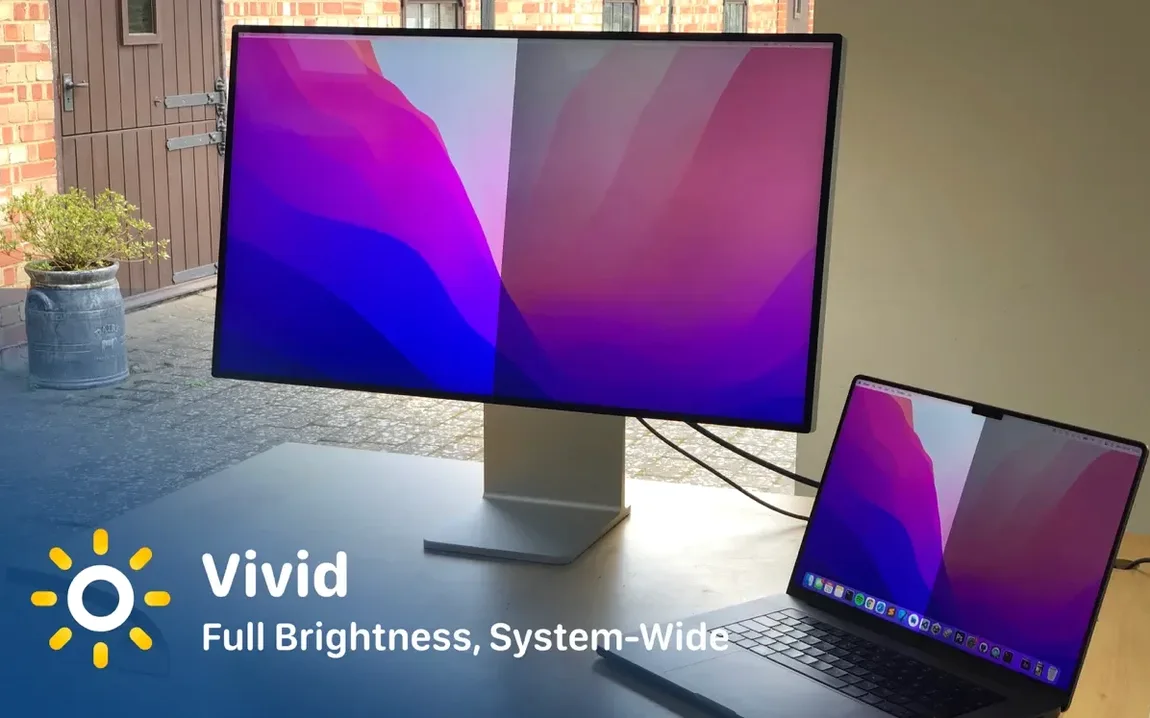
Apple's own brightness slider only goes so far. On a Pro Display XDR or Studio Display XDR, the hardware can push much further — but macOS holds it back. That's the problem Vivid solves.
| Key detail | Value |
|---|---|
| Current version | 2.18.1 |
| Developer | Lumen Digital |
| macOS | macOS 12 or later |
| Architecture | Intel & Apple Silicon |
The utility lifts that ceiling system-wide. It can more than double the output of a supported display, which is genuinely useful in bright rooms where the standard maximum still leaves you squinting at a dim screen. Version 2.18.1 adds support for the Apple Studio Display XDR and includes fixes for Mac mini and Mac Studio owners — two groups that had been waiting for better compatibility. Battery monitoring got attention too, so the extra brightness won't catch you off guard when running on a MacBook. The interface is simple and stays out of your way.
First days with Vivid
Don't just slide it to maximum and leave it there. The brightness this utility unlocks is meant for genuinely bright environments — a sun-flooded desk, a room with floor-to-ceiling windows. Indoors under normal office lighting, half the extra range is usually plenty. Your eyes will thank you by mid-afternoon.
Check the menu bar icon after a reboot. macOS has a habit of forgetting third-party brightness settings on restart, so you might need to nudge the control back up. It only takes a second, but it's easy to miss if you start working straight away.
If you're on a MacBook, pull up Activity Monitor once on the first day and glance at the Energy tab. Vivid is well-behaved — the 2.18.1 battery fixes are solid — but knowing your baseline power draw at different brightness levels helps you plan unplugged sessions.
A small thing that trip up new users: the utility works system-wide but doesn't override per-app video players that manage brightness independently. If you've got HDR content playing in QuickTime or VLC and things look off, that's the player doing its own thing, not a Vivid bug.
Forgetting to check display compatibility first
The most common one is forgetting to check whether the display is actually supported. Vivid works with Pro Display XDR, Studio Display XDR and recent MacBook Pro screens — it's not a universal brightness booster for any external monitor. Plugging in an older LG or Dell and expecting results leads to confusion. If the menu bar icon stays greyed out, that's your answer.
Another mistake: treating the READ!!! file as optional. The activation step isn't automatic, and skipping it leaves the app locked. Drag the app, then read the file. Two minutes saves a forum post later.
Some Mac mini and Mac Studio owners install the app and assume it's broken because nothing changes — until they realise the utility needs a supported display attached. The headless Mac itself isn't the target; the screen is. Version 2.18.1 fixed the compatibility issues, but the hardware requirement still stands.
What’s new
Adds support for Apple Studio Display XDR. Fixes compatibility for Mac mini and Mac Studio users. Improves battery monitoring.
Requirements
- macOS 12 or later
- Intel or Apple Silicon Mac
- Supported display (Pro Display XDR, Studio Display XDR)
FAQ
Which displays does Vivid work with?
It supports the Pro Display XDR and, as of version 2.18.1, the Apple Studio Display XDR.
Does Vivid work on both Intel and Apple Silicon Macs?
Yes, the app runs on both architectures as long as you're on macOS 12 or later.
Comments 0
Sign in or create an account to leave a comment.
No comments yet…
If you’ve installed it, say how it went. Mention your Mac and macOS version — it helps the next person more than you’d think.