VMware Fusion Pro for macOS
Description
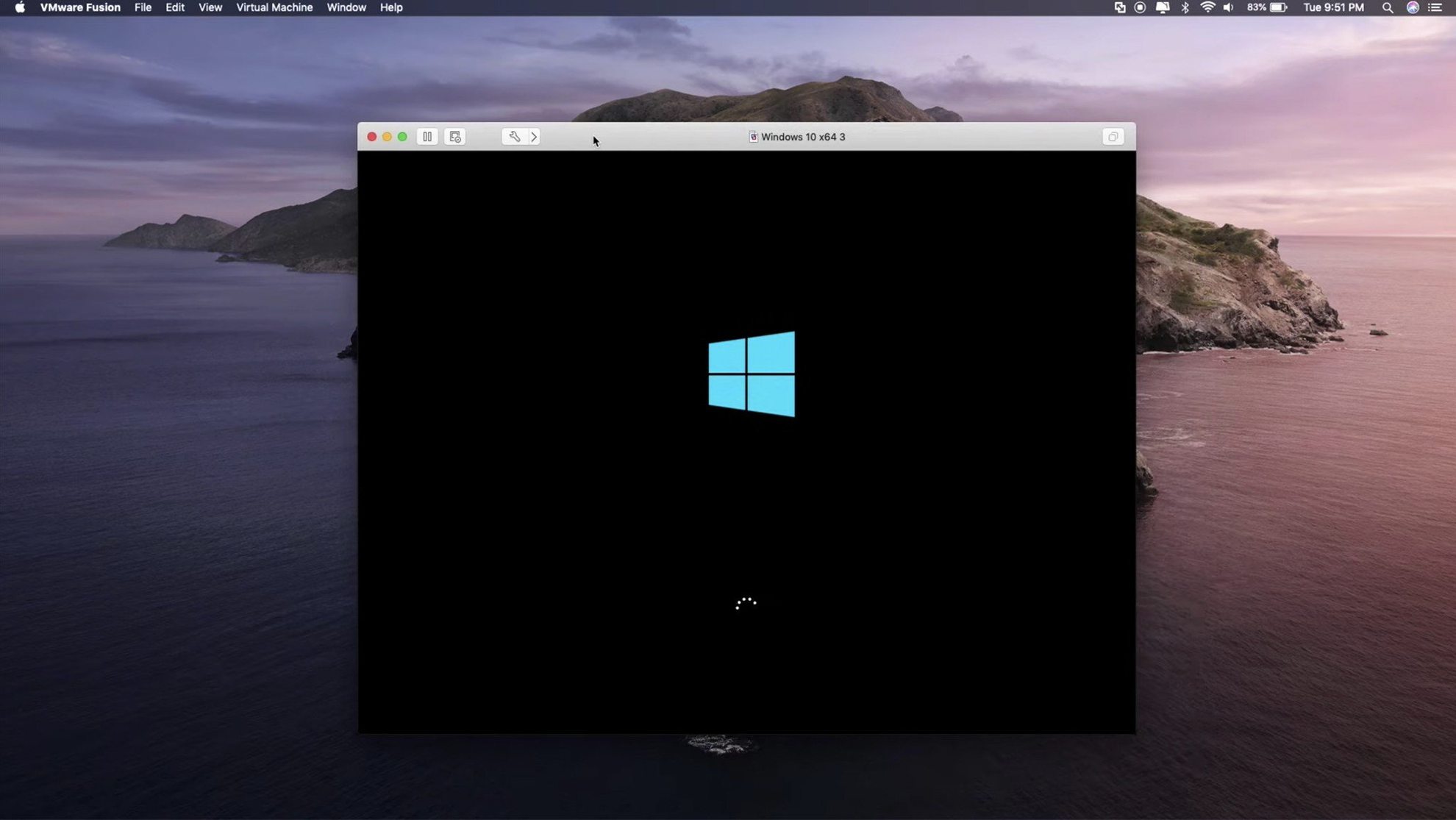
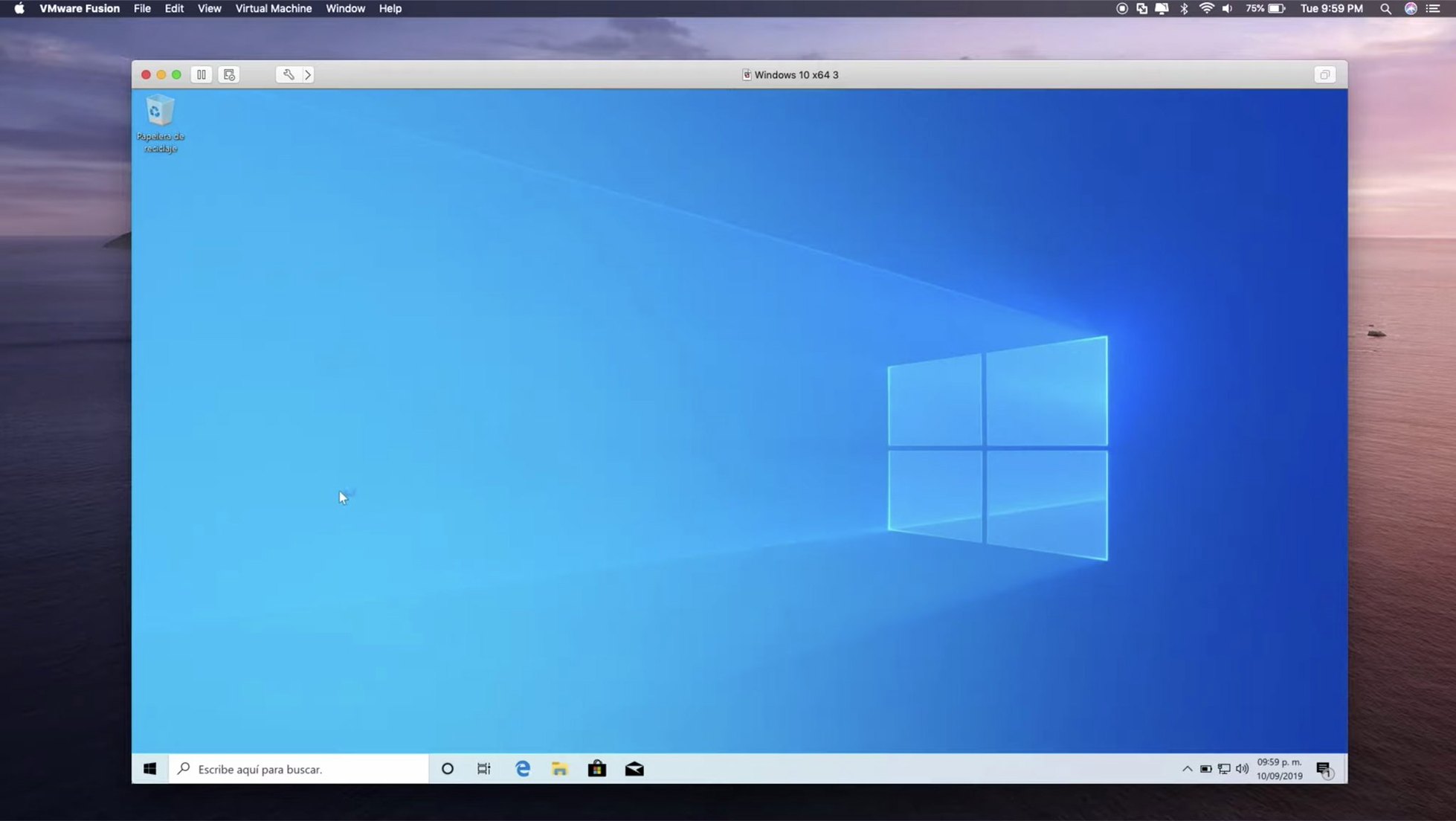
DirectX 11 hardware acceleration in a Windows 10 VM is the sort of thing that quietly saves a project. Fusion Pro handles it without making you think about driver packs, and that same pattern runs through most of its feature set. You get a hypervisor that runs Windows, dozens of Linux distributions and FreeBSD on Apple Silicon or Intel Macs, with enough guest OS support to match whatever server or desktop you are targeting.
Running ARM-based guests and ESX hosts
The 26H1 release lets you connect remotely to ARM-based ESX hosts, which makes it genuinely useful if your lab has a mix of architectures. On the guest side, support now reaches Ubuntu 26.04 LTS, Fedora 43 and 44, openSUSE 16.0 and FreeBSD 15.0. That is a practical list for anyone who needs a local sandbox that mirrors a production or testing environment without a second machine.
Local clusters and VM lifecycle tracking
Local Kubernetes clusters run inside Fusion, so you can break a deployment and roll it back without touching a cloud bill. Timestamps for VM creation and last power-on time are new and sound small, but they help when you have half a dozen VMs and need to know which snapshot came first. It is the kind of detail that makes Fusion feel built for people who live in virtual machines rather than visit them occasionally.
Windows 11 on Apple Silicon is already here
People want to know if Fusion Pro handles Apple Silicon properly. It does. The hypervisor runs natively on both ARM and Intel Macs, and you can install ARM versions of Windows 11, Ubuntu, Fedora and several other operating systems straight from the built-in downloader. Intel Macs can still run older 32-bit guests too, which matters if you maintain legacy applications.
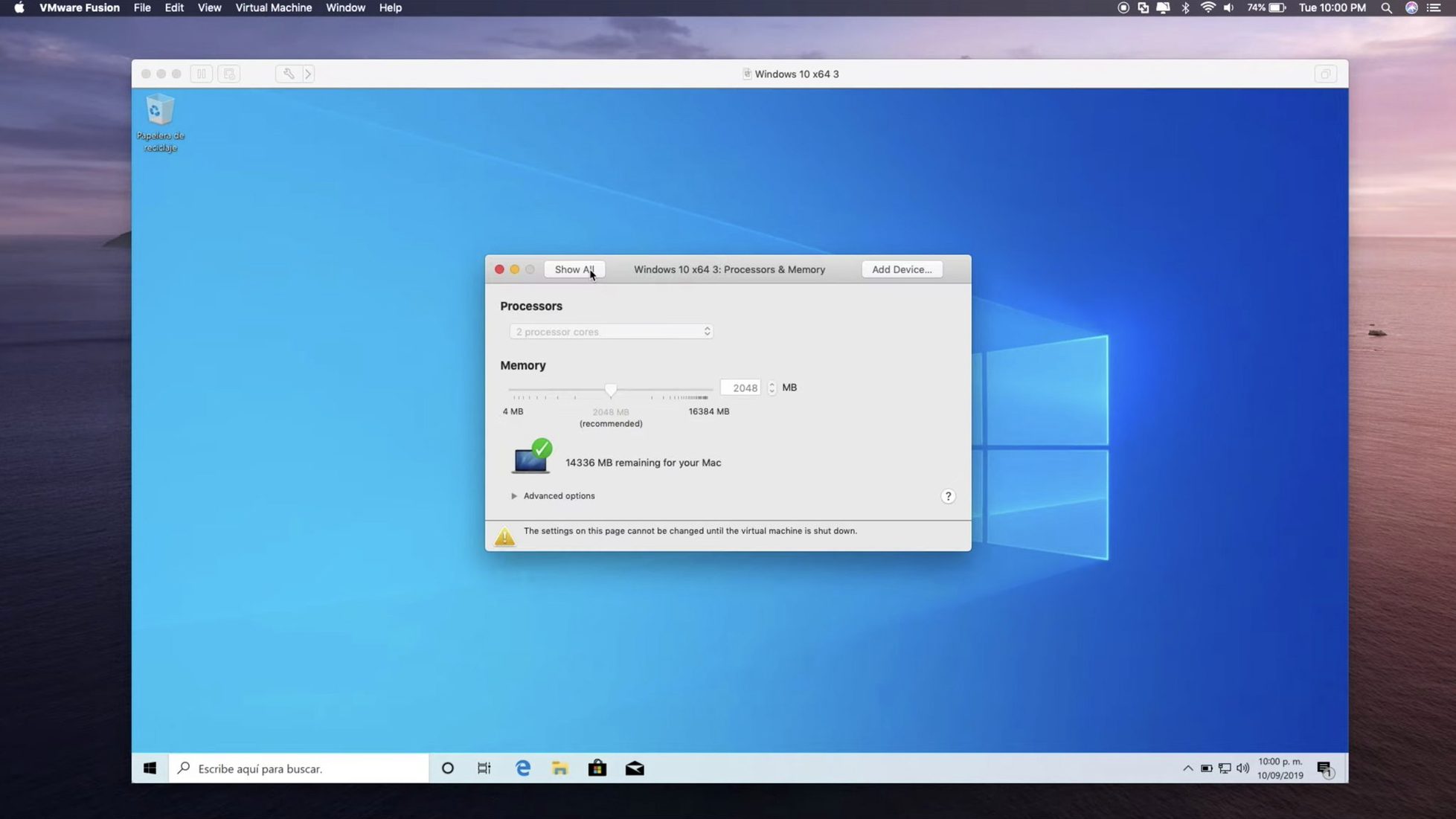
The second question is usually about performance hits. A virtual machine will never match bare metal, but Fusion gives you enough graphics acceleration to run CAD viewers, Visual Studio and browser-based dev tools without stuttering. Assign no more than half your Mac's CPU cores and RAM to a single VM and the host stays responsive. People who push both systems hard tend to notice the fan first, not the slowdown.
Some ask whether they need a separate Windows licence. That is between you and Microsoft. Fusion creates the virtual hardware; what you install on it follows the same licensing rules as a physical PC. The same applies to Linux distributions and FreeBSD, most of which do not come with that headache anyway.
Install VMware Tools first, not later
Start by installing VMware Tools in every guest. It is not automatic, and skipping it leaves you without shared folders, proper screen resizing or a shared clipboard. The menu option is under Virtual Machine > Install VMware Tools. Run the installer inside the guest, reboot, and those friction points disappear.
Next, decide on a networking mode. NAT is the safe default and works for most development. If you need the VM to appear as a separate device on your local network, switch to bridged mode. The host-only option keeps traffic entirely off the LAN, which is handy for malware testing or isolated database experiments.
Snapshots are worth using early, not after something breaks. Take a clean snapshot right after installing the OS and tools. Name it something obvious like "base install". A week later when a package update breaks the display driver, you will be glad you spent the five seconds.
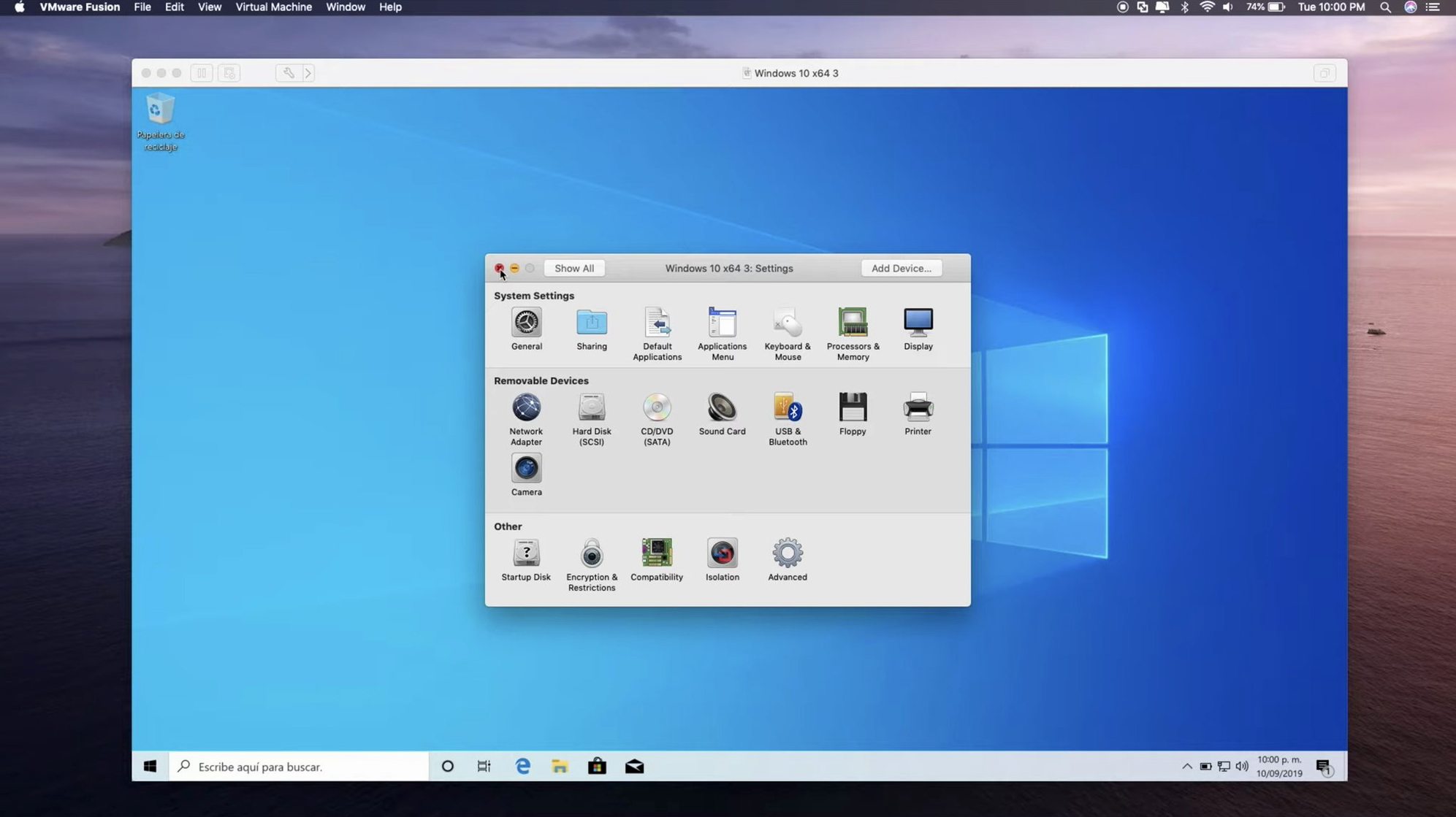
USB passthrough sometimes needs a nudge. If a device does not appear in the guest, unplug it, open the Virtual Machine menu, select USB & Bluetooth, then plug the device back in while the menu is open. Fusion usually grabs it on the second attempt. This trick saves a surprising number of support tickets.
Building a local test lab for a web project
Say you need to test a Django application against PostgreSQL on Linux, then verify the frontend in Windows browsers. Here is a workflow that takes about half an hour from scratch.
Create a Linux VM through Fusion's built-in downloader. Pick Ubuntu 26.04 LTS since this release supports it directly. Give it two CPU cores and 4 GB of RAM for a dev database. During setup, set the network to bridged mode so your Mac can reach the VM by IP address. Install VMware Tools, then install PostgreSQL inside the guest and note its IP from the terminal.
Create a second VM with Windows 11. Assign four cores and 8 GB of RAM if you have them, because browsers eat memory. Install VMware Tools, then install Edge, Firefox and Chrome. Set the network to NAT or bridged — both work as long as your Mac can reach the Linux VM's IP. Open each browser and point it at the Django dev server running on your Mac, which talks to PostgreSQL on the Linux guest. You now have a three-machine test environment on one computer, with real browsers hitting a real database over a real network stack.
If something goes wrong, revert both VMs to their base snapshots. You lose no configuration because the snapshots were taken after the OS and tools were installed. The whole lab rebuilds in under a minute. That is the kind of workflow where Fusion Pro earns its keep, especially when you are chasing a bug that only shows up in one browser on one OS.
What’s new
Adds timestamps for virtual machine creation and last power-on time. Adds support for remote connections to ARM-based ESX hosts. Adds guest OS support for Ubuntu 26.04 LTS, Fedora 43, Fedora 44, SUSE Linux Enterprise 16, openSUSE 16.0, and FreeBSD 15.0.
Requirements
- macOS 13 or later
- Apple Silicon or Intel 64-bit Mac
FAQ
Does VMware Fusion Pro run on Apple Silicon Macs?
Yes, it supports both Apple Silicon and Intel 64-bit Macs running macOS 13 or later.
Which new guest operating systems does version 26H1 support?
It adds support for Ubuntu 26.04 LTS, Fedora 43, Fedora 44, SUSE Linux Enterprise 16, openSUSE 16.0, and FreeBSD 15.0.
Can I run local Kubernetes clusters with Fusion Pro?
Yes, it supports local Kubernetes clusters, so you can test container deployments directly on your Mac.
Comments 0
Sign in or create an account to leave a comment.
No comments yet…
If you’ve installed it, say how it went. Mention your Mac and macOS version — it helps the next person more than you’d think.