VideoProc Converter for macOS
Description
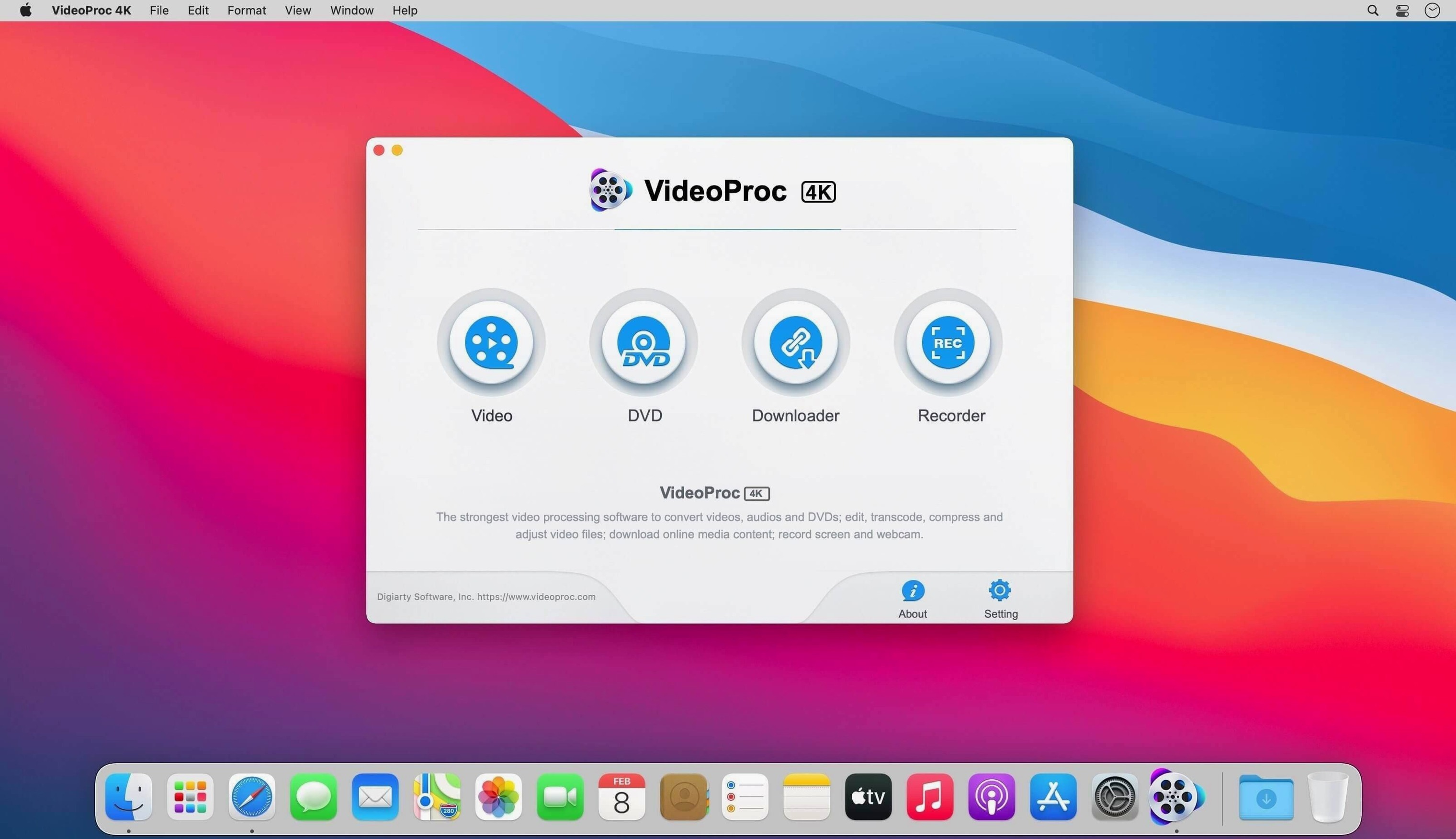
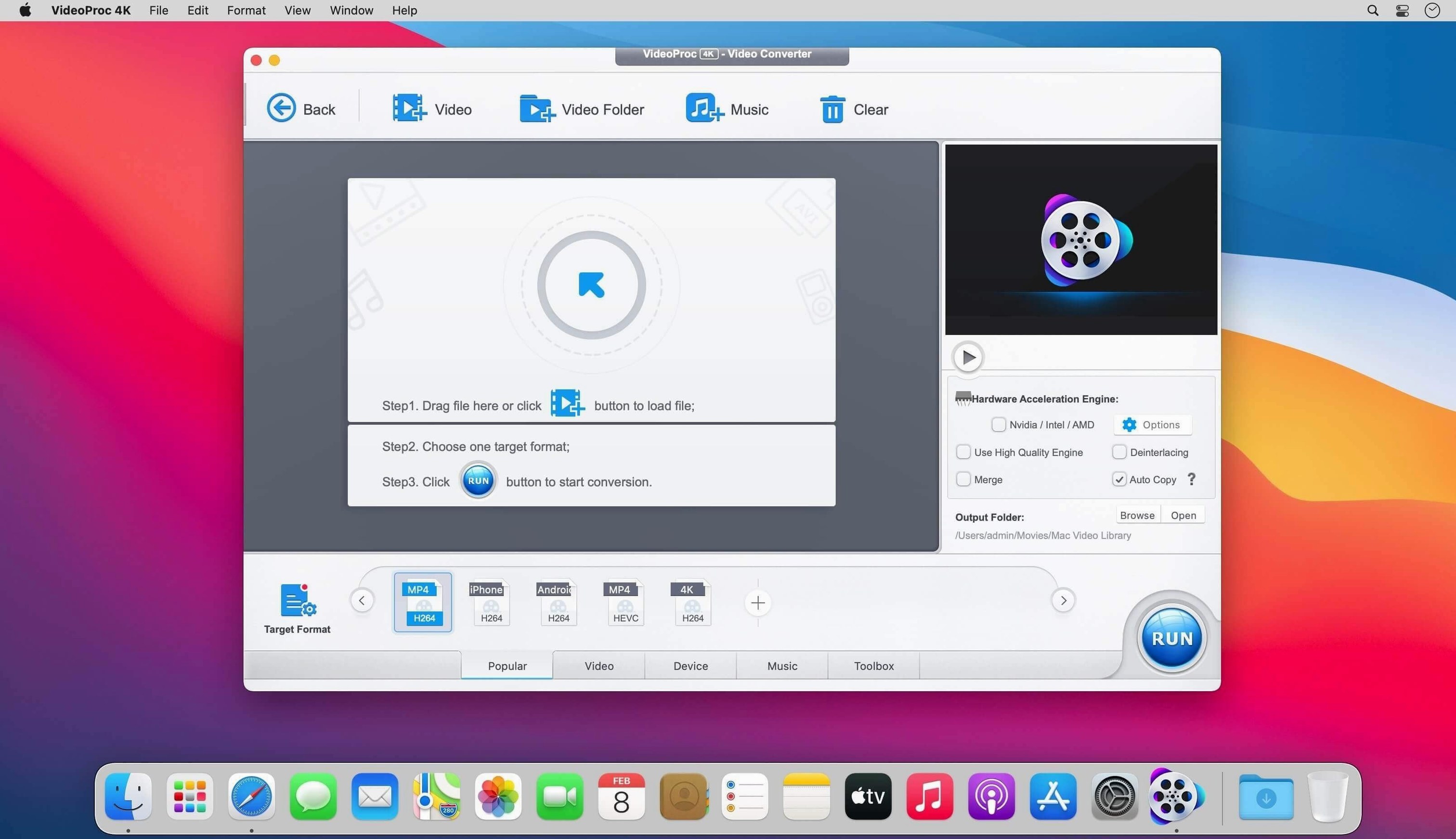
Hardware decoding sits at the centre of it. VideoProc Converter leans on the GPU in your Mac — whether that's the M4 Max in a MacBook Pro or an older Intel chip — to chew through conversion jobs without pinning the CPU at 100% and spinning up the fans. It claims support for 370-odd codecs, which in practice means you can throw a messy folder of MKVs, AVIs and HEVC clips at it and get back something QuickTime will actually open.
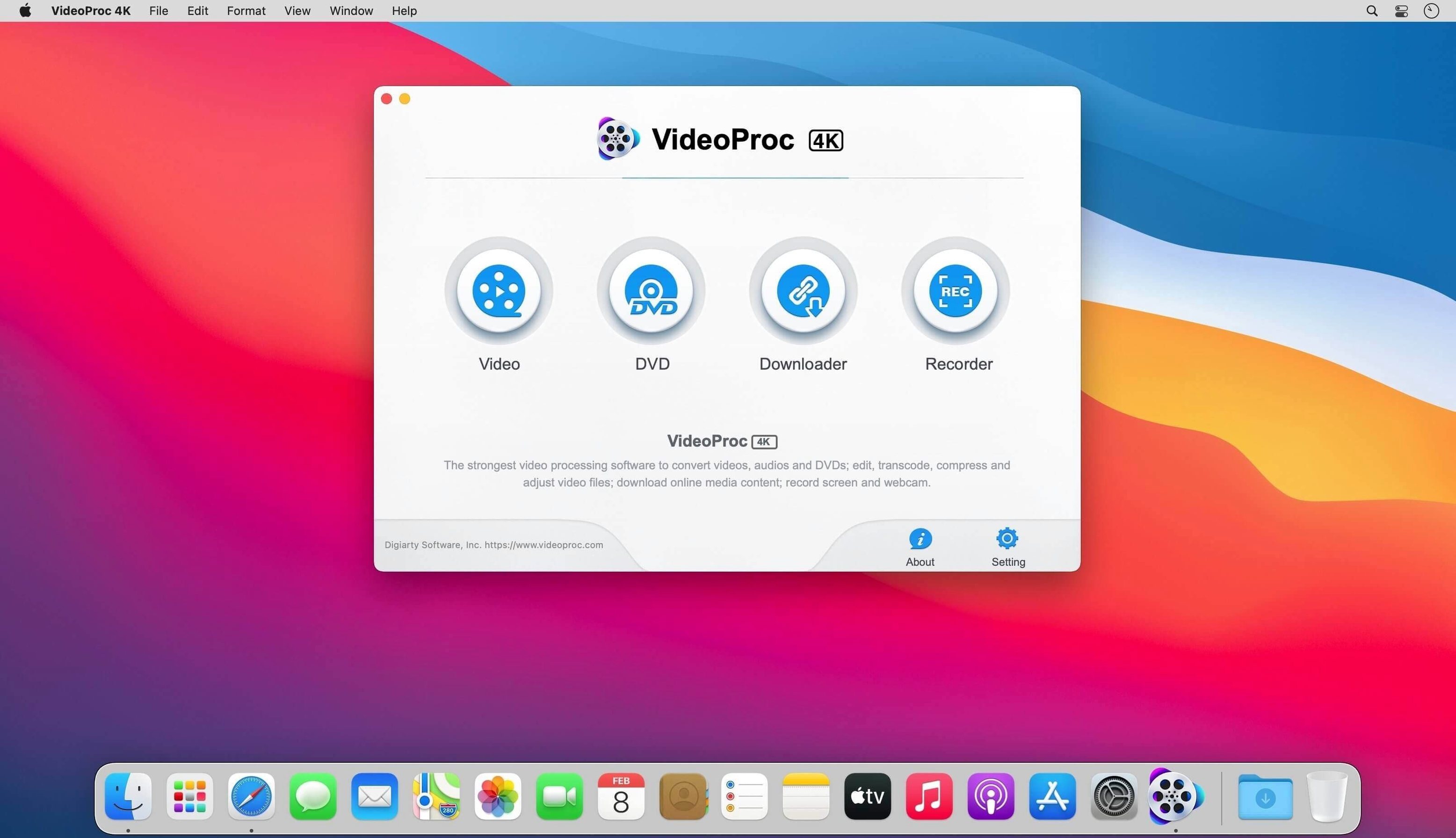
It's not just a HandBrake alternative. The batch downloader pulls UHD, HD and audio from playlists, so it sits next to a tool like Downie rather than replacing it. The built-in editor is basic — trim, crop, rotate — but it saves you bouncing a clip into iMovie or Resolve just to lop off the last ten seconds.
The Mac build is 64-bit Intel, and the developer says it's tuned for Apple Silicon, running natively on M1 through M4. AI features need macOS 10.15 or later; the core app runs all the way back to 10.10. That wide compatibility means it earns a spot even on an old iMac you keep around for one legacy task.
It's a utility player. Where QuickTime Player stops and HandBrake gets fiddly, VideoProc fills the middle ground — conversion, light editing and batch downloads in a single window.
First-day moves that save time later
Open Preferences before you queue anything. Set the output folder to somewhere you can reach quickly — the default is buried in Movies, and you'll hate hunting for it when a batch finishes. While you're there, tick the box that tells it to use hardware acceleration by default; it's on by default for most codecs, but confirming now costs you five seconds and avoids a slow encode later.
Drag a short clip in and run a test conversion with GPU encoding on, then switch to software and compare the time. That gives you a rough multiplier for your machine. On Intel Macs with an AMD GPU, the gap is wide. On Apple Silicon, it's tighter, but still worth knowing before you queue forty clips overnight.
If you plan to use the downloader, paste a short playlist URL and let it fetch two or three items. Check where they land. The naming scheme is sensible but not configurable — knowing what you'll get prevents renaming marathons later.
Easier path to a playable file than HandBrake
Next to HandBrake, VideoProc is the easier pick when someone just wants a file that plays. HandBrake gives you finer control over x264 and x265 presets, but its interface assumes you know what RF values and tune settings do. VideoProc trades that depth for speed: pick a device profile, click Run, done. For quick-turnaround jobs, that's a win. For archival encodes where you care about every pixel, HandBrake still pulls ahead.
Permute is the closest in spirit — drag, pick a format, convert. It's leaner and faster to launch, but it doesn't touch downloads or AI upscaling. If you only ever convert video and never trim, download or resize, Permute is less clutter. As soon as you need to crop a clip or pull a playlist, VideoProc already has the tools open.
ffmpeg via the command line beats them all on raw flexibility, but nobody installs a GUI converter because they want to type filtergraphs at 11pm. VideoProc is for the nights when you just need the footage in ProRes and you need it before you go to bed.
Small bits that are easy to walk past
The merge button doesn't just stitch clips end-to-end. Drop a folder of numbered image sequences onto it — JPEGs from a timelapse, say — and it builds a video with adjustable frame rate. Not obvious, not advertised loudly, but it works.
In the trim panel, hold Shift while dragging the handles to snap to keyframes. That avoids a re-encode of the whole clip for a cut that only needed to be frame-accurate at one end.
The downloader accepts a clipboard URL without you clicking into the text field. Copy a link in Safari, switch to VideoProc and press Cmd-V — it parses and starts analysing. Small thing, but it saves the dance of clicking the Paste button that some apps insist on.
Right-click any file in the queue and choose Show in Finder. When you're running a batch that mixes sources from three drives, that shortcut stops you opening the wrong folder half a dozen times.
For anyone searching out a videoproc converter mac workflow that doesn't involve babysitting progress bars, the auto-shutdown tickbox under the queue is worth finding. Set a big batch running, check that box, walk away.
Requirements
- macOS 10.10 or later (10.15+ for AI features)
- 64-bit Intel or Apple Silicon Mac
FAQ
Does VideoProc Converter run natively on Apple Silicon?
Yes. The developer states the Mac version is optimised for Apple Silicon and runs natively on M1, M2, M3 and M4 chips.
Which macOS versions does it support?
The core app works on macOS 10.10 and later. AI capabilities require macOS 10.15 or above.
Comments 0
Sign in or create an account to leave a comment.
No comments yet…
If you’ve installed it, say how it went. Mention your Mac and macOS version — it helps the next person more than you’d think.