
Vector Magic for macOS
Description
Graphic designers who trace logos, illustrators cleaning up scans and print prep operators who need clean paths all hit the same wall: a bitmap that has to become a vector. Vector Magic puts that conversion on your own Mac, no uploads required.
Offline tracing with transparency and segment fixes
- Offline work — the whole conversion runs locally.
- Transparency support baked in, not an afterthought.
- Segment editing after the trace, so you can fix awkward curves without switching apps.
- Large images supported up to 10.0 megapixels.
- Manual mode with instant preview for tweaking individual parameters.
Needs Rosetta 2 on Apple Silicon, 10 MB file cap
- 64-bit Intel app only — it will not open on Apple Silicon Macs without Rosetta 2. If you have a newer Mac, check you have that in place first.
- Maximum source file size is 10.0 MB.
- Runs on macOS 10.7 and later, so it is fine on older Intel machines that newer vector tools have left behind.
- Output formats are practical: EPS, SVG, PDF, AI, DXF, EMF and PNG. Input covers JPEG, GIF, PNG, BMP, TIFF and PSD.
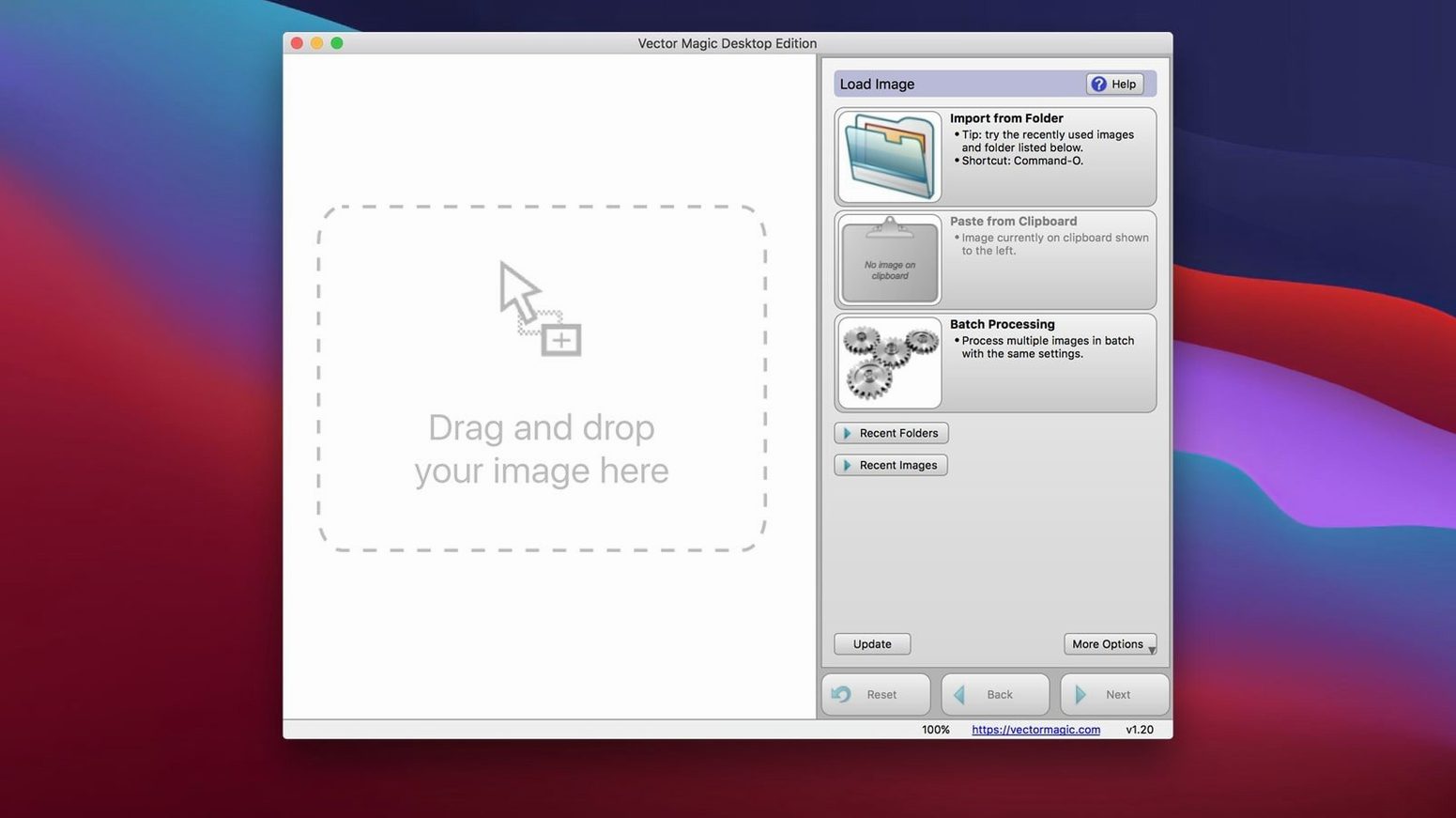
- Copy-and-paste workflow works between apps for quick transfers.
Switch to Advanced tab for real trace control
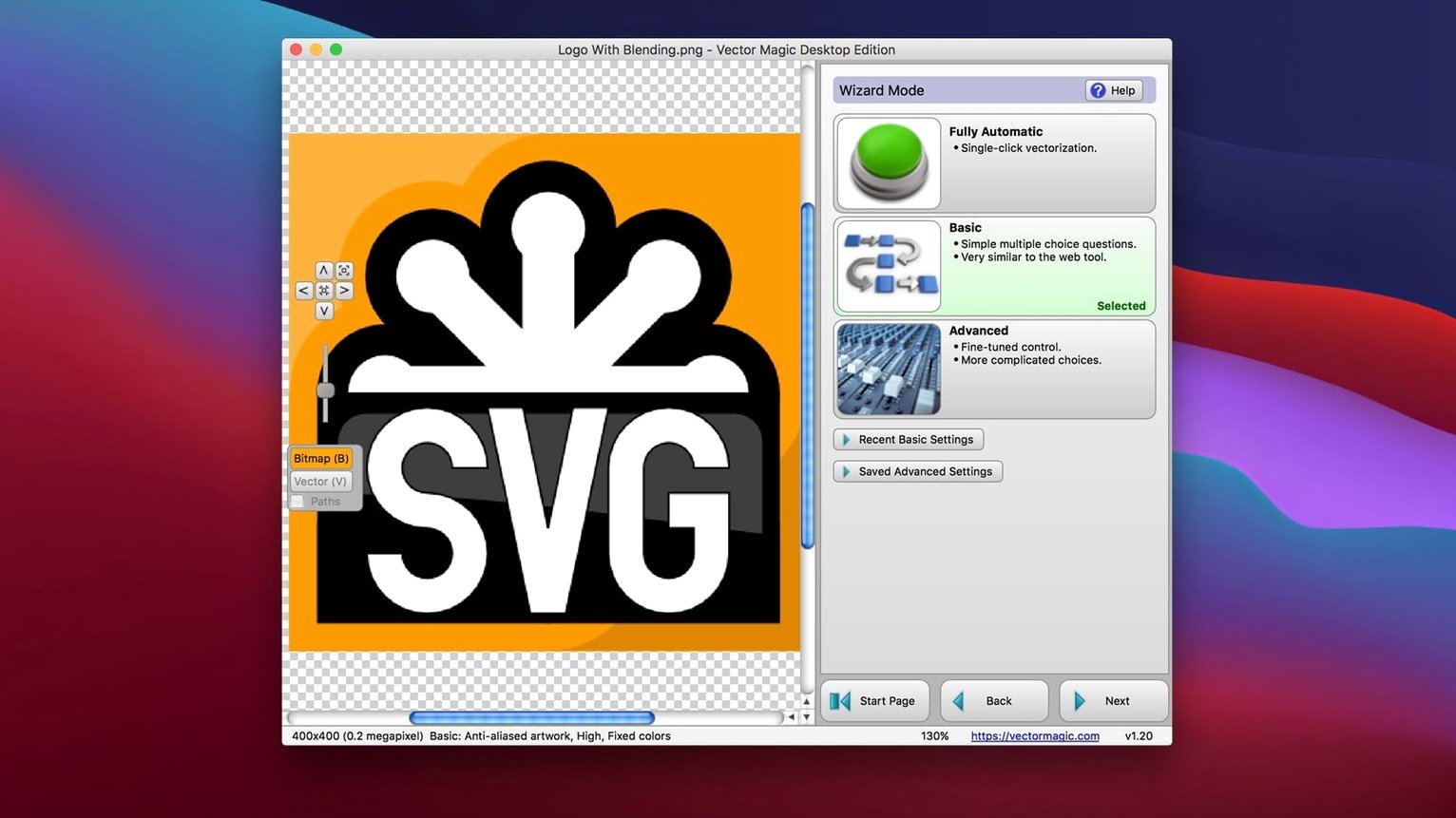
Out of the box Vector Magic picks Automatic mode. It is fine for a quick first pass, but the real control sits elsewhere. Go straight to the Advanced tab before you trace anything serious.
Three settings make an immediate difference:
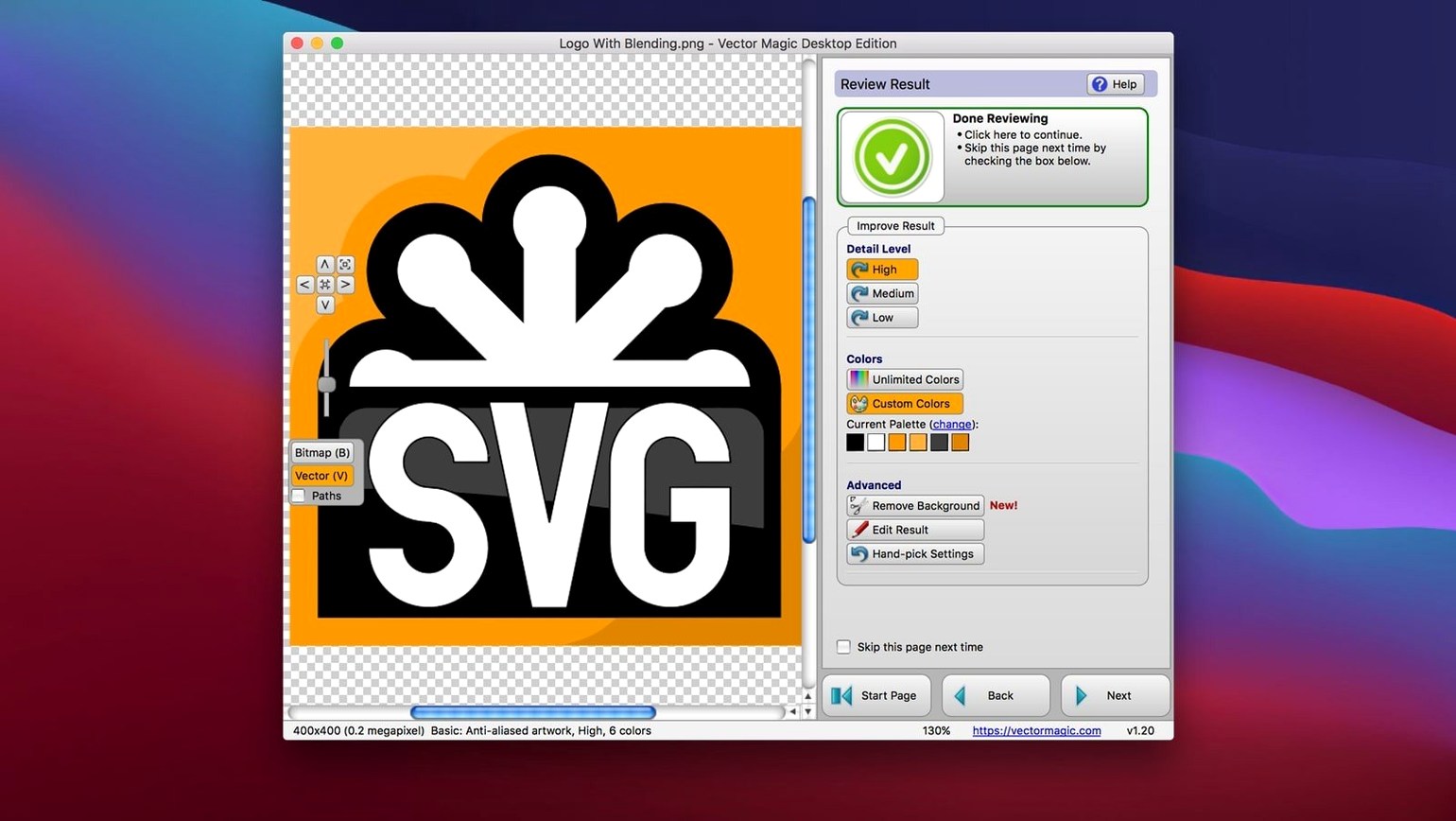
- Detail level. High detail traces every pixel wiggle. For logos with sharp edges, drop it to Low or Medium first — you get fewer nodes and easier editing later.
- Colours. The default colour count often overshoots. If the source is a two-colour logo, tell it so. Fewer colours mean cleaner separations and smaller files.
- Background removal. Turn it on before the first trace, not after. The tool does a decent job detecting solid backdrops, but it cannot guess what you want kept. Tick the box early and avoid manual clean-up.
In Manual mode, the Gap filling slider is worth nudging up slightly for scanned line art — think ink drawings or pencil sketches where strokes do not quite meet. A value of 2 or 3 closes most small breaks without blobbing the result.
Test 500 kB images through Automatic then Manual
Start with five or six small images you know well — files under 500 kB, clean backgrounds, shapes you can judge at a glance. Run them through Automatic, then the same ones through Manual with different detail settings. Compare the node counts in the exported SVG. You will quickly learn when Automatic is good enough and when Manual earns its keep.
Test the copy-and-paste path early. Open a JPEG in Preview, copy it, switch to Vector Magic and paste. Trace it, copy the result, paste straight into Illustrator or CorelDRAW. The clipboard carries the vector data intact — no intermediate file to save. This saves clicks once it becomes habit, but the first time it is worth confirming your graphics app receives what you expect.
If you plan to batch process, set up a dedicated input folder and a matching output folder. Drag a handful of similar files — say, ten product photos with plain backgrounds — and let the batch run. Check the first result before the rest finish; batch settings apply to the whole queue, and correcting them after twenty traces wastes time.
One small gotcha: the 10.0 MB file cap applies per source image. A 9.8 MB TIFF that traces fine can fail if you save it as a PSD with extra layers first. Flatten before importing and you stay under the limit.
Faithful vector copies when you know the target shape
Vector Magic rewards users who know exactly what shape they are chasing. It is not a discovery tool — it is for when you already have a bitmap and need a faithful vector version without an internet connection.
Logo editors and sign makers benefit the most. These users receive JPEGs from clients at 72 dpi and need crisp EPS or AI output for vinyl cutters and embroidery machines. The segment editor lets them fix a single mis-traced corner without re-running the whole image, which matters when the client supplied the only copy.
Screen printers who separate artwork into spot colours find the colour reduction controls useful. Tracing a six-colour design as a six-colour vector, rather than as a thousand-shade gradient, means separations that actually work on press.
Users running older Intel Macs get a tool that still runs natively. If your machine sits on macOS 10.13 and newer vector apps have dropped support, Vector Magic asks for nothing beyond what the machine already has.
Illustrators who draw on paper and scan their line work gain a shortcut. A 600 dpi black-and-white scan traced with gap filling at 2 produces an SVG that needs far less node clean-up than a live trace in a general-purpose graphics app. The time saved goes back into drawing.
Users who only occasionally need a vector — once a month, for a single logo — will find the manual controls overkill. The tool is built for people who trace often and want repeatable results. If that describes your week, it fits.
Requirements
- macOS 10.7 or later
- Intel 64-bit processor
- Maximum file size: 10.0 MB
- Maximum image size: 10.0 megapixels
Comments 0
Sign in or create an account to leave a comment.
No comments yet…
If you’ve installed it, say how it went. Mention your Mac and macOS version — it helps the next person more than you’d think.