VideoProc Converter AI for macOS
Description
A single-window toolkit for video jobs that would normally need three or four separate apps.
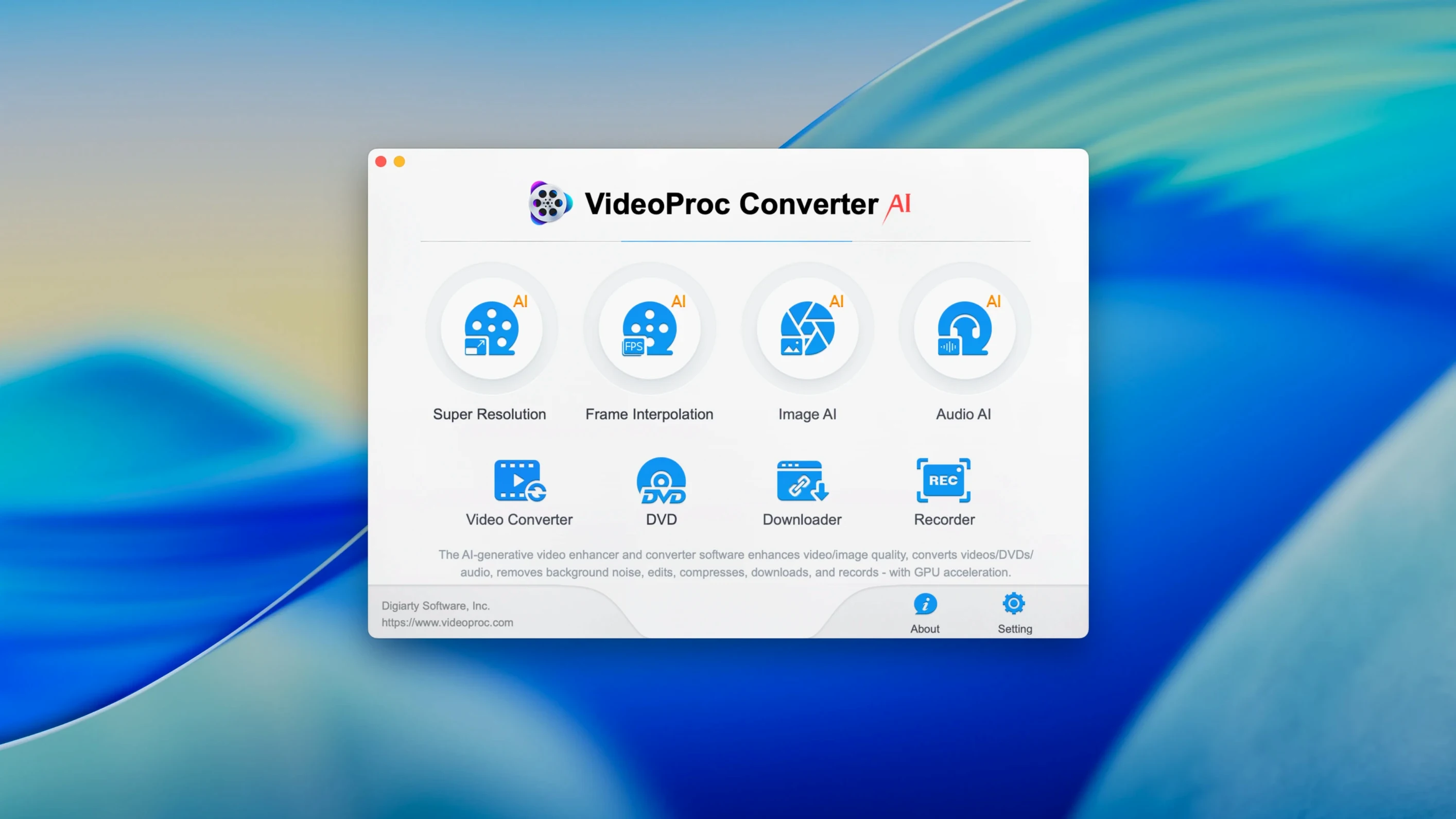
Conversion — the core of the app. Feeds in over 1,000 formats and spits out a playable file for an iPhone, iPad, Apple TV, GoPro, or a Sony camera. Pick a device preset and it sorts the codec, frame rate and bitrate for you.
Compression — shrinks a chunky 4K master down to a sensible size. The claim is up to 90% file-size reduction without the picture turning into a blocky mess. Useful before you email a clip or upload it on a slow connection.
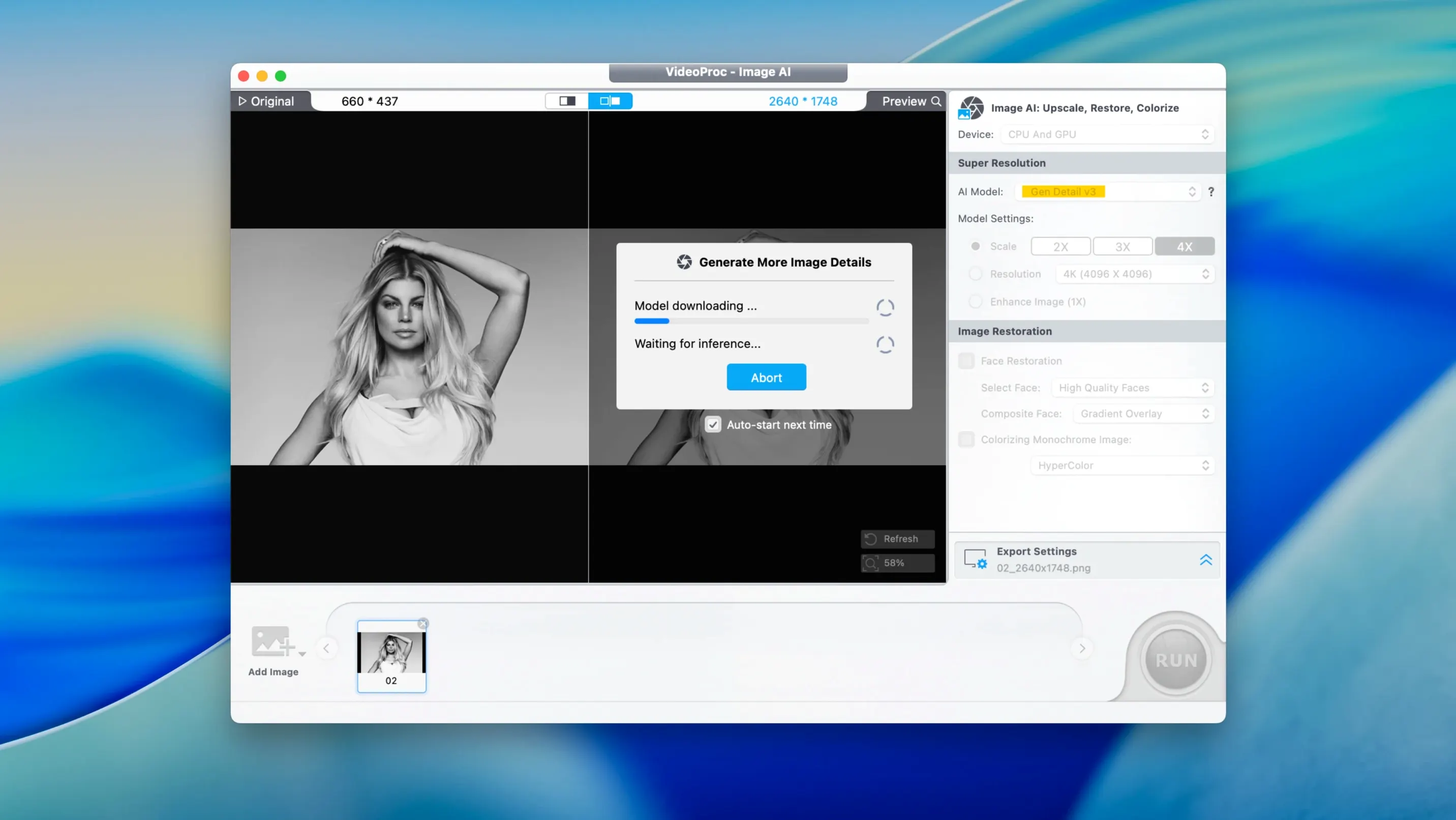
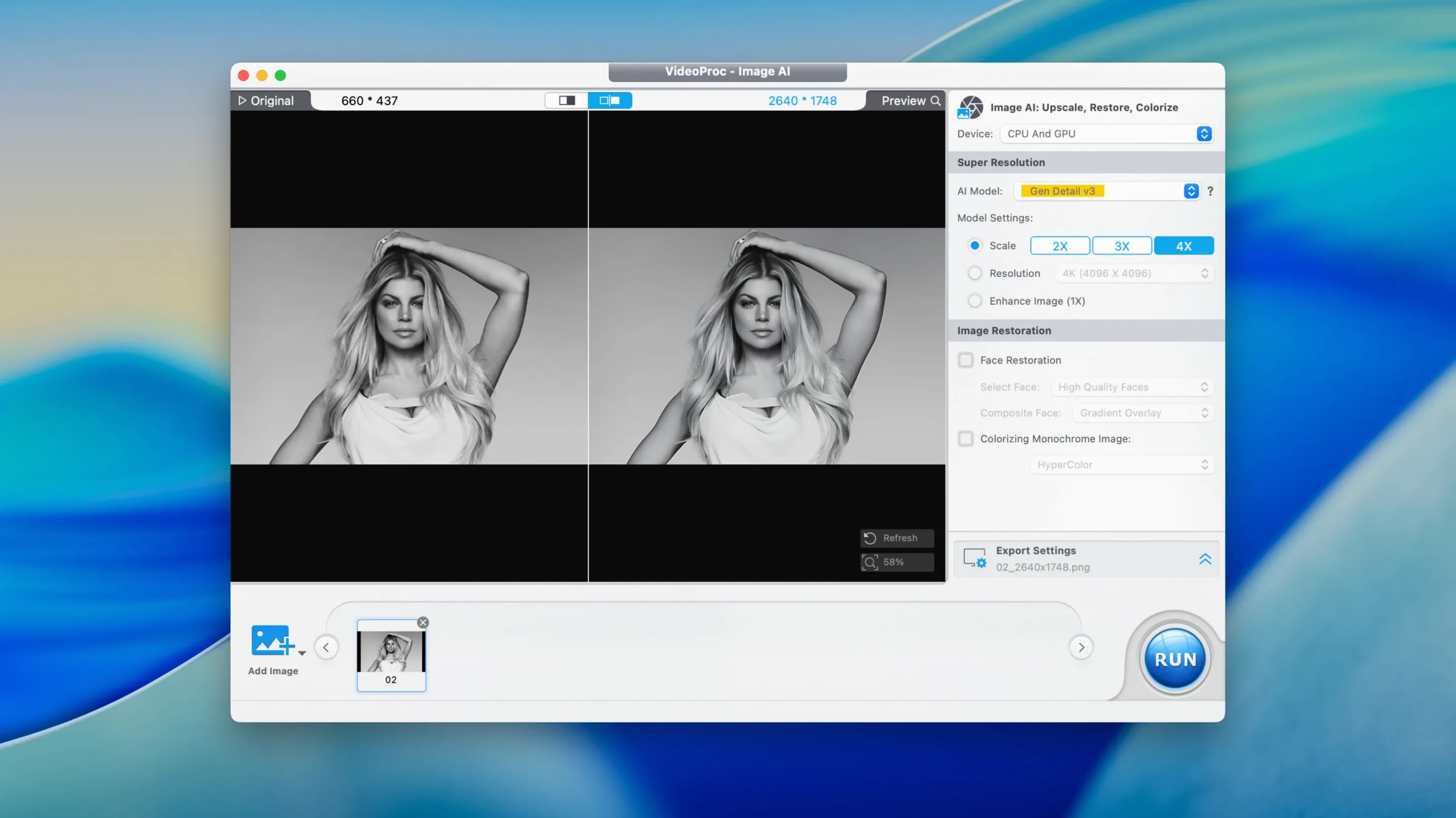
AI Enhancement — upscales old SD footage and cleans up noise and compression artefacts. Not magic, but it does a decent job on grainy phone clips and low-light recordings.
Downloader — grabs video from streaming sites. Version 8.12 gave this module a performance bump, so it spends less time waiting for a link to resolve.
Recording — captures from a webcam, including an external one plugged in via USB. Handy for a quick tutorial or a video message without opening QuickTime.
Speed tools — slow-motion down to 0.1x or a 2x speed-up. Both keep the audio in sync and avoid the jitter you get from simple frame-skipping tricks.
Basic colour, brightness and contrast tweaks are there too. Nothing that replaces a grading suite, but enough to fix a washed-out shot before you send it on.
Turn on hardware acceleration before your first 4K transcode
Turn hardware acceleration on before you queue any heavy jobs. Open Preferences, switch to the General tab, and tick the box for Metal, Intel QSV or Apple M-series support. Without it, a 4K transcode will run purely on the CPU and take three times as long.
Set your default output folder somewhere sensible — not your desktop. The app ships with a default buried in your Movies folder; point it at a dedicated scratch disk if you work with large ProRes files. While you are in Preferences, turn off the auto-check for updates if you prefer to control when things change.
Drag a short test clip through the queue first, not a two-hour feature. A 30-second sample lets you confirm the preset, the bitrate and the crop before you commit to a job that runs for 20 minutes. The same clip also tests whether hardware acceleration is actually engaging — the status bar shows a distinct speed jump when it kicks in.
10-bit HDR stays colour-accurate in MKV or MOV
Does it handle 10-bit HDR without washing out the colours? Yes, as long as you pick a container that supports 10-bit — HEVC in an MKV or MOV wrapper works. The app reads the colour primaries from the source and passes them through. If you transcode to an 8-bit format like standard MP4, expect a tone-map conversion; the result is watchable but not grade-accurate.
Will the downloader grab a 4K stream or just the 1080p version? It grabs whatever the site serves. On YouTube that usually means 4K VP9 or AV1, which the app can remux into MP4 or transcode if you need a different codec. Some sites cap the resolution at the server end, and no downloader can bypass that.
Can I batch-process a folder of mixed file types? Yes. Drop the folder onto the window, and the app groups the files by format. You can then apply one output preset to everything or set per-file rules. The queue saves between sessions, so a half-finished batch survives a restart.
A job from start to finish: cleaning up an old DV tape transfer
Suppose you have a 60-minute DV capture in an AVI container, full of analogue noise and camera shake from a handheld shoot in 2003. You want it sharp enough for a modern screen, compressed for a family group chat, with a short clip extracted for social media.
- Add the AVI to the conversion queue and choose the AI Enhancement module. Switch on upscaling to 4K, denoising and stabilisation. Set the codec to HEVC in an MP4 container — good balance of quality and size.
- Run a 30-second preview first. The stabilisation crop trims a few pixels off the edges; check the framing still holds on the subjects. If not, dial the crop back slightly and re-test.
- While that processes, drag the same source file into the Compression tool for a separate job. Target 40% of the original size. The twin jobs run from one source read, so the disk thrash is minimal.
- Once the AI-enhanced version finishes, open the trim tool. Mark in at 02:14 and out at 02:44 for a 30-second highlight. Export that segment with the TikTok preset — vertical crop, 1080p, ready to post.
- Pull the compressed full-length file into the audio extractor. Export as AAC at 192 kbps if someone wants just the soundtrack.
The whole set — enhanced master, compressed copy, social clip, audio-only version — comes from one original file and finishes in under 40 minutes on an M1 Mac. The same job split across four separate apps would chew through an afternoon.
What’s new
- Adds iPhone 18 support.
- Improves Downloader performance.
- Reduces installer size.
- Adds support for macOS 27.
Requirements
- macOS 10.15 or later
- 64-bit Intel or Apple Silicon Mac
FAQ
Does it run on Apple Silicon Macs?
Yes. The app is a 64-bit binary that runs natively on both ARM (Apple Silicon) and x86 Intel Macs.
Comments 0
Sign in or create an account to leave a comment.
No comments yet…
If you’ve installed it, say how it went. Mention your Mac and macOS version — it helps the next person more than you’d think.