
VideoByte BD-DVD Ripper for macOS
Description
The encoder list runs past 300 profiles before you hit the custom block. MP4, MKV, MOV and WMV cover the video side; MP3 and AAC cover audio. That breadth matters less than the controls behind it—because batch-ripping a box set with the wrong audio mapping wastes an afternoon.
| Detail | Note |
|---|---|
| Source types | Disc, BDMV/VIDEO_TS folder, ISO |
| Protection removal | CSS, AACS, BD+, Cinavia, APS, CPRM |
| macOS | 10.12 through 15.x, Intel & Apple Silicon |
The preset profiles for Apple, Samsung and Sony devices are fine for quick jobs, but the real work happens when you override them. You can force a specific audio track, decide whether subtitles get burned in or left as a soft stream, and set the exact bitrate a rip needs rather than trusting a slider. Cinavia handling is the quiet headline here—most rippers leave that watermark intact on audio CDs and Blu-ray soundtracks. This one strips it during the decode pass, which keeps the AAC or MP3 output clean for Plex libraries and media servers. Original audio and subtitle tracks stay intact if you tell the muxer to pass them through, so you are not stuck re-compressing a DTS-HD track into stereo by accident.
Does it handle last week’s Blu-ray or just older discs
Does it handle the Blu-ray I bought last week, or only older discs? The protection module deals with AACS and BD+ as they appear on current commercial discs. There is no guarantee a disc pressed tomorrow will work instantly, but the decryption layer gets updated often enough that most recent titles open without a fight.
Will the output play on my TV's USB port? That depends on the profile you pick. The Samsung and Sony presets produce files those TVs recognise. For anything else, stick to MP4 with H.264 video and AAC audio—that combination plays on nearly every television and set-top box made in the last decade.
Can I keep the surround sound? Yes. Look for the audio track selector before you start the queue. Choose the DTS or Dolby track and set the codec to "passthrough" if your playback device supports it. The app will copy the stream instead of re-encoding it, which saves time and preserves the original mix.
Subtitles stuck on burn-in instead of soft or remux
The most common slip is leaving subtitles on "burn-in" without realising it. That hard-codes the text into the picture and you cannot turn it off later. Switch the subtitle mode to "soft" or "remux" unless you genuinely need captions painted onto every frame.
Another headache comes from the output folder. The default path points to the Movies directory, and people start a 45-minute rip without checking how much space is left. A full Blu-ray remux can eat 30 GB. Point it at an external drive with room to spare before you click the big button.
People also ignore the cropping tool, then wonder why their ripped film has black bars baked in. A ten-second crop pass removes letterboxing and pillarboxing so the file only contains the actual picture. Do it once per source and the preset saves for the rest of the queue.
Workflow: ripping a TV series disc set to Plex
Task: you have a four-disc Blu-ray box set and want every episode as a separate MKV file, with the original English audio and soft subtitles, ready for a Plex library. Here is how that goes, step by step.
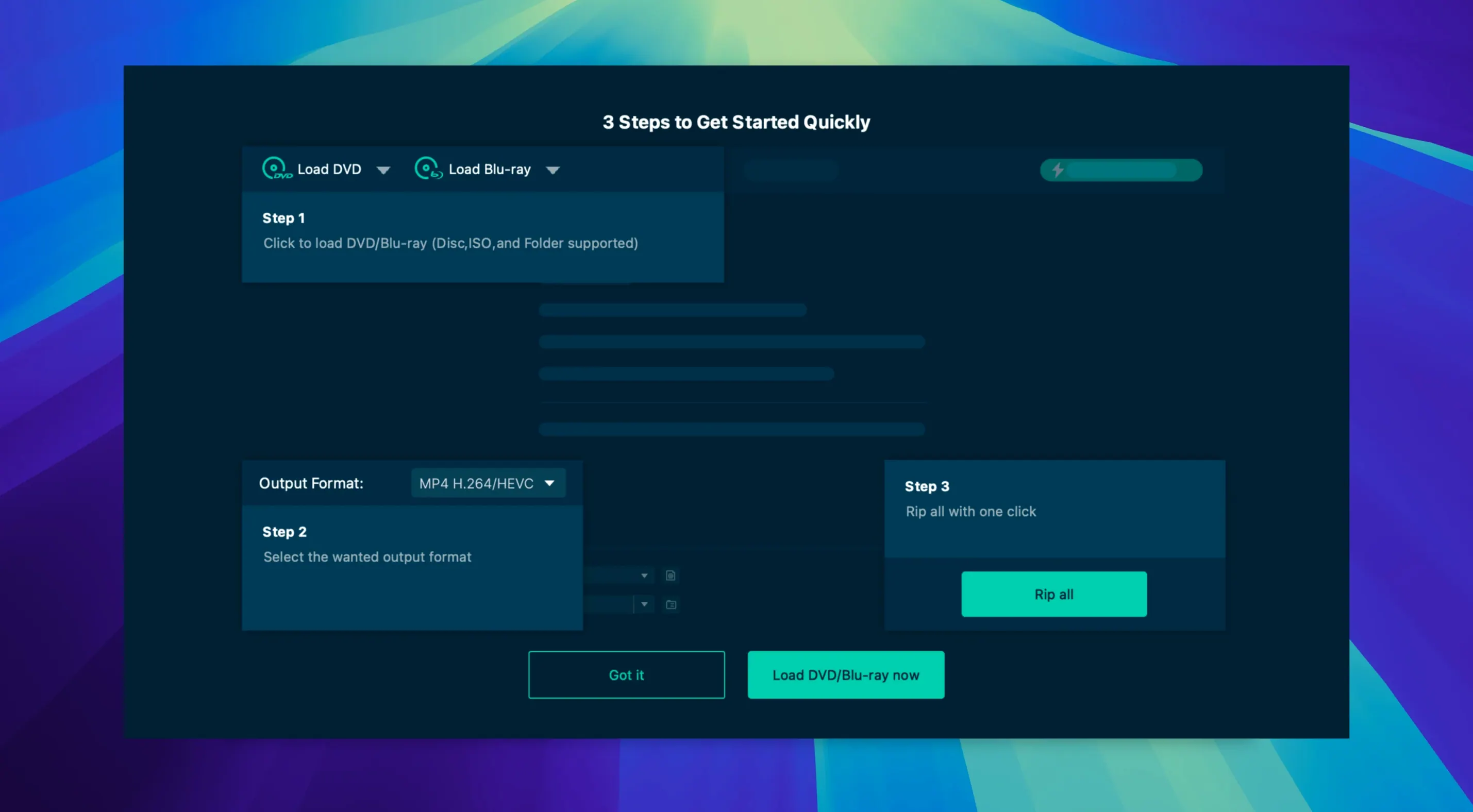
- Insert disc one and let VideoByte scan the title list. Switch the view from "Movie" to "Title" mode so you see individual episodes instead of one combined playlist.
- Select episodes 1–4. Hold Command to pick multiples. Set the output format to MKV Lossless—this uses passthrough for video and keeps the original quality.
- In the audio settings, pick the English DTS-HD track and set the codec to "Passthrough." For subtitles, choose English and set the mode to "Soft (remux)." That embeds the track as a selectable stream.
- Check the crop preview. If the episodes are 16:9 and fill the frame, leave it alone. If bars appear, drag the crop handles to trim them.
- Set the output folder to a folder your Plex library watches, named by show and season. Hit "Rip All" and let the queue run. Swap discs as prompted. When the last episode finishes, trigger a Plex library scan and the season appears with artwork pulled in automatically.
The whole job takes about fifteen minutes of your attention spread across an afternoon. The rest is the machine grinding through video passes while you do something else. That is the point of a ripper that handles protection silently—you set the rules once, feed it discs, and walk away.
Requirements
- macOS 10.12 through 15.x
- Intel or Apple Silicon Mac
FAQ
Will VideoByte BD-DVD Ripper handle a disc with Cinavia protection?
Yes, it removes Cinavia watermarking during the rip, along with CSS, AACS, BD+, APS and CPRM protections found on commercial Blu-ray and DVD discs.
Can I keep the original DTS or Dolby track without re-encoding it?
You can. The app lets you pass through original audio tracks and subtitles, so lossless formats stay intact in the output container.
What source formats does the Mac version accept?
It converts directly from Blu-ray and DVD discs, BDMV and VIDEO_TS folder structures, and ISO image files.
Comments 0
Sign in or create an account to leave a comment.
No comments yet…
If you’ve installed it, say how it went. Mention your Mac and macOS version — it helps the next person more than you’d think.