Tuxera NTFS for macOS
Description
Mounting an NTFS drive and discovering it's read-only is the usual prompt. Tuxera NTFS is a file system driver that adds full read and write access to Windows NTFS volumes on your Mac.
NTFS driver — the software layer that lets macOS understand and modify files on Windows-formatted drives.
All NTFS versions — works with drives formatted by Windows 7 through to Windows 11, plus older NTFS revisions.
USB and external disks — plug in a Windows-formatted USB stick or hard drive and copy files both ways without reformatting.
Boot Camp and virtual machines — useful when you run Windows alongside macOS on the same computer or inside Parallels, VMware or VirtualBox.
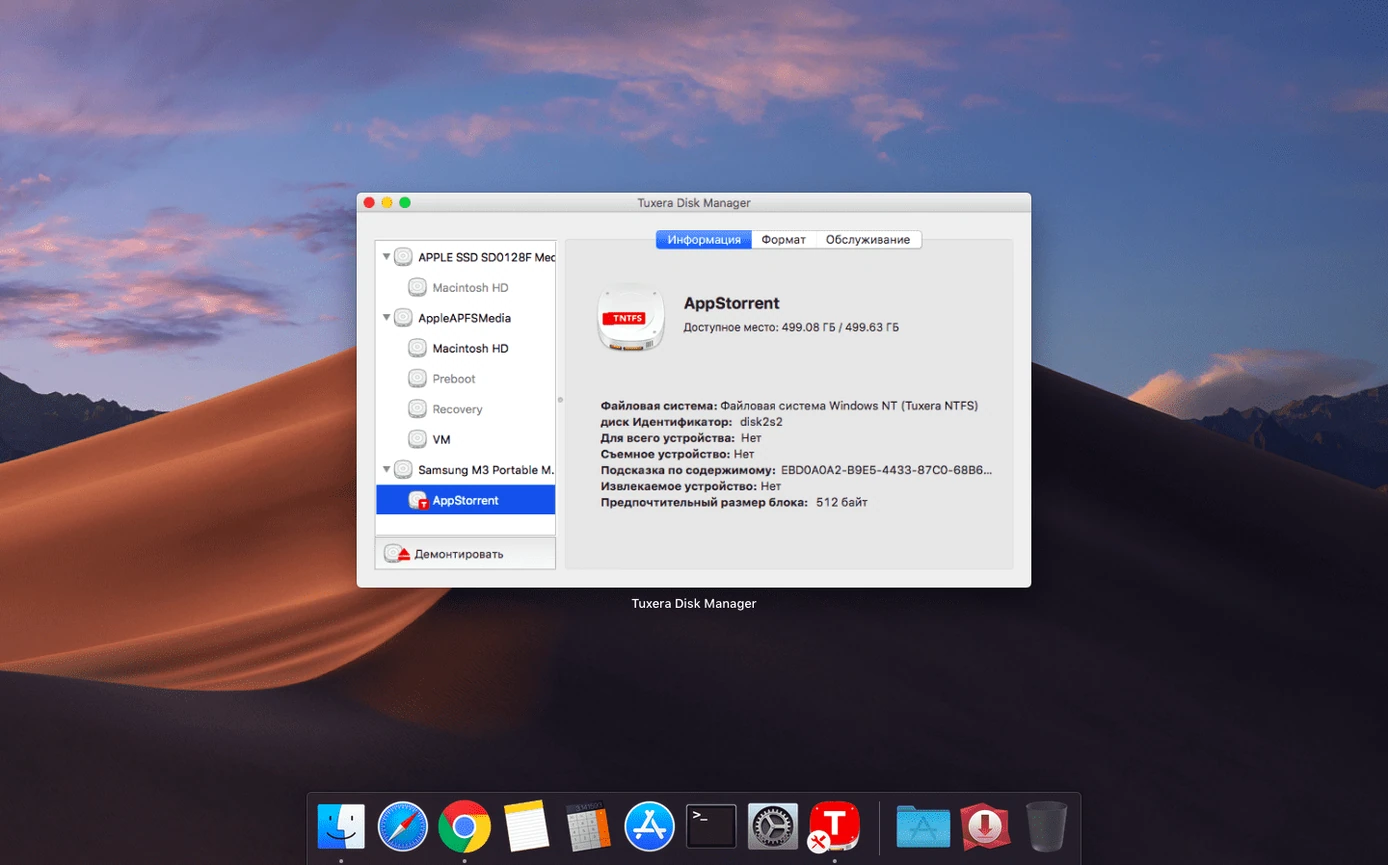
Verify and repair — the driver can check an NTFS volume for errors and fix what it finds before you start moving data.
Apple’s built-in NTFS support sits there capable but silent, locked to read-only. Tuxera gets it talking properly, and the difference matters most for a handful of specific setups.
When the drive format is decided for you
If you only ever plug in the same backup drive to the same Mac, you probably formatted it as APFS or exFAT years ago and moved on. Tuxera earns its keep when you can’t control the format of the drives that land on your desk.
Dual-booters and Boot Camp regulars. Switching between macOS and Windows on the same machine means the Windows partition is NTFS. Without a driver, your Mac half can see the files but can’t touch them. Tuxera lets you grab a document from the Windows side without rebooting.
Virtual machine users. If Windows runs inside Parallels, VMware or VirtualBox, you often end up with NTFS virtual disks or shared folders that macOS stumbles over. The driver smooths that out — you can edit a file on the host Mac and the VM sees the change immediately.
People who move USB sticks between office PCs and home Macs. Corporate Windows machines almost always format removable drives as NTFS. Photographers, video editors and anyone hauling large project files between work and home will hit the read-only wall without an NTFS driver.
IT support and help-desk folk. When someone hands you an NTFS external drive from a dead Windows laptop and asks you to pull the data onto a Mac, you need write access to organise the rescue. Tuxera saves you the step of finding a spare PC.
NTFS drives mount in Finder like any other volume
Once installed, the driver sits low in the system. It doesn’t add an icon to the menu bar. It doesn’t open its own window. An NTFS drive mounts in Finder like any other volume, and the difference is that the right-click menu shows the full set of file operations.
Finder and file dialogs. Open and Save panels in every app — TextEdit, Photoshop, Logic Pro, anything — see the NTFS drive and treat it as writable. There’s no special import step and no intermediate copying to the Mac’s internal drive.
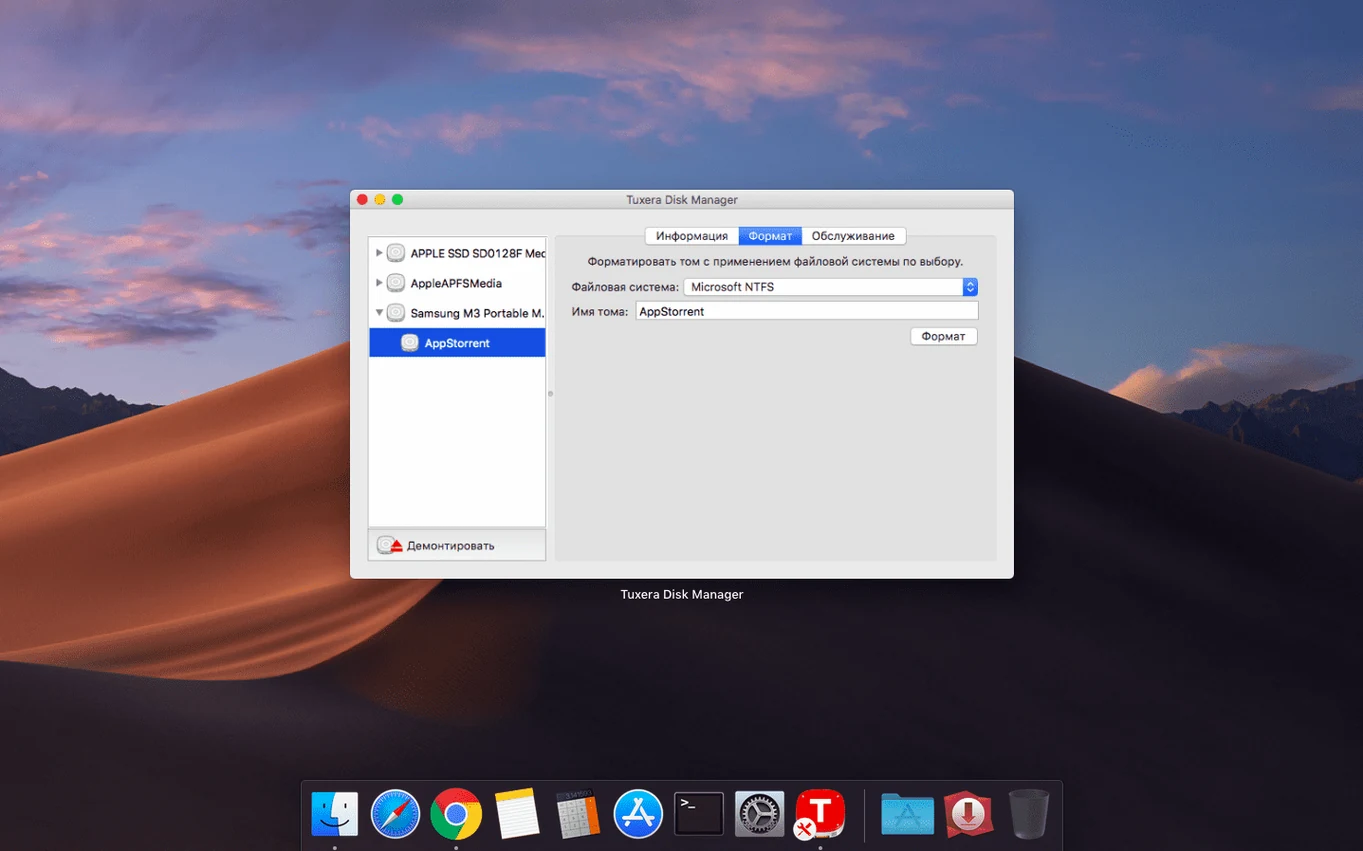
Disk Utility plays along. The driver extends what Disk Utility can do with NTFS volumes. You can run First Aid on an NTFS drive from within Disk Utility and the repair routines go through Tuxera’s verification engine. It’s also possible to erase and format a drive as NTFS directly from Disk Utility, which vanilla macOS cannot do.
Terminal compatibility. Standard Unix commands — cp, mv, rm, rsync — work on mounted NTFS volumes as expected. If you script backups or file transfers, the driver doesn’t get in the way.
Time Machine stays clear. Tuxera doesn’t try to make NTFS drives eligible as Time Machine destinations. That’s sensible. The file system wasn’t designed for Apple’s backup structure, and the driver doesn’t pretend otherwise.
Turn off auto-mount to avoid clutter
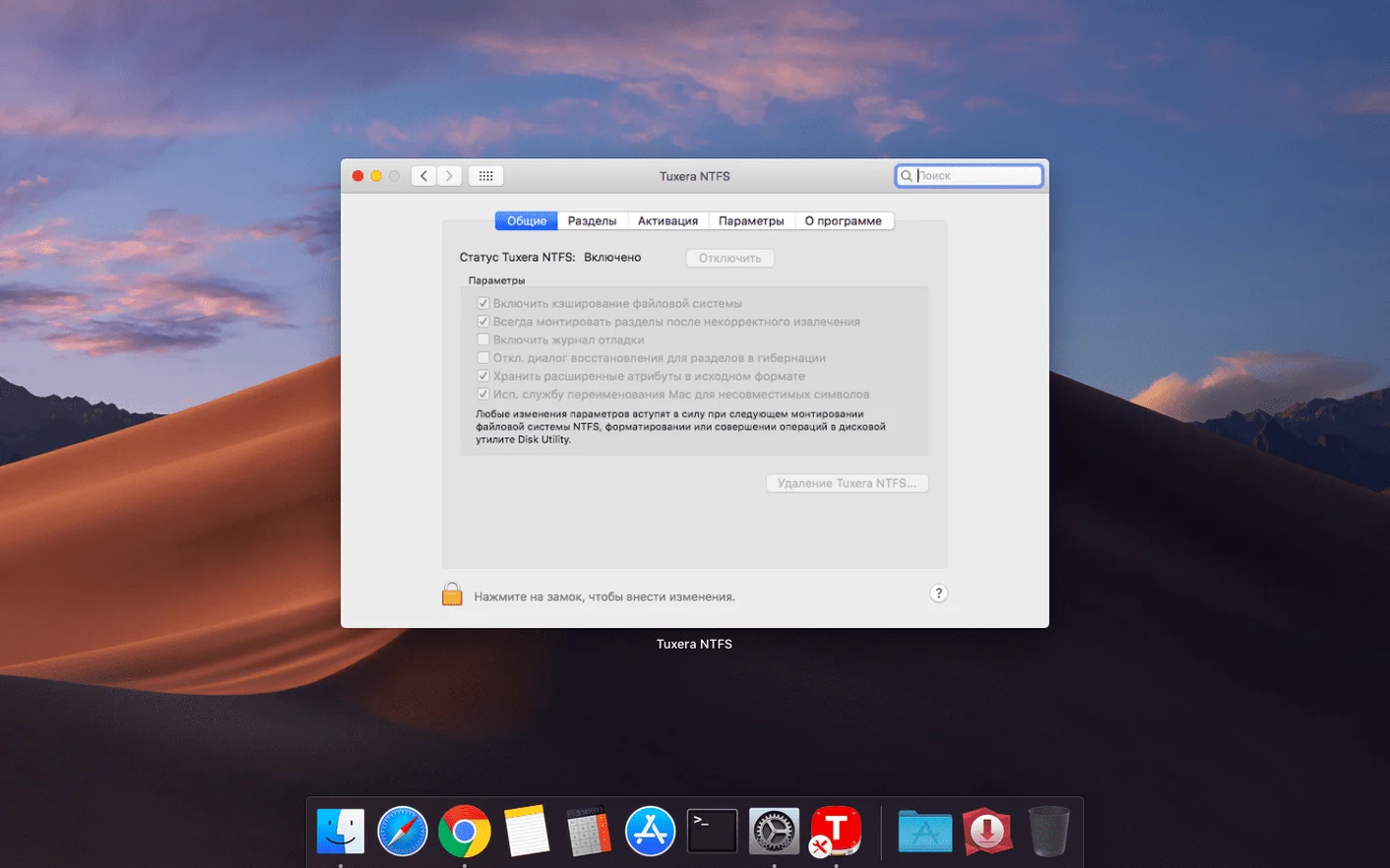
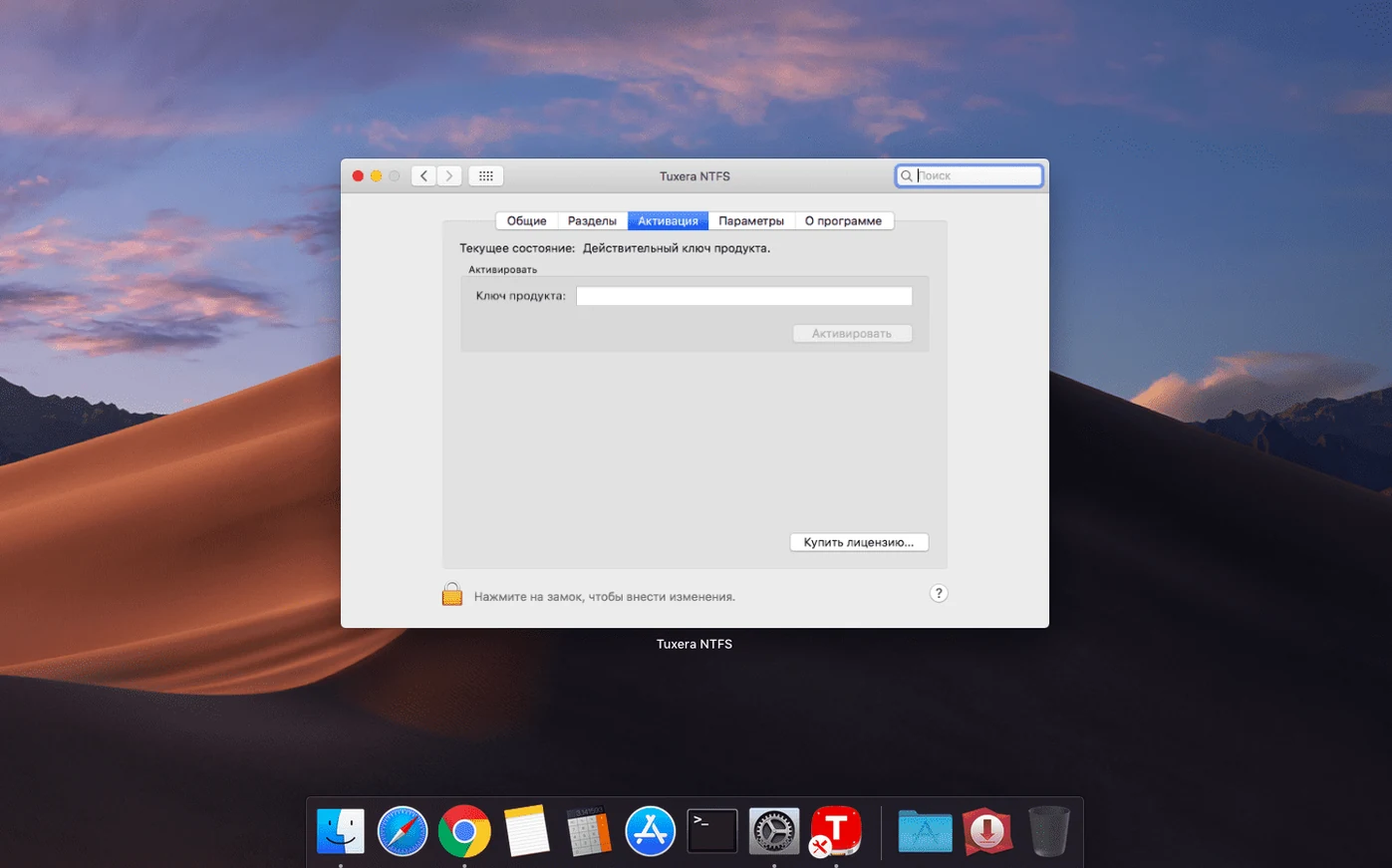
Tuxera installs a preference pane in System Settings (or System Preferences on older macOS). The defaults are reasonable, but a couple of tweaks make daily use smoother.
Mount behaviour. By default, NTFS volumes mount automatically when you plug them in. That’s what most people want. If you prefer to mount drives manually — useful when you’re juggling several external disks — there’s a checkbox to disable automatic mounting.
Filename normalisation. Windows and macOS handle special characters in filenames differently. The preference pane includes an option to translate characters that Windows allows but macOS treats as illegal. Turn it on if you regularly see error messages when copying files with accented characters or symbols.
Caching policy. The driver defaults to a balanced write-caching mode. If you routinely work with very large video files on an NTFS drive, switching to a more aggressive caching setting can improve sustained write speed. The trade-off is slightly higher risk if you yank the drive without ejecting it.
NTFS-3G integration. Under the hood, Tuxera builds on the open-source NTFS-3G project. The preference pane exposes a few advanced switches inherited from that lineage, including ownership and permissions handling. Most people can leave these alone, but if you’re migrating a drive from a Linux machine, the ownership settings are worth a look.
Moving dailies from a Mac to a Windows workstation
Clara cuts corporate video on a Mac Studio at home and delivers final renders on a Windows workstation at the production office. Her camera records to SD cards, but the office machine expects dailies on an NTFS USB-C drive.
Before Tuxera, she had two choices: keep a spare exFAT drive just for shuttling, or upload 60 GB of ProRes to a cloud service and pray the office Wi-Fi held up. Neither was quick.
Now she plugs the office’s NTFS drive into her Mac Studio, drags the day’s timeline exports straight onto it from Final Cut Pro’s Share destination, and ejects. The drive arrives at the office ready for the Windows edit suite. No duplicate drives. No overnight uploads. When the producer asks for a revised cut on short notice, Clara can pull the working files back from the NTFS drive, tweak them on the Mac, and return them to the same drive without ever thinking about file system compatibility.
Create fresh NTFS volumes right from the desktop
- Disk image creation. Tuxera can create new NTFS volumes and disk images, not just read existing ones. Right-click on the desktop, choose to create a new disk image, and NTFS appears as a format option. Useful for testing or building a portable Windows environment on a Mac.
- Spotlight indexing. The driver supports enough metadata for Spotlight to index filenames on NTFS drives. You won’t get full content search across every file type, but searching by name works and that’s often enough to find a specific project file on a crowded external drive.
- Eject warnings that mean something. macOS sometimes complains a drive is in use when no app looks guilty. Tuxera’s preference pane includes a small tool that lists which processes are holding files open on an NTFS volume. Saves the guesswork.
- Sleep and wake reliability. Older NTFS drivers had a bad habit of leaving volumes in an unclean state after a Mac woke from sleep. Tuxera handles power transitions cleanly on modern macOS, and if something does go wrong, the built-in repair tool runs automatically on remount.
- Unicode support across the full stack. Filenames in Japanese, Arabic, Cyrillic — the driver handles them properly in both directions. If you collaborate with colleagues who work in different languages, this matters more than you’d think.
None of these are headline features, but they’re the things that stop you swearing at your machine on a Tuesday morning.
What’s new
Fixes incorrect date and time stamps on files copied to NTFS volumes.
Requirements
- macOS 10.9 or later
- Intel and Apple Silicon Macs
FAQ
Does Tuxera NTFS work with every version of NTFS?
Yes. It supports all versions of NTFS, so drives formatted on older and newer Windows machines are covered.
Comments 0
Sign in or create an account to leave a comment.
No comments yet…
If you’ve installed it, say how it went. Mention your Mac and macOS version — it helps the next person more than you’d think.