
Typeface for macOS
Description
Typeface is a macOS app for previewing fonts without the guesswork.
| Detail | Info |
|---|---|
| Version | 4.5.0 |
| Developer | Floor Steeg |
| Requires | macOS 12+ |
| Architecture | Apple Silicon & Intel |
Version 4.5 stays lean but adds a few practical bits. The app now supports .otc font files, so those collections open without fuss. A new Last Activated column lets you sort by what you last picked — handy if you lose track of a face you tried an hour ago. Notes you add to a font in the Info tab are now searchable from the main overview, which beats scrolling through a long list.
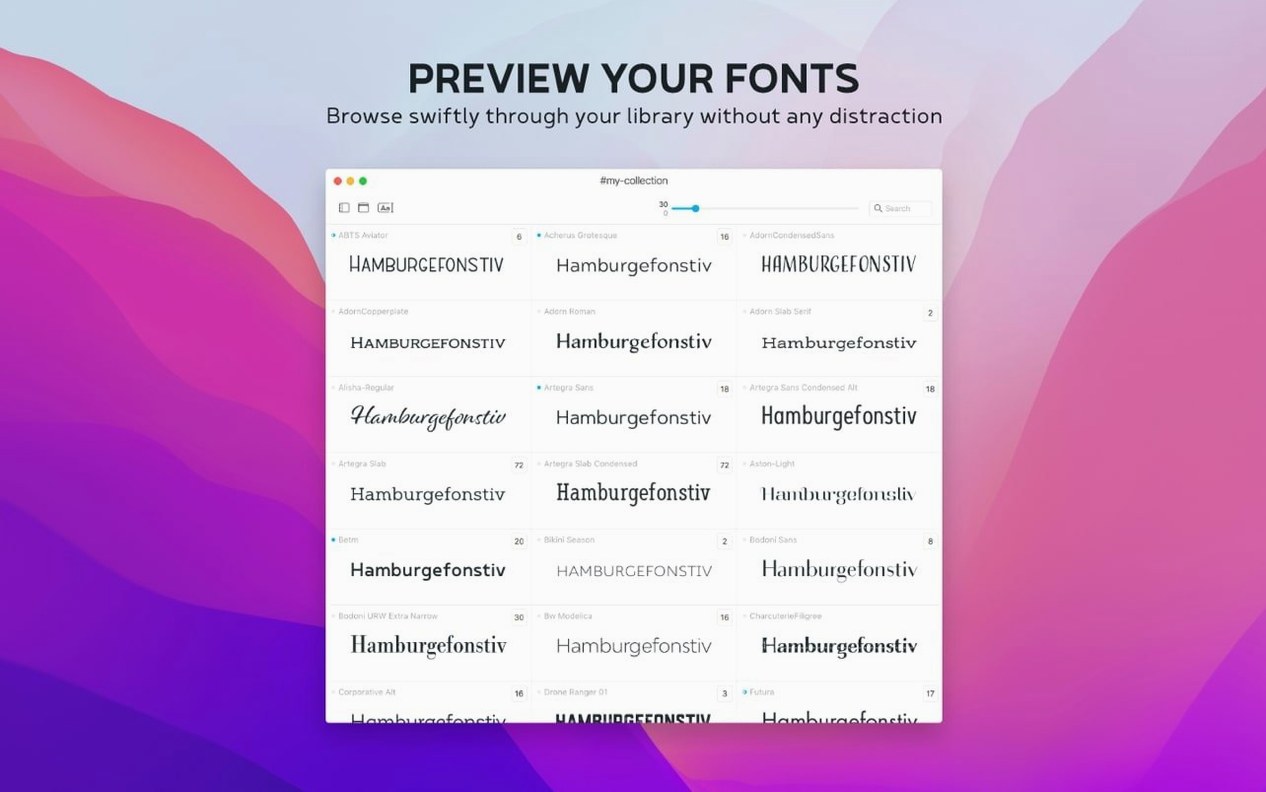
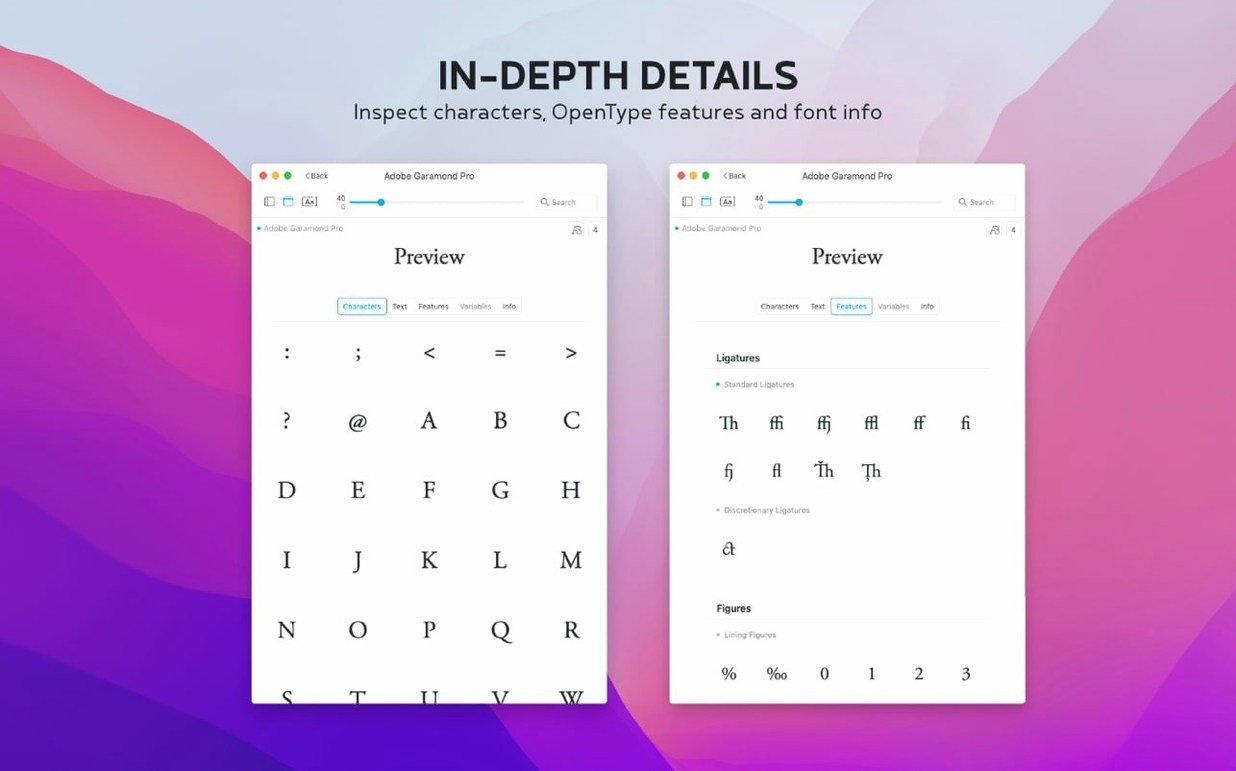
What hasn't changed is the core job. You still get a clean grid of everything installed on your Mac, plus any custom fonts you bring in. Click a family and you see glyphs, upper and lowercase, numbers and special characters. Preview controls for size, sample text and weight sit where they always did, so you can compare two cuts side by side without opening a design app. It's a small tool that does one thing: let you look at fonts properly before you commit to one.
Pairing a headline with a body face
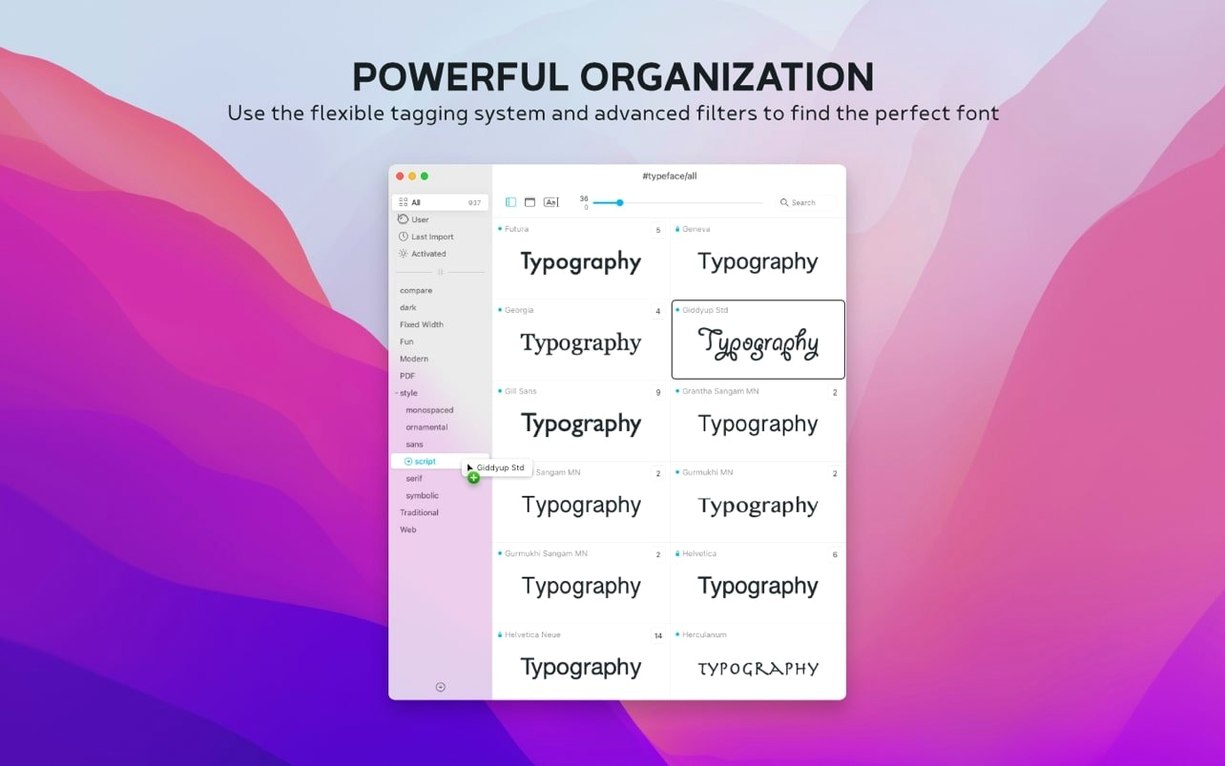
You have a rough layout but no type decided. Open Typeface and create a temporary collection — call it "Client draft" or whatever makes sense. Import the half-dozen candidates you've gathered, or pull them from your installed library by tagging each one.
Pick a sample headline first. Paste it into the preview field. Set the size to something display-worthy — 48pt or above — and step through the shortlist. As each font loads, watch how the word shapes sit together. A display face that looks clever at 12pt in a menu can fall apart at headline sizes once the crossbars and counters open up.
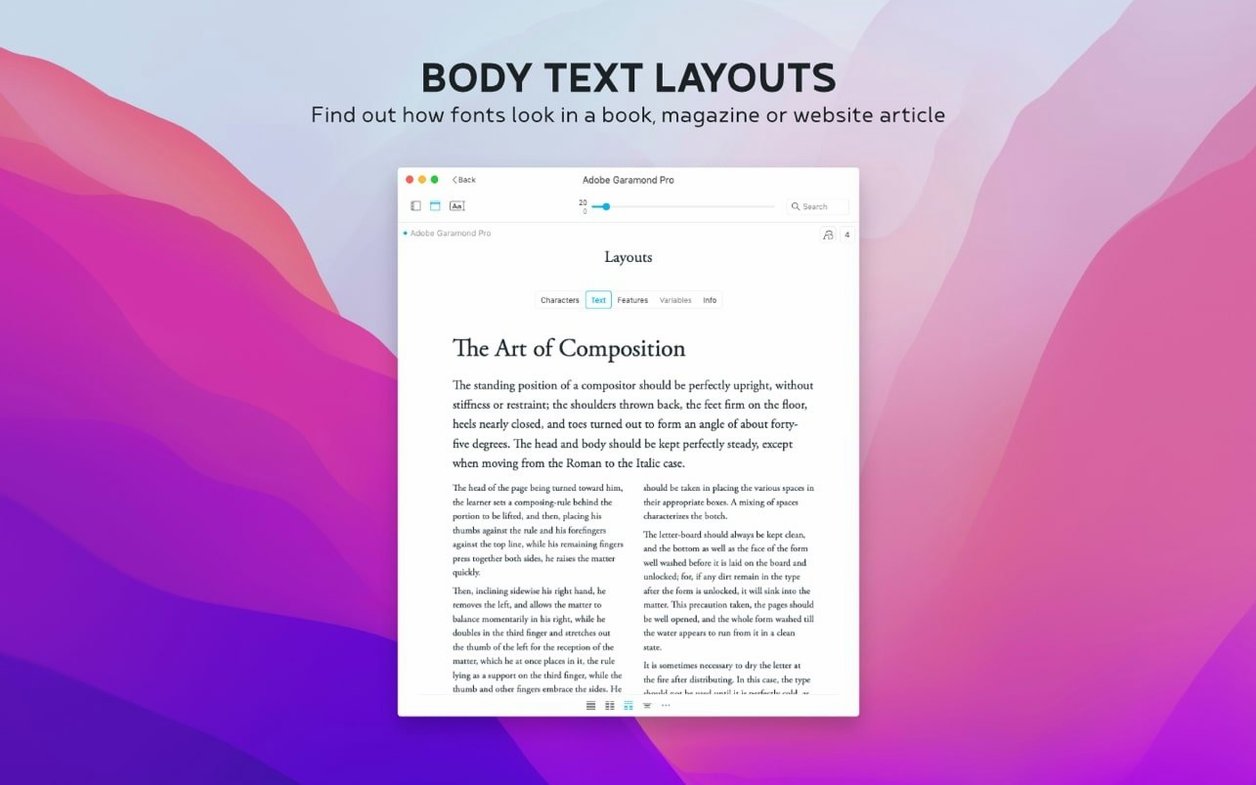
Now switch to a body sample. A paragraph of lorem ipsum works, though real copy is better if you have it. Drop the size to 10–12pt and check the same fonts again. Most will fail one of the two tests. Tag the survivors and drag them into a side-by-side comparison. With two families open, toggle weights until the headline and body pair feel like they belong to the same document. When you find the match, add a note in the Info tab — "works with Merriweather at 11/16" or similar — so you don't have to repeat the exercise next week.
Details that speed things up
Right-click a font in the grid and choose "Reveal in Finder" if you need the file itself. That saves digging through ~/Library/Fonts manually. The overview search covers notes now, but it also matches inside family names and tags — typing "condensed" pulls up every face you've tagged that way, plus any whose name contains the word.
The Last Activated column added in 4.5 does more than satisfy curiosity. Click its header once to see what you used most recently; click again to reverse the order and find fonts you haven't touched in months. If you're pruning a bloated library, that second view is the one you want.
Tags work across collections. A single font can belong to "Serif", "Editorial", and "Client draft" simultaneously without duplicating anything. The app just stores the reference. If you later remove the font from one collection, it stays in the others.
Launches in under two seconds with no indexing spinner
Typeface launches in under two seconds on Apple Silicon, and not much longer on an older Intel machine. The window draws immediately — no spinner while it indexes. Scrolling through the full system font list is smooth, even with several hundred families installed. Memory use sits around 80–120 MB during normal browsing, climbing slightly when loading large .otc collections but dropping back after.
The app hasn't beachballed once in daily use across a week of tagging, importing Google Fonts and comparing previews. It doesn't install background daemons or launch agents, so it has zero footprint when closed. Font activation happens inside the app's own preview engine — it doesn't touch System Settings or font caches. That isolation means a corrupted third-party font won't destabilise anything else on your Mac.
Importing the full Google Fonts library takes about 30 seconds on a fast connection. After that, browsing those 2,000-plus families feels as quick as browsing local fonts. The only visible delay is the initial download — previews appear instantly once the font data is cached.
What’s new
- Adds a Notes field for fonts in the Info tab.
- Adds search for notes in the overview.
- Adds a Last Activated column and sorting by last activated date.
- Adds support for .otc font files.
Requirements
- macOS 12 or later
- Apple Silicon or Intel Mac
FAQ
Does Typeface work with fonts that aren't installed on my Mac?
Yes. It shows all installed Mac fonts and you can also preview custom fonts you've added without installing them system-wide.
Can I see all the characters in a font?
Typeface displays glyph sets, uppercase and lowercase letters, numbers, and special characters for any font you select.
Comments 0
Sign in or create an account to leave a comment.
No comments yet…
If you’ve installed it, say how it went. Mention your Mac and macOS version — it helps the next person more than you’d think.