
Transmit for macOS
Description
Version 5.11.6 fixes a crash when dragging files into IntelliJ and makes the Get Info toolbar button active immediately after launch. If you upload large files to S3 you get better error reporting too. That's the headline from Panic's latest update.
What macOS you need
Transmit 5 requires macOS 13 Ventura or newer. It runs natively on both Intel and Apple Silicon Macs. No version for older systems — if you're still on Monterey, this one won't install. The current build on Panic's site is dated April 27, 2026.
Handles FTP, SFTP, S3 and WebDAV, plus batch renaming
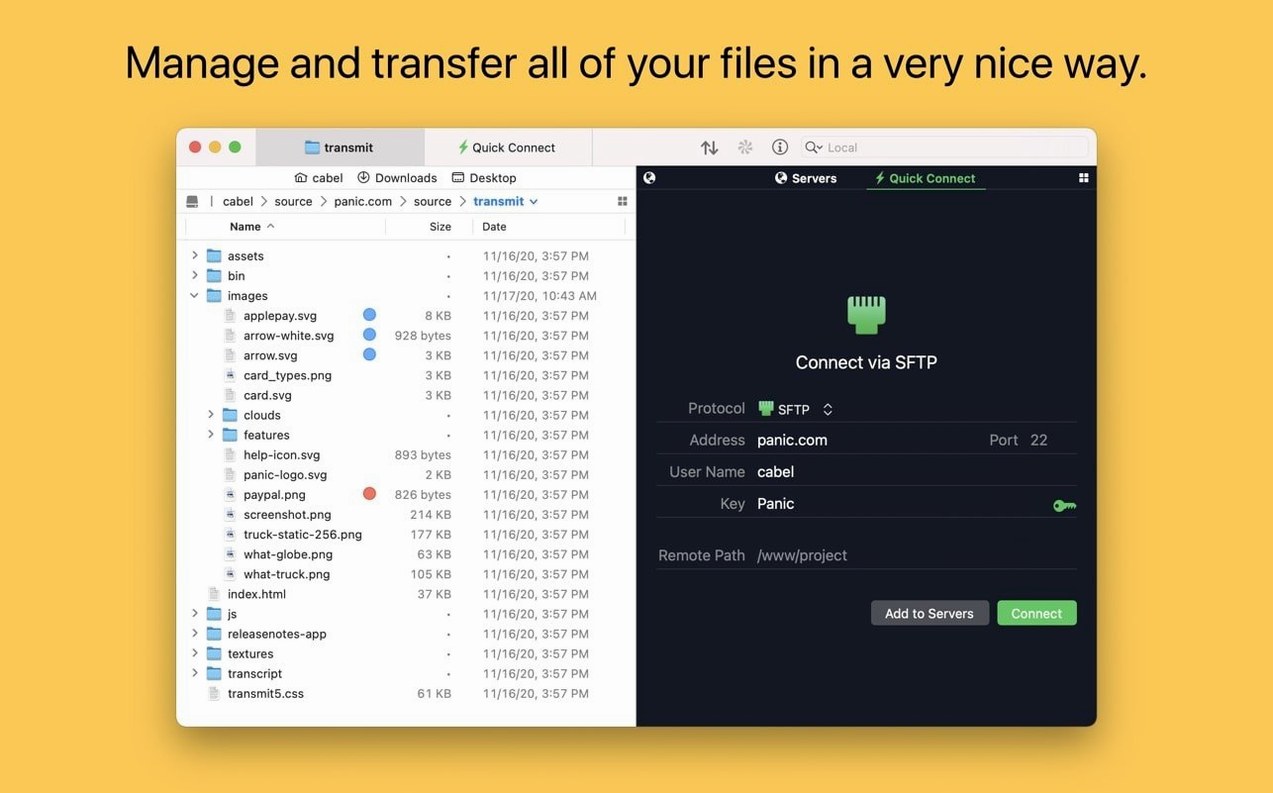
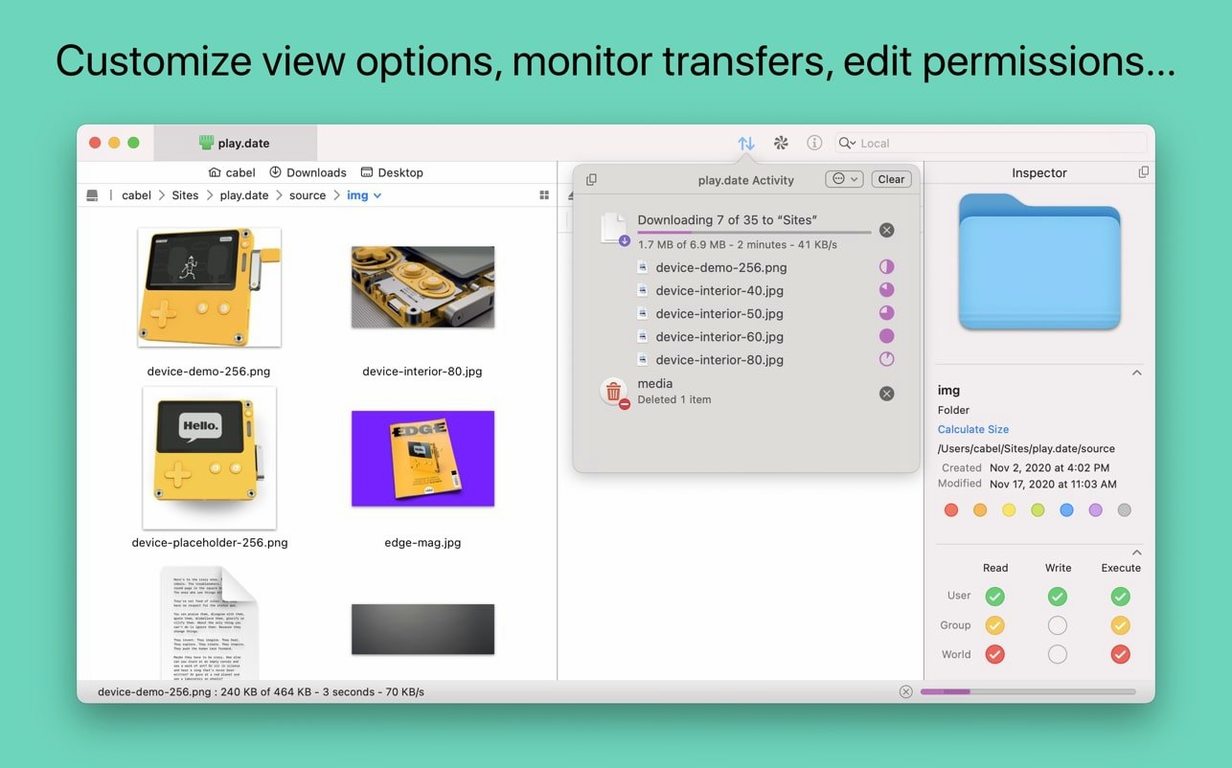
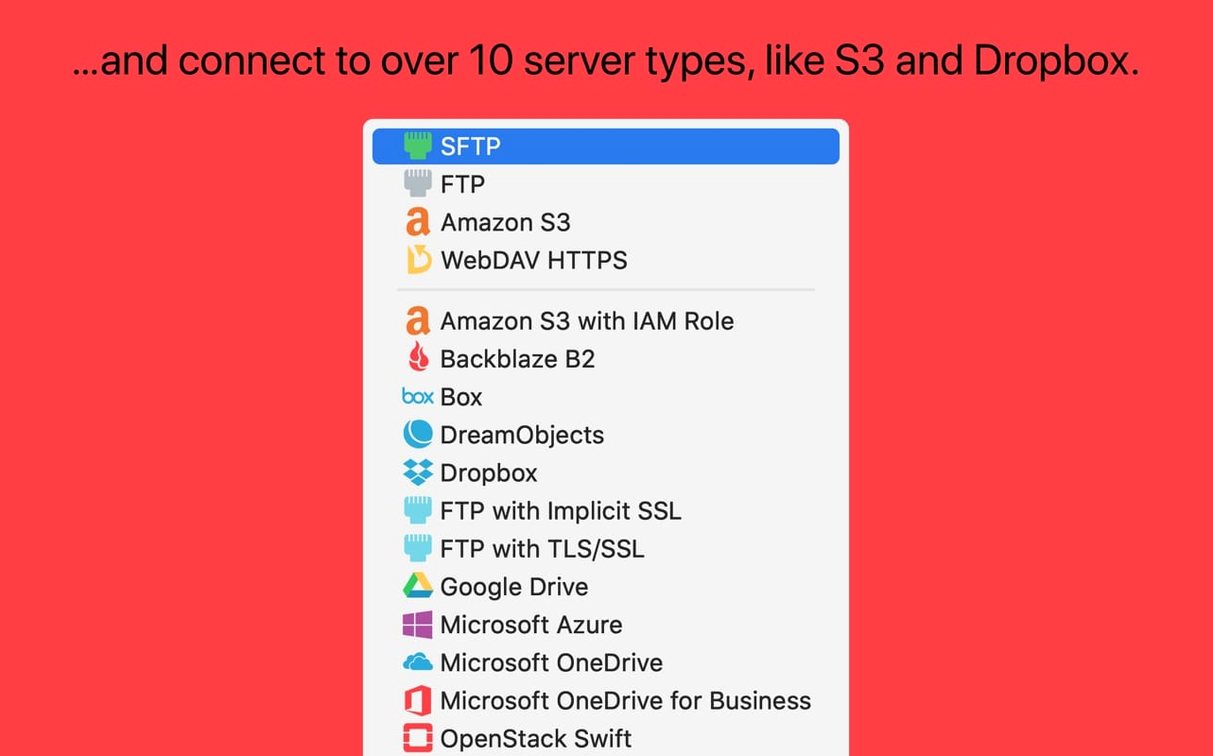
The app handles FTP, SFTP, S3 and WebDAV connections. Two-factor login is supported. You can upload, download and delete files, rename items in batches on local or remote volumes, and handle very large S3 files. An information sidebar lets you inspect files while browsing. Panic Sync keeps your site settings in step across machines.
A single window into SFTP and S3 for web developers
Web developers and server administrators are the obvious crowd. They live in SFTP and S3, and Transmit gives them a single window into both. If you push builds to a staging server, rotate log files on a VPS, or need to drop a 20 GB archive into an S3 bucket without the browser UI timing out, this is the tool you reach for.
Designers and photographers who work with off-site storage also do well. Connecting to Backblaze B2, Dropbox or Google Drive through a proper two-pane interface beats using each service's own upload widget. You can drag a folder of RAW files straight into a remote bucket, queue the transfer, and get on with something else. The batch rename feature saves a trip to a separate utility when filenames need to match a client's convention.
People who juggle multiple cloud accounts find the Places Bar earns its screen space. One click jumps to the project folder on Box, the assets directory on S3, or the remote theme directory on a client's SFTP server. No bookmark menus to hunt through. The sidebar stays visible while you browse, so you can drag files between connections without opening extra windows.
Casual users who occasionally need a transmit download mac for a one-off file move will find it straightforward enough. But the real payoff comes when you use it daily. The keyboard shortcuts, the tabbed sessions, and the way it remembers your last-working-directory per server all add up to less friction.
Works on Ventura 13 and Apple Silicon Macs
Does Transmit work with the latest macOS? Yes. It runs on Ventura 13 and everything newer, including Apple Silicon Macs. Panic keeps it current — the 5.11.6 update landed in April 2026 and includes fixes for S3 error reporting and a crash with IntelliJ.
Can I use it as a Transmit torrent client? No. Transmit handles FTP, SFTP, S3 and WebDAV. Torrents are a different protocol entirely. If you need to grab a file via torrent, you need a dedicated client for that. Transmit won't open magnet links or .torrent files.
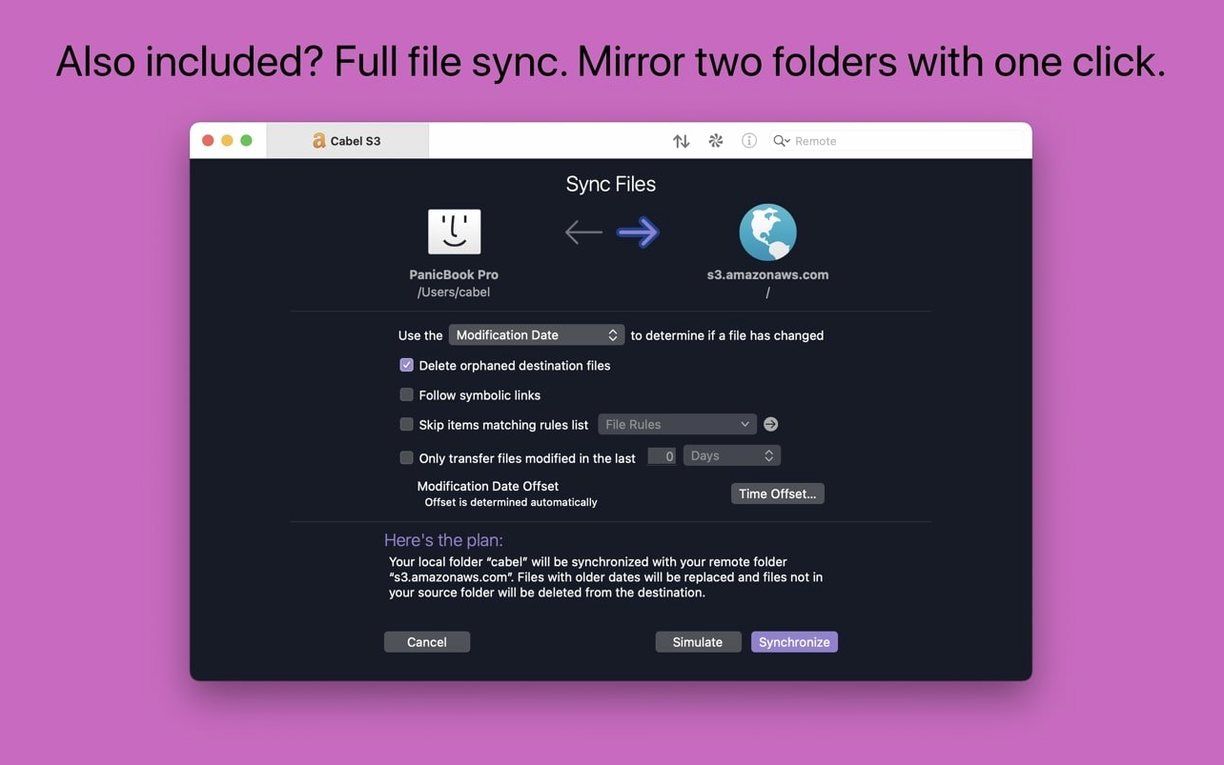
Will transmit 5 for mac replace my cloud sync apps? Not exactly. It connects to Box, Dropbox, Google Drive, OneDrive and others, but it does not keep a local mirror synced in the background. Think of it as a manual transfer tool — you decide what goes up and what comes down. For one-off large uploads or grabbing a file you left on Backblaze B2, it is quicker than waiting for a sync daemon to notice the change.
Is Panic Sync safe to use? Panic Sync encrypts your connection settings and synchronises them between your Macs. It does not store your passwords on Panic's servers in plaintext. You can also skip it entirely and keep your site list local. The choice is yours.
Cmd-I shows permissions, dates and image previews
The Get Info sidebar is more useful than it looks. Select a remote file and press Cmd-I — you get permissions, modification date, and an image preview without opening anything. In the 5.11.6 update Panic fixed the toolbar button so it works the moment the app launches, no delay.
Right-click any folder in the remote pane and choose Open in Terminal. Transmit opens a local Terminal window pointed at the matching local path. It is a small touch, but if you often flip between a GUI transfer and command-line work, it saves typing cd paths by hand.
Batch renaming works on remote files too. Select a group, bring up the rename sheet, and apply a pattern with counters or text replacement. German users will notice the text fields are now properly sized — Panic fixed that in this release. The operation runs over the connection, so large batches may take a moment on slower SFTP links.
Drag-and-drop between tabs works. Open two servers in separate tabs, grab a file from one, drag it to the other tab's title bar, wait for the pane to switch, and drop. Transmit copies the file directly between the two remote hosts without downloading to your Mac first. It is not obvious, but it works for compatible protocols.
If you manage S3 buckets with very large files, the improved error reporting in 5.11.6 tells you clearly when a file exceeds the service limit. No more guessing why an upload failed halfway through. The message now names the problem instead of throwing a generic error code.
You can generate SSH keys inside the app. Go to the key manager, click the plus button, and Transmit creates the key pair and stores it. No Terminal, no ssh-keygen. Useful for setting up fresh SFTP access without leaving the transfer window.
What’s new
Transmit 5.11.7 ships with targeted corrections that smooth out file transfers and keep connections stable.
Requirements
- macOS 13 or later
- Apple Silicon or Intel 64-bit Mac
Comments 0
Sign in or create an account to leave a comment.
No comments yet…
If you’ve installed it, say how it went. Mention your Mac and macOS version — it helps the next person more than you’d think.