
Topaz Video AI for macOS
Description
Under-the-hood fixes for upscaling and motion models
This is a maintenance release. No new features are listed, just under-the-hood fixes for the AI models that handle upscaling and motion consistency.
Needs Big Sur or newer, runs native on Apple Silicon
You need macOS 11 (Big Sur) or newer. The app runs natively on both Intel and Apple Silicon machines. If your Mac is older, you're stuck with an earlier build.
Sharpen, denoise, and stabilise shaky or noisy footage
It's a desktop tool for cleaning up and enlarging video. Feed it SD, HD, or noisy DSLR footage and the AI models can sharpen, denoise, and stabilise shaky clips. It can also restore lost focus.
What's the output ceiling?
You can upscale video all the way to 8K. The motion consistency models keep things from looking jerky when you push an old DVD or a gameplay recording to a much higher resolution.
Upscaling an old family DVD: a start-to-finish workflow
Most people open Topaz Video AI, drop in a file and press a single preset. That works for quick jobs. For something you actually care about — like the only surviving copy of a grandparent's wedding on DVD — you'll get a better result with a short, repeatable routine.
Here's the sequence I use for MPEG-2 footage ripped from a disc.
- Get the source stable. Open the file and let the app analyse a few seconds. If the camera work is handheld, I apply the Chronos model first and preview a 10-second problem section. No point sharpening footage that still jitters.
- Deinterlace and clean. DVD video is usually interlaced. I set the deinterlace option to Auto and pick the Artemis denoise model at Medium strength. That strips out compression blocks and sensor noise without turning faces into wax.
- Pick the output size. For a DVD source (720×480 or 720×576) I upscale to 1080p, not 4K. Going straight to 4K from a low-bitrate MPEG-2 file amplifies artefacts the AI can't fully fix. If I need 4K later, I'll do a second pass on the clean 1080p master.
- Set frame rate. PAL DVDs run at 25 fps. If the destination is a YouTube upload or a US family member's TV, I use the Chronos model to output 30 fps. The generated frames look natural for slow pans and walking shots.
- Spot-check with the comparison view. I scrub through five or six random sections before committing. The A/B slider catches over-sharpening and motion smearing that the default preview window hides.
- Export to ProRes 422. For archiving, I avoid h.264. ProRes gives me a master file I can re-encode later without generational loss. The app handles the export queue sensibly — you can stack multiple clips and walk away.
On an M1 MacBook Pro a 90-minute DVD takes about five hours to process at 1080p with denoise and frame-rate conversion. That's slow, but it's a one-time job. The result doesn't look like modern 4K footage, but it's watchable on a large screen without making you wince.
Models run locally after a one-time multi-gigabyte download
Does it need an internet connection to work? No. The AI models download once during setup and then run locally. You can process sensitive footage offline without worrying about uploads. The initial model download is several gigabytes, so don't do it over a phone hotspot.
Will it burn through my Mac's battery? Yes. This is heavy compute work. On Apple Silicon the Neural Engine handles a chunk of the load, but you'll still hear the fans on sustained exports. Plug in and let it run. On Intel Macs, expect the machine to get warm and loud.
Can I batch-process a folder of clips? You can. Load multiple files into the queue, set each one's output settings individually or apply a preset to all of them, and let the queue run overnight. The app doesn't have a watched-folder feature, so you will need to drag files in manually.
Does it handle HDR or LOG footage? It processes the pixel data you feed it, but it won't read HDR metadata flags. For LOG footage, apply a preview LUT if the flat image makes it hard to judge sharpening. Export in the same colour space you brought in and grade afterwards.
What's the difference between the Artemis and Proteus models? Artemis is a general-purpose denoiser that works well on most footage. Proteus gives you sliders for fine-tuning, which helps when Artemis over-smooths fine textures like brickwork or hair. Try Artemis first. If the result looks like a watercolour painting, switch to Proteus and dial it back.
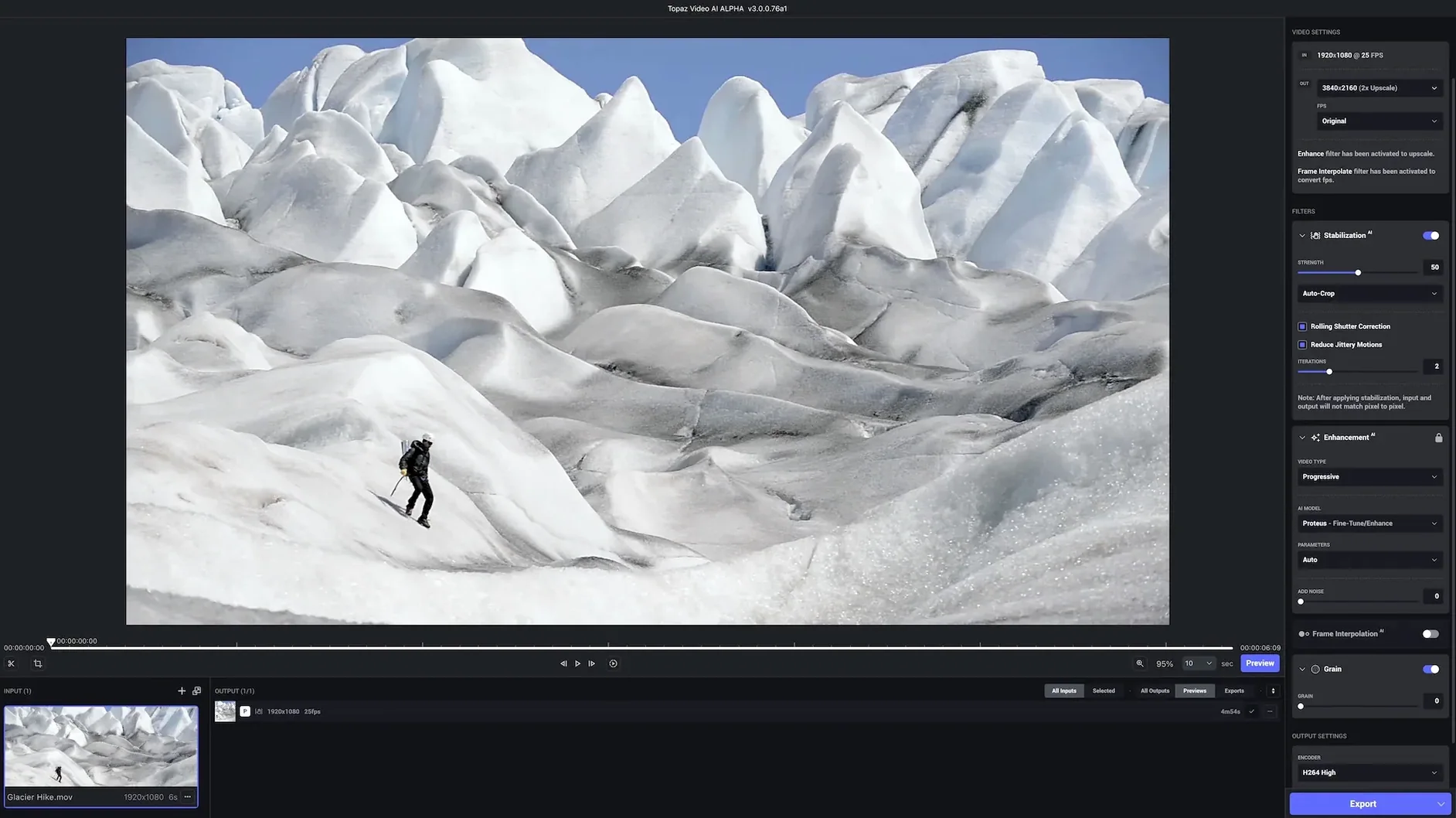
Does the stabilisation handle rolling shutter? Partially. Topaz's stabilisation corrects overall camera movement. Rolling shutter wobble from fast pans or vibration is not its main strength — you'll get better results fixing that in a dedicated tracker before you bring the clip into Video AI.
Dragging in a 720×576 MiniDV clip with focus hunting
You've just pulled a 20-minute clip off an old MiniDV tape. The footage is 720×576, shot indoors under fluorescent lights, and the autofocus hunted a few times. You open Topaz Video AI and drag the clip in.
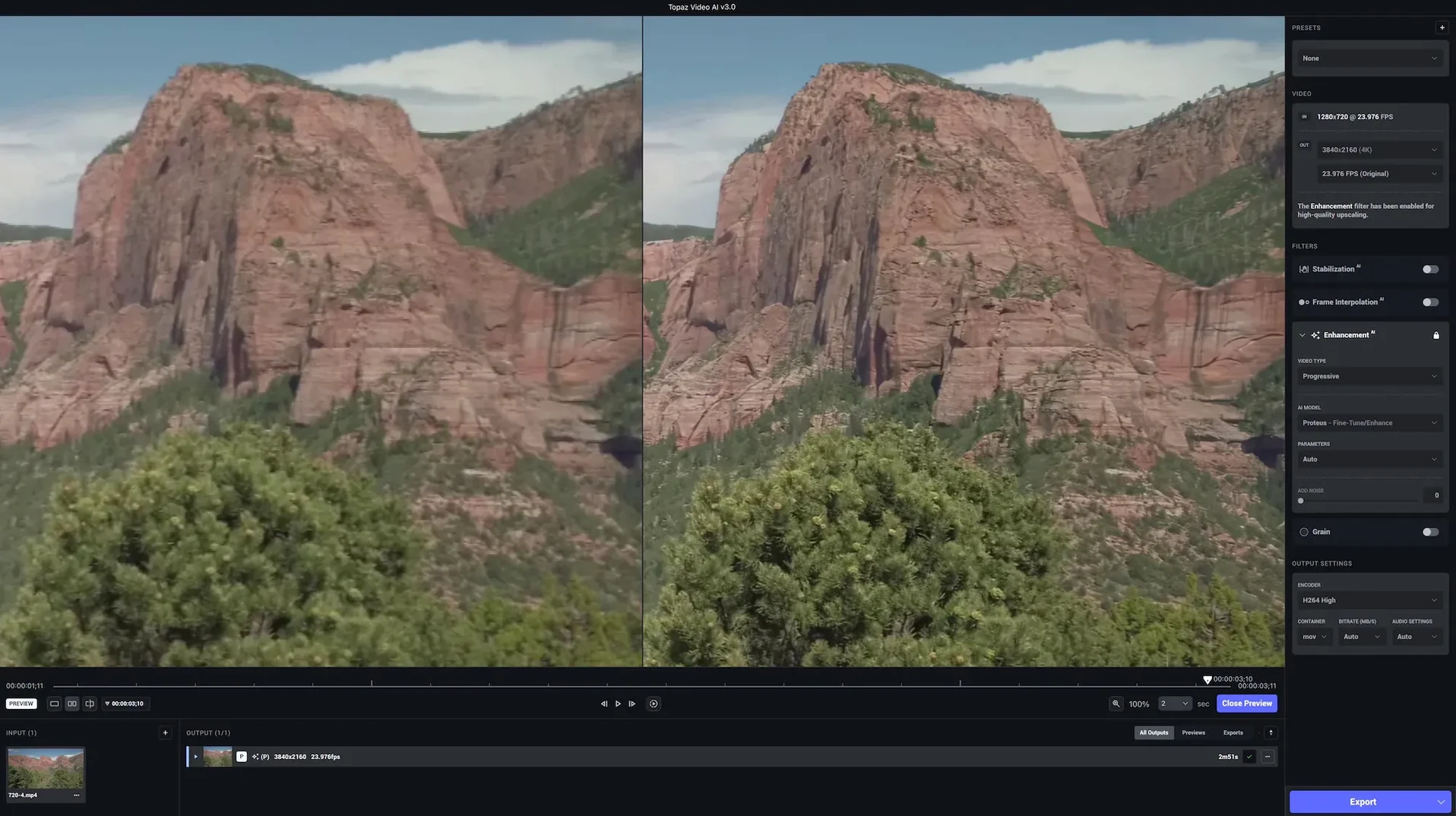
The preview window loads a single frame. You cycle through the comparison views — split, side-by-side, slider — and settle on the slider so you can see the original and processed image on the same face. The default upscale to 4K with Artemis looks fine on the static shot, but you know the camera moves later. You scrub to minute 12, where the operator panned across a bookshelf. The default model smears the book spines into a blur.
You switch to the Proteus model and reduce the temporal smoothing by two notches. The smearing goes away but a little grain comes back. That's fine — grain looks more natural than plastic. You add the clip to the render queue and load a second file: the ceremony shot from a tripod. That one gets the Gaia model for faces, upscaled to 1080p, no frame-rate change.
You hit Start Processing. The queue panel shows estimated time, current frame, and a thumbnail of what the model is working on right now. You go make tea. When you return, both files are done. The tripod shot looks crisp. The handheld shot is not perfect — no AI can fix a fast whip-pan — but the bookshelf is legible and the faces are clear.
Batch-queue restoration from VHS, Hi8, or DV tapes
Archival and restoration people will use it daily. If you spend your working life transferring VHS, Hi8, or DV tapes to digital, Topaz Video AI saves you hours of manual noise reduction and sharpening. The batch queue means you can set up a dozen tapes' worth of clips and let them process while you capture the next batch.
Documentary editors who mix modern interviews with old stock footage get a lot of value. Matching 1960s newsreel to 4K interview footage used to take a whole afternoon in DaVinci Resolve with Neat Video. Topaz can do a respectable job in a single pass, even if you then tweak the grade afterwards.
Independent filmmakers shooting on older DSLRs or mirrorless cameras in low light. A Canon 5D Mark II still produces a lovely image, but at ISO 3200 the noise is ugly. Running those clips through Artemis before the edit means you can push the grade further without the image falling apart.
Gameplay capture users who record at 1080p and want to upload at 4K. YouTube's compression treats 4K uploads more gently, so upscaling before upload can preserve more detail in fast-moving foliage and HUD elements. The Chronos frame-rate conversion also smooths out uneven frame pacing from OBS recordings.
Casual users who just want a one-click fix for a single clip will still get a result, but they're not the ones who will explore the model differences or build a repeatable preset library. The software rewards patience and A/B comparison.
Super Scale in Resolve Studio vs. Topaz Video AI
Topaz Video AI vs. DaVinci Resolve Studio's Super Scale. Super Scale is built into Resolve and costs nothing extra if you already own Studio. It upscales well on clean, well-lit footage and it's fast because it uses the GPU timeline. Topaz has the edge on noisy or low-bitrate sources — its denoise-plus-upscale combination handles compression artefacts that Super Scale leaves behind. For pristine source files, Super Scale is often enough. For anything rough, Topaz pulls ahead.
Topaz Video AI vs. Adobe Premiere Pro's Detail-preserving Upscale. Premiere's built-in upscaler works in the timeline and is convenient for quick exports. It sharpens edges but doesn't reconstruct missing detail. Topaz's Gaia and Proteus models can rebuild facial features and textures from muddy originals in a way that Premiere's algorithm cannot. The trade-off is render time: Premiere's upscale runs in real time or near-real time on modern hardware; Topaz takes minutes per minute of footage.
Topaz Video AI vs. HitPaw Video Enhancer. HitPaw targets a less technical audience. Its interface pushes one-click presets and colour-correction models alongside upscaling. It works on Mac but lacks the per-model fine-tuning that Topaz offers. For a user who just wants to brighten and enlarge a phone video, HitPaw is simpler. For anyone who needs to preserve grain structure, control temporal smoothing, or build a repeatable pipeline, Topaz is the more serious tool.
In short: Resolve and Premiere cover quick timeline upscaling. HitPaw covers the casual user. Topaz sits in the middle — it's a standalone specialist that does one job better than the all-in-one editors, but it expects you to learn its models.
Requirements
- macOS 11 (Big Sur) or later
- Intel or Apple Silicon Mac
FAQ
Can it handle frame-rate conversion?
Yes. It includes AI models designed to change frame rates smoothly, which is handy for mixing footage from different cameras or making SD content look less choppy on a modern display.
Comments 0
Sign in or create an account to leave a comment.
No comments yet…
If you’ve installed it, say how it went. Mention your Mac and macOS version — it helps the next person more than you’d think.