
Traktor Pro for macOS
Description
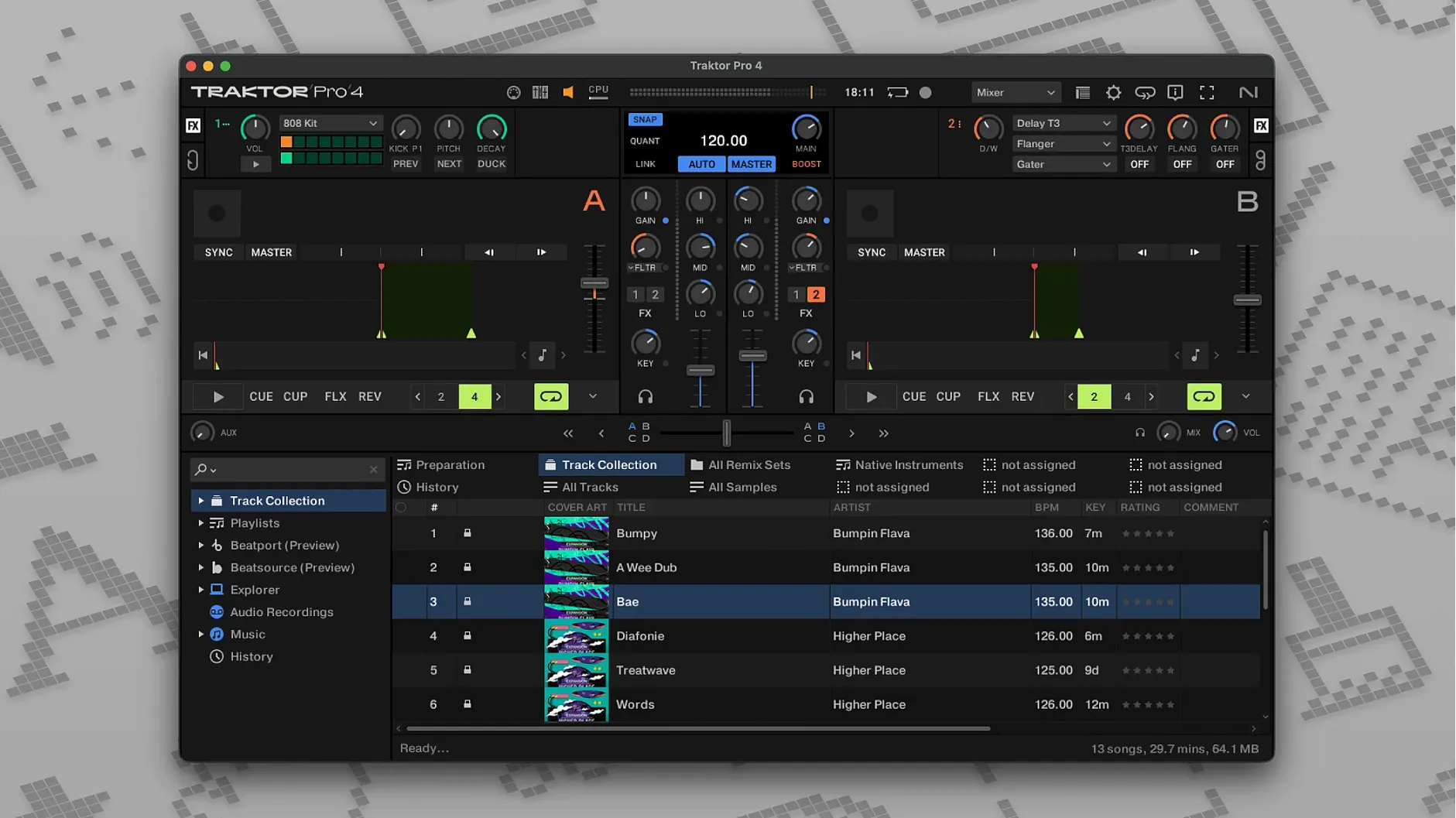
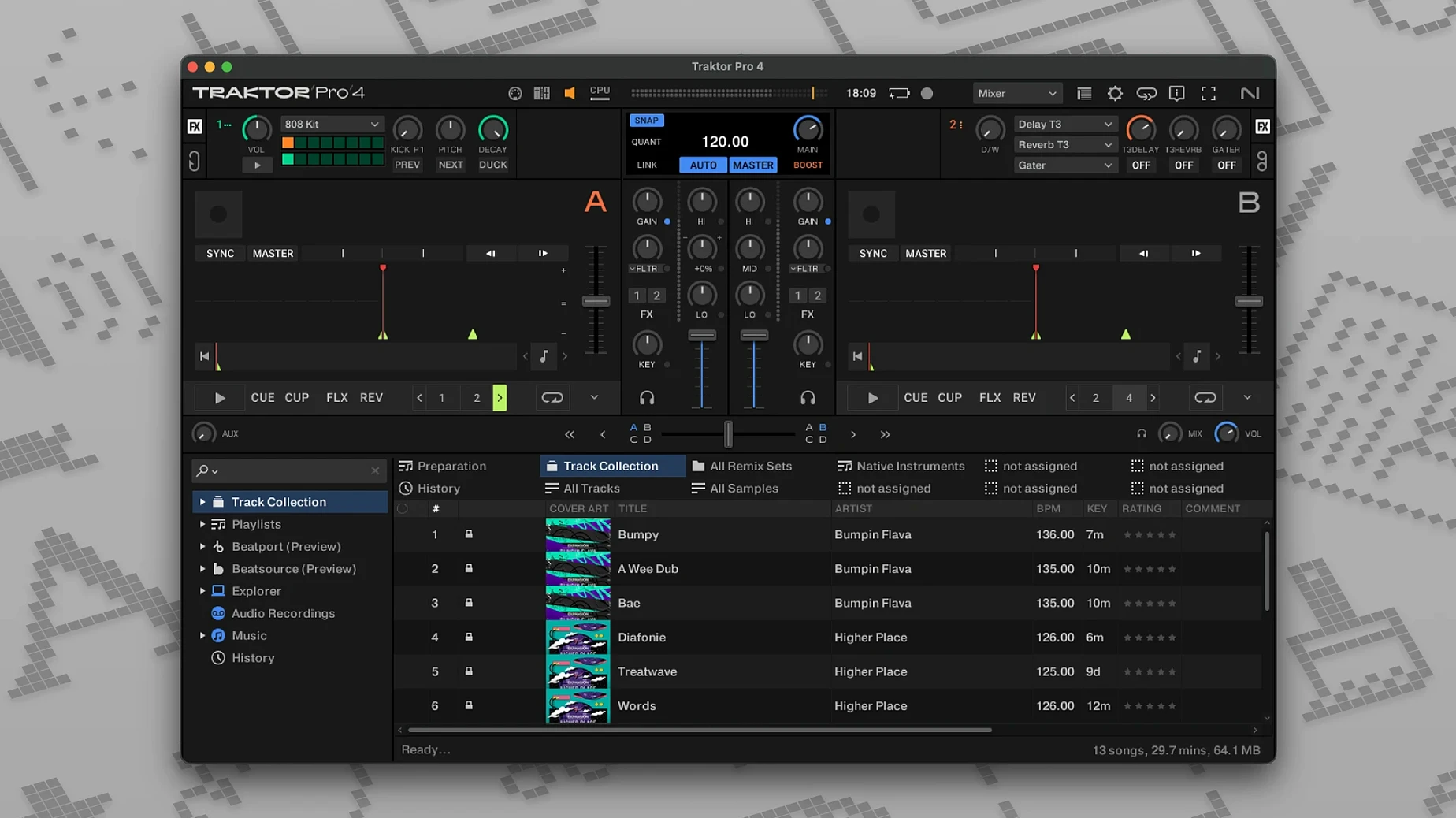
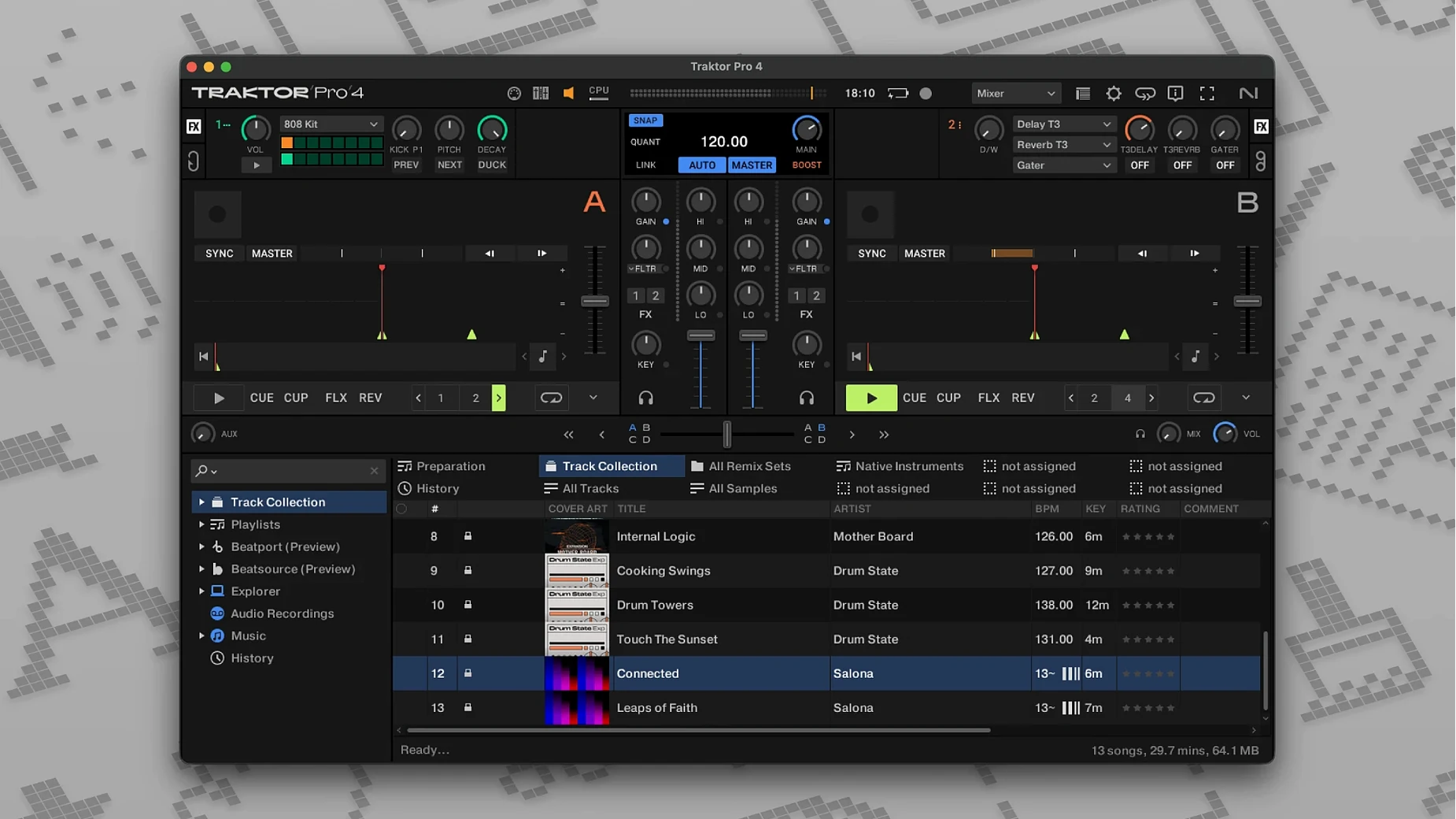
The problem with a two-deck setup is you are always scrambling. You mix out of one track while cueing the next, and there is never enough time to layer a third element without losing the flow. Traktor Pro gives you four decks, so that scramble stops.
One mix, from loading tracks to export
Say you want a set that moves from deep house into something harder, with an acapella sitting on top for sixteen bars. Here is how it works in practice.
- Load your instrumental into Deck A and the acapella into Deck B. Use the stem separation on Deck A to pull the original vocal down to nothing, so your acapella has clean space.
- Send MIDI Clock out to a drum machine, or sync a hardware synth via OSC. It locks to the master deck, not the other way round.
- Bring the next track into Deck C, beatmatched with Sync. You are free to work the channel faders on an external mixer while Traktor handles the grids.
- Hit record. The mix saves as a single WAV with all ID3 tags written, ready to drop into your library.
What you need before you start
It runs on any Mac with macOS 12 or later, Intel or Apple Silicon. A Traktor Kontrol controller or a MIDI mixer will make the work faster, but custom mappings mean you can assign anything with knobs and faders. You are not locked to one way of working.
Stem separation quietly improved in 4.4
Native Instruments did not rewrite the rulebook with version 4, but they fixed several things that used to grind on you during a long set. The stem separation algorithm got a quiet overhaul around 4.4. The processing is still real-time, but the bleed between stems — especially the hi-hat ghosting into the vocal stem — is noticeably reduced. That matters when you isolate an acapella live and the crowd hears clean syllables, not a faint tick of cymbals behind the voice.
The Beatport streaming integration now buffers more aggressively. On a patchy venue Wi-Fi connection, the track pre-loads further ahead, so you get fewer dropouts the moment your mobile hotspot decides to hiccup. That alone saved a few Friday nights.
A small but welcome addition: you can now re-order the Stem Deck controls in the preferences. If you kill the bass first every time, you can put that fader at the top. It sounds trivial, but muscle memory builds fast, and the old fixed layout forced an extra half-second of hunting. That half-second is an eternity when you are mixing out of a breakdown.
Building your first remix deck from scratch
The Remix Deck is the feature most people ignore for the first month, then it becomes the only reason they keep the laptop open. Here is a practical way into it, start to finish.
- Open an empty Remix Deck and set its tempo to match your master deck.
- Drag four one-shot samples from the browser — a kick, a clap, a closed hi-hat and a riser. Traktor auto-slices them to the grid if they are short enough.
- Load a full track into Deck A. Engage a loop on the final eight bars of its intro.
- Trigger the kick and clap from the Remix Deck on the downbeat. Let them run for four bars, then drop the riser on bar five. On bar eight, release the loop and let the track play out.
- Capture the result by hitting the record button on the master channel. Export as AIFF.
It is not a full production environment, but it turns a standard transition into something that sounds rehearsed. If you map the Remix Deck slots to a grid controller like a Launchpad, you can play it with your fingers instead of clicking.
Three preference tweaks before you touch a fader
Spend your first hour in the preferences, not in a mix. The defaults are safe but generic. Three things to do immediately:
- Set your load behaviour. Under Loading, switch to 'Load next to current deck' if you mix four decks actively. The default 'Load into stopped deck' will put a track somewhere you did not expect, and you will spend ten seconds hunting for it while the outgoing track runs out.
- Audition the stem separation on your own files first. A clean studio recording and a muddy vinyl rip will separate very differently. Know which tracks fall apart before you try it live. Mark the problem ones in the comments field so you see the warning in the browser.
- Map one emergency function to a key you cannot miss. I map 'stop all decks' to the tilde key. It is ugly, but if a feedback loop starts or a controller disconnects mid-set, you want silence in one press, not a mouse hunt.
Also, if you are coming from an older version, your custom mapping files carry forward, but check the new MIDI assignment window. A few controller numbers shifted between Traktor Pro 3 and 4, and you do not want to find that out when the filter knob does nothing.
Under three seconds cold launch on Apple Silicon
On an Apple Silicon Mac, the app launches cold in under three seconds. Loading a full four-deck set with stems active pushes CPU usage up, but on an M1 with eight gigs of RAM it sits around 25-30 percent, with occasional spikes to 40 when you engage stem separation on a complex track. The fans do not spin up. On an older Intel machine, you will hear them, but the audio buffer stays stable at 256 samples unless you stack three stem decks and a remix deck on top of each other.
Stability is where the current build earns its keep. I have run it for five hours straight during a house party, with Beatport streaming pulling tracks over a mobile hotspot, a Kontrol S4 connected, and the record function capturing the master output. No dropouts. No sudden quit. That was not true of earlier point releases in the version 4 cycle, where the streaming integration occasionally lost its authentication token and logged you out mid-track. That bug appears to be dead.
Memory use is reasonable. A fresh session idles around 400 MB. A loaded four-deck set with a full Remix Deck and a half-hour recording buffer pushes it to just over a gigabyte. That leaves plenty of headroom on any Mac made in the last six years. If you run it alongside a DAW for post-set editing, you will want sixteen gigs of RAM, but that is more about the DAW than Traktor.
The one resource tax worth mentioning is disk speed. If your tracks live on a slow external drive, the stem separation engine will lag as it reads and processes audio. An internal SSD handles it without a stutter. Keep your performance library local.
Requirements
- macOS 12 (Monterey) or later
- Intel or Apple Silicon Mac
- English interface
FAQ
Can I use Traktor Pro 3 with macOS Monterey or newer?
Traktor Pro 3 can run on newer systems, but version 4 officially requires macOS 12 and above with native support for both Intel and Apple Silicon.
Comments 0
Sign in or create an account to leave a comment.
No comments yet…
If you’ve installed it, say how it went. Mention your Mac and macOS version — it helps the next person more than you’d think.