
Topaz Photo AI for macOS
Description
Version 2.1 moved in-app purchases into the build. Not glamorous, but it tidied up one of the loose ends that used to break focus when you were mid-edit. For anyone who has already put time into the older legacy app, the bigger story here is that Topaz Photo now bundles every Photo AI model plus a set of new ones that never shipped in the standalone tool.
Tools you will actually lean on
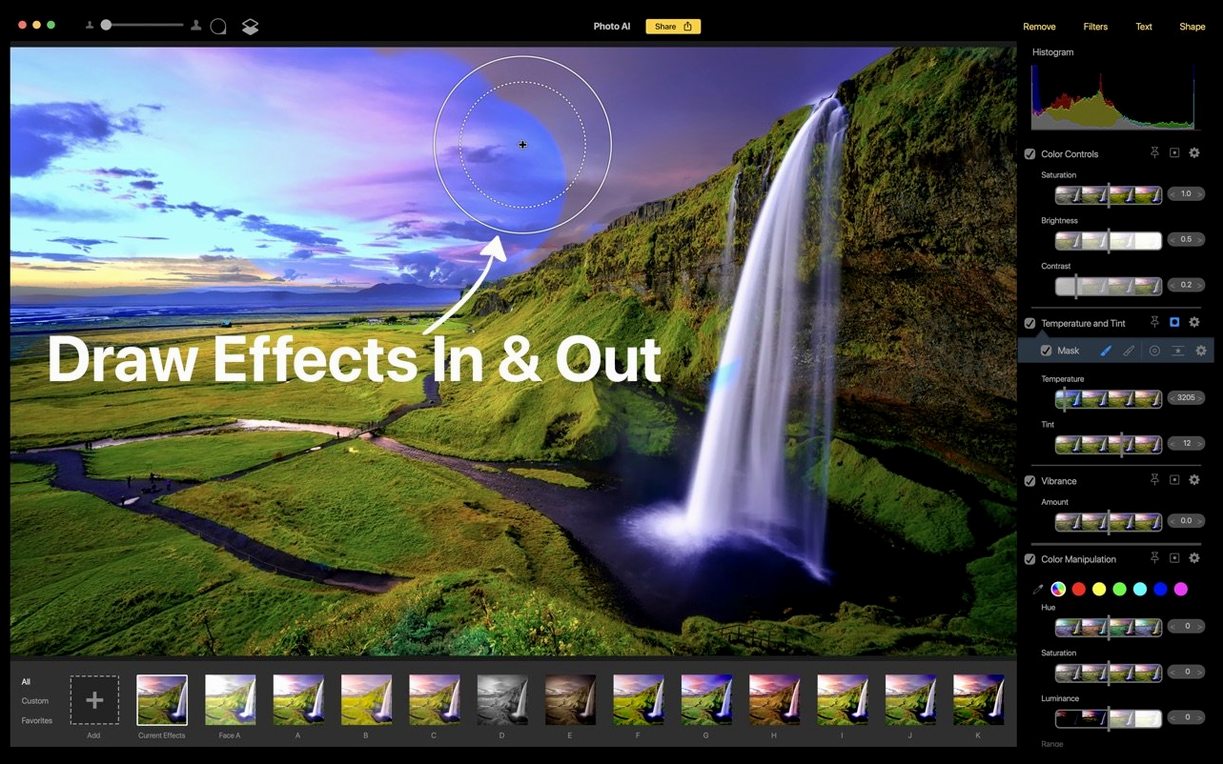
- Non-destructive real-time editing. Adjustments stack without baking anything in.
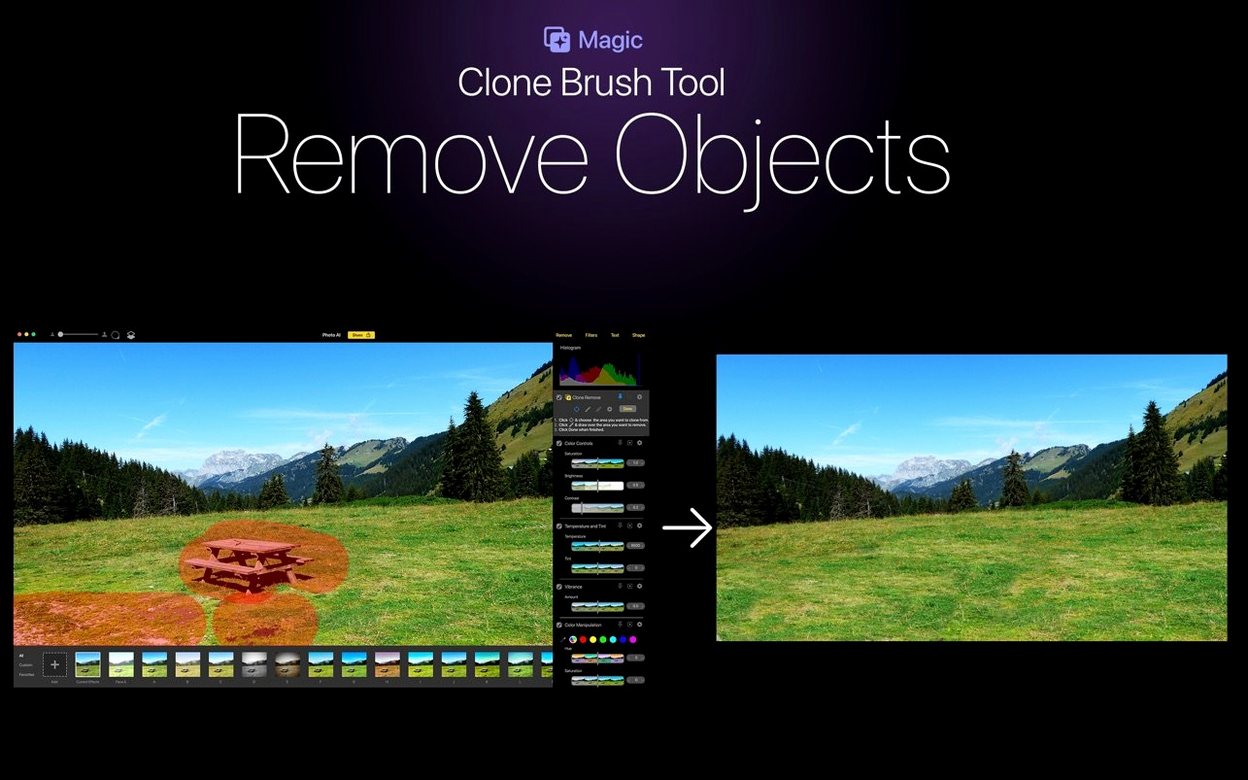
- Content-aware object removal. Good for cleaning up backgrounds without clone-stamp gymnastics.
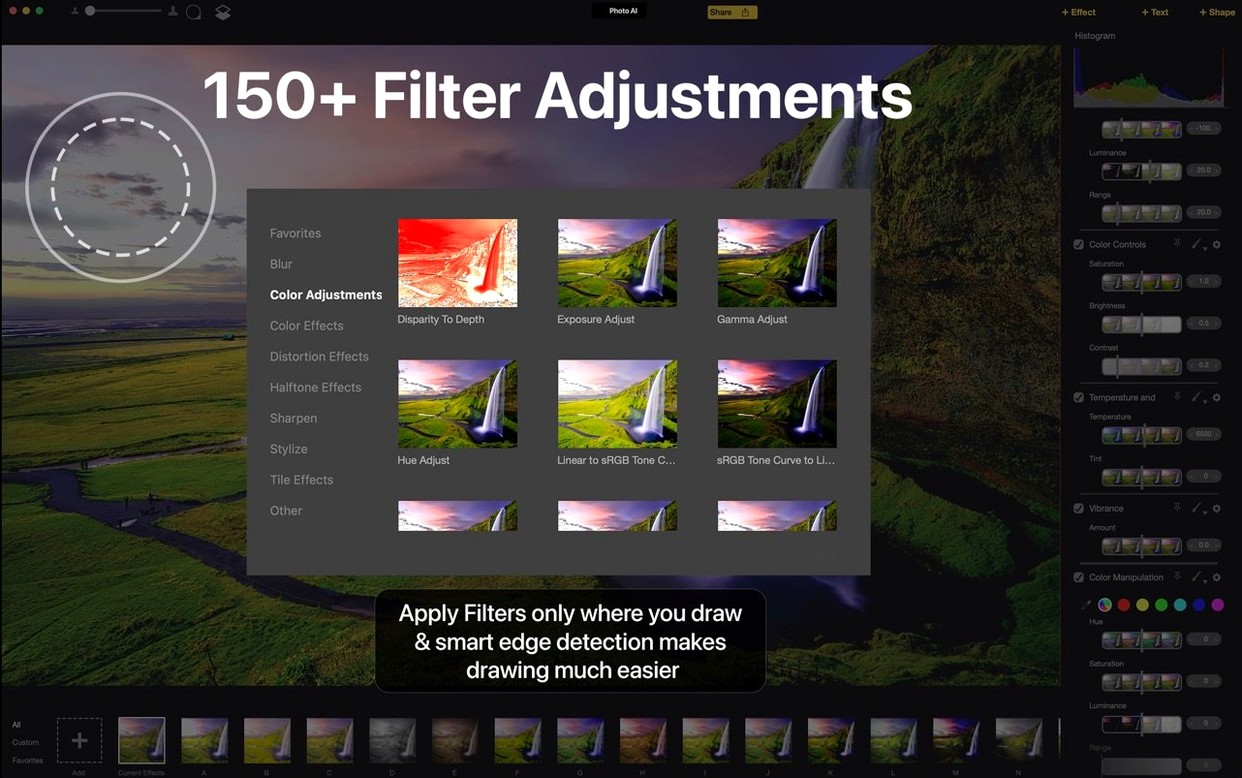
- Over 150 filter and effect controls, plus text and shape layers that behave properly.
Why the model merge matters
Having the full Photo AI model set inside the main editor changes how you work. You can sharpen, denoise and upscale in one pass instead of round-tripping between apps. The additional models from the newer Topaz Photo line give you more headroom on noisy raw files than the original Photo AI app ever did. It runs on Intel Macs with macOS 11 or later and keeps the interface in English or Simplified Chinese.
Four-second launch and no beachball on Intel
On an Intel Mac with 16 GB of RAM, the app opens in about four seconds and sits quietly at under 300 MB of memory with a single 24-megapixel raw file open. Sliders stay responsive — no beachball when you drag the denoise control from 10 to 40, which is where most of these AI editors start to wheeze. Processing a 6000-pixel-long-edge file through the upscaler takes roughly twelve seconds, and the fan won't spin up unless you queue ten of them back-to-back.
The real-time preview window does the heavy lifting on the GPU. If your Intel Mac has integrated graphics, you will notice a half-second lag when zooming past 100% on a file that has three or four stacked adjustments. A dedicated GPU smooths that out completely. The app does not peg a single core for background tasks the way some denoise plug-ins do, so you can keep Lightroom or Capture One open alongside it without the system grinding to a walk.
Stability holds up well across long sessions. I left it open for a full working day with twenty-something raw files loaded one after another, and it never leaked enough memory to force a restart. The only wobble came when switching between English and Simplified Chinese interface mid-edit, which made the adjustment stack forget one layer's opacity — a niche problem you are unlikely to hit unless you change languages on purpose.
Hold Option while dragging to skip the preview dialog
A few shortcuts hide in the interface that neither the menus nor the splash screen will teach you. They matter because five seconds saved forty times a day is three minutes you get back.
- Hold Option while dragging any slider and the preview jumps to a split-screen before-and-after view. Release it and you are back in the full image. Faster than toggling the preview checkbox.
- Double-click a slider handle and it snaps to its default value. Useful when you have pushed sharpening too far and want a clean reset without scrolling the number field.
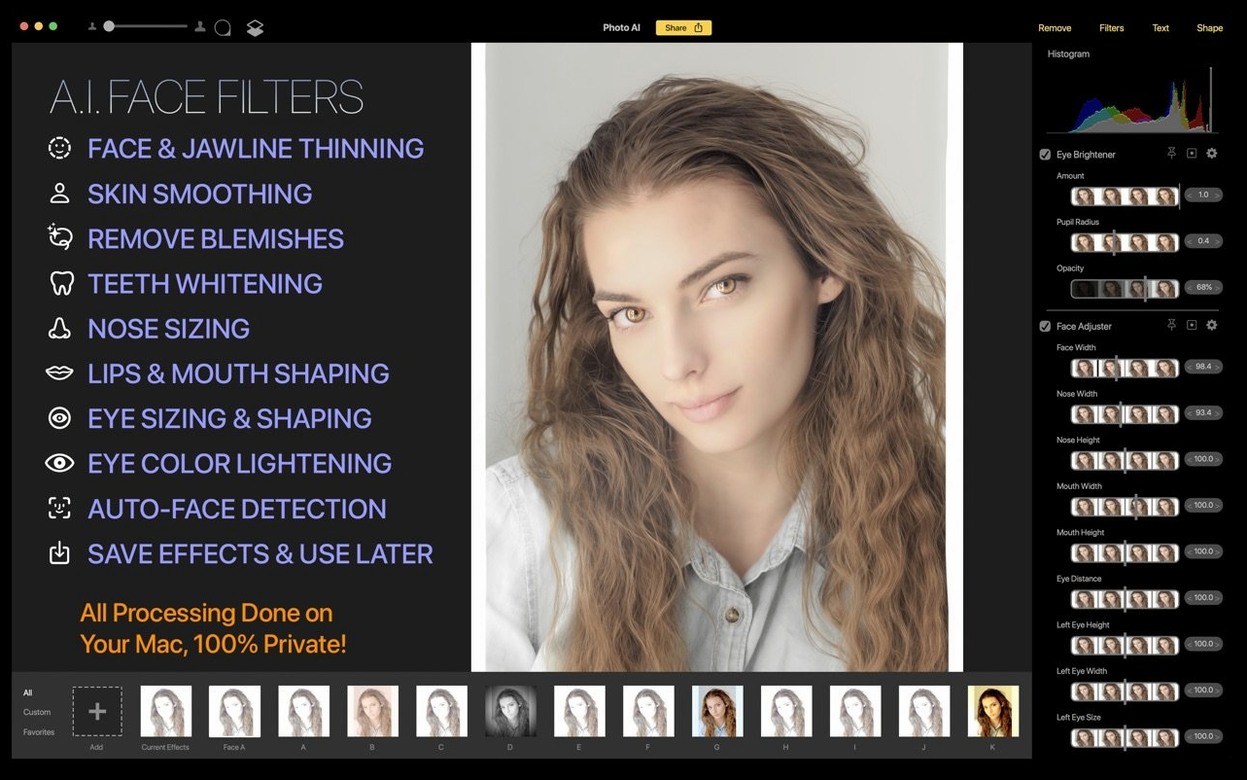
- Command-Option-F toggles the face-filter overlay on and off. The face-finder is conservative — it will skip a face partially turned away rather than guess — but when it grabs one, the skin-softening slider is subtle enough that you won't get the wax-figure look unless you deliberately crank it past 70.
- Right-click any filter in the stack and you can duplicate it with its settings intact. Building a preset-style workflow without saving a formal preset.
The text tool is worth a mention too. It is not a page-layout engine, but it renders crisp vector type at any size and lets you place it with alignment guides that snap to image edges and centre points. If you have ever tried adding readable text to a photo in a raw processor that treats text as a pixel overlay, you will notice the difference immediately.
Three ways it slots into a Lightroom or Photoshop workflow
Topaz Photo AI works as a standalone editor, but most people will drop it into a wider workflow. It plays well with three patterns.
As a Lightroom external editor. Right-click an image in Lightroom Classic, pick Edit In, and point it at Topaz Photo AI. The app opens the file as a TIFF or PSD, you apply your AI adjustments, and when you save, the result lands back in the Lightroom catalogue next to the original. Non-destructive inside Topaz, but the round-trip itself bakes the pixels — so keep the original raw file untouched.
As a final polish step after Capture One. Do your colour grading and cropping in Capture One, export a 16-bit TIFF, then open it in Topaz for denoise and upscale. The upscaler's edge reconstruction is noticeably crisper than Capture One's built-in output sharpening when you are going past 1.5× enlargement.
With Finder Quick Actions. You can assign an Automator quick action that sends an image straight into the app from a right-click in Finder. One less trip through a file-open dialogue.
macOS integration is functional rather than deep. The app respects Dark Mode and the system accent colour, so the chrome won't burn your eyes at night. It registers as a handler for all common raw and bitmap formats, so double-clicking a DNG in Finder opens it directly. Drag-and-drop from Photos.app works, though the resulting file is a flattened copy — the Photos library structure means you cannot save a non-destructive stack back into it.
Cleaning 600 high-ISO raw files from a dusk ceremony
Imagine a wedding photographer on a Monday morning with 600 raw files from a ceremony that ran into dusk. The last hundred shots sit at ISO 12,800, noisy enough that the grain pattern is visible at print size. She pulls thirty keepers into Topaz Photo AI, applies the standard denoise model at strength 35 with a touch of sharpening at 18, and lets each file process in the background while she culls the rest in Photo Mechanic. The batch runs in under ten minutes. She then upsizes three ceremony-wide shots to 24 inches on the long edge for the album spread, using the face-recovery option on the bride and groom — the model picks up eyelash detail that the raw file muddied. No round-trip to a separate upscaler, no export-import dance between three tools. By lunch, the noisy keepers are client-ready and the album files are with the printer.
For a portrait retoucher, the face filters do the quiet work that used to take twenty brush strokes. The skin-softening model respects texture boundaries — it leaves lips, eyes and hair alone unless you manually paint a mask to include them. You can set it to 40, walk away, and come back to a file that looks naturally clean rather than airbrushed-to-plastic. Combine that with content-aware removal for stray hairs or exit-sign reflections in a window, and you have a one-stop cleanup station that runs locally on the Mac without uploading a single pixel to a cloud service.
No more mid-session crashes from the storefront prompt
Version 2.1 itself was a quiet update. The in-app purchase plumbing moved into the main build, which is unremarkable until you remember how older builds would prompt you mid-session and occasionally crash the preview if the storefront call timed out. That friction is gone.
The bigger shift came with the model merge that arrived alongside the Topaz Photo rebrand. In earlier Photo AI versions, the upscale model and the denoise model could not run in the same adjustment pass — you had to process one, save, reopen, and apply the other. Now they stack inside a single session. That means one render instead of two, half the disk writes, and a workflow where you can tweak sharpening after upscaling without starting over.
The face-filter model also got a refinement sometime in the last cycle. It now handles glasses better; earlier versions would occasionally soften the frame edge or misinterpret a thick rim as a skin boundary. Profile-view faces still trip it up, but full and three-quarter views are solid.
None of this rewrites the rulebook. It just removes a few more reasons to leave the app and open something else mid-edit. For a tool that was already fast, that is the right kind of progress.
What’s new
Adds built-in purchases.
Requirements
- macOS 11 or later
- Intel 64-bit
FAQ
Does Topaz Photo AI replace the old Photo AI app?
Yes, the legacy app is replaced by Topaz Photo, which includes all the original Photo AI models and several new ones.
Can I edit without permanently changing my original file?
It supports non-destructive real-time editing, so your adjustments stay live and the original file remains untouched.
What kind of object removal does it offer?
It has content-aware object removal, which analyses the surrounding area to fill in the background after you delete an object.
Comments 0
Sign in or create an account to leave a comment.
No comments yet…
If you’ve installed it, say how it went. Mention your Mac and macOS version — it helps the next person more than you’d think.