Topaz Gigapixel AI for macOS
Description
Gigapixel AI is a desktop app that uses machine-learning models to enlarge images, adding detail rather than just stretching pixels.
A few jobs it handles well when you are starting out:
- Old portraits and family scans. It can pull back detail in faces and clothing from low-resolution originals.
- Line art and PNGs. It cleans up fuzzy edges and compression artefacts on drawings and logos.
- Grainy photos. Face recovery can sharpen people who are slightly out of focus.
Things to know before you spend an afternoon with it:
- Gigapixel AI is the legacy line. Topaz replaced it with Topaz Gigapixel, which ended at version 8.4.4. You are running the older product.
- The interface is English only.
- There are separate builds for Intel and Apple Silicon Macs. Pick the one that matches your machine, not the other.
Open a few images first and let the preview guide your model pick
Straight after installing, open a few different images and try the preview pane before committing to a full render. The model that looks brilliant on a portrait might oversharpen a landscape.
Three things to do early:
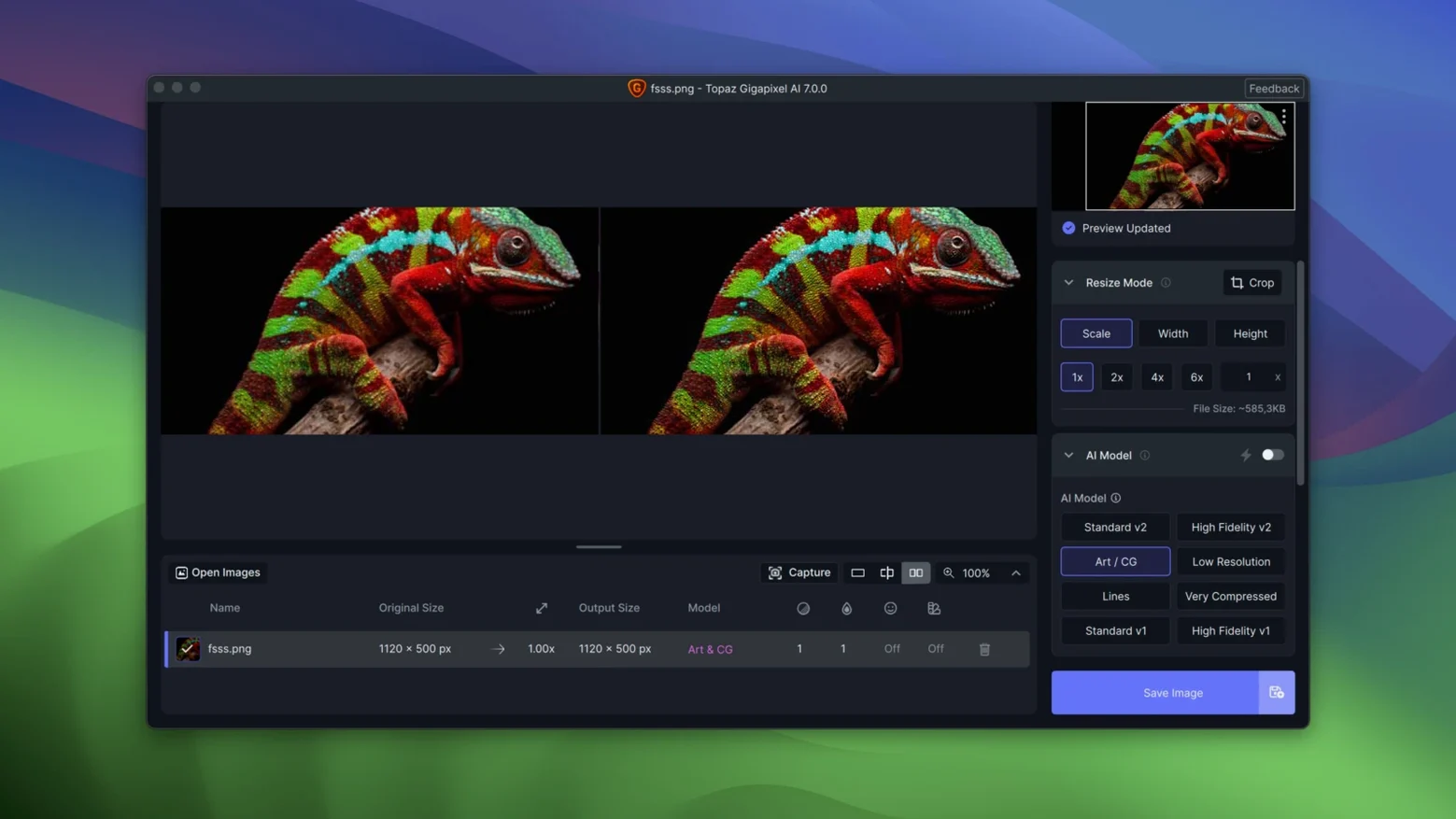
- Pick the right AI model for the image type. The app offers several — Standard, Lines, Art & CG, Low Resolution, and Very Compressed. Switching between them on the same crop shows you which one actually helps.
- Set output scaling manually. The default 2x or 4x presets are fine, but typing a custom percentage (like 150%) often gives you exactly the size you need without bloating the file.
- Check the face recovery toggle. It is not always on by default. For group shots or old portraits, enabling it makes a visible difference. For landscapes or still life, leave it off — it adds nothing and slows the render.
If you plan to batch-process a folder, run a single test image first at your chosen settings. A folder of fifty 4x upscales can tie up a Mac for a while, and you want the settings right before you walk away.
A morning with an illustrator
An illustrator working on a poster had a set of ink drawings scanned at 300 dpi on an old flatbed. The client asked for the final poster at A1, which meant scaling the scans well beyond their native resolution. Previous attempts in a photo editor left the line work with soft, bloated edges — usable at a glance, but disappointing up close.
She loaded the scans into Gigapixel AI, switched the model to Lines, and set the scale to 3x. The preview showed crisp pen strokes where the old upscale had left smudges. A couple of drawings had faint compression ringing from an earlier JPEG conversion; the app reduced most of it without eating into the line weight.
What surprised her was the speed on an Apple Silicon Mac. Six drawings, each upscaled three times, finished in under fifteen minutes. She dropped the results straight into the poster layout and sent the proof to the client the same afternoon. The job that used to need a redraw became a batch job she could run while getting coffee.
Apple Silicon runs it natively now, cutting render time
Version 1.3.5 runs on macOS 12 and newer, with native support for both Apple Silicon and Intel 64-bit Macs. That means no Rosetta overhead on M-series machines, which keeps rendering times shorter than the older Intel-only builds.
The most practical change in recent versions is the refined face recovery model. Earlier versions could over-smooth skin, giving portraits a waxy look. The current build is more restrained — it sharpens eyes and mouth detail without making skin look artificial. For anyone restoring old family photos, that change alone makes the update worthwhile.
Batch processing also got more stable. Earlier builds sometimes stalled on large folders or mixed file types. The current version handles TIFF, PNG and JPEG in the same queue without tripping over itself. If you are working with scans that came in as TIFFs alongside phone photos in JPEG, you can drop them all in and walk away.
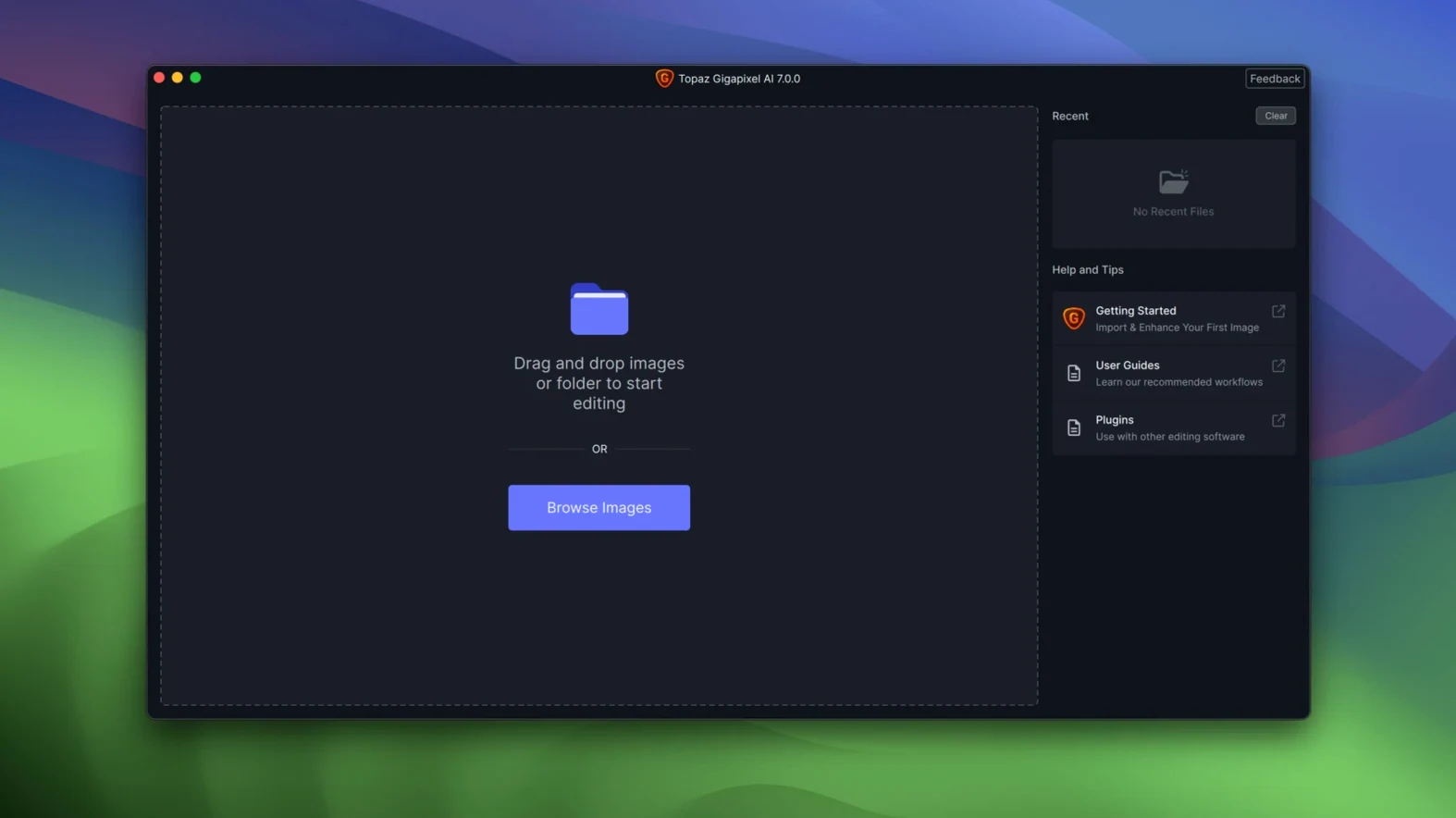
The interface stayed essentially the same — single window, preview pane on the left, controls on the right. No panel redesigns, no relocated menus. Users moving from older Gigapixel AI builds will find everything where they left it. Those coming from Topaz Gigapixel 8 will notice a simpler layout with fewer sliders, which suits the kind of quick batch work this version does best.
Turn a scanned 4x6 print into a framed enlargement
Photographers restoring old prints and negatives see the biggest day-to-day benefit. A scanned 4x6 print at 300 dpi gives you roughly 1200 by 1800 pixels — fine for a screen, but not for a larger framed print. Gigapixel AI bridges that gap without the softness of a bicubic upscale.
Designers working with supplied assets that arrive too small for print layouts also find it practical. A client logo sent as a 400-pixel JPEG can become a 1600-pixel PNG with clean edges, ready for a brochure or poster. The Lines and Art & CG models handle vector-like graphics better than the Standard model does.
Archivists and family historians dealing with low-resolution scans get the face recovery and noise reduction working together on the same image. A blurry scan from a 1990s point-and-shoot can become sharp enough to print at 5x7 or larger. The batch processor lets you queue dozens of scans overnight and find the results waiting in the morning.
Users who work mostly with raw files from modern cameras gain less. The app is built for enlarging images that are already at their native resolution — it is not a raw developer. If your starting file is a 24-megapixel raw, you probably do not need AI upscaling for everyday work. But if you need to crop heavily and still print large, that is where it earns its place.
Requirements
- macOS 12 or later
- Intel or Apple Silicon Mac
- Separate build for ARM and Intel
- Interface: English
FAQ
Can Gigapixel AI restore old scanned photos?
Yes, it can restore details in old photographs and low-resolution portraits by adding realistic texture and sharpness.
Which Mac build should I download?
Topaz provides separate packages for Intel and Apple Silicon (ARM) Macs. Download the build that matches your processor.
What is the difference between Gigapixel AI and Topaz Gigapixel?
Gigapixel AI is the legacy product line. Topaz later replaced it with Topaz Gigapixel, which reached version 8.4.4.
Comments 0
Sign in or create an account to leave a comment.
No comments yet…
If you’ve installed it, say how it went. Mention your Mac and macOS version — it helps the next person more than you’d think.