TG Pro for macOS
Description
Runs on any Mac from macOS 10.13 High Sierra onward, including the latest M4, M4 Pro and M4 Max machines.
Here's one way a help desk veteran uses it when a machine feels too hot to touch.
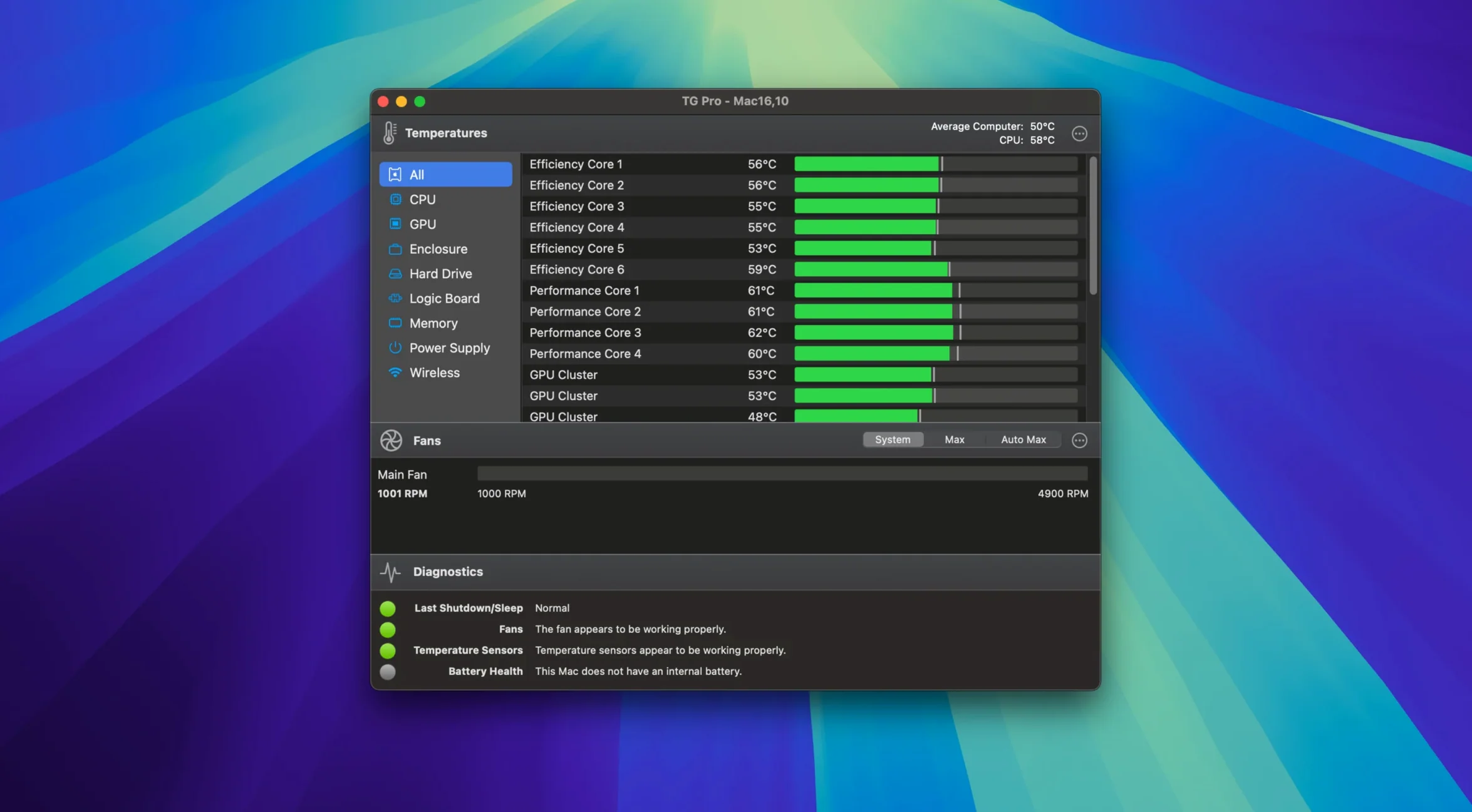
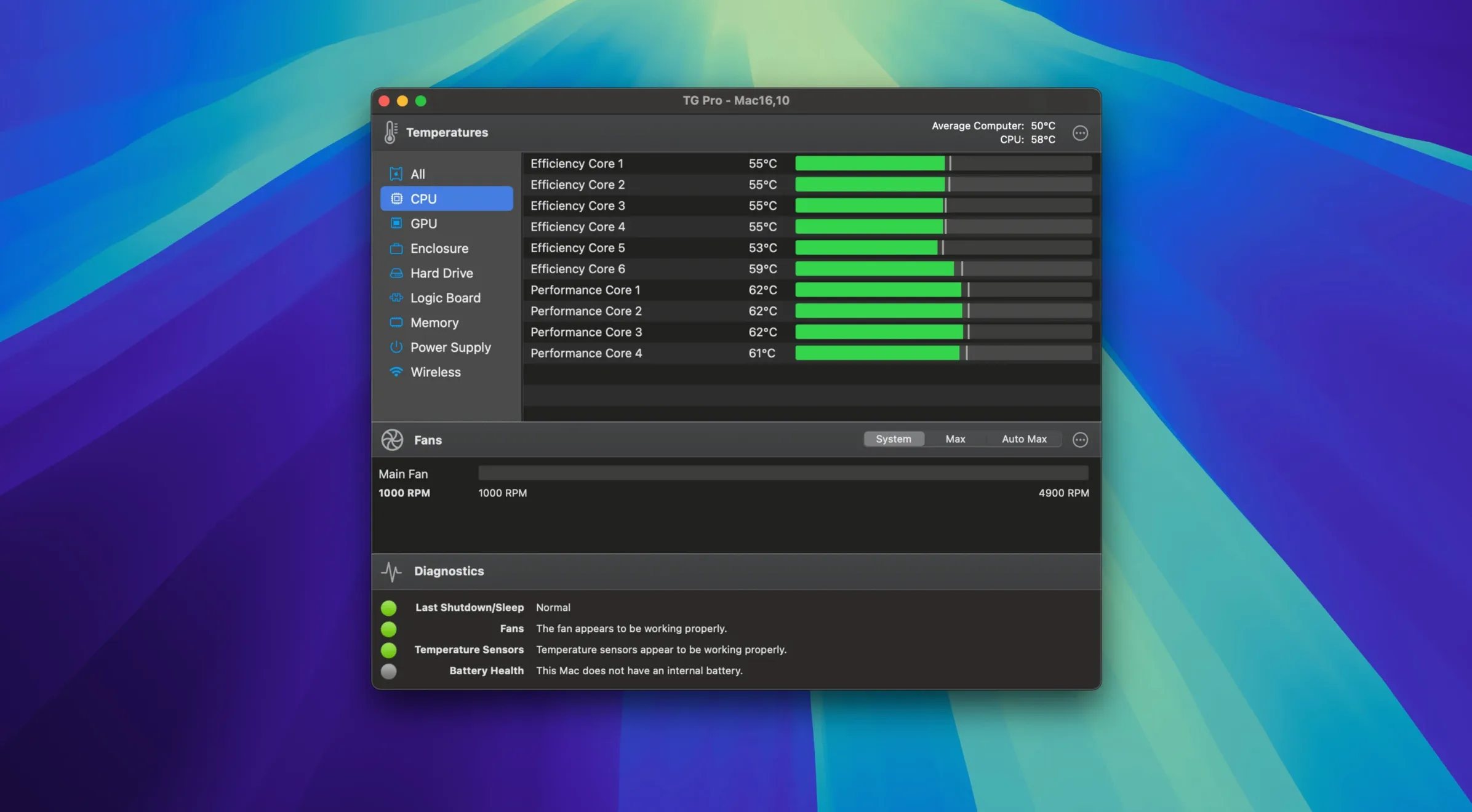
- Get a baseline. Open TG Pro and glance at the main window. CPU, GPU, memory, and logic board temps are right there. Scroll down to check the battery and Wi‑Fi module on a laptop. No guesswork.
- Recreate the load. Launch whatever made the machine sweat — a render, a game, a hundred browser tabs. Watch which sensor climbs first. The app sits in the menu bar so you can keep an eye on it without alt‑tabbing.
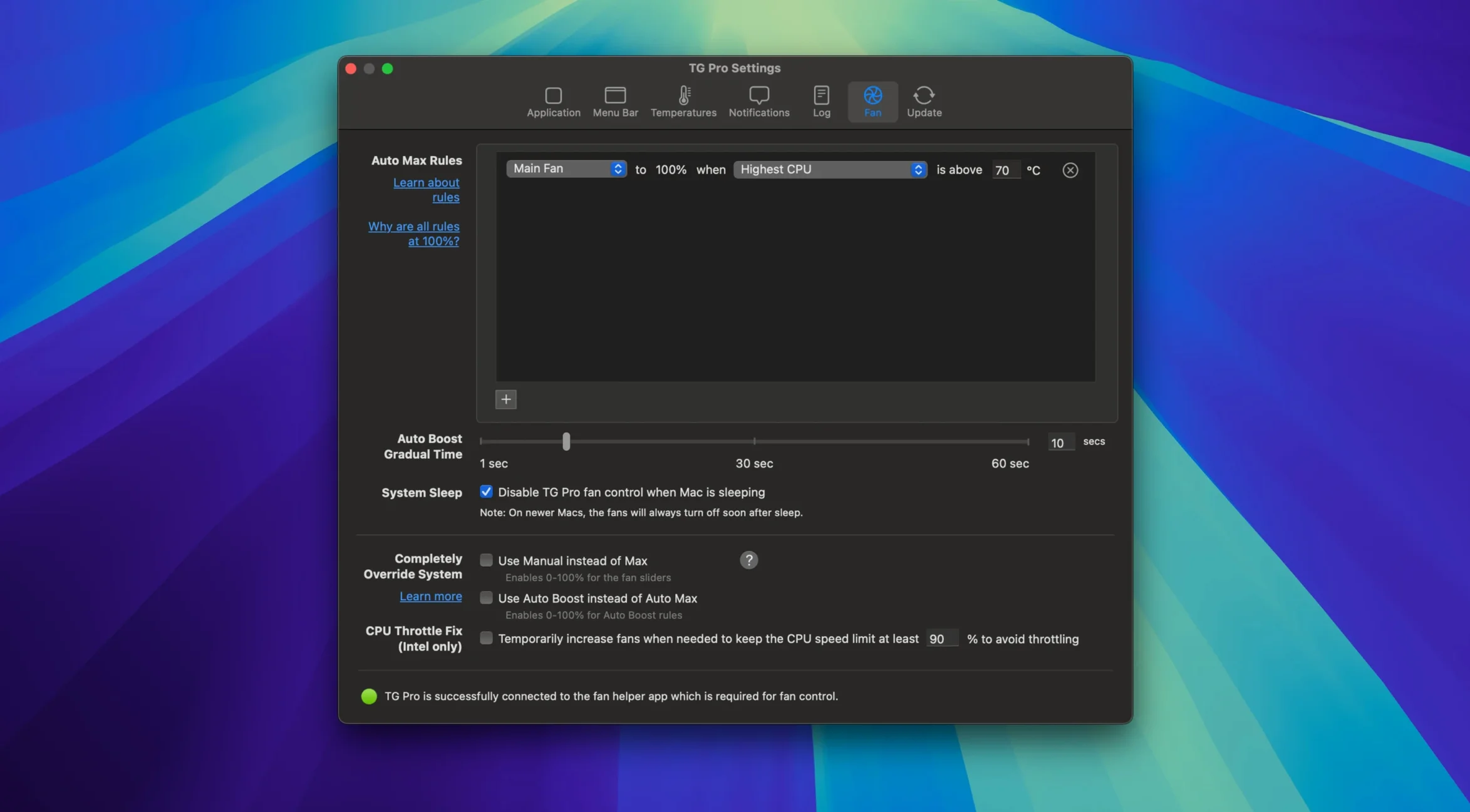
- Set a custom fan rule. Go to the Fans area, pick a sensor that spiked (say, CPU proximity), and create a rule. Tell it: when that sensor hits 85 °C, ramp the left fan to 70 percent. Auto Boost mode is fine, but a manual rule tied to one sensor often reacts faster.
- Run a quick diagnostic. Click the Diagnostics tab and let it scan. It checks every available sensor and fan in a couple of minutes. If a fan reports 0 rpm when it should be spinning, you will know before a kernel panic tells you.
Plays nice with iStat Menus and Activity Monitor
TG Pro doesn't argue with the rest of your Mac. It reads the same SMC data that Apple's own diagnostics use, so it co-exists with Activity Monitor, iStat Menus, or any hardware monitor that polls the system management controller. The difference is that TG Pro writes back to it — fan speeds, custom rules, the lot — which most menu-bar monitors don't attempt.
If you use a laptop docked to an external display, the app picks up the power-source change and re-evaluates Auto Boost rules without you touching anything. Version 2.103 fixed a long-standing edge case where those rules could stall when you unplugged from mains, so the behaviour is now reliable whether you are on battery or AC. It also restores fan speeds correctly after Siri or voice dictation releases the mic — a niche fix, but one that stopped fans from getting stuck at full tilt on some machines.
The menu bar display is customisable down to the sensor. You can show the highest CPU core temp, the GPU die, or an average across all cores. Click it and a dropdown lists every sensor and fan with current readings, so you rarely need to open the full window. That is the bit most people miss — the menu bar is a full readout, not just a badge.
0.2–0.5% CPU and 30–50 MB RAM, weeks at a time
On both Intel and Apple Silicon Macs, the daemon sits at roughly 0.2–0.5 percent CPU while polling sensors every few seconds. Memory use hovers around 30–50 MB. I have run it for weeks across a mix of machines — a dusty 2019 iMac, a 2023 MacBook Pro, and a Hackintosh desktop — and it has never caused a beachball or a sudden fan ramp. The logging feature writes to a plain text file, so you can check peak temperatures overnight without a heavy database process grinding away in the background.
One thing that stands out: the fan control response is near-instant on Apple Silicon. On older Intel Macs, there is a half-second lag between a custom rule threshold being crossed and the fan spinning up, which is just the SMC doing its thing. The diagnostic scan takes 60–90 seconds on most machines and has caught a dead right‑side fan on a MacBook Pro before the user noticed any throttling.
Option-click the menu bar icon to pause all fan rules
- Hold the Option key while clicking the menu bar icon to pause all fan rules and revert to system defaults. Useful when you want to check if a noise complaint is your custom curve or just a dusty heatsink.
- The sensor list has a search field. Type
GPUand it filters instantly, saving you scrolling through 40 sensors on an iMac Pro. - Every temperature sensor can be shown in Fahrenheit or Celsius with a right‑click. The app remembers your preference per sensor, so the CPU can display in Celsius while the GPU sticks to Fahrenheit if that is how your brain works.
- The Diagnostics tab lists every fan's reported speed range. If a fan is supposed to hit 6000 rpm but tops out at 4200, the report highlights it in orange. No digging through system profiler reports required.
- Custom fan rules can reference multiple sensors. Tell the exhaust fan to respond to whichever is hotter — CPU proximity or GPU die — and it picks the higher reading automatically.
- There is a Hackintosh toggle in preferences that adjusts how the app reads voltage and sensor IDs on non‑Apple hardware. Use it if you are running tg pro mac os on a custom build; leave it off for real Macs.
None of this is hidden behind hidden panes or plist edits. It is all in the main preferences and right‑click menus, which makes a real difference when you are troubleshooting a machine that is already misbehaving.
The whole thing runs with low CPU overhead, so leaving it in the background to log peaks is a sensible move.
Requirements
- macOS 10.13 or later
- Intel 64-bit
Comments 0
Sign in or create an account to leave a comment.
No comments yet…
If you’ve installed it, say how it went. Mention your Mac and macOS version — it helps the next person more than you’d think.