SwitchResX for macOS
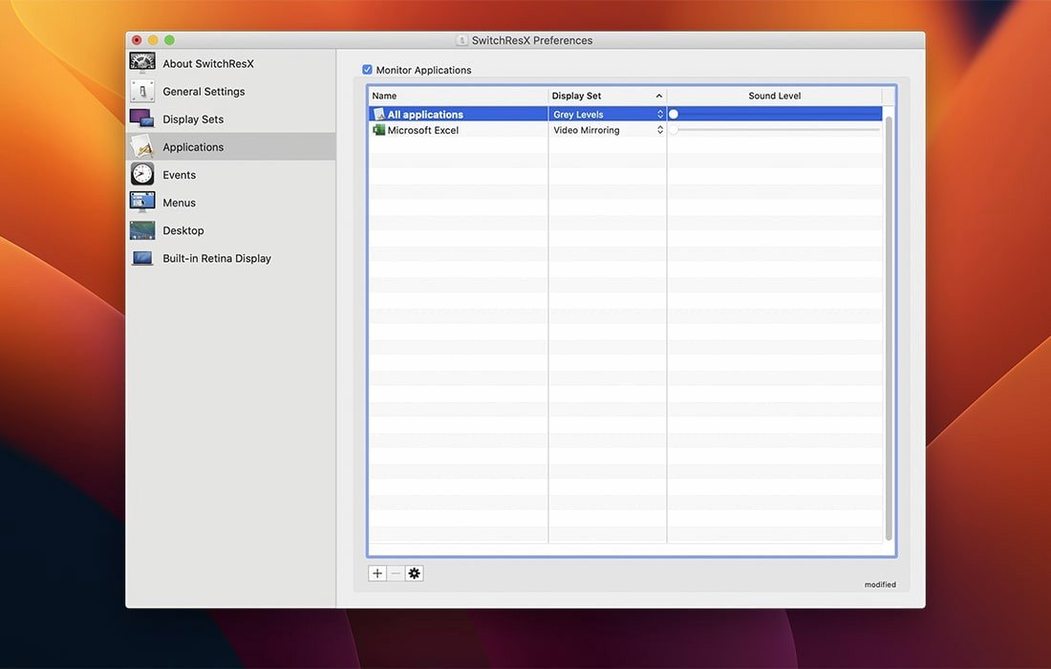
Description
SwitchResX runs on any Mac with OS X 10.10 or newer, with native support for both Intel and Apple Silicon machines. It gives you direct control over screen resolutions that macOS normally hides, whether you're working on a built-in laptop panel, a third-party monitor, a projector, or an HDTV. If you have ever connected a display and watched macOS pick the wrong resolution with no obvious way to fix it, this is the tool that puts you back in charge.
Before you install, here is what people typically want to know:
- Can it handle odd setups? Yes. It works with plasma panels, HDTVs, projectors, and monitors from any manufacturer, not just Apple's own.
- Does it only change resolution? No. You can also control color profiles, rotation, and mirroring to a second display, all saved as named profiles you can switch between.
- Will it break when I unplug a display? The latest release fixes a bug where SwitchResX kept updating its own settings when no display was attached.
- Can I automate it? It speaks AppleScript, so you can tie display changes into larger workflows.
- What about colour work? You can create combined colour-plus-resolution profiles, handy if you switch between grading and layout tasks on the same screen.
The current version also tidies up an issue with nameless displays in macOS and lets you quit the Dock properly when disabling a display on Apple Silicon. Worth it if you regularly plug into unfamiliar screens and need them to behave.
When a tested custom resolution still won't show up in macOS
A custom resolution that tests fine in the app can still vanish from the macOS Displays pane. That usually means the system rejected the timing parameters. Open the resolution in SwitchResX again, tick Use simplified settings, and nudge the vertical refresh down by 1 Hz. Save, reboot, and it should stick.
People sometimes search for a SwitchResX crack or a SwitchResX serial number because the app asks for activation on first launch. The download includes a serials file. Drag it onto the app window after installation and the nag screen disappears. No hunting required.
If an external display goes black after applying a custom resolution, do not panic. Wait fifteen seconds. SwitchResX reverts automatically if you do not confirm the change. If the screen stays dark, unplug and replug the monitor. The fallback resolution takes over and you can try a less aggressive timing next time.
A Display Set that refuses to delete is a known gremlin fixed in this build. If you hit it on an older version, the workaround was to drag the set to the bottom of the list before deleting it. Now you can just remove it.
Setting up a 4K external display for timeline and preview side by side
You arrive at the desk with a 4K external monitor and a MacBook lid open. The external display defaulted to 1920×1080-HiDPI, which looks crisp but leaves no room for a timeline and a preview window side by side.
You open SwitchResX from the menu bar. The external monitor sits in the left column. You select it and click Custom Resolutions. The plus button adds a new entry. You type 2560×1440, leave the scaling at HiDPI, and set the refresh to 60 Hz. A quick test shows the monitor syncs cleanly. One click saves it.
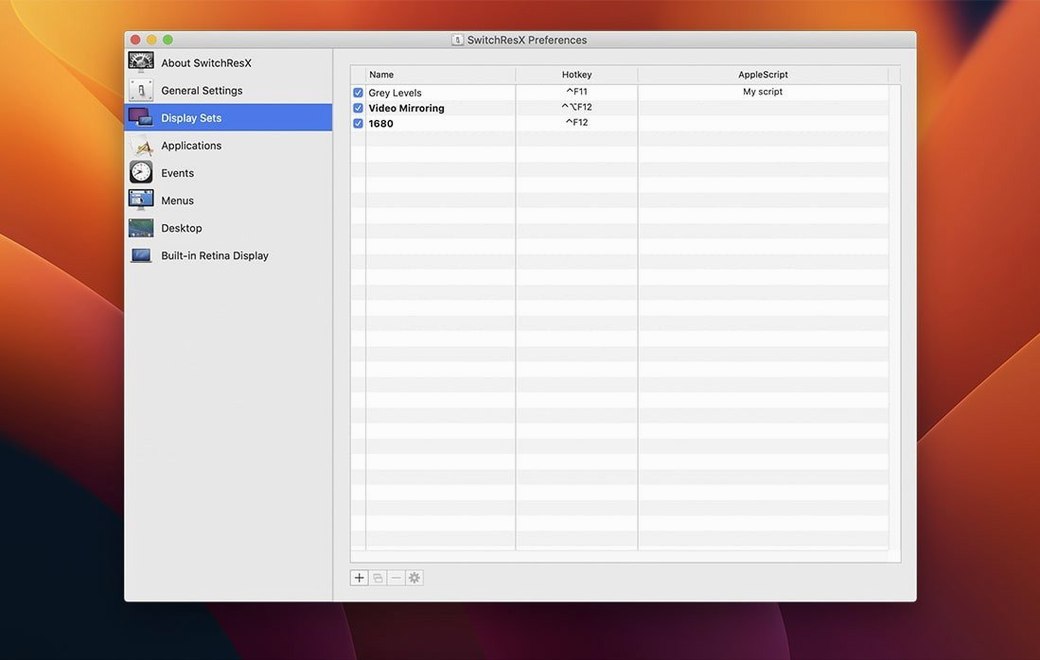
Back in the main window, you switch to the Display Sets tab. You name a new set "Edit bay" and assign the custom resolution to the external monitor, rotation to standard, and the laptop panel to 1680×1050-HiDPI. You also attach a specific colour profile for the grading work later. Then you link the set to Final Cut Pro under Applications. From now on, launching Final Cut switches everything without a trip to System Settings.
You plug a projector into HDMI later that afternoon. macOS sees it as a generic 1080p device and overscans badly. SwitchResX already has a saved profile for this projector from a previous event. Two clicks in the menu bar dropdown, and the image fits the screen edge-to-edge.
Start with one monitor and two resolutions you'll actually use
Resist the urge to create a dozen custom resolutions on day one. Pick one monitor and make two resolutions you actually need—say, a scaled HiDPI mode for UI work and a native 1:1 mode for pixel-accurate review. Live with them for a couple of days before building more. It keeps the resolution list tidy and makes it easier to spot which timings your panel tolerates well.
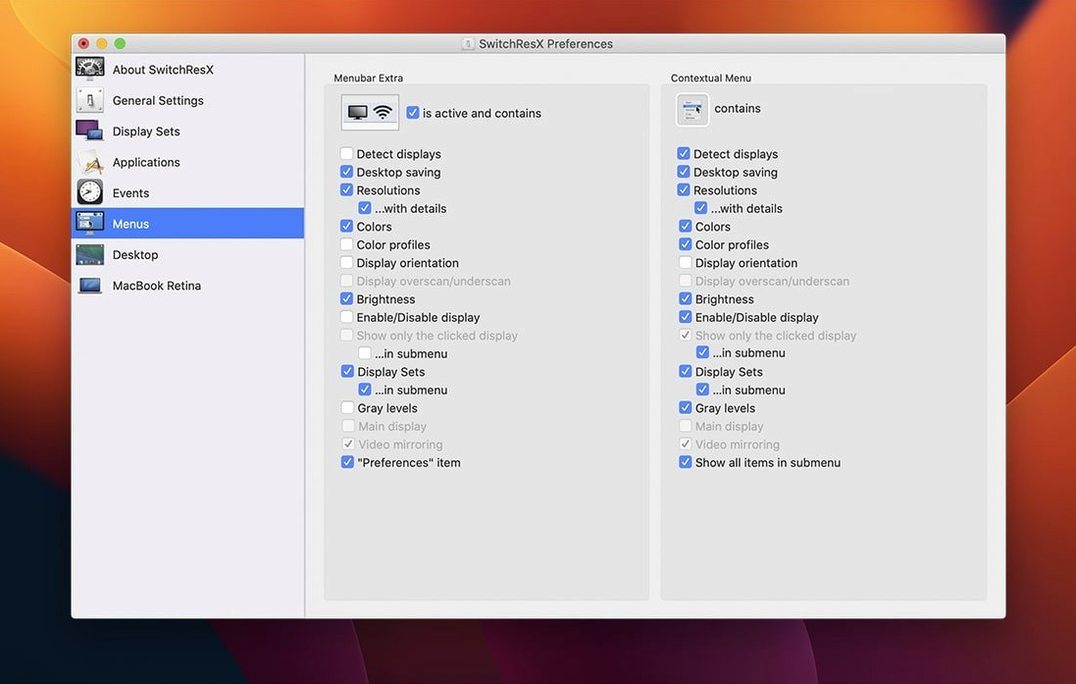
Set up the menu bar shortcut early. The preference lives under General in SwitchResX's own preferences window. A single click on the menu bar icon shows all current resolutions and Display Sets, which is much faster than opening the full application every time you dock or undock.
If you download SwitchResX for a multi-monitor rig, label your Display Sets with the physical location: "Office left portrait," "Client screen boardroom," "Home desk stacked." Generic names like "Set 1" turn into guesswork after a week. The app lets you rename sets freely, no penalty for being descriptive.
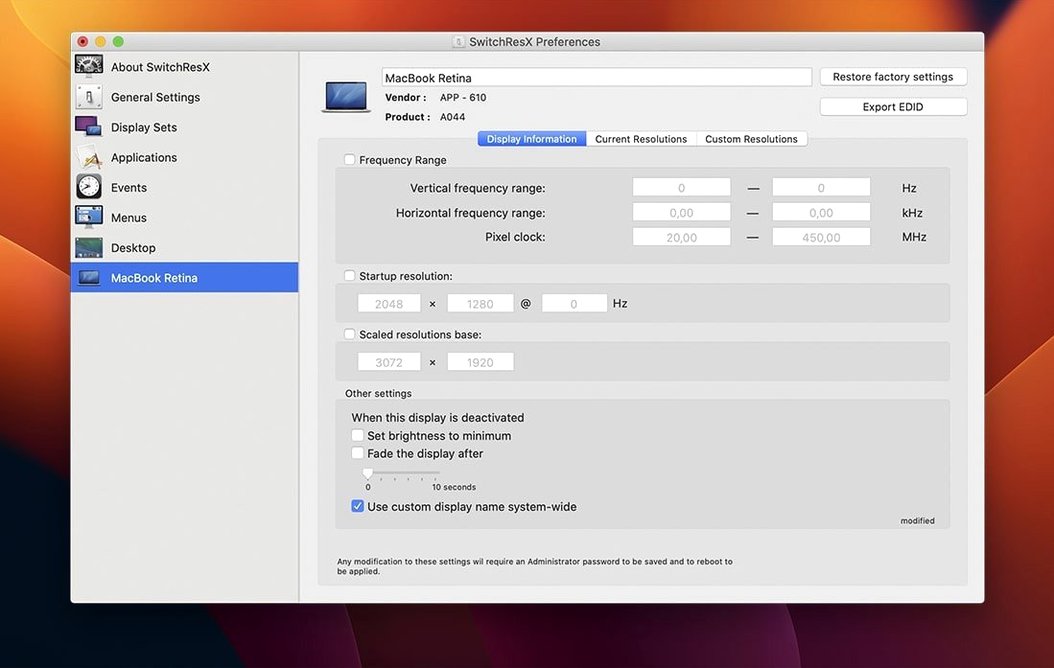
Finally, check the Monitor tab for any display that macOS reports with a blank name. SwitchResX now handles those correctly, but it is worth giving the display a friendly name yourself. Right-click the monitor in the left column, pick Rename, and type something you will recognise in the menu bar list. It saves a squint at the ports when you are in a hurry.
What’s new
- Fixes repeated self-updating of settings when no display is attached.
- Fixes an issue with displays that have no name in macOS.
- Fixes an issue deleting a Display Set used after another Display Set.
- Allows quitting the Dock when disabling a display on Apple Silicon Macs.
Requirements
- OS X 10.10 or later
- Intel or Apple Silicon Mac
FAQ
Can SwitchResX handle projectors and HDTVs?
Yes. It works with plasma panels, HDTVs, third-party monitors, and projectors, not just standard computer displays.
Does it do anything besides resolution changes?
It can control monitor color, rotation, and mirroring to a second display, and you can save combinations as named profiles.
Is it compatible with AppleScript?
Yes, SwitchResX is compatible with AppleScript, so you can automate display configuration changes.
Comments 0
Sign in or create an account to leave a comment.
No comments yet…
If you’ve installed it, say how it went. Mention your Mac and macOS version — it helps the next person more than you’d think.