
TextSniper for macOS
Description
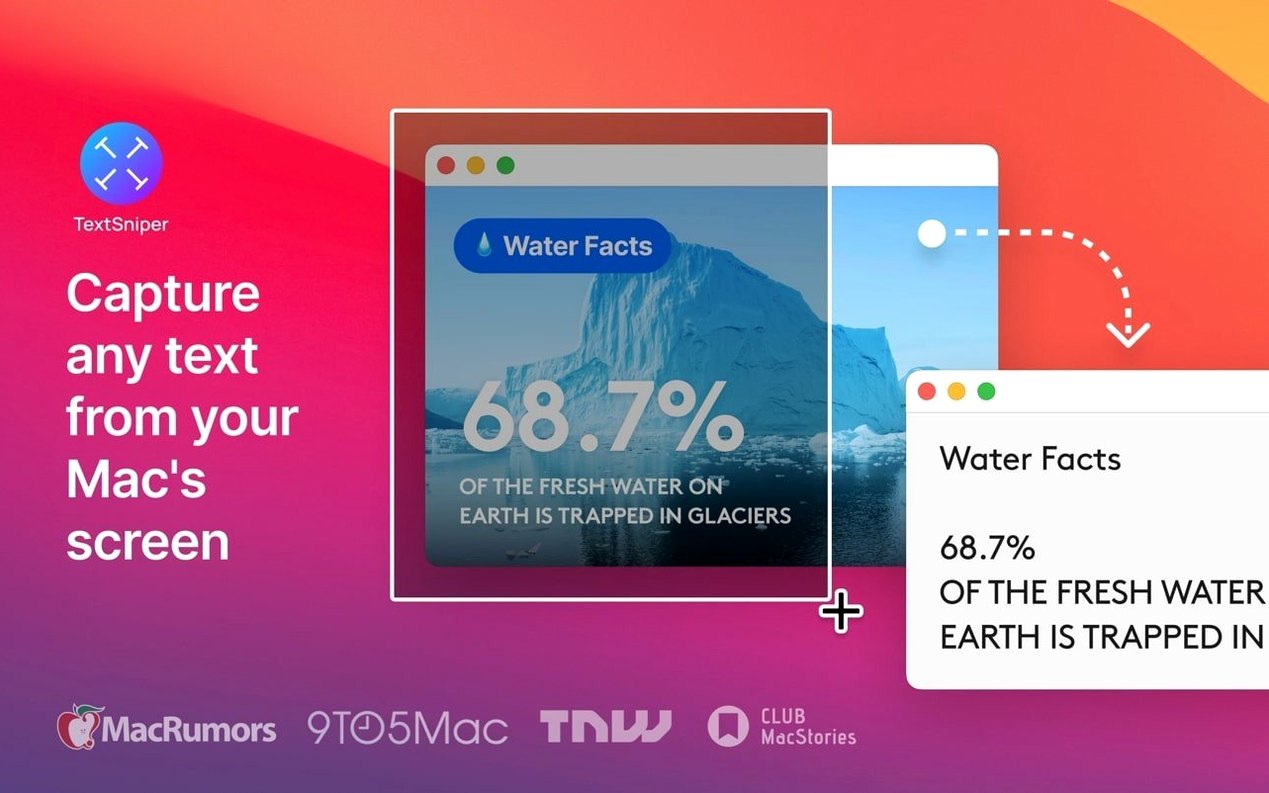
TextSniper is a menu bar app that reads text from any part of your screen and turns it into copyable text you can paste anywhere.
Grab unselectable text with a rectangle
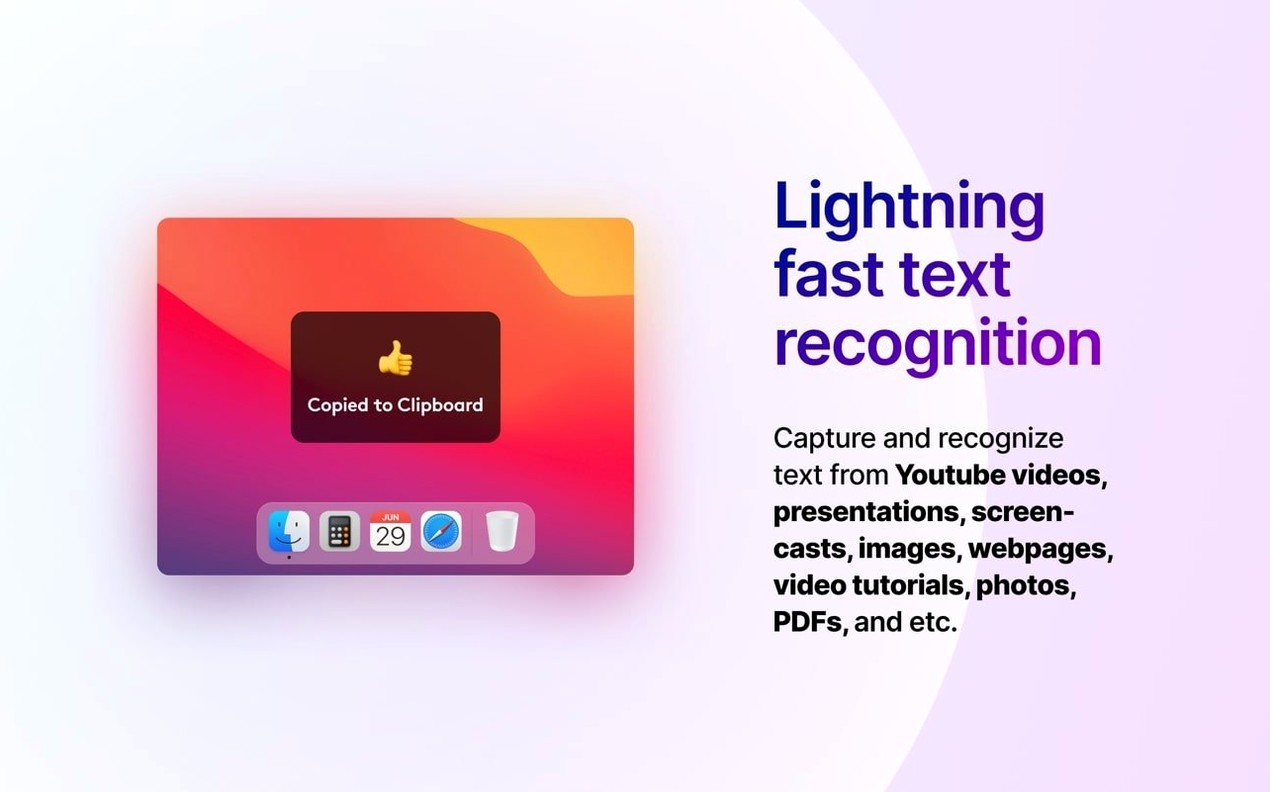
- Draw a rectangle over on-screen text — error messages, video captions, locked PDFs — and it lands on your clipboard.
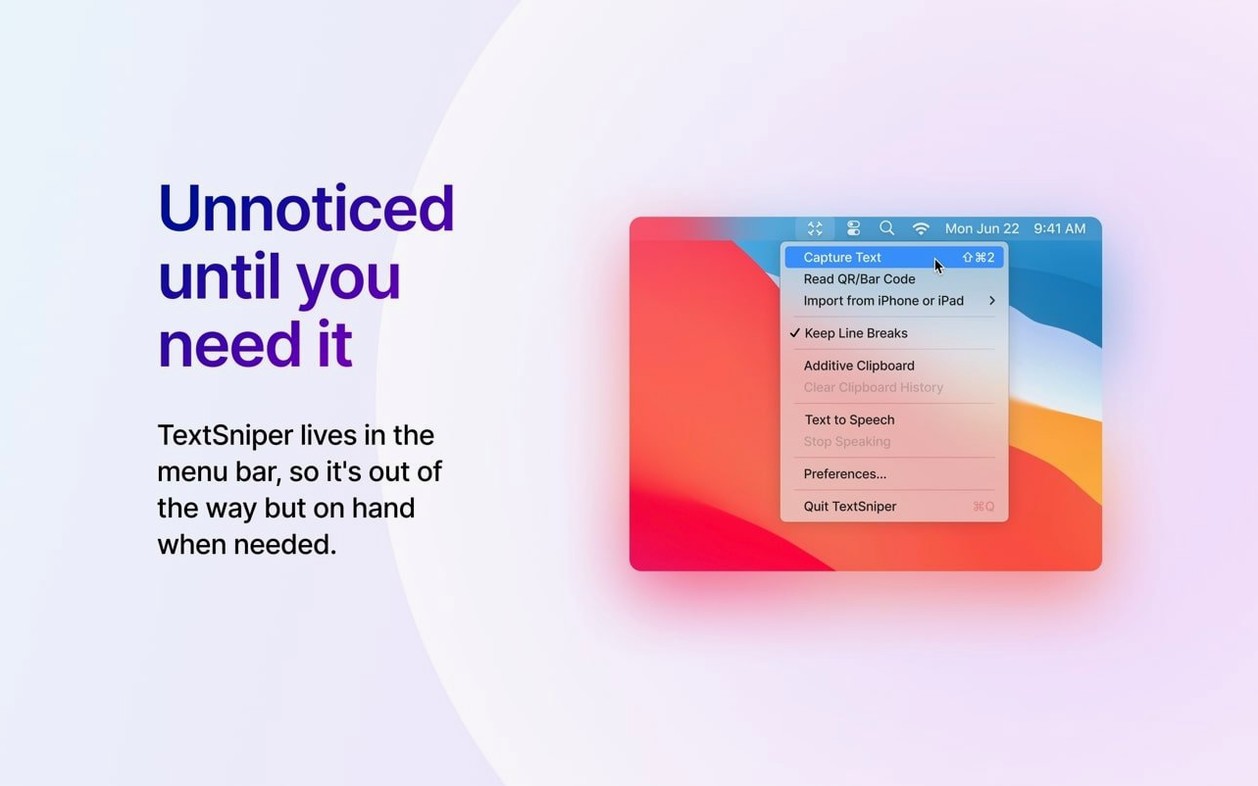
- Works from the menu bar or a custom keyboard shortcut you set yourself.
- Keeps line breaks intact when you need them, so copied paragraphs don't turn into a single run-on mess.
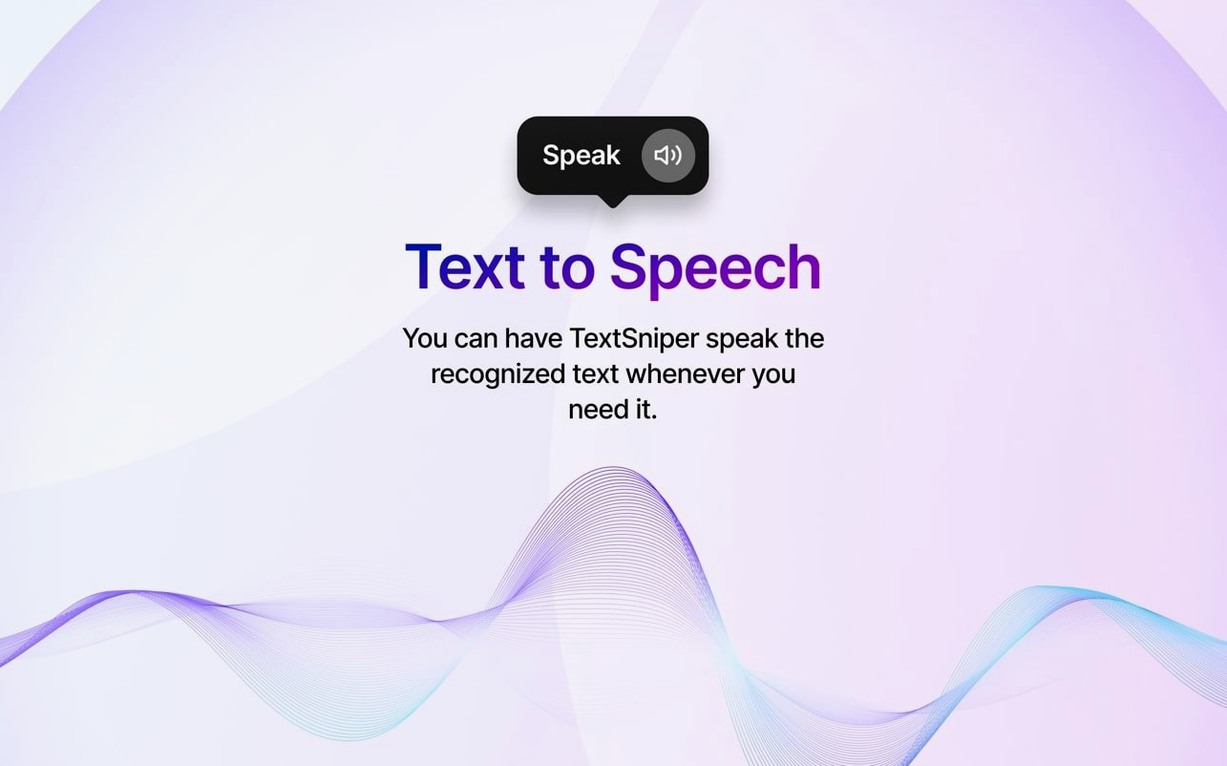
- Text-to-speech built in if you want it read aloud.
- Recognises English, German, Spanish, Italian, Portuguese, French, Traditional Chinese, plus Finnish, Hindi, and Marathi on macOS 27 Golden Gate.
Turn screenshots into real characters
It's a straightforward supplement to the standard macOS clipboard. When you're staring at text that isn't selectable — a JPEG of a document, a flattened design mockup, a screenshot — TextSniper reads the pixels and gives you back real characters. No OCR export workflow, no opening a separate app. It sits quietly in the menu bar and runs on both Apple Silicon and Intel Macs running macOS 12 or later.
Copy hex codes straight from flat PNGs
Designers and front-end developers who receive specs as flat PNGs instead of live text. They select hex codes, copy strings, and paste them straight into code without retyping. Translators working from scanned documents or presentation slides. Anyone who sits through video calls where the speaker shares a slide deck and won't send the file afterwards — snip the key points and you have notes in seconds.
Students pulling quotes from non-searchable PDFs assigned by lecturers who never heard of OCR. Researchers extracting data from graph labels in screenshots. Basically, if you reach for the keyboard to retype something more than twice a day, TextSniper earns its menu bar slot.
Set a shortcut that won't clash
- Change the default shortcut immediately. The stock one clashes with screenshot tools on most Macs. Set it to something your fingers already know —
⌃⌥⌘Sor similar. - Toggle "Keep line breaks" off when grabbing single lines from video subtitles or error dialogs. You get cleaner text without trailing spaces.
- Launch it at login. The app uses negligible resources idling in the menu bar. You forget it's there until you need it.
- Try it on a paused YouTube tutorial. Draw a box around the code sample on screen. It copies without the compression artefacts confusing the OCR.
- If you work with PDFs often, keep the menu bar icon visible rather than hidden by macOS. Clicking it shows your last few snips, which is quicker than pasting into a scratch file.
Leave padding around letters so OCR works
Drawing too tight a box around text. Leave a few pixels of padding — cropping letters at the edges gives the OCR partial glyphs and nonsense output. Same goes for text on busy backgrounds. A clean selection over a solid-ish area works far better than trying to isolate individual words on a patterned slide.
Expecting it to read handwriting or heavily stylised script. It won't. Printed fonts, even at odd angles on a skewed document photo, usually work. Cursive scrawl on a whiteboard does not. Another one: forgetting the app is running, then wondering why their usual shortcut stopped working. Check the menu bar first.
Some people grab text from a Retina display and wonder why the accuracy dips. Scale the source up if you can — zoom the PDF, make the video full screen — before snipping. More pixels per character means fewer misreads. And if you plan to use TextSniper for long documents, snip in sections. One paragraph at a time is faster than fixing a page of garbled text.
What’s new
Adds full macOS 27 Golden Gate support.
Adds Finnish, Hindi, and Marathi recognition on macOS 27 Golden Gate.
Fixes a bug that could break keyboard shortcuts.
Includes minor fixes and stability improvements.
Requirements
- macOS 12 or later
- Works on Apple Silicon and Intel 64-bit Macs
FAQ
Does TextSniper work on older versions of macOS?
No. It requires macOS 12 (Monterey) or later.
Can I change the keyboard shortcut?
Yes. You can set a custom shortcut in the app's preferences.
What languages does TextSniper recognise?
It handles English, German, Spanish, Italian, Portuguese, French, Traditional Chinese, plus Finnish, Hindi, and Marathi on macOS 27 Golden Gate.
Comments 0
Sign in or create an account to leave a comment.
No comments yet…
If you’ve installed it, say how it went. Mention your Mac and macOS version — it helps the next person more than you’d think.