
TechSmith Snagit for macOS
Description
Taking a screenshot is easy. Doing something useful with it afterwards is where most tools stop. Snagit fills that gap.
What does the 2026.3.3 update fix?
This release tidies up behaviour on macOS 27. Video playback controls that had stopped responding work again, arrow keys behave properly when QuickLook is active in the Snagit Library, and capture toolbars can now be dragged where you want them.
What tools come with the capture?
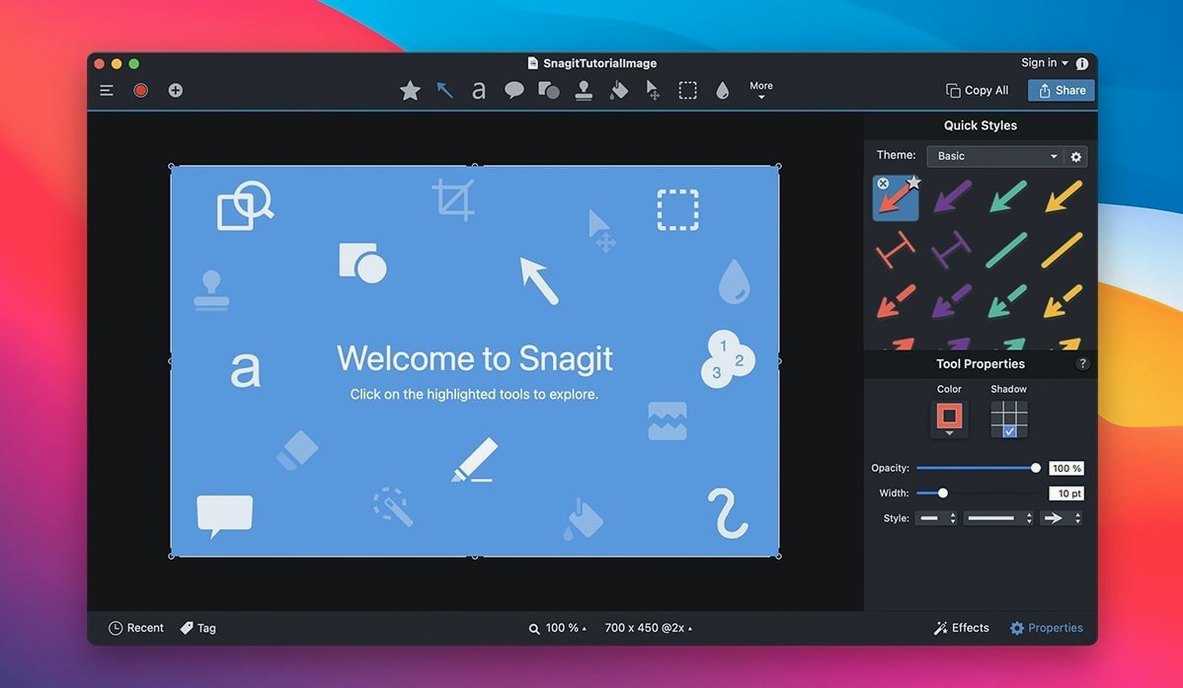
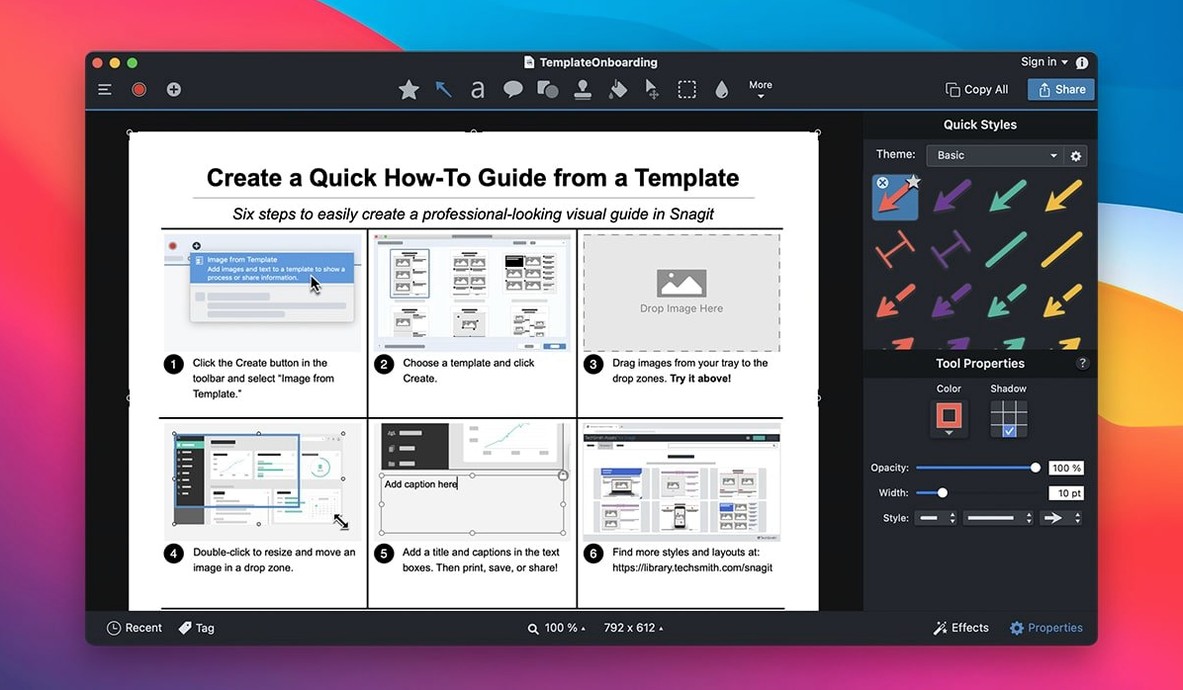
Snagit includes a built-in editor for images and video. You can trim recordings, combine multiple captures into a collage, apply rounded corners, or add a page-curl effect.
How does it organise your work?
Captures are automatically stored in dated libraries. You can search by creation date or source, which beats digging through a cluttered desktop.
Where do finished captures end up?
Beyond the usual file exports, the app can publish directly to Microsoft Office Project, MindManager, and OneNote. Keyboard shortcuts for capture presets speed up the whole routine.
Documenting a bug report with the support team
A support engineer opens a ticket full of vague complaints. She needs to show the developer exactly what the customer saw, not retype a description. Snagit's scrolling window capture grabs the whole settings panel in one image—five screens of checkboxes and dropdowns that would otherwise need three separate screenshots stitched together. She drops it into the editor, arrows the misbehaving toggle, adds a numbered step, and dims everything else on screen so the developer's eye lands on the right spot. Three minutes, one image, no follow-up questions.
Video recording covers the cases where a still isn't enough. She captures twenty seconds of the glitch happening, trims the dead air at both ends, and attaches it to the ticket. The developer gets context without a meeting.
Where Snagit fits in the bigger picture
The app doesn't try to replace your other tools. It feeds them. Captures go straight into OneNote for meeting notes, or into MindManager when you're mapping out a user journey and need screenshots pinned to each branch. Tags assigned in the library carry through when you search later, so a capture tagged onboarding-flow shows up whether you're in Snagit or digging through exported files.
macOS integration is practical rather than flashy. QuickLook works inside the Snagit Library—press Space on any capture and you see it full-size without opening the editor. The share menu hands captures off to Mail, Messages, or AirDrop the same way every other Mac app does. If you've set up custom keyboard shortcuts for your most-used capture presets, they behave like system shortcuts: no menu diving, no toolbar hunting.
For anyone who grabbed the app searching for snagit mac torrent or snagit for mac download and wondered whether it plays nicely with the rest of macOS, the answer is yes. It stays out of the way until you summon it, then hands you a file you can use anywhere.
Set two capture presets to unlock full-screen and region tools
Most people install capture software and use 10% of it for months. These four things make the other 90% show up sooner.
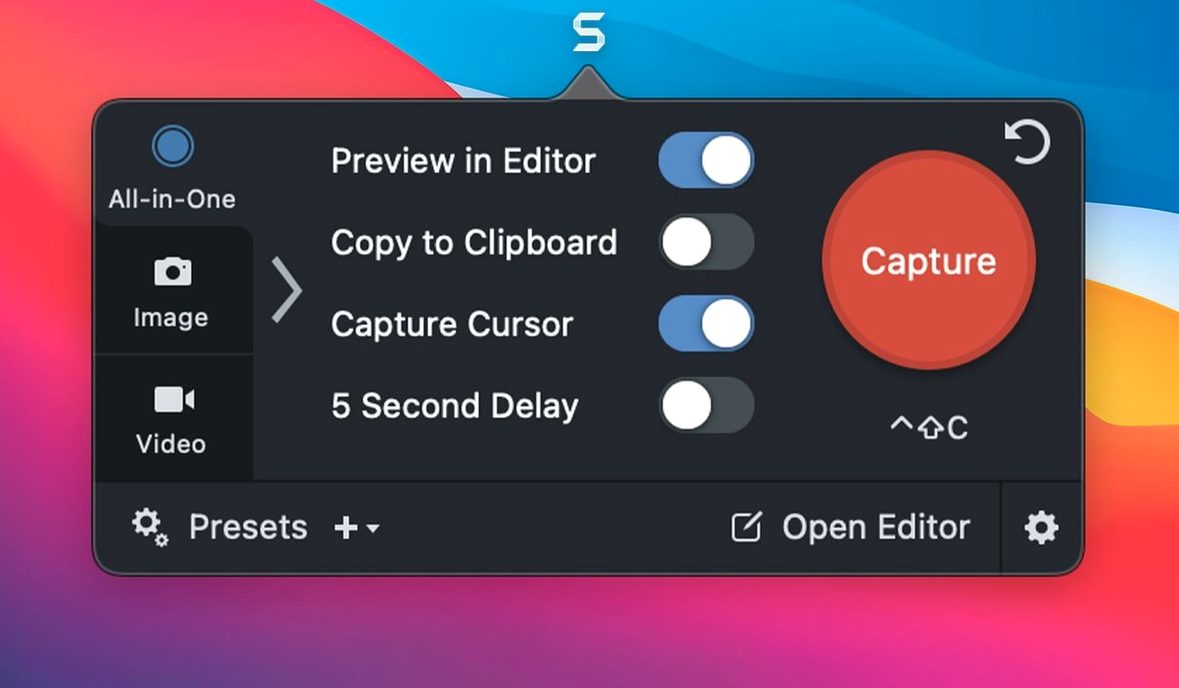
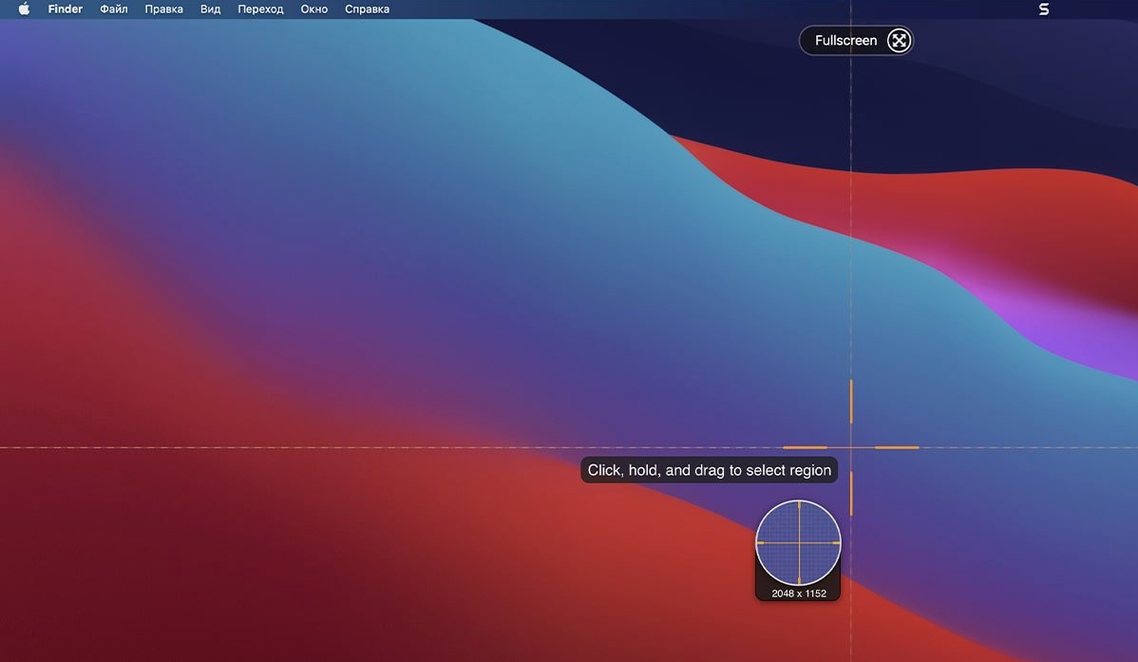
Set two presets on day one. You'll use the full-screen and region captures automatically. Add one for scrolling windows and one for a fixed 1280×720 video region. Assign each its own keyboard shortcut in Snagit's preferences. You'll reach for them within the week.
Tag before you close. The library fills up fast. Tagging a capture takes three seconds while the editor is still open. Two weeks later, when you need every screenshot of the checkout screen, you'll search once instead of scrolling through two hundred thumbnails. Tags are the difference between a library and a pile.
Learn the dim-and-arrow pattern. The editor's step tool is fine for numbered instructions, but the fastest way to direct attention is a dimmed background plus one arrow. Select the area you want to highlight, invert the selection, apply the dim effect. Add the arrow. Done. You'll use this more than any other annotation.
Check the video trim handles. Snagit's video recording isn't a full editor, but the trim handles at each end of the timeline are precise enough to cut the awkward silence before you started talking. Drag them, preview, save. No re-recording needed.
What’s new
Version 2026.4.0 brings the latest round of fixes and refinements to keep captures working reliably.
Requirements
- macOS 15 or later
- Apple Silicon or Intel 64-bit
Comments 0
Sign in or create an account to leave a comment.
No comments yet…
If you’ve installed it, say how it went. Mention your Mac and macOS version — it helps the next person more than you’d think.