Techtool Pro for macOS
Description
Volume Cloning in Techtool Pro 20 goes beyond a simple copy. It can create a bootable emergency partition directly on your active system volume, no DVD needed. When a drive starts throwing SMART errors, that clone is your ticket back to work while you diagnose the original.
Tools you'll actually dig for
- Bad-block recovery. Scans spinning hard drives for damaged sectors and attempts to recover readable data before the block is remapped into oblivion.
- Techtool Protection. Runs in the background, monitors for abnormal system behaviour, and throws an on-screen warning — plus an optional email alert — before a small hiccup becomes data loss.
- Volume cloning with verification. The latest build corrected a File Sync failure during verification, so the clone you make is the clone that boots.
What the monitor sees
Techtool Monitor's background checks catch the oddities. A recent crash on launch was fixed in 20.1.7, so the tool can get on with its actual job: watching for I/O errors, temperature spikes, and filesystem inconsistencies that Disk Utility glosses over. It is not a set-and-forget promise. It is a second pair of eyes for machines that have lived through a few too many macOS upgrades.
Taking it for a spin
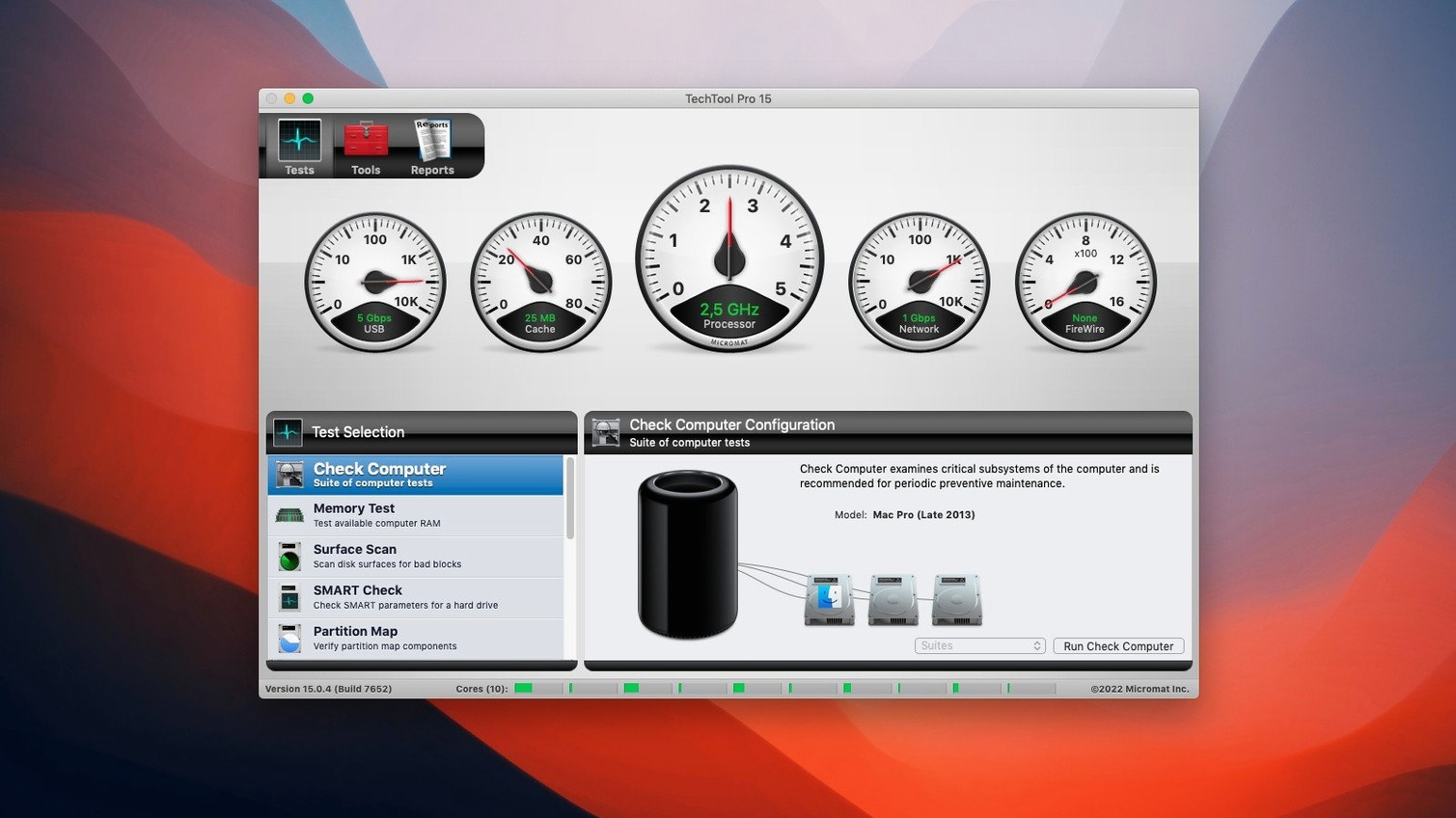
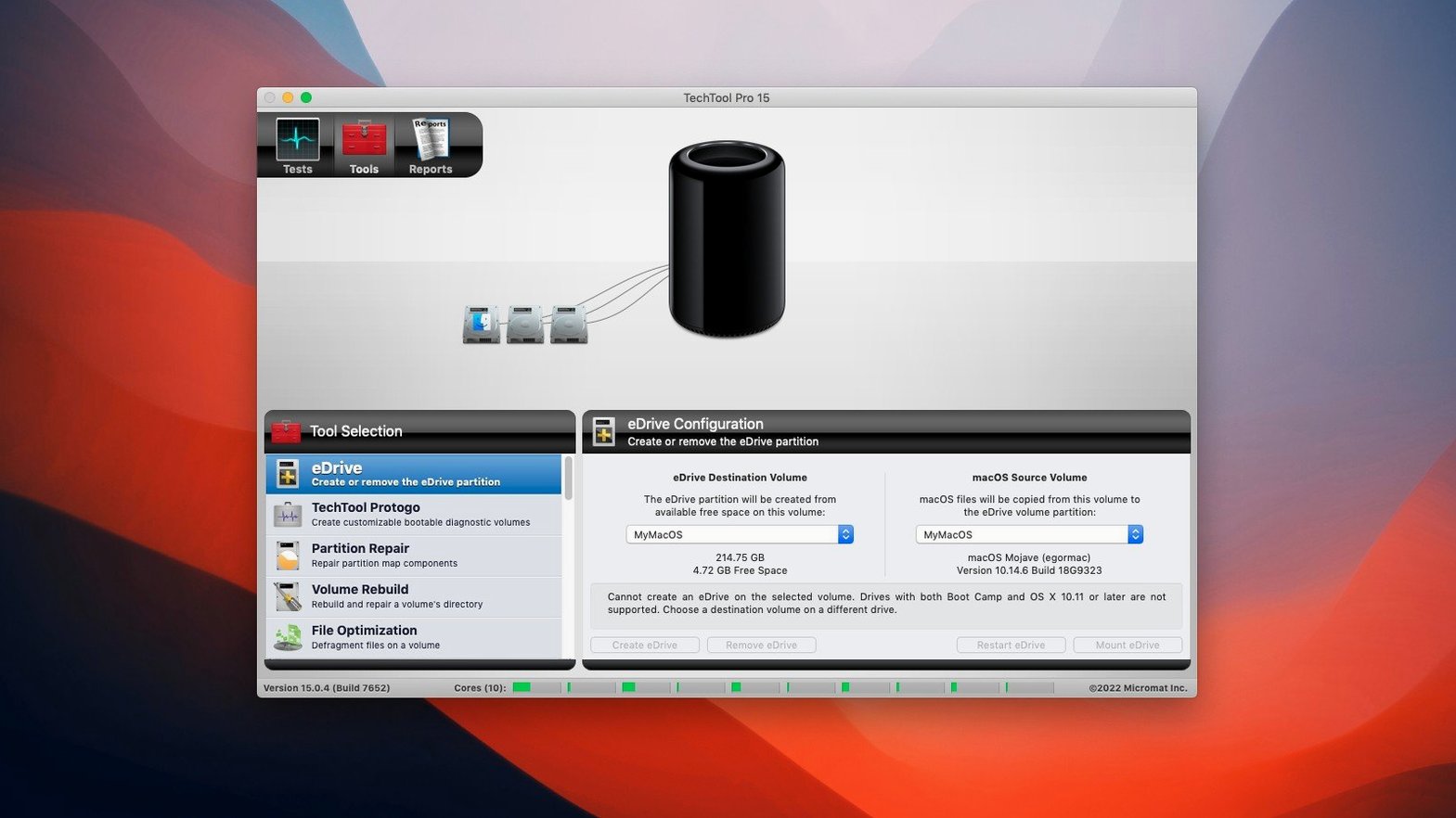
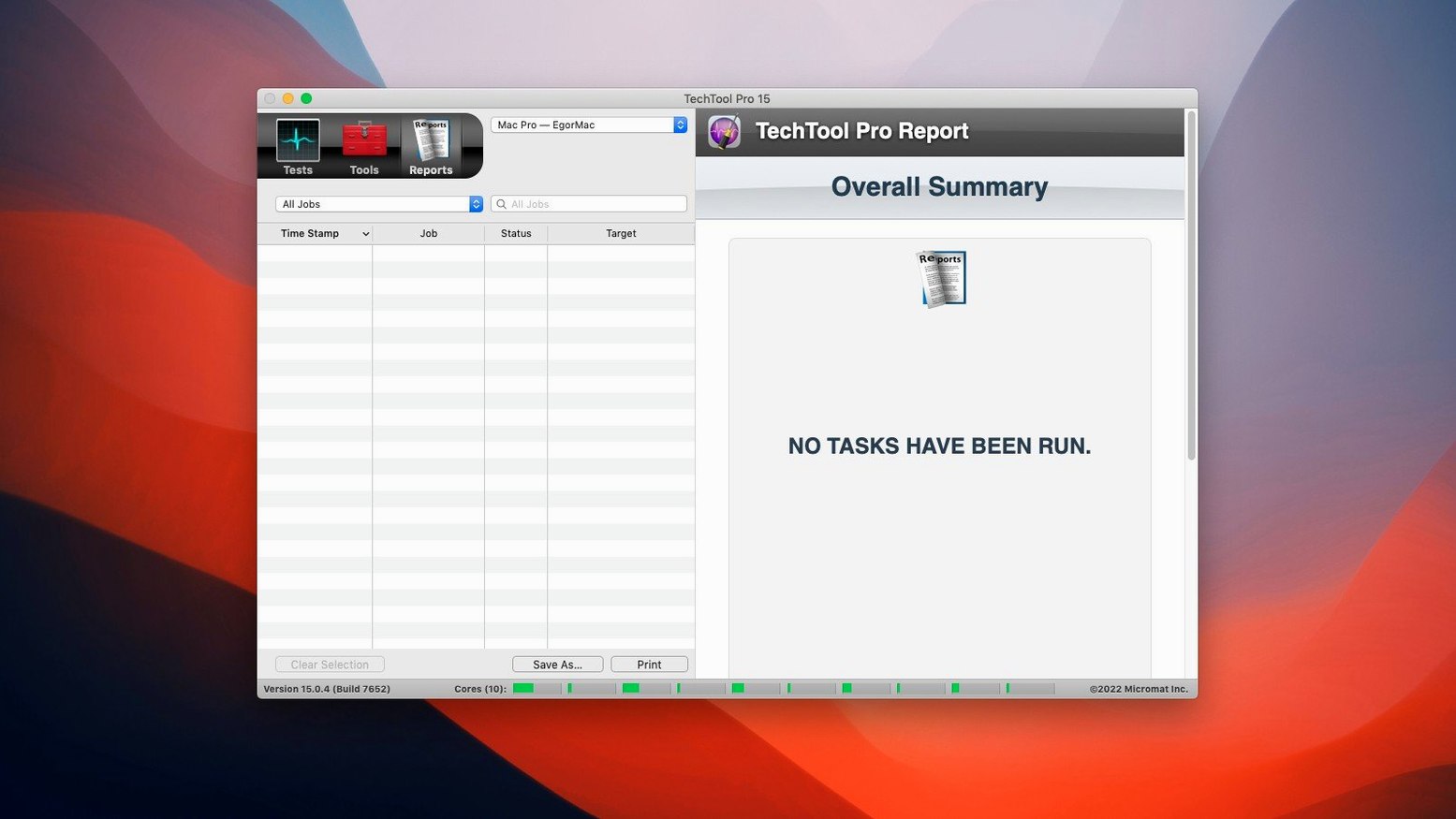
A first run after a fresh install is the sensible place to start. Open the app and you get the main suite overview — a grid of tests and tools. Pick the machine's boot volume from the device list on the left and let the SMART test run first. It usually finishes in under a minute and either gives you a clean bill or a reason to pay attention. With that out of the way, queue up the Volume Structure test. While it chugs through directories and catalog files, Protogo sits quietly in the sidebar, waiting for the moment you decide to build a bootable rescue drive.
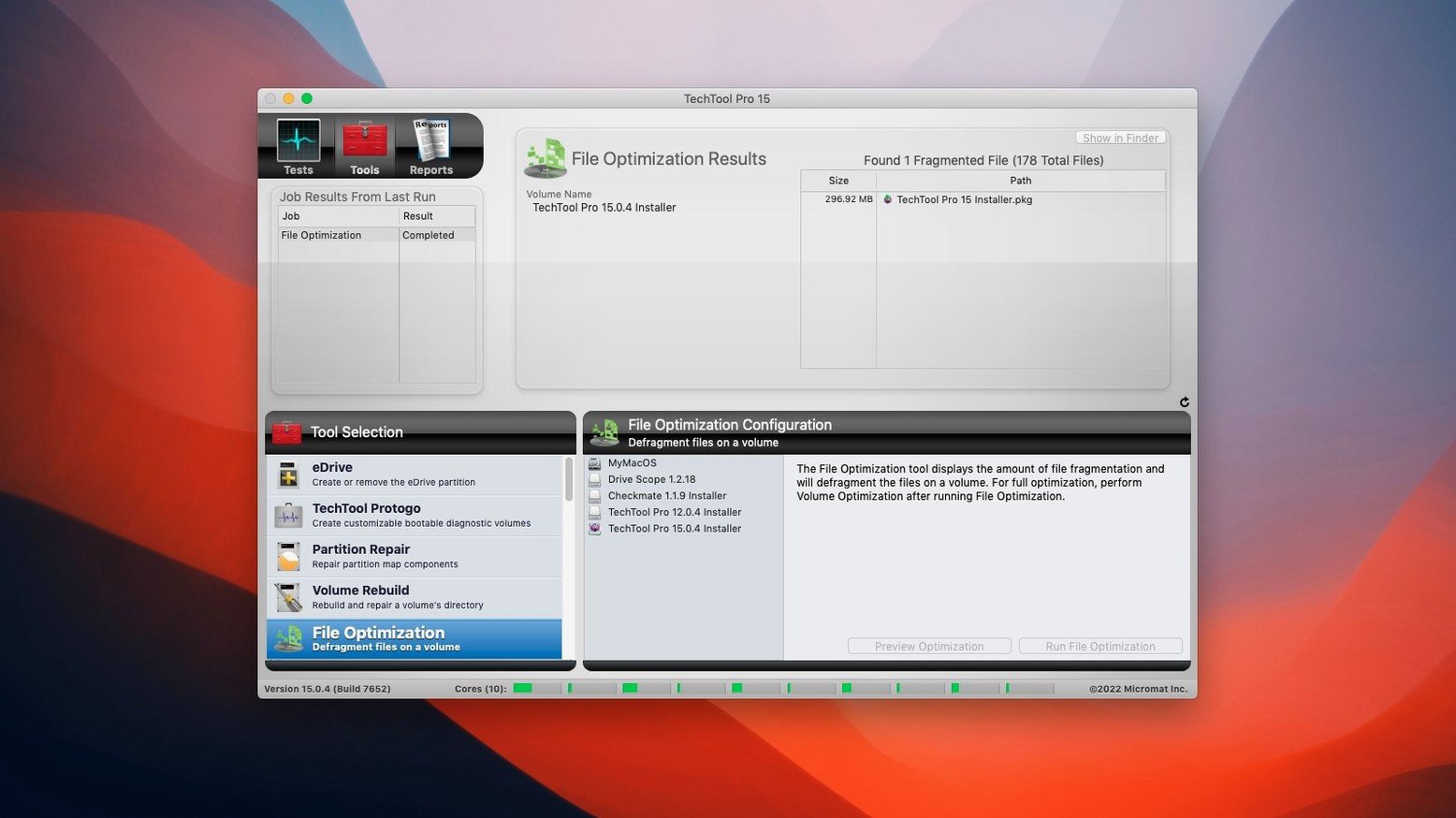
Once the structure test completes, the real decision arrives. If it found damage, the Repair button lights up. Press it and Techtool Pro unmounts the volume, fixes what it can, then remounts. No rebooting into Recovery, no command line — just a progress bar and a log you can scroll through afterwards. The whole session, from launch to a fixed directory, can take under ten minutes on an SSD. On a spinning disk with bad blocks, the file recovery module adds time, but the block-by-block scan runs in the background while you carry on with other work.
A repair shop regular
Picture a small independent Mac repair shop. Three machines sit on the bench, and each one arrived with a different story: one won't boot, one keeps kernel-panicking under load, and the third belongs to a photographer who accidentally emptied the wrong folder. The technician boots the first Mac from a Protogo USB stick built weeks earlier, clones the failing drive to an external SSD, then hands the clone back to the customer as a working stopgap. The original drive goes onto the test rig for a full surface scan. That scan picks up six bad blocks inside a Lightroom catalogue file. Techtool Pro recovers four of them, pulling out enough data that the customer's wedding-edit deadline survives the ordeal.
Pre-migration housekeeping
A common workflow before migrating to a new Mac: run a full Permissions check on the old machine first. Open Techtool Pro, select the internal drive, and tick only the Permissions tool. It inspects the entire boot volume — system files, user home folders, application bundles — and flags anything that has drifted from expected ownership or access flags. A ten-minute scan on a cluttered 1 TB drive might turn up a few dozen misconfigured Library items and one stubborn printer driver left over from four macOS versions ago. Repair them all in one go. Then run a Volume Cloning pass to an external Thunderbolt enclosure, with File Sync verification switched on. The clone mounts cleanly on the new Mac via Migration Assistant, and the user skips the mystery errors that often follow a dragged-along cruft migration. No installer download needed; the bootable clone becomes the safety net if anything goes sideways. Some folks search for techtool pro 20 serial number details online, but the tool itself does not distract you with activation prompts once it is set up. It just runs the tests, reports the numbers, and gets out of the way — exactly what a utility should do.
Requirements
- macOS 10.13 High Sierra or later
- Works on Intel and Apple Silicon Macs
FAQ
Can Techtool Pro recover files from a failing hard drive?
Yes. Its surface scan tool detects bad blocks and can attempt to recover files stored in those damaged sectors before the drive fails completely.
Comments 0
Sign in or create an account to leave a comment.
No comments yet…
If you’ve installed it, say how it went. Mention your Mac and macOS version — it helps the next person more than you’d think.