SuperDuper! for macOS
Description
macOS Recovery can get you out of a jam, but it won't bring back your exact setup — apps, licences, tweaked preferences and all. A bootable clone does. That's the problem SuperDuper! solves.
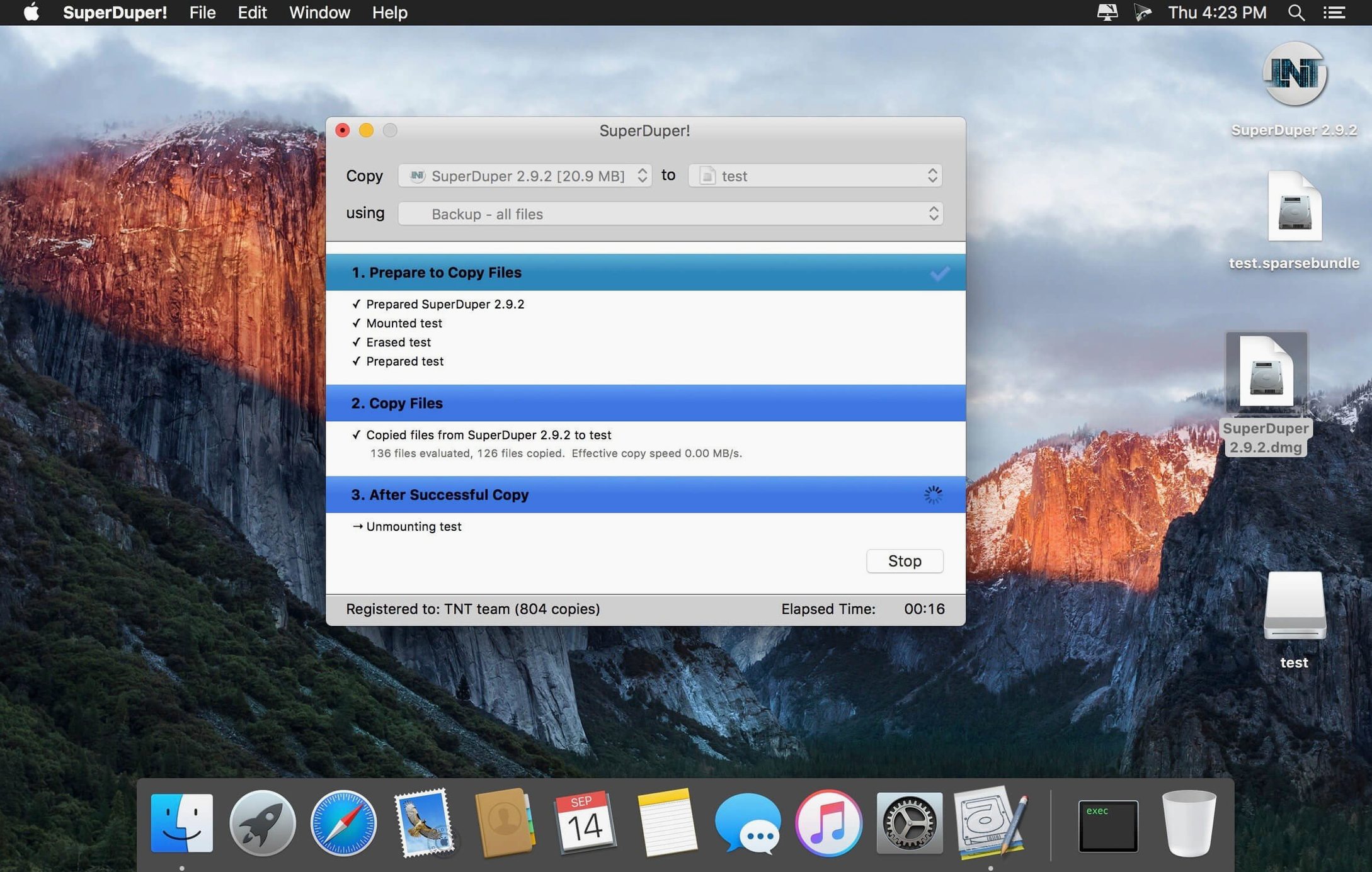
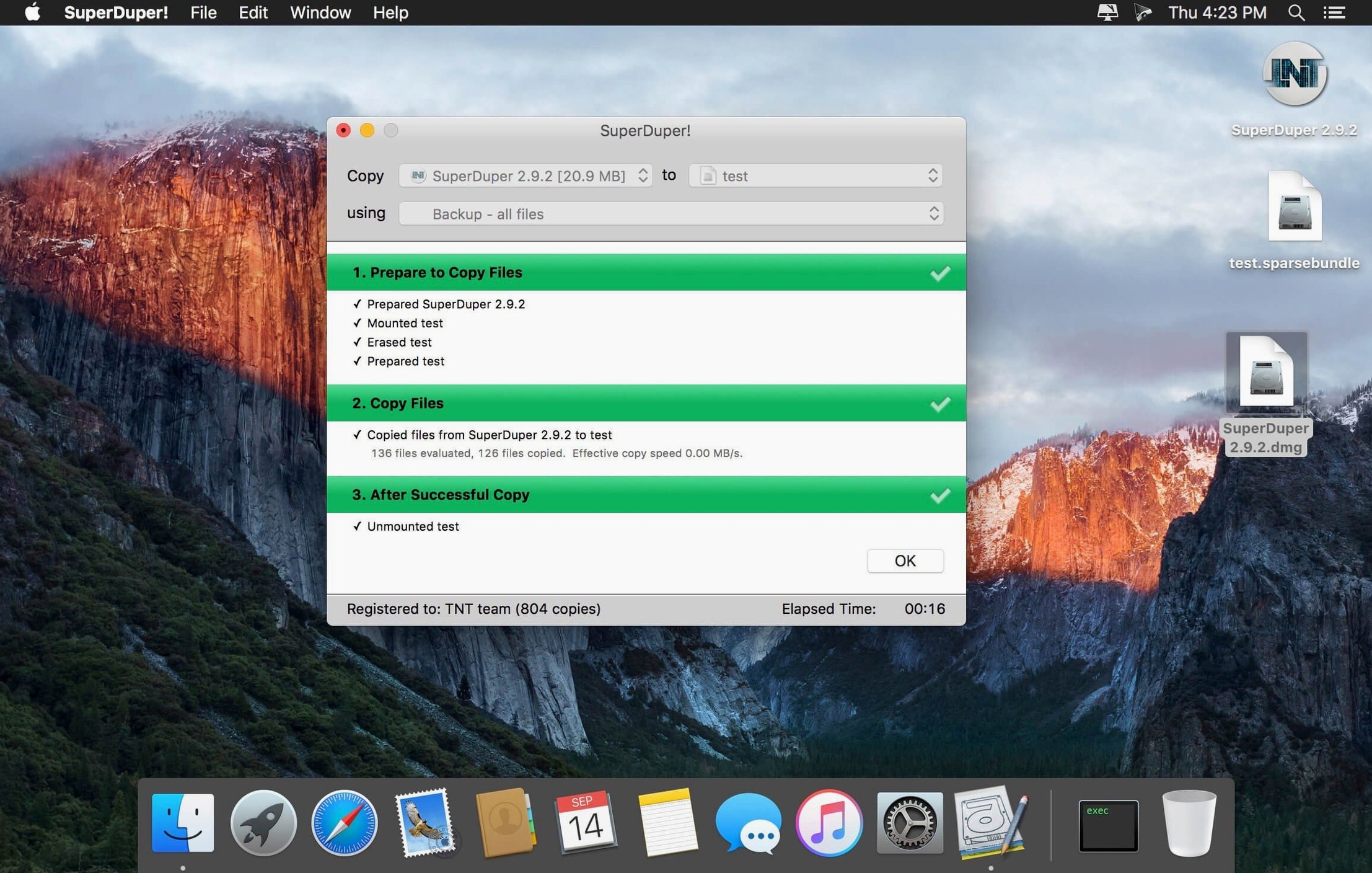
- Pick your source drive and a destination — another internal volume, an external SSD, or even a disk image file.
- Choose a copy script. The default gives you a full, bootable clone. You can also run your own scripts for more granular control.
- Let it run. When it finishes, you have an exact, startable copy of your Mac. Plug it into any compatible machine, hold Option at startup, and you're back where you left off.
It works with both Apple Silicon and 64-bit Intel Macs, and it's happy on anything from High Sierra (10.13) upwards. If you want a backup that doesn't need restoring before you can use it, this is the tool.
Overwriting your boot drive by flipping source and destination
The biggest one is picking the wrong direction. SuperDuper! works left to right — source on the left, destination on the right. Get them backwards and you'll overwrite your boot drive with an empty disk. The app warns you, but people click through warnings.
Another classic: running a clone while actively working on large files. If Premiere is rendering or Lightroom is mid-import, you'll copy half-written files. Let the machine sit idle for the duration. Thirty minutes of patience beats a corrupt clone.
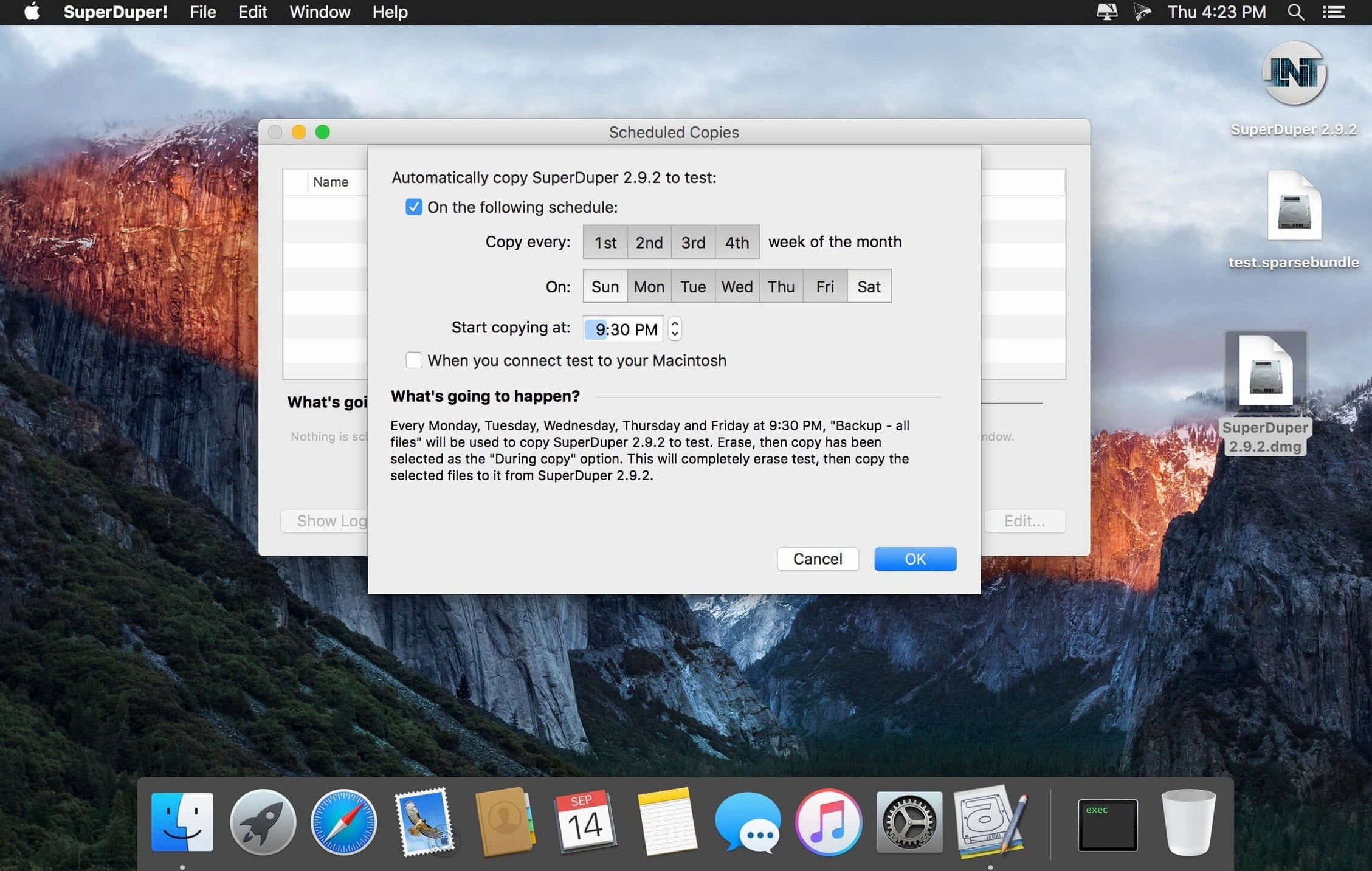
Beginners also assume a scheduled backup will just run. It won't if the destination disk isn't mounted. Connect your backup drive before the scheduled time, or keep it permanently attached. The scheduler doesn't wake a spun-down USB drive either — that's a macOS limitation, not a SuperDuper! bug.
Finally, some people clone to a drive that's smaller than the source. That can work if your data fits, but APFS snapshots and local Time Machine backups sometimes push it over the edge. Check "About This Mac" storage before you start, or use a script that excludes caches and snapshots.
Workflow: migrating to a new Mac
Apple's Migration Assistant is fine. A bootable clone is faster and gives you an exact mirror. Here's the full move, step by step.
- Connect an external SSD to your old Mac. Thunderbolt or USB-C — speed matters, so don't use a spinning drive unless you have to.
- Launch SuperDuper! and set the old Mac's internal drive as source, the external SSD as destination.
- Use the "Backup - all files" script. Leave "Erase destination" checked so the clone is clean. Click "Copy Now."
- When it finishes, shut down the old Mac. Connect the external SSD to the new Mac.
- Hold the power button (Apple Silicon) or Option (Intel) at startup. Select the external SSD.
- The new Mac boots from the clone. Run through the initial setup prompts — macOS may ask to enable Apple ID services on new hardware.
- Once you're at the desktop, launch SuperDuper! again. Reverse the directions: external SSD as source, new Mac's internal drive as destination. Clone back.
- Restart from the internal drive. Done. Every app, every preference, every licence file — exactly where you left them.
If the new Mac ships with a newer macOS version than the clone, boot from the external drive and install the update there first, then clone back. The clone must be at least as new as the hardware's minimum OS. An old superduper mac backup won't boot a machine that requires a later build.
Real-world: the travelling editor
A freelance video editor keeps a 2TB portable SSD in her bag. Before every trip, she runs a scheduled SuperDuper! clone the night before. Her MacBook Pro is the source; the portable SSD is the destination.
On a shoot in Berlin, her internal drive fails. She borrows a matching MacBook from a local rental house, plugs in the portable SSD, holds Option, and boots from it. Twenty minutes after picking up the loaner, she's editing in DaVinci Resolve with all her project templates, LUTs and font cache intact. No downloading, no re-installing, no waiting for iCloud sync. A straight superduper mac download of her entire working environment, carried in her pocket.
Back home, she replaces the failed internal drive, boots from the portable SSD, and clones back. The whole recovery adds maybe two hours to a disaster that would otherwise kill three days.
What’s new
Adds a workaround for a startup-drive visibility issue under macOS 27 Golden Gate.Requirements
- macOS 10.13 or later
- Apple Silicon or 64-bit Intel Mac
Comments 0
Sign in or create an account to leave a comment.
No comments yet…
If you’ve installed it, say how it went. Mention your Mac and macOS version — it helps the next person more than you’d think.