
Shadowrocket for macOS
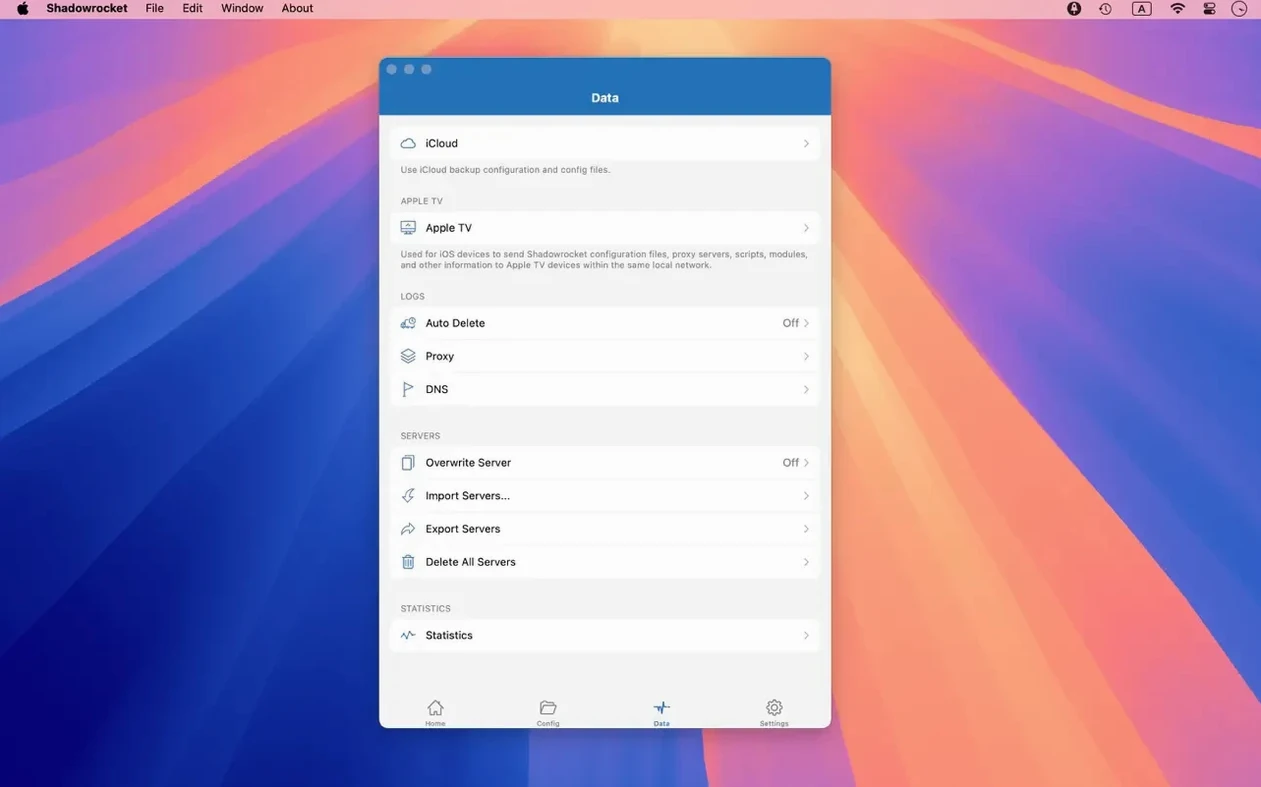
Description
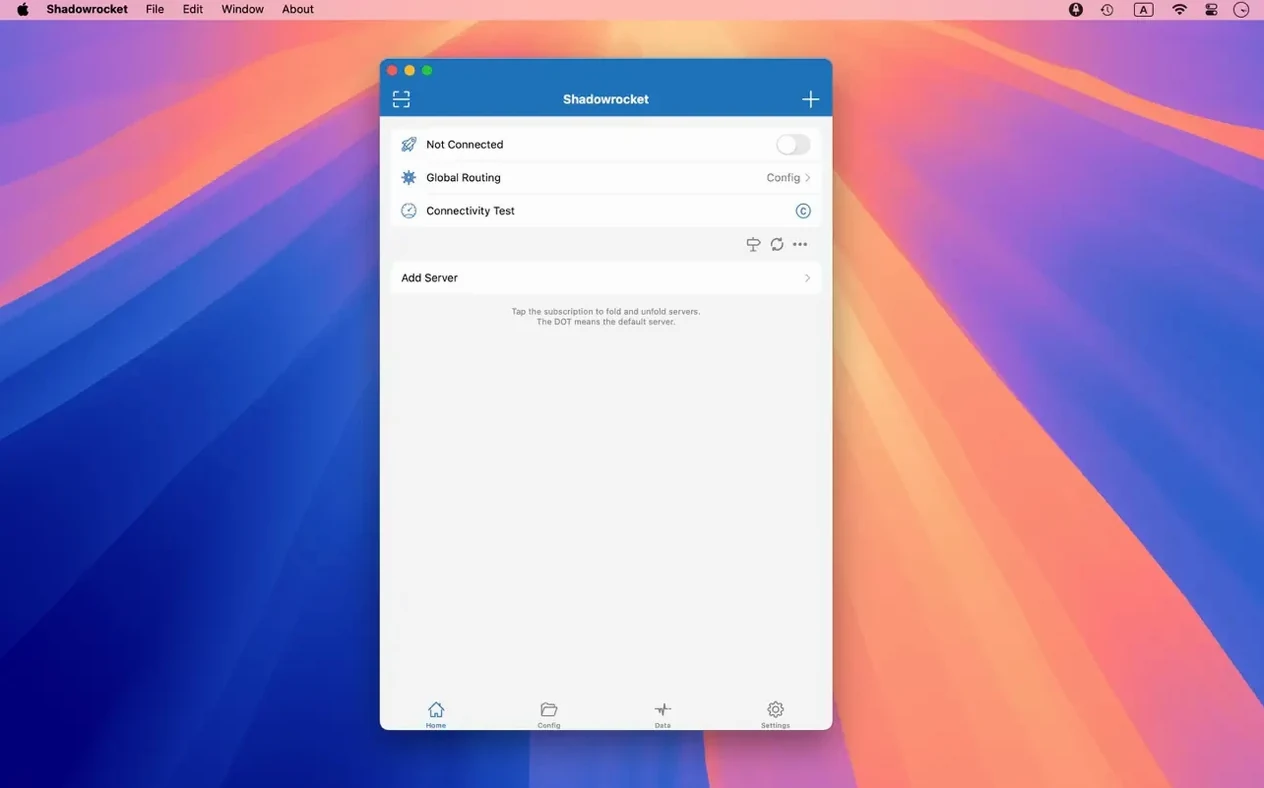
The 2.2.92 update tidies up a handful of interface rough edges. Server tables, the menu bar and the Dock icon all behave more predictably now.
Filter traffic with fine-grained rules
Decide exactly which apps or sites use the proxy. Rules match domains, suffixes, keywords, CIDR IP ranges or GeoIP lookups — and you can rewrite URLs on the fly.
Block ads without a separate extension
Domain and user-agent rules catch requests before they load. It is not a full content blocker, but it stops a surprising amount of rubbish at the network layer.
Plug in the transport you need
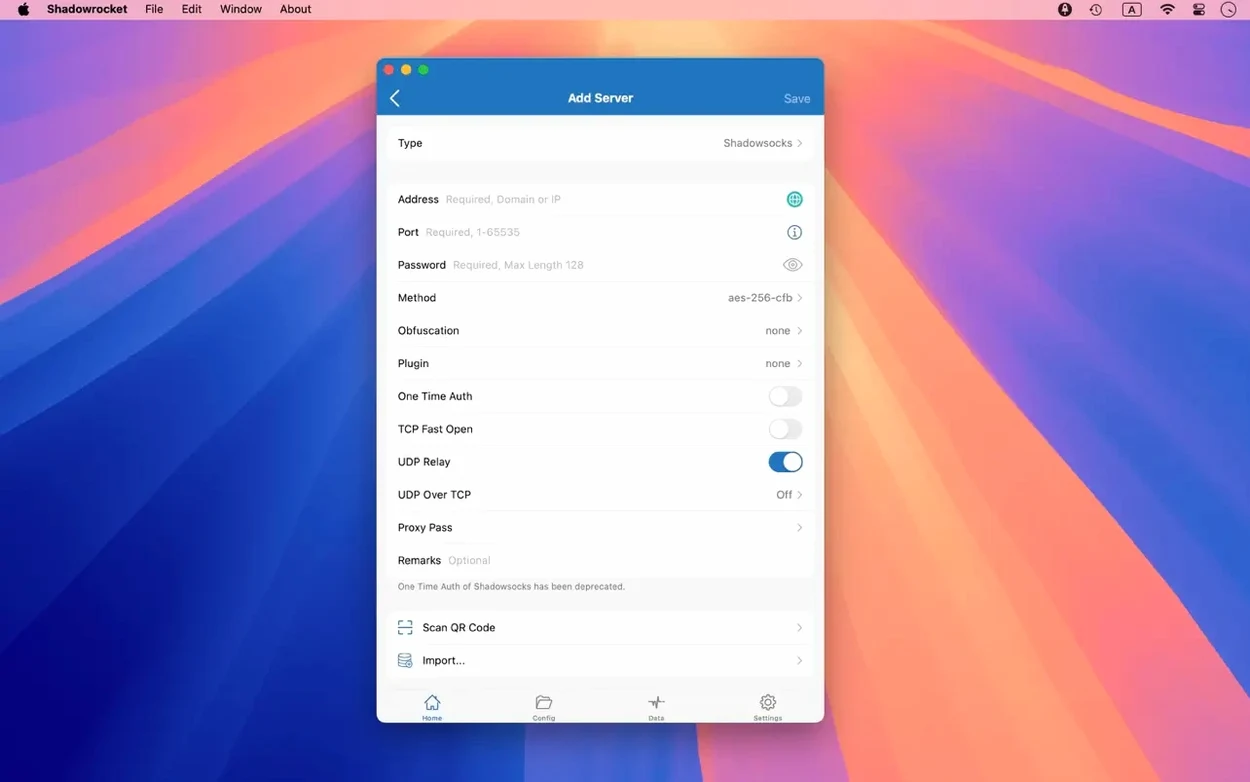
kcptun, cloak, gost and v2ray plugins all slot in alongside standard proxy protocols. Combined with DNS over HTTPS, TLS or QUIC, the tool adapts to whatever your server expects.
Launch at login and lock down loose ends
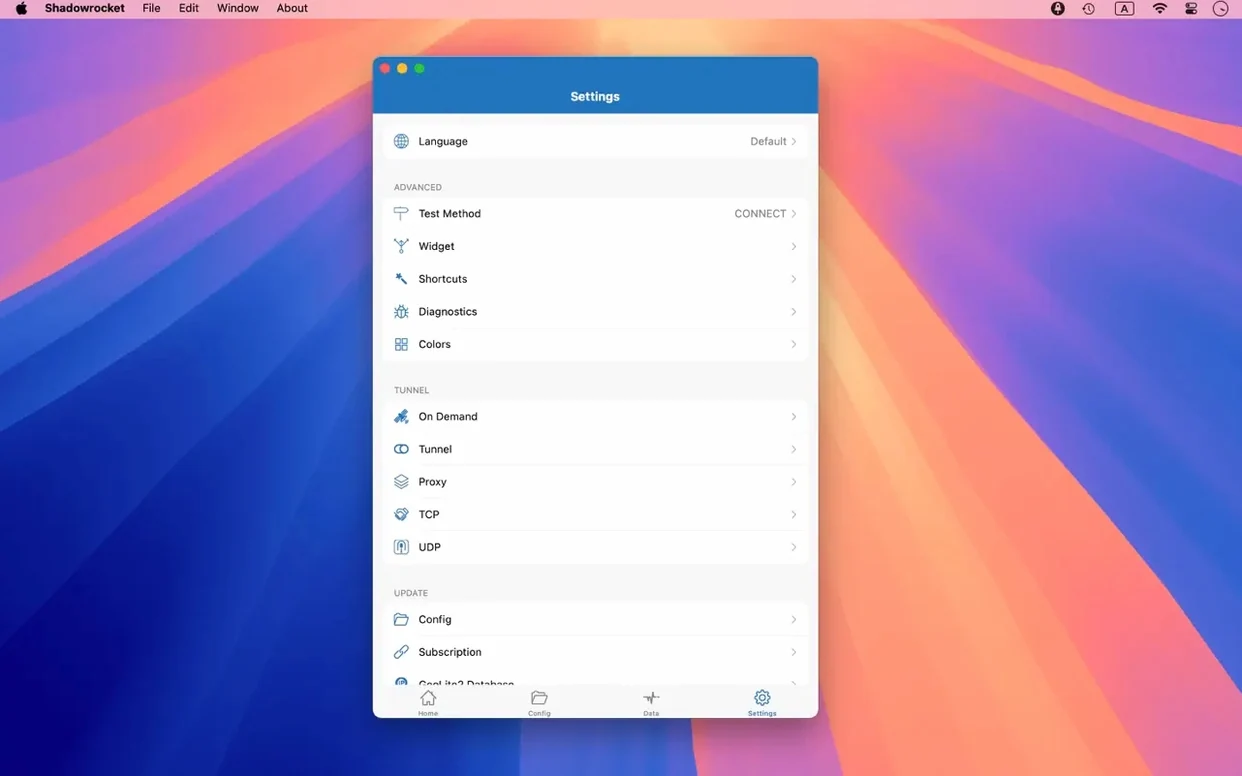
Out of the box, Shadowrocket works but leaves a few doors wide open. Spend two minutes in preferences and the app becomes far more useful.
- Launch at login. On the General tab, tick Start on boot. If the proxy is your default way online, you want it running before anything else tries to connect.
- DNS server. The app can use system DNS, but switching to DNS over HTTPS or DNS over TLS under the DNS settings keeps your lookups off the local network. Cloudflare and Quad9 are built-in options.
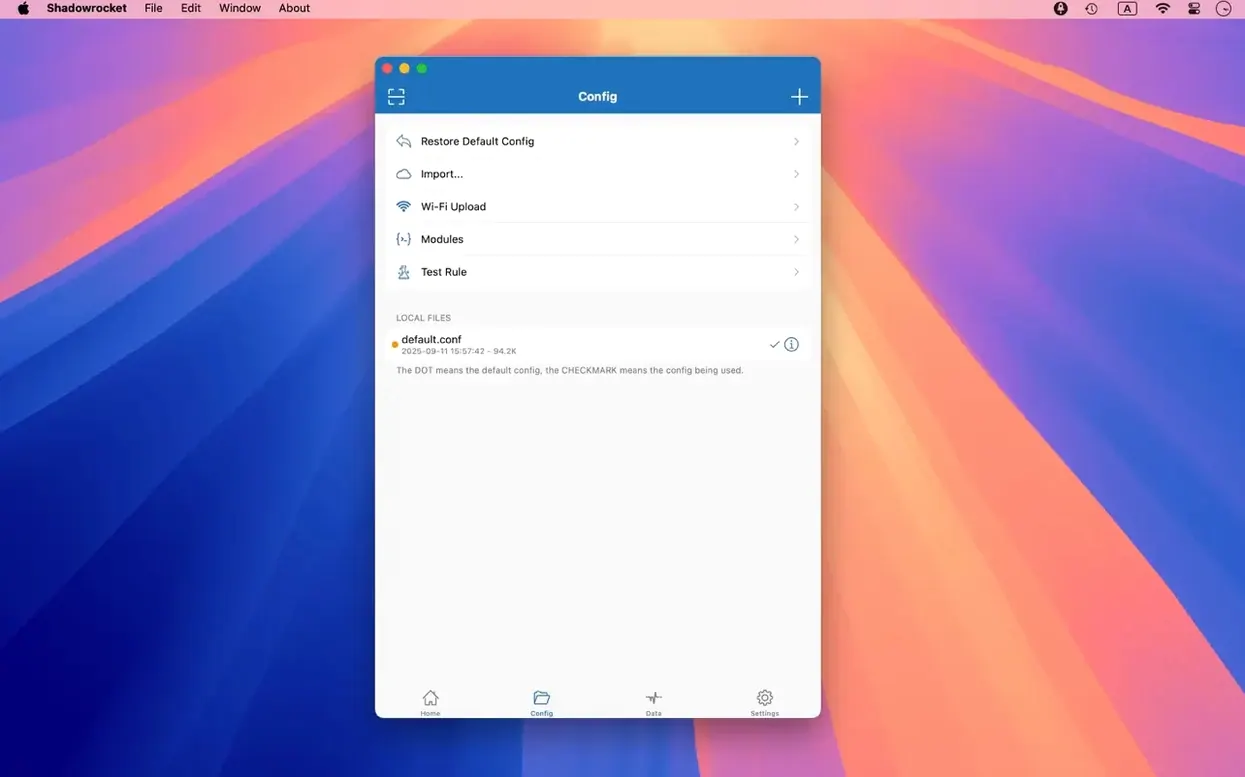
- Rule update interval. If you import rule sets from a URL, set a reasonable refresh — every 6 or 12 hours — so blocked domains stay current without hammering the remote server.
- Traffic display. Enable the menu bar speed indicator. A tiny upload/download counter in the menu bar tells you at a glance whether traffic is actually flowing through the proxy or sitting idle.
Routing a Warsaw dev’s *.staging.company.jp through Tokyo
A front-end developer based in Warsaw works for a company whose staging servers sit behind a firewall in Tokyo. Without a proxy, the staging dashboard times out. With Shadowrocket, she sets a domain-suffix rule so *.staging.company.jp always routes through a V2Ray server in Tokyo. Everything else — Google searches, Spotify, local bank sites — uses the direct connection.
During a video call, she notices the connection stuttering. She opens Shadowrocket's traffic list, sorts by speed, and spots a backup job uploading 200 MB to a cloud bucket. She adds a temporary rule to send that bucket's domain to the proxy, where a tighter upload cap smooths things out. No need to dig through system settings or restart the call.
After work, she imports a community ad-block rule set from a URL she keeps in Notes. The next morning, three news sites load without their usual tracking scripts. Her machine did not need a browser extension, and the rules apply to every app on the Mac.
Right-click the log to create a rule instantly
- Right-click a request in the log. You can add a rule from any logged HTTP, HTTPS or DNS request in two clicks. No need to type domain patterns by hand.
- Local DNS mapping. Under DNS settings, you can map a hostname to a local IP. Handy when a container or a Raspberry Pi on the LAN has no public DNS entry.
- Proxy chaining. The multi-level proxy setting lets one proxy forward to another. If your office SOCKS5 server only accepts connections from a specific VPS, chain them instead of reconfiguring the server.
- Script filters. A small JavaScript hook runs on each request. Use it to rewrite headers or skip the proxy for a niche condition that the built-in rule types cannot express.
- Dock icon badge. Enable it in preferences. The badge shows active connection count. A zero badge means nothing is routing — quick sanity check before you wonder why a site will not load.
Shift-click server rows without the flicker
Version 2.2.92 is a tidy-up release. The server table used to misbehave when selecting multiple entries with Shift-click — rows would deselect or the highlight would flicker. That is fixed. The menu bar drop-down and Dock icon now reflect connection state more reliably after waking the Mac from sleep, which used to show a disconnected icon while traffic was still moving.
Earlier 2.x builds brought full IPv6 support, which matters on networks where the ISP assigns IPv6 addresses by default. Without it, some requests would leak around the proxy entirely. The addition of DNS over QUIC in an earlier update helped on unstable Wi-Fi networks where TCP-based DNS queries timed out; QUIC retries faster and keeps the proxy responsive during network hiccups.
The script filter engine received a quiet performance fix in a recent 2.x release. Complex scripts that inspected every request body no longer cause the UI to stutter. For most people that means editing scripts does not feel like wading through treacle, even with hundreds of requests per second flowing through the log.
What’s new
Fixes UI bugs in the server table, menu bar and Dock icon.Requirements
- macOS 10.15 or later
- Intel or Apple Silicon Mac
Comments 0
Sign in or create an account to leave a comment.
No comments yet…
If you’ve installed it, say how it went. Mention your Mac and macOS version — it helps the next person more than you’d think.