
Sensei for macOS
Description
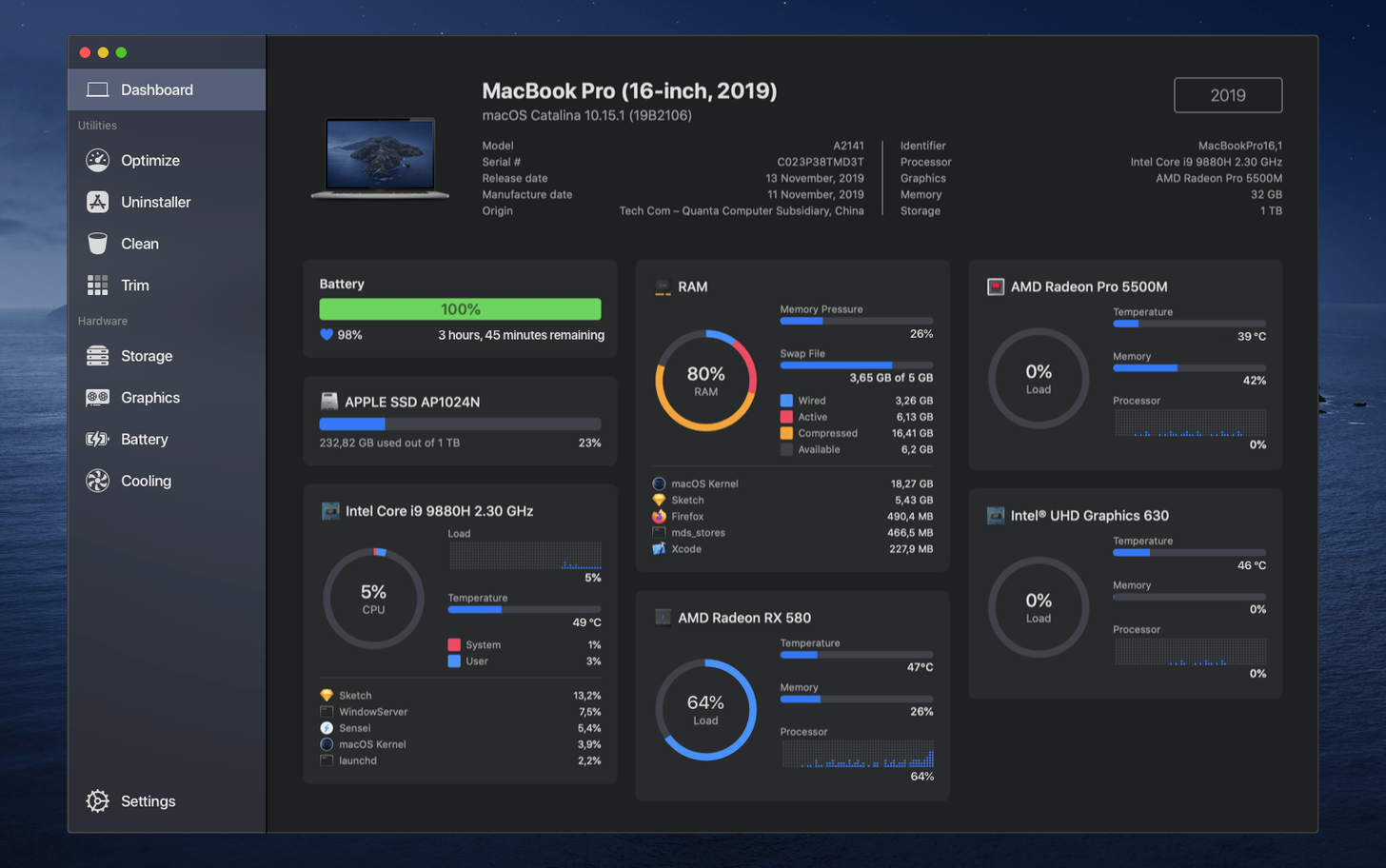
The problem with most Mac cleaners is they leave you guessing. You see a graph of junk files but have no idea if your GPU is throttling or which process is cooking the CPU. Sensei bundles cleanup with a set of monitoring tools that give you that picture.
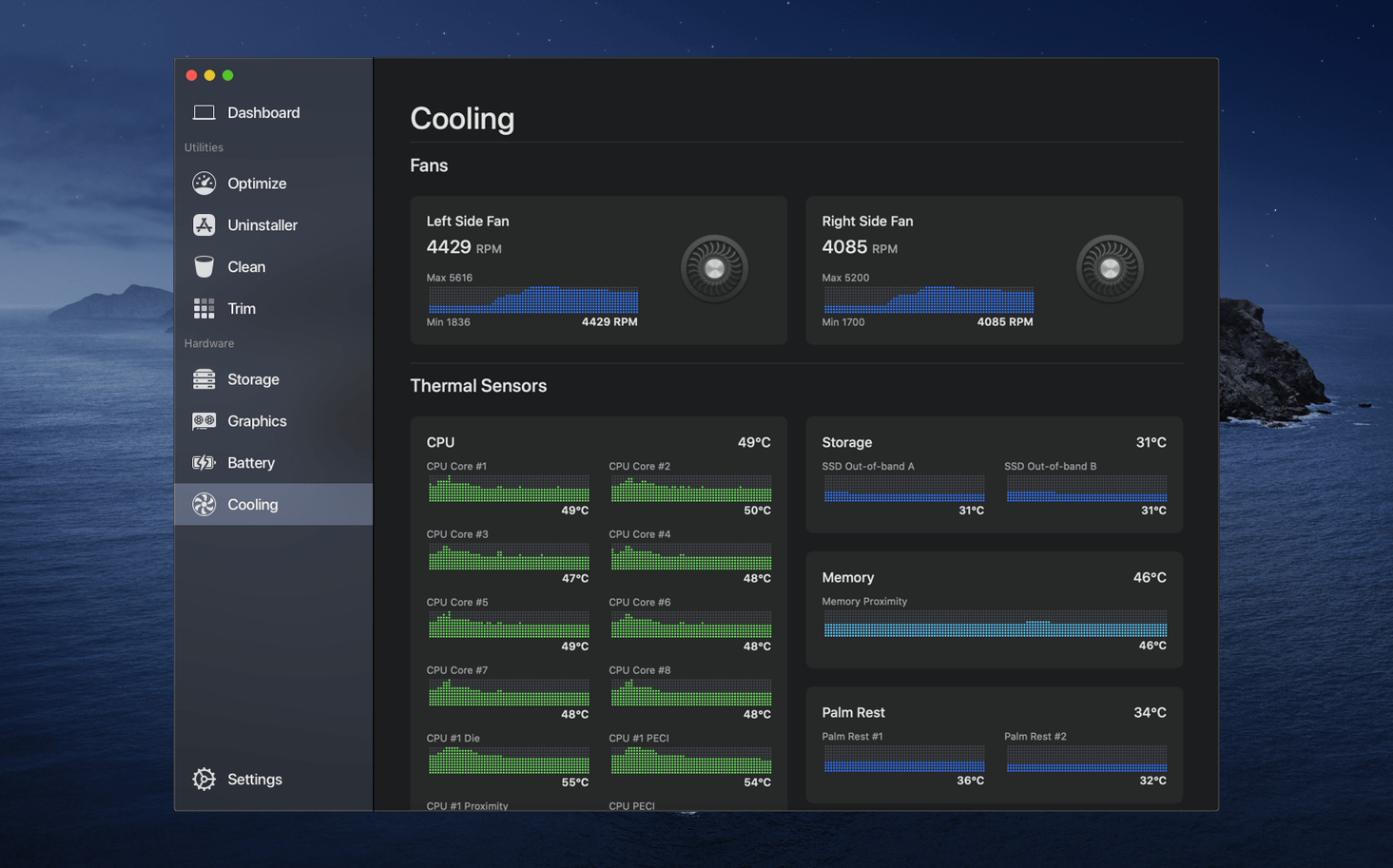
- Check the thermal state. Open the Dashboard and watch the temperature sensors. You can see exactly when a render pushes the GPU past 90°C and how fast the fans spin up in response.
- Trace a memory spike. Switch to the RAM tab. Sort by usage to spot the process that is quietly eating 12 GB, then kill it from the same window.
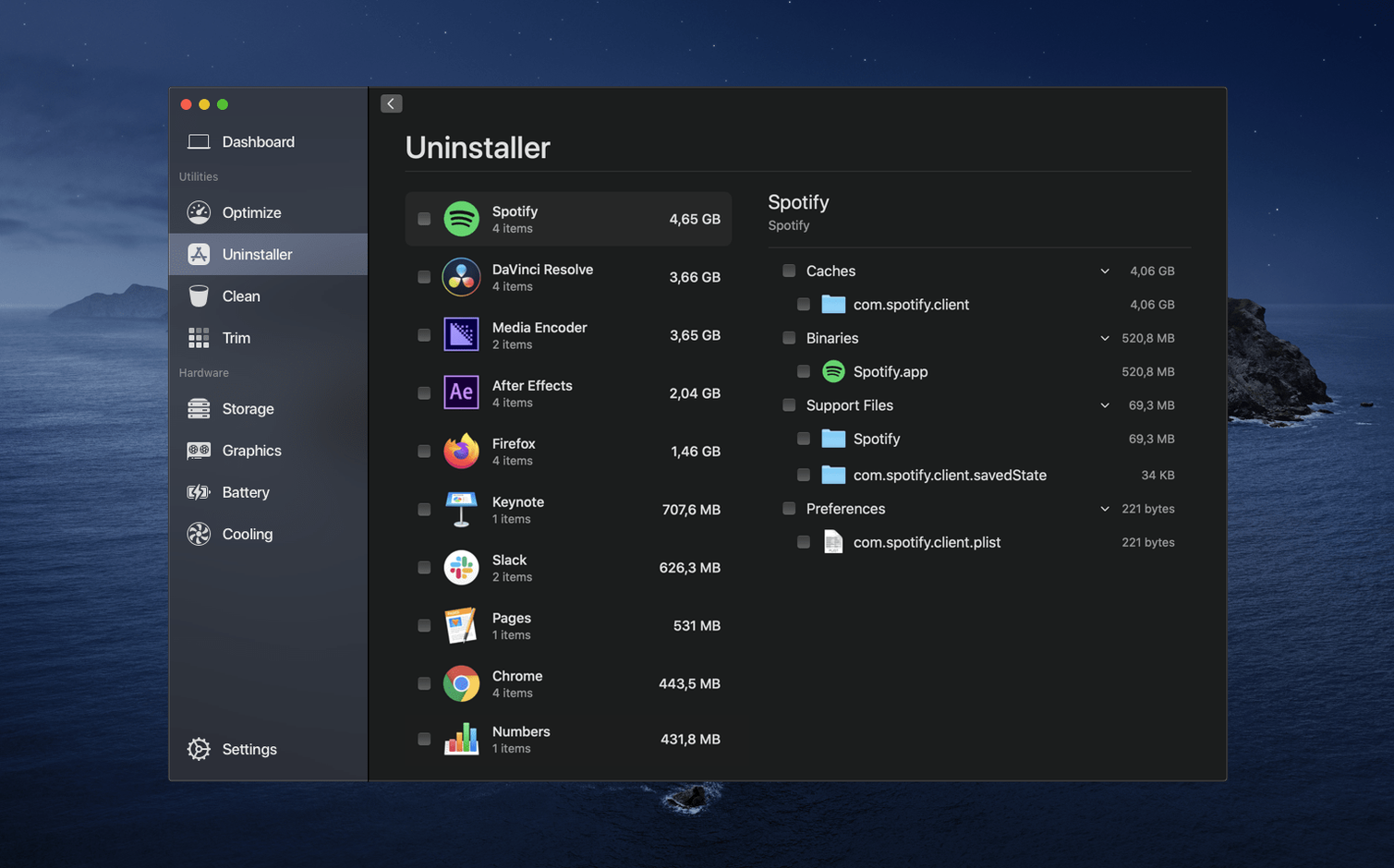
- Uninstall a stubborn app. Use the cleaner's uninstaller to pull an application and all its scattered library files. It hunts down leftovers that a simple trash-and-delete leaves behind.
These are the deeper tools that an experienced user returns to. The interface stays out of the way, putting live GPU, CPU and RAM figures up front. You still get the one-click cleaning, but the real value is having hardware status and system maintenance in a single window, without chasing through half a dozen separate utilities.
Switch the temperature unit to Fahrenheit now
Launch Sensei, open Preferences and sort three things before you do anything else.
Temperature unit. The default is Celsius. If you think in Fahrenheit, switch it now. It saves you doing mental maths every time you glance at the GPU sensor. The setting is under General, bottom of the window.
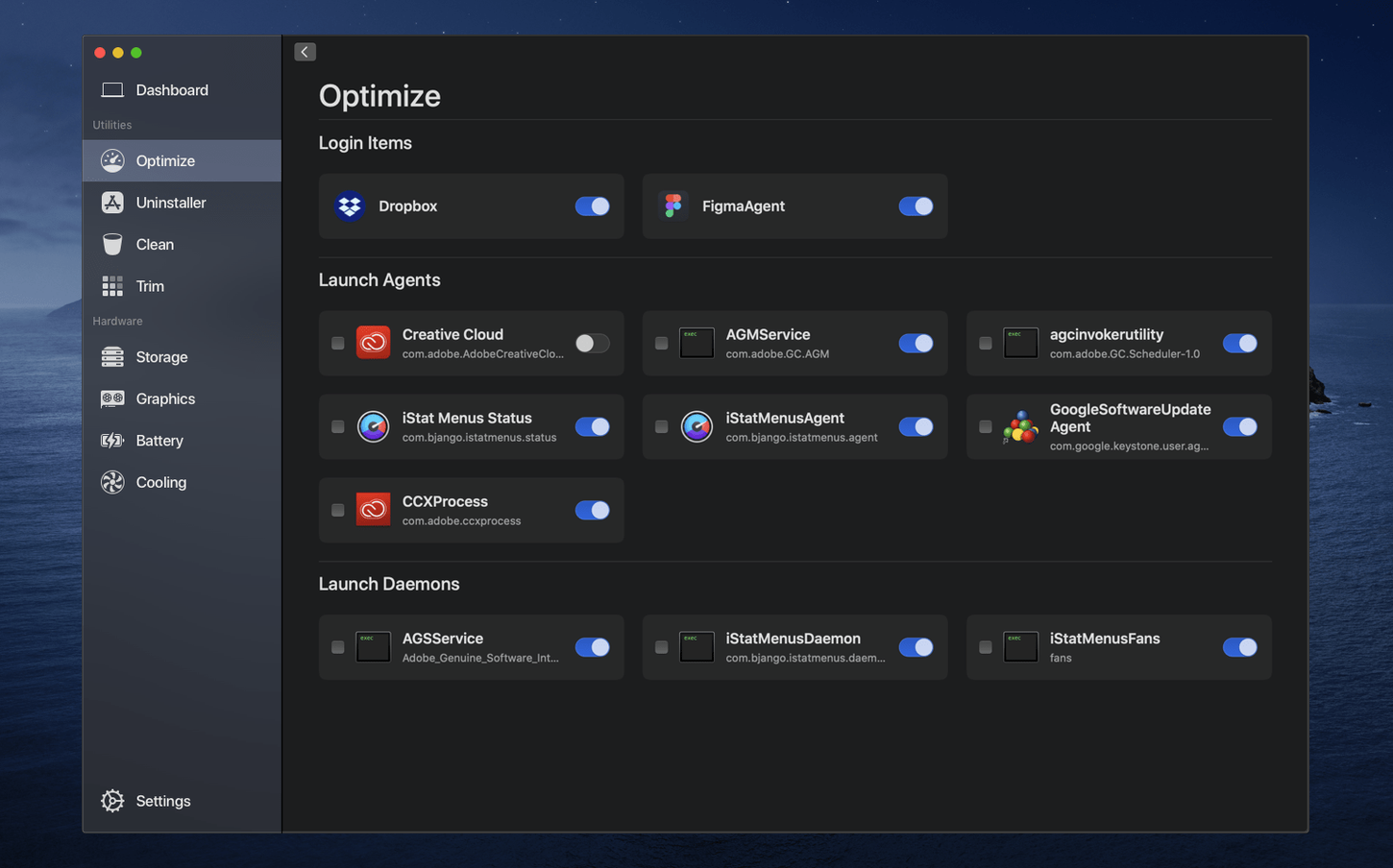
Menu bar Monitor. By default it shows CPU usage. Right-click the menu bar icon and pick a different metric — temperature, fan speed, or memory pressure. I set mine to CPU temperature because a spike there usually tells me more than a usage percentage. You can also tick "Launch at login" while you are in Preferences. Sensei is lightweight enough that you will not notice it starting up.
Dashboard layout. The Dashboard is configurable. Drag the widgets into an order that matches what you actually check. Put the thermal panel top-left if you encode video, or lead with disk health if you have an older SSD. The default order is fine, but customising it removes the half-second of scanning you do every time you open the app.
TRIM toggle stays grey on Apple factory SSDs
Two things trip people up.
TRIM is greyed out. Sensei can enable TRIM on third-party SSDs, but the toggle is only active when macOS sees a non-Apple drive. If you have the factory SSD, the option stays grey — that is normal. Apple drives handle TRIM themselves. For external USB enclosures, the toggle may also be unavailable; not every bridge chip passes the command through. No amount of reinstalling Sensei changes this.
Fan control reads zero or looks stuck. On Apple Silicon machines, some fan sensor paths differ from Intel models. If a fan shows 0 RPM and the machine is quiet, the sensor reading is simply not exposed to third-party apps. The fans are still managed by the System Management Controller. You can confirm by running something heavy for two minutes; if the fan spins up audibly but the reading stays flat, it is a sensor gap, not a failure.
Run a purge after a big export or edit session
A few things to try in the first couple of days so you know what the numbers mean.
Run a purge after a big project. Finish an hour of video export or a batch of RAW edits, then open the Clean tab and run a system purge. Watch the RAM free up in real time on the Dashboard. It gives you a baseline for what "normal" looks like after a heavy workload.
Check battery health weekly. The battery panel shows cycle count, design capacity, and current maximum. Note the maximum percentage on day one. Check it again in a month. A drop of more than two or three percent in four weeks is worth investigating — it can point to a charger issue or a runaway background process keeping the battery hot.
Use the uninstaller as a habit. Every time you trial an app and decide against it, uninstall it through Sensei instead of dragging it to the bin. The leftover files it finds are often tiny — a few kilobytes of plist or cache — but they accumulate. Doing it from the start keeps your Library folders clean without a Saturday-afternoon purge.
Requirements
- macOS 14 or later
- Apple Silicon or Intel Mac
FAQ
Does Sensei show GPU and CPU temperature?
Yes, the Dashboard includes temperature monitoring for key components alongside live performance figures.
Can Sensei remove applications completely?
It includes an uninstaller that finds and deletes application support files, caches and other leftovers.
Who makes Sensei?
Sensei is developed by Cindori AB.
Comments 0
Sign in or create an account to leave a comment.
No comments yet…
If you’ve installed it, say how it went. Mention your Mac and macOS version — it helps the next person more than you’d think.