ScreenFlow for macOS
Description
If you've used QuickTime Player to grab a screen recording and then opened iMovie to trim the ends, ScreenFlow sits somewhere in the middle — part recorder, part editor, all on one timeline. It's been macOS-only since day one and doesn't pretend otherwise.
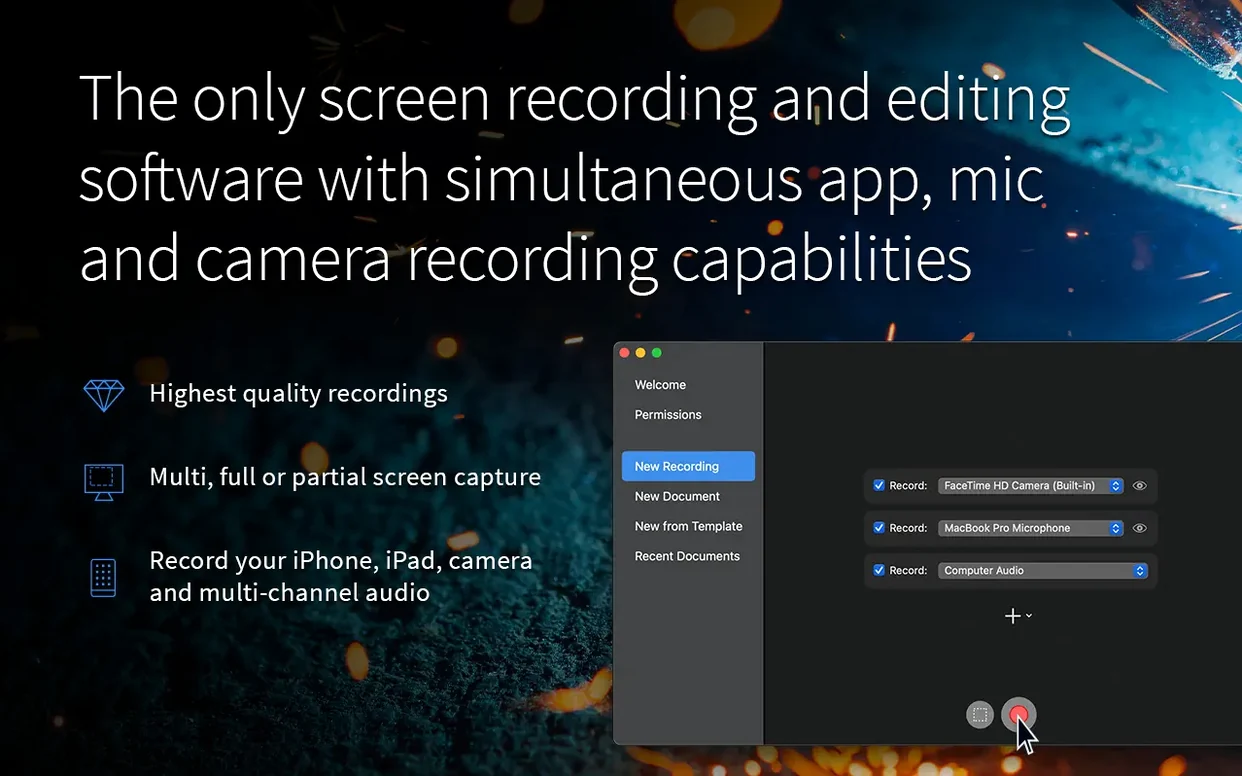
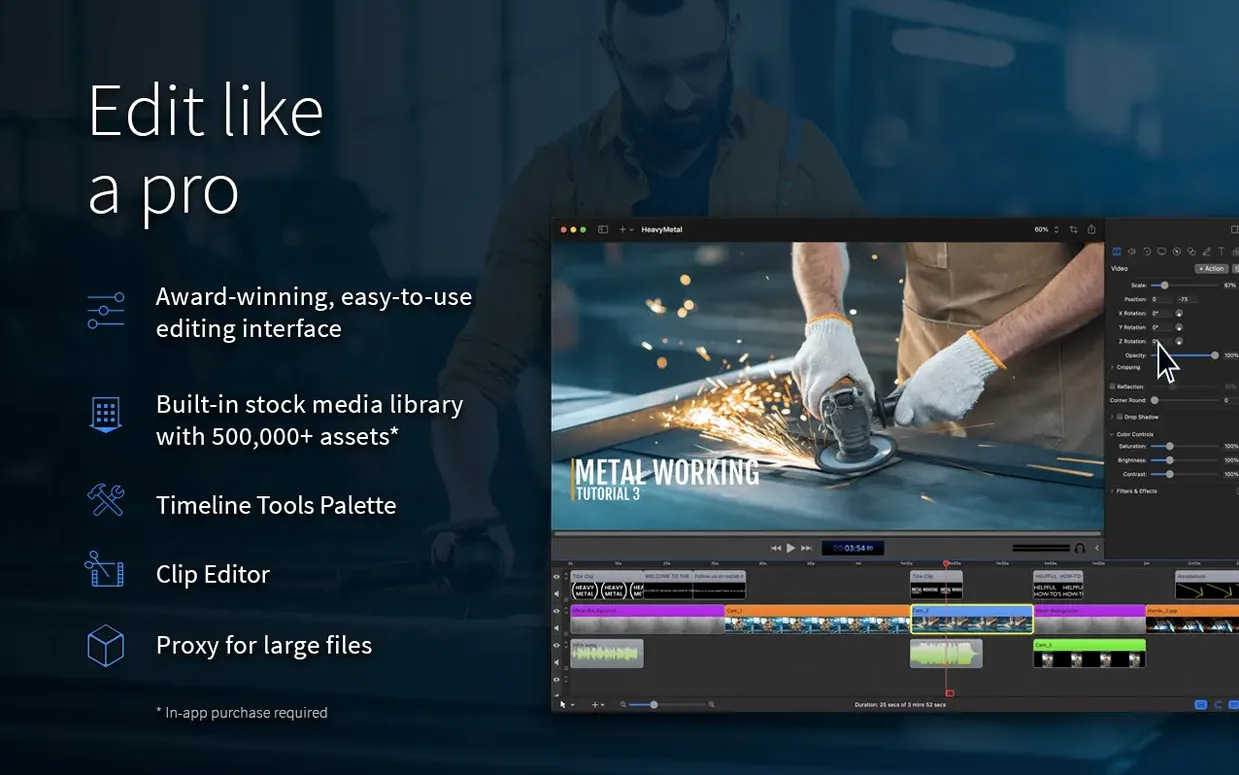
Here's a realistic job: record a software walkthrough with a talking-head inset. You tick the sources you need — the desktop, the built-in camera, a USB mic — and hit record. Everything lands on separate tracks. No syncing later. You can drag the camera overlay to a corner, crop the screen capture to just the application window, and drop in a title card without leaving the app.
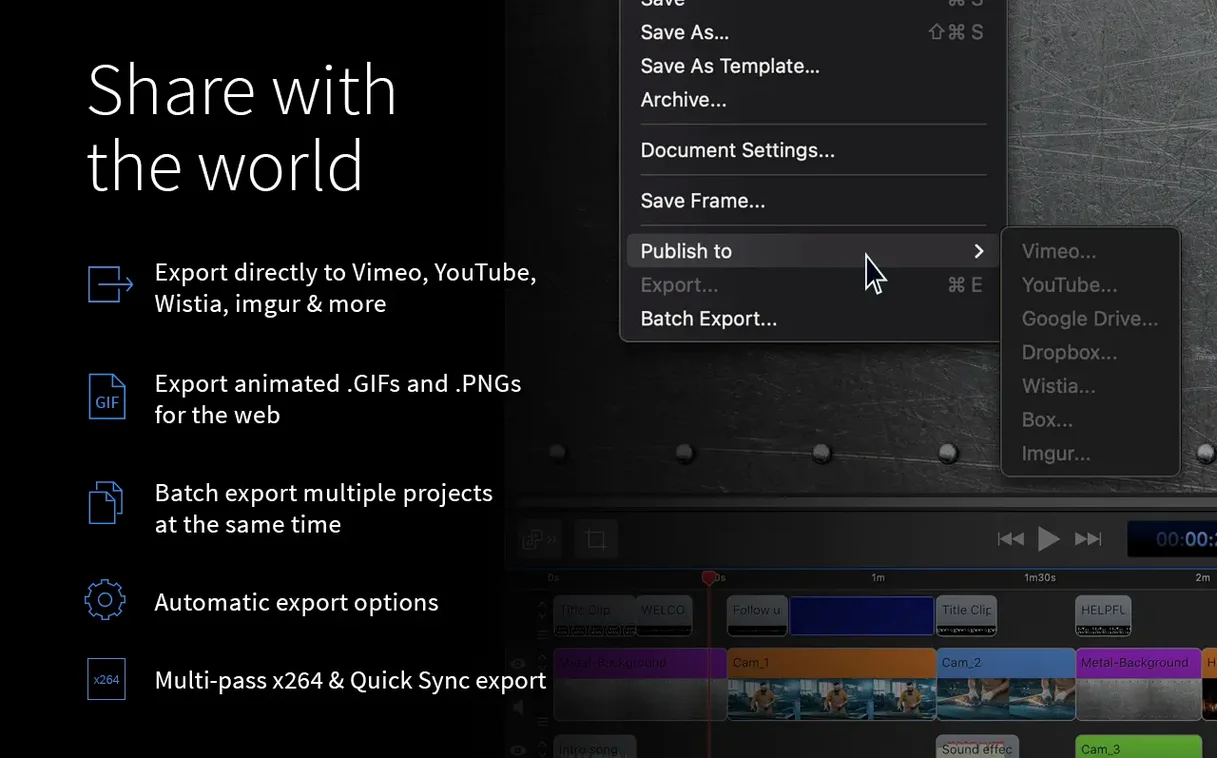
The timeline works like a cut-down non-linear editor. Trim clips, adjust audio levels per track, add a fade at the end. It'll export an MP4, sure, but you can also save the whole thing as an animated GIF or APNG straight from the timeline — handy for a quick bug report or a snippet in documentation.
Version 10.5.2 added a fix for Chroma Key exports on certain recordings, so green-screen camera overlays don't break during export. Worth a look if you're still stitching together recordings in separate tools.
Recording a software demo with callouts, start to finish
Say you need a five-minute walkthrough of a settings panel. Here's a workflow that avoids re-recording because you forgot one step.
- Set the stage before you hit record. Close Slack, mute notifications, hide your desktop clutter. Open only the app you're recording and a plain wallpaper. ScreenFlow can crop later, but a clean canvas saves time.
- Check your sources in the recording panel. Tick the display, your external mic, and the built-in camera if you want a face inset. Untick computer audio unless the demo has sound effects — it'll just pick up alert bleeps otherwise.
- Use the 'New Recording' window's timer. Give yourself a three-second countdown. It stops you starting mid-sentence, which is the number one thing people trim out later.
- Record in sections. Do the intro, stop. Do the main walkthrough, stop. Do a closing summary, stop. Each chunk lands on the timeline as a separate clip. You can rearrange them, but you can't split a single long take as neatly. (You can split clips with the blade tool, but separate recordings give you cleaner edit points.)
- Drop callouts during the edit, not during the recording. Pause the playhead where you want a highlight. Click the 'Callout' tab, pick a rounded rectangle, drag it over the button you're describing. Set its duration to three seconds. Add a text annotation underneath. This keeps the recording smooth — no fumbling with drawing tools while talking.
- Add zoom and pan on the key clicks. Place the playhead over a click, open the Video properties, and set a zoom of 130%. ScreenFlow auto-adds a smooth pan to centre the mouse pointer. Keep zooms short — a second or two — or they become seasick-inducing.
- Export for review first. Choose MP4 at 1080p with the 'Web - High' preset. Watch it through once before uploading anywhere. You'll catch the bit where you said "click this" while pointing at nothing.
Pass audio cleanup to an external editor
ScreenFlow records and edits, but it's not the only tool you'll use on a project. Knowing what to do where saves frustration.
Audio cleanup goes to an external editor. The built-in audio filters handle basic noise reduction and a compressor, but if you've got a recording with persistent hum or uneven levels across 20 minutes, pull the audio track into something like Audacity or Logic. Export the audio as a WAV from ScreenFlow, clean it, and drop it back onto the timeline. Mute the original track, align the new one by its waveform, and group them so they don't drift.
Use macOS Shortcuts for repeated export setups. If you always export the same way — say, 720p MP4 to a specific folder, then open that folder — build a Shortcut that watches that folder and renames the file with today's date. ScreenFlow doesn't need to know about it. The Shortcut just acts on the result.
ScreenFlow and Keynote play well together. Record your slides as a separate screen capture, then drop the exported video onto the timeline above your talking-head track. You get the slide transitions without exporting a bloated Keynote movie first. Resize the slide track to picture-in-picture and cut between full-screen slides and your face as needed.
iOS capture uses the cable you already have. Plug an iPhone or iPad into the Mac with a USB cable. ScreenFlow picks it up as a video source — no AirPlay lag, no extra software. It records the device screen at full resolution. Useful for app demos where you need to show touch gestures clearly.
Drag and drop from Finder works. You don't need to import media through a menu. Grab a PNG screenshot, a voice memo, or a clip from your camera and drop it onto the timeline. ScreenFlow places it on a new track at the playhead position. Same goes for dragging in an existing ScreenFlow document — it becomes a nested sequence.
Set recording resolution to match your final video
A few things trip people up in the first week. Most are easy to avoid once you know about them.
- Recording at full resolution then scaling the canvas down later. If your final video is 1080p, set the recording area to 1080p. Recording a 5K Retina screen and scaling it introduces blur and bloats the project file. Use the 'Custom' size in the recording setup, not 'Full Screen'.
- Leaving the default 30 fps for a software demo. Software interfaces don't animate at 30 fps. Set the recording to 15 fps and you'll get a smaller file with no visible difference in playback. Reserve 30 or 60 fps for camera footage or iOS capture where smooth motion matters.
- Not locking tracks you've finished editing. Click the little lock icon on a track once you're happy with it. Without locks, it's too easy to nudge a callout or shift an audio clip by a frame while trimming something else. Locking costs nothing and saves re-alignment work.
- Using 'Freeze Frame' without checking the duration. Freeze Frame defaults to five seconds. If you meant it to hold for two, change the duration in the clip properties immediately. Otherwise you'll export, spot the awkward pause, and have to re-export.
- Exporting to the same directory as the source media. The .screenflow document references media by path. If you export an MP4 into the same folder and later clean up, you risk deleting the source file your project still needs. Export to a separate 'Exports' folder. Your future self will thank you.
What’s new
Fixes a crash that appeared on macOS 26.2 or higher. Fixes exports where Chroma Key broke on certain screen recordings. Fixes the Manage Licences button pointing to a dead URL.
Requirements
- macOS 10.15 Catalina or later
- Intel or Apple Silicon Mac
FAQ
Can ScreenFlow record an iPhone screen at the same time as the Mac screen?
Yes. It captures iOS device video alongside the Mac display, camera and microphones in a single recording session.
What macOS version does ScreenFlow 10.5.2 need?
It requires macOS 10.15 Catalina or later and runs on both Intel and Apple Silicon Macs.
Comments 0
Sign in or create an account to leave a comment.
No comments yet…
If you’ve installed it, say how it went. Mention your Mac and macOS version — it helps the next person more than you’d think.