RightFont for macOS
Description
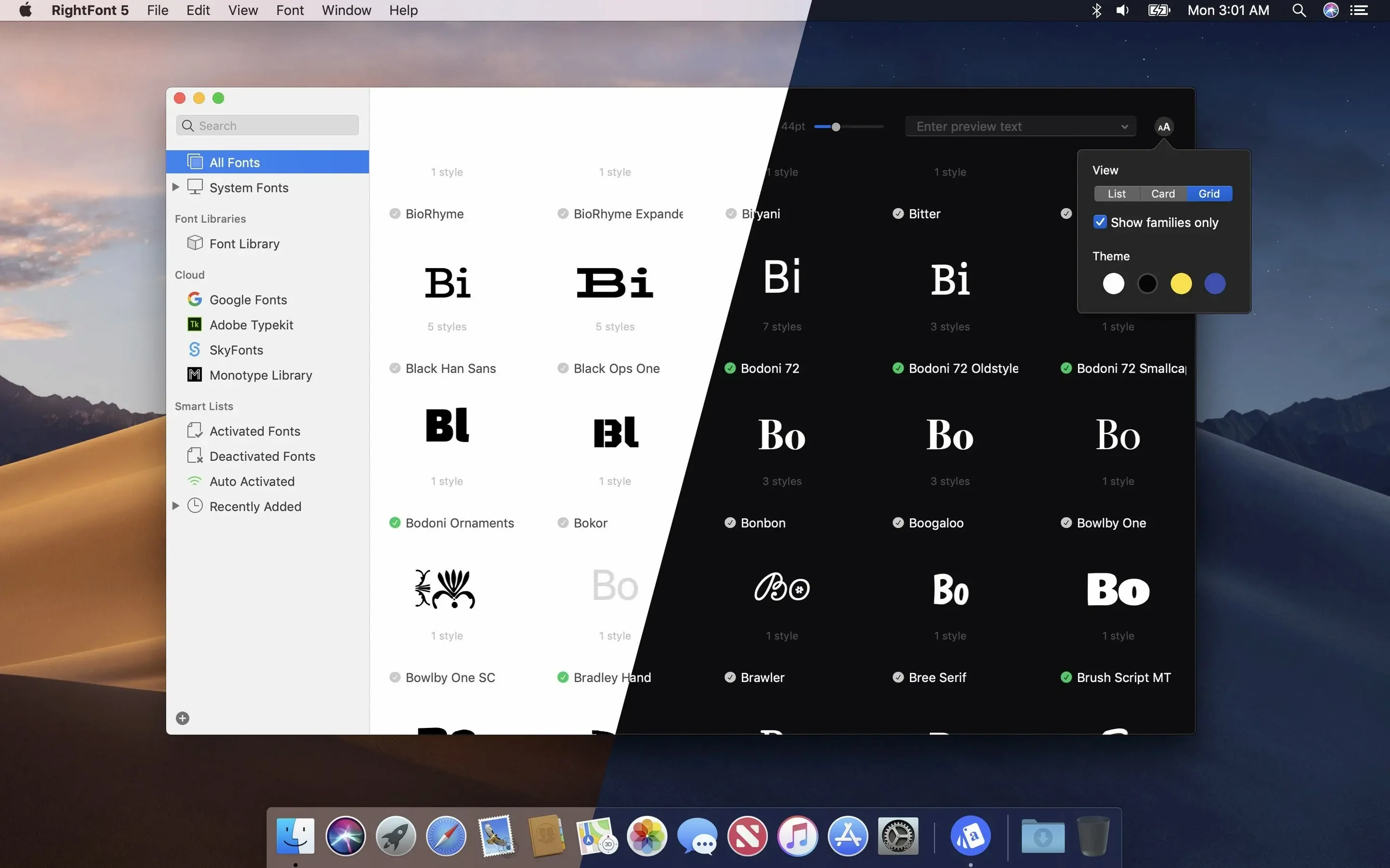
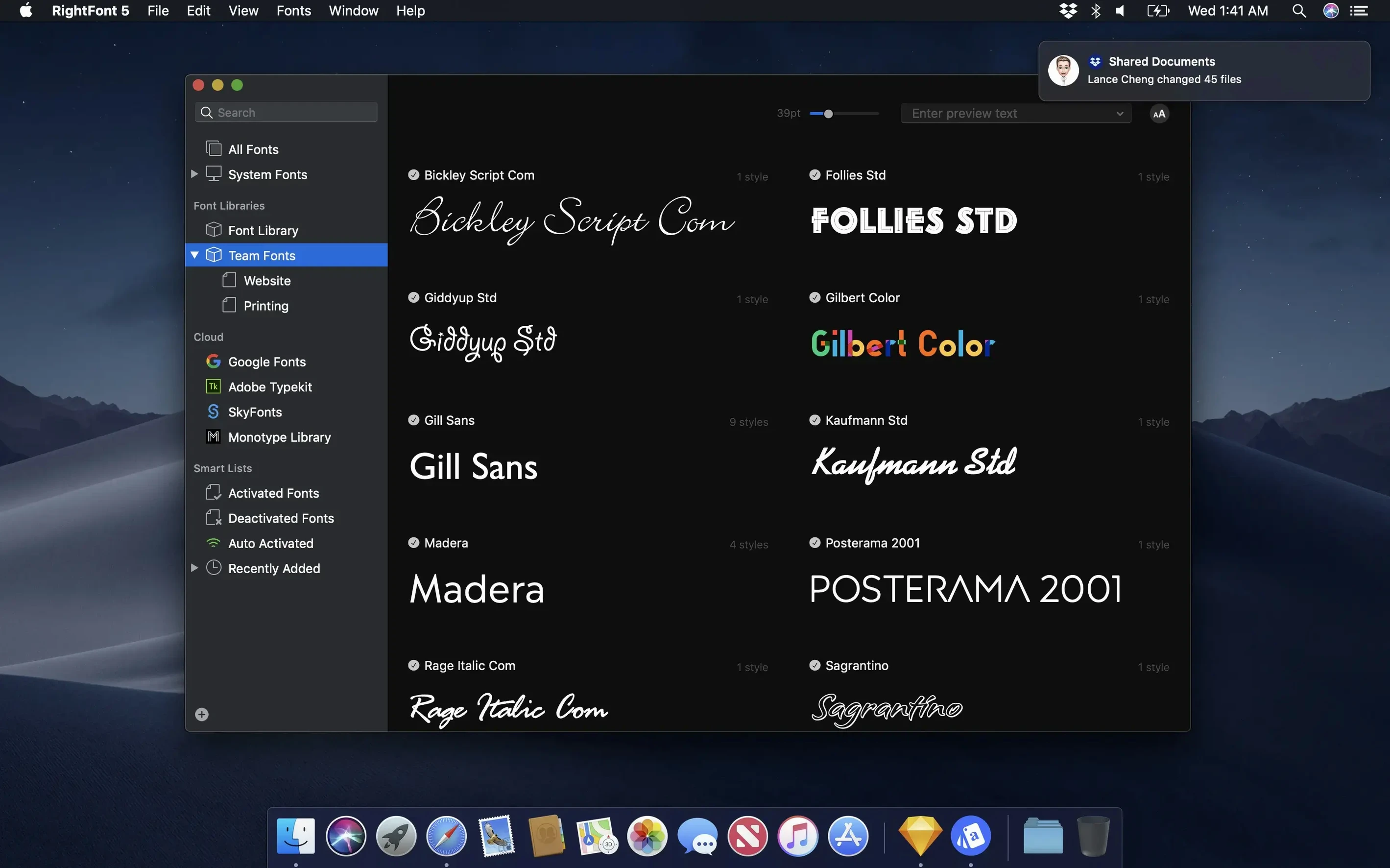
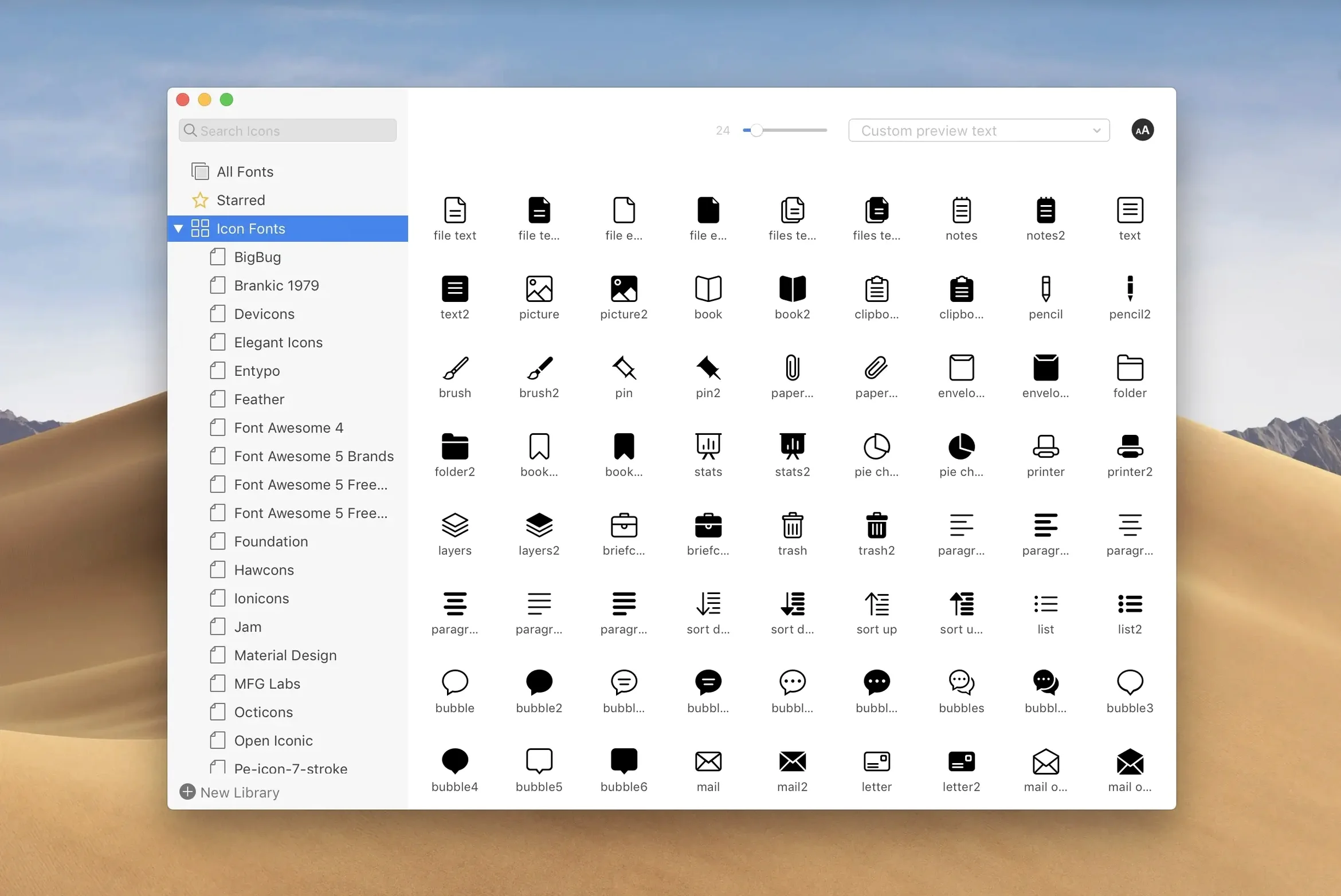
RightFont is a Mac font manager that gives you a clean, practical way to preview, install and organise the fonts on your system. It's built for people who work with type daily — designers, illustrators, layout artists — and need something faster than Font Book. Instead of scrolling through a flat list, you can group fonts into your own lists, see what a style looks like before activating it, and get straight to the one you need without breaking stride.
- Create and manage custom font lists for different projects or clients.
- Access fonts directly from Adobe Creative Cloud apps, Sketch and other design tools.
- Change a text layer's font by double-clicking a typeface in RightFont.
- Manage fonts from the menu bar without opening the full window.
- Preview any font with your own sample text before you commit to it.
The app runs on macOS 11 and later. It stays out of your way until you need it, and when you do, it's a solid step up from the built-in tools for anyone who handles more than a handful of typefaces.
Activate fonts from inside Illustrator, Photoshop and InDesign
RightFont slots into a design workflow without demanding you change how you work. Its direct plugin integration with Adobe Illustrator, Photoshop and InDesign means you can browse and activate fonts from inside the app you're already in. Select a text layer, double-click a typeface in RightFont, and the change applies immediately. No switching windows, no digging through menus.
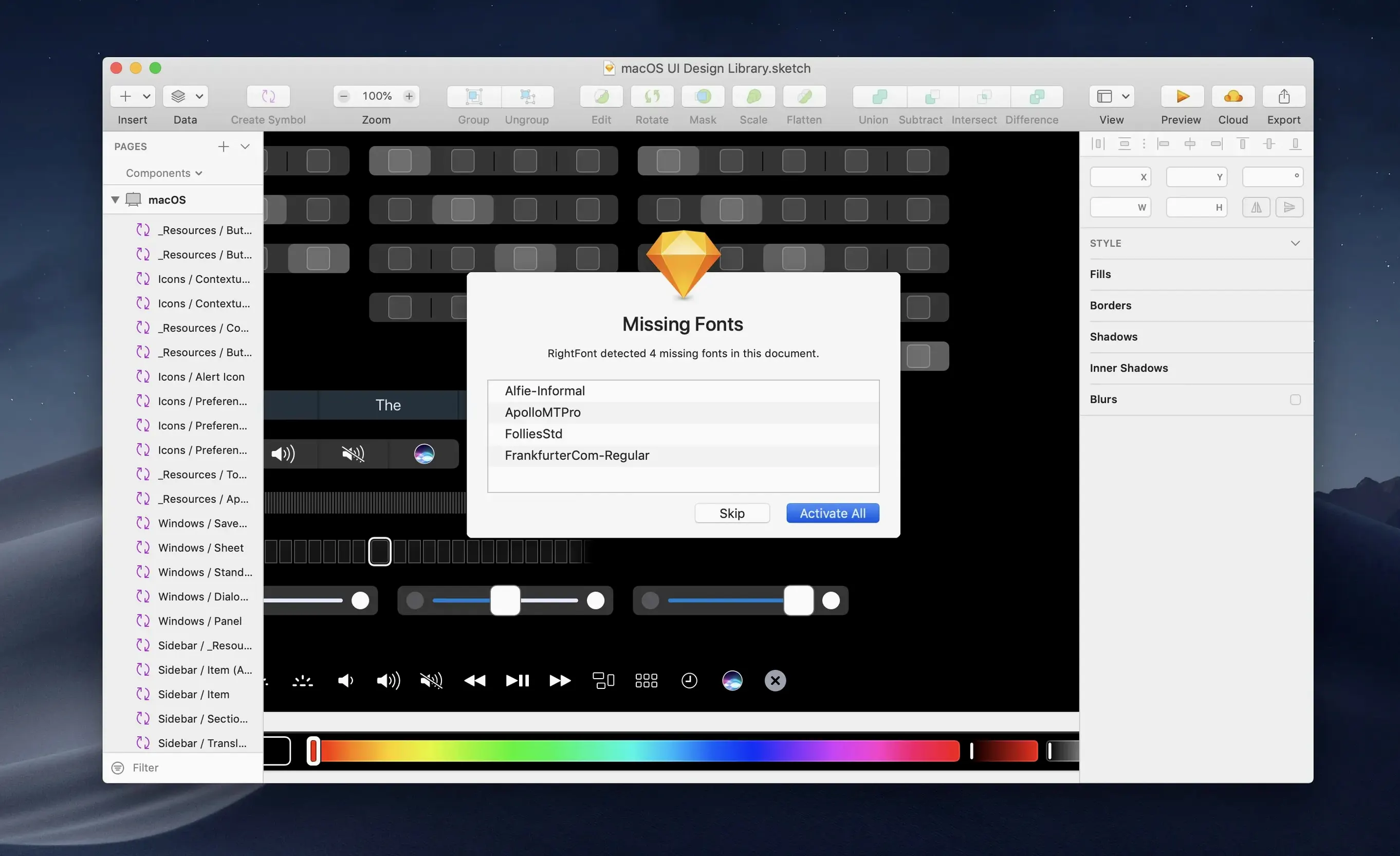
Sketch users get the same treatment. If you're tweaking a UI mockup and want to try three different sans-serifs, you can do it from the RightFont panel without leaving your artboard. The auto-activation feature kicks in when you open a document that references fonts you haven't installed yet — the app notices and offers to activate them on the spot.
Beyond design apps, RightFont plays nicely with standard macOS font handling. Fonts you activate through RightFont appear in Font Book and any app that uses the system font picker. The menu bar helper sits next to your clock and lets you browse, search and toggle fonts without opening the full library. If you're deep in a layout in QuarkXPress or even just tweaking a presentation in Keynote, the menu bar access keeps things moving.
For teams sharing brand assets, font lists can be exported as plain files and dropped into shared storage. Someone else with RightFont can load the same list and get identical results across machines — no activation mismatches, no missing weights.
Tagging and auto-activation your font library needs
Font Book comes with every Mac and handles basic activation and deactivation. It works for people who install a font once and forget about it. Where it falls apart is with large libraries: no tagging, no auto-activation for design apps, no quick preview with custom text. RightFont replaces it entirely for anyone who needs to compare typefaces or switch between font sets regularly.
Typeface is another lightweight Mac font manager. It shares some DNA with RightFont: quick preview, tagging, and a clean interface. The main difference is in the plugin support. Typeface relies more on drag-and-drop and system-level activation, while RightFont's direct integration with Adobe apps and Sketch can save a noticeable amount of clicking when you're working across multiple programs in a session.
FontBase is a cross-platform option that's popular with Windows and Linux users. On Mac it feels a bit like a transplanted app — functional, but not as tight with macOS conventions. RightFont is Mac-only and it shows: the menu bar helper, the native feel, the way it handles retina font previews. If you only work on a Mac and value that fit, RightFont is the sharper tool. If you need something that works identically across operating systems, FontBase covers that ground.
Switching fonts between branding and editorial projects
Graphic designers and art directors who juggle client-specific font sets are the core audience. When you're switching between a branding project that uses a custom sans-serif and an editorial layout that needs a serif from a different foundry, RightFont's font lists let you activate the right set in one click and deactivate everything else. No font conflicts, no scrolling past forty versions of Helvetica to find what you actually need.
UI and product designers working in Sketch or Figma benefit from the plugin integration. Testing type choices is part of the job, and being able to preview a font in RightFont before committing it to a mockup cuts down on the trial-and-error loop. The auto-activation for missing fonts also saves the awkward moment of opening a team file and seeing a wall of placeholder text.
Typography enthusiasts and foundry customers with deep libraries will use the classification and filtering tools more than most. RightFont can filter by weight, width and classification, so if you know you want a condensed light sans-serif, you can narrow a thousand fonts down to five in seconds. The tagging improvements in version 10.2.1 make this even more useful for granular organisation.
What’s new
Adds more reliable font imports, with clearer progress that shows a finalisation stage and a count of unsupported files. Tag management is improved and subtags can be dragged back to the main Tags section. Fixes issues in Adobe Illustrator, QuarkXPress and macOS 27.
Requirements
- macOS 11 or newer
- Apple Silicon and Intel Macs
Comments 0
Sign in or create an account to leave a comment.
No comments yet…
If you’ve installed it, say how it went. Mention your Mac and macOS version — it helps the next person more than you’d think.