
Radio Silence for macOS
Description
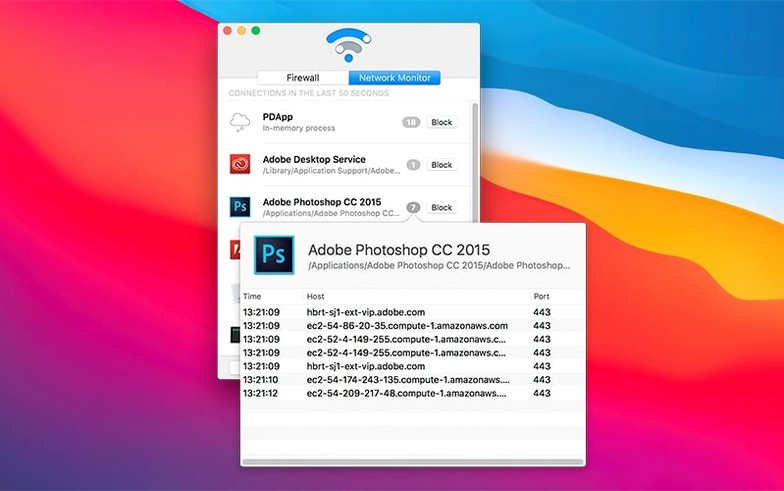
You open a new design tool, and the first thing it does is ping three analytics servers. You wouldn't know unless you looked. Radio Silence shows you that list, then lets you shut the door.
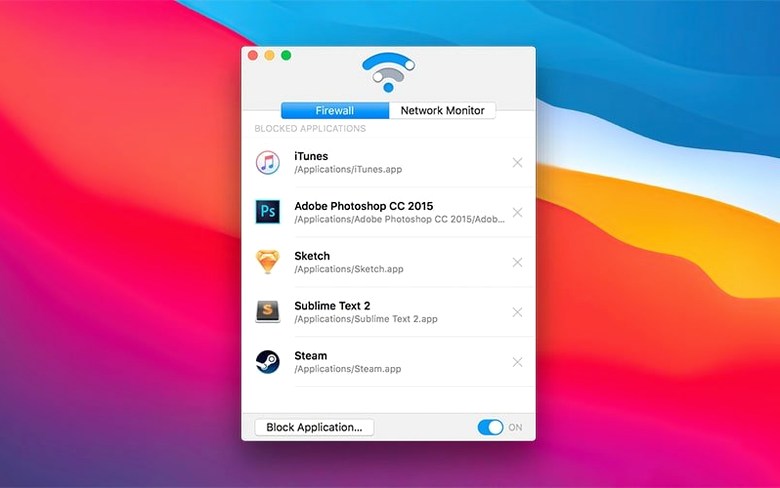
Block any app’s network access with one click
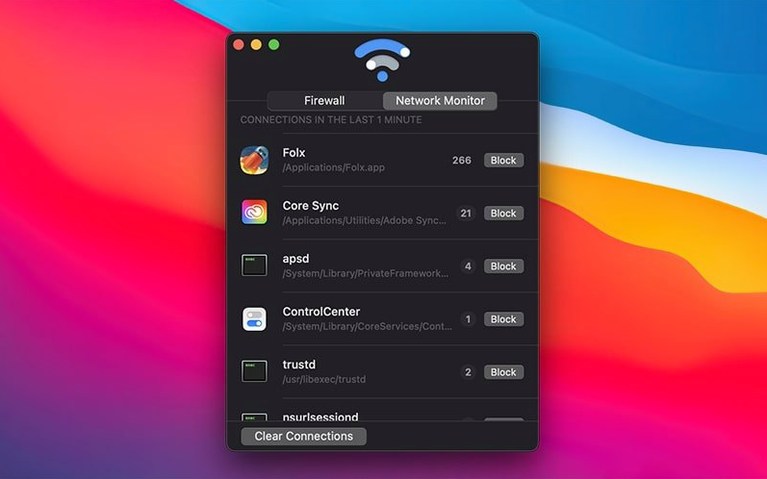
- Seeing which apps start connections, and to where.
- Blocking an app completely — no data out, no data in — with one button.
- Working invisibly. No menu bar icon, no dock presence. It sits in the background.
- Running on Intel and Apple Silicon Macs from macOS 10.15 upwards.
You block by application, not by port or IP
- The interface is English only.
- It monitors incoming connections initiated by apps, not unsolicited inbound traffic.
- You block by application, not by port or IP range. It's a simple list.
A designer I know keeps a headless Cinema 4D render node on her Mac Studio. It has no business phoning home mid-render, but the default install checks for updates and news every forty minutes. She used Radio Silence to kill its network access in seconds. No checkbox digging in the app's own preferences, no Little Snitch rule maze. Just find the executable in the list, click Block Application, done. The render node now sits in silence — exactly what she wanted.
A start-to-finish blocking workflow
Say you've grabbed a small utility from a forum and you want it to work offline. No calls to analytics, no update checks, no surprise uploads. Here's a line-by-line approach.
- Launch the utility. Let it sit for a few seconds so it attempts any startup connections.
- Open Radio Silence. The main window lists every app that tried to reach the network recently, with a timestamp and destination.
- Spot the utility in the list. If you're unsure which binary it uses, the path under the app name tells you.
- Click the utility's row, then hit Block Application. It moves straight to the Firewall tab.
- Optional: switch to the Firewall tab, find the blocked app, and use the pause toggle if you later need it online for a one-off licence check.
The block is instant. No restart, no logout. The next time that utility tries to connect, Radio Silence drops the attempt before it leaves your machine.
Spend 48 hours watching your apps phone home
Install it, run the helper tool when prompted, and let the app settle in. For the first 48 hours, treat the connection list as a discovery feed.
- Let it collect data before you block. Leave Radio Silence running while you do your normal work. After a day, you'll have a realistic map of which apps talk to the internet and how often.
- Start with the obvious offenders. Widgets, menu bar weather apps, and free converters often top the list. They're safe to block unless they need live data.
- Check the Firewall tab after a macOS update. System updates occasionally reset permissions. If Radio Silence shows an installation error, the new help view walks you through re-approving the kernel extension — the troubleshooting info added in 3.4 covers exactly that.
- Don't block system daemons blindly. Items like
trustdormDNSResponderkeep your Mac functioning. If you're unsure about a process, leave it alone until you research it. The radio silence mac app interface keeps things readable, but it won't hold your hand on Unix internals. - Use the pause feature for quick tests. If a blocked app misbehaves, unpause the firewall temporarily instead of removing the rule. The toggle on the Firewall tab is immediate, so you can test, then re-enable blocking without rebuilding your list.
After a week, you'll probably settle into a set-and-forget rhythm. Most people who grab a radio silence mac full build do exactly that — configure their block list once, then forget the app exists until a new installer triggers a connection they weren't expecting.
What’s new
Adds installation guidance for macOS Tahoe. Improves handling of installation errors and missing permissions. Adds a help view with troubleshooting info if the app fails to launch.
Requirements
- macOS 10.15 or later
- Apple Silicon or Intel Mac
Comments 0
Sign in or create an account to leave a comment.
No comments yet…
If you’ve installed it, say how it went. Mention your Mac and macOS version — it helps the next person more than you’d think.