
Photo Mechanic for macOS
Description
Dumping a card with a thousand shots is easy. Working out which ones to keep takes forever in most apps. That is the problem Photo Mechanic solves. It renders previews from RAW files almost instantly, so you can tag, rate, and move on without waiting for imports or catalogues.
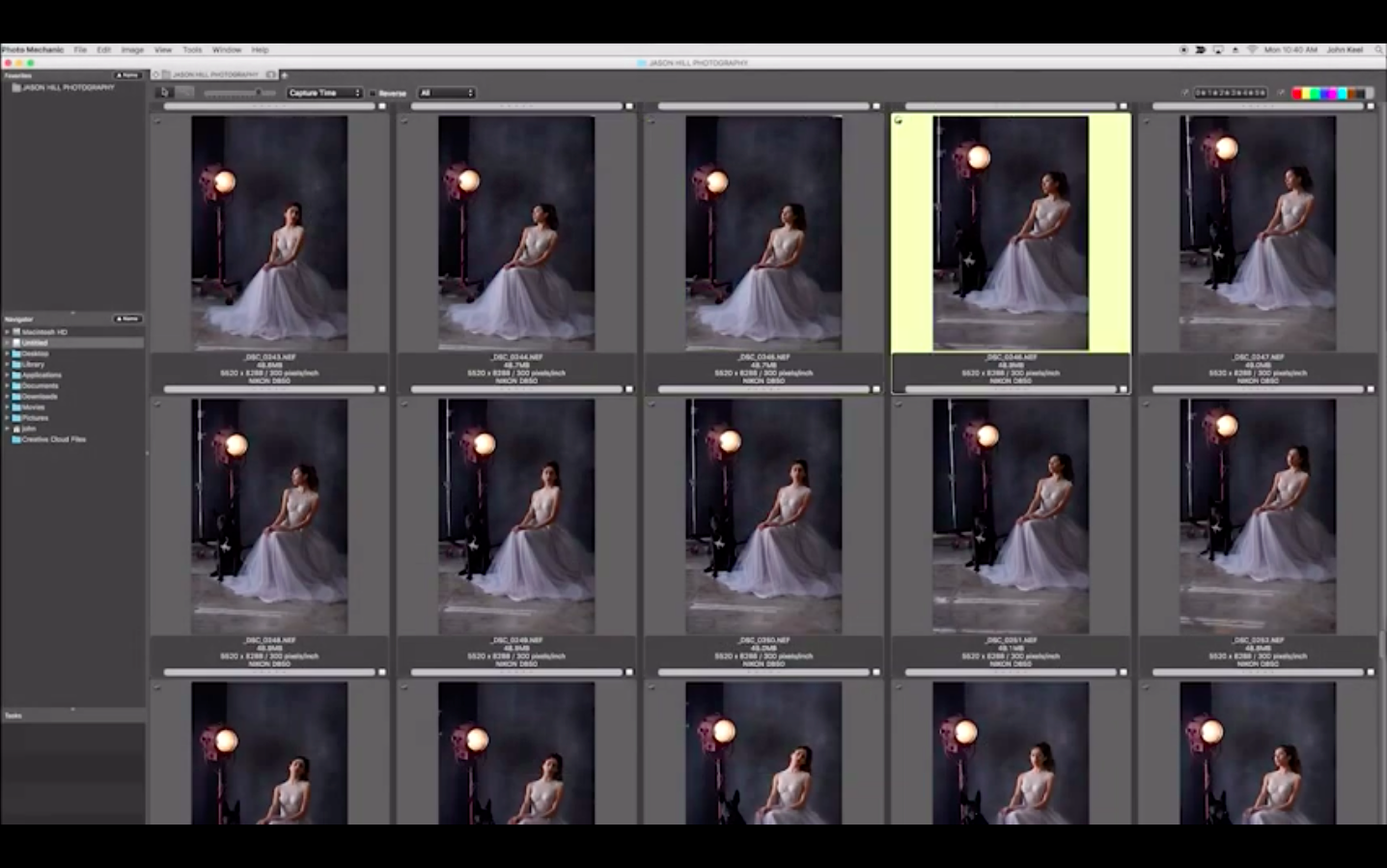
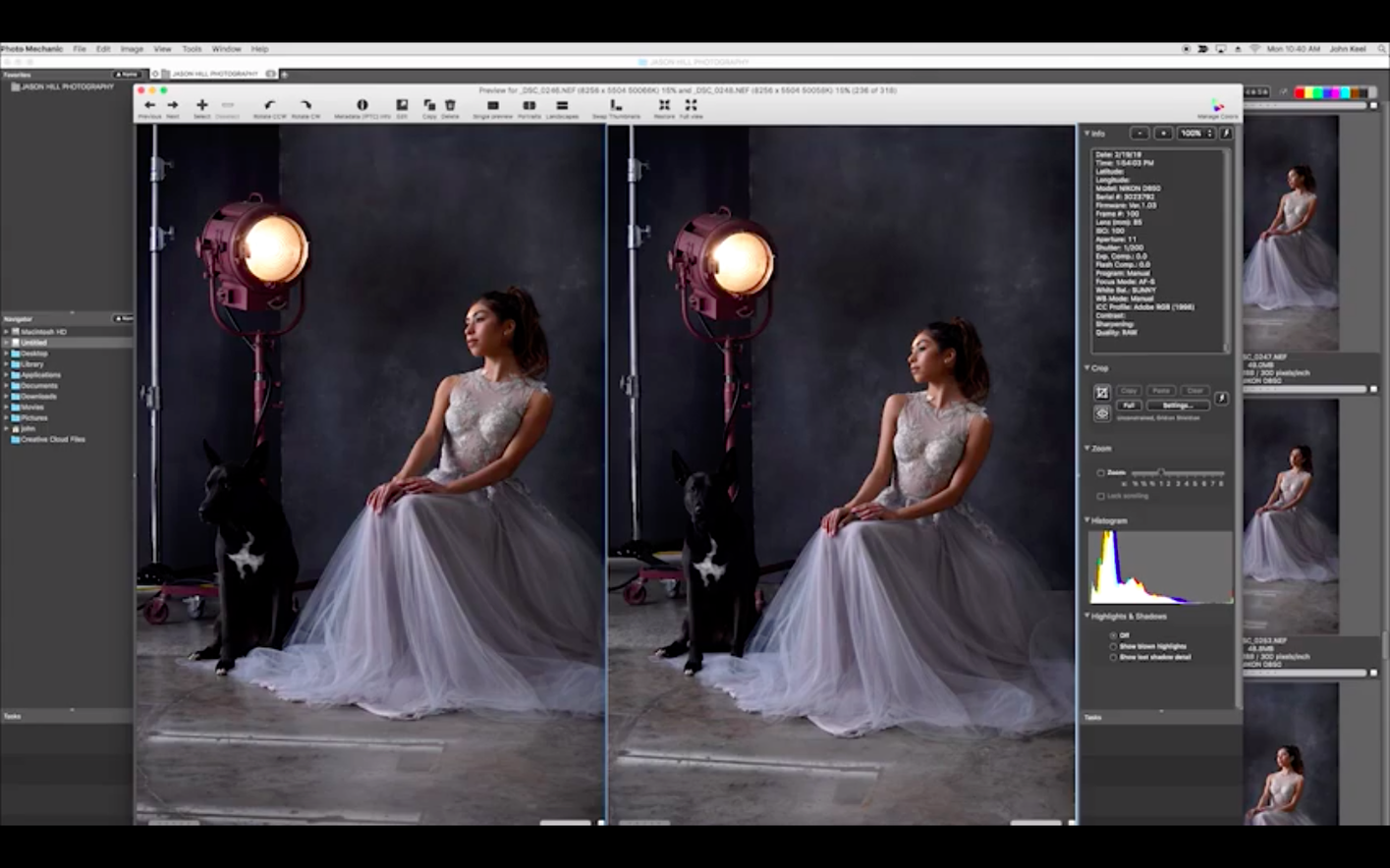
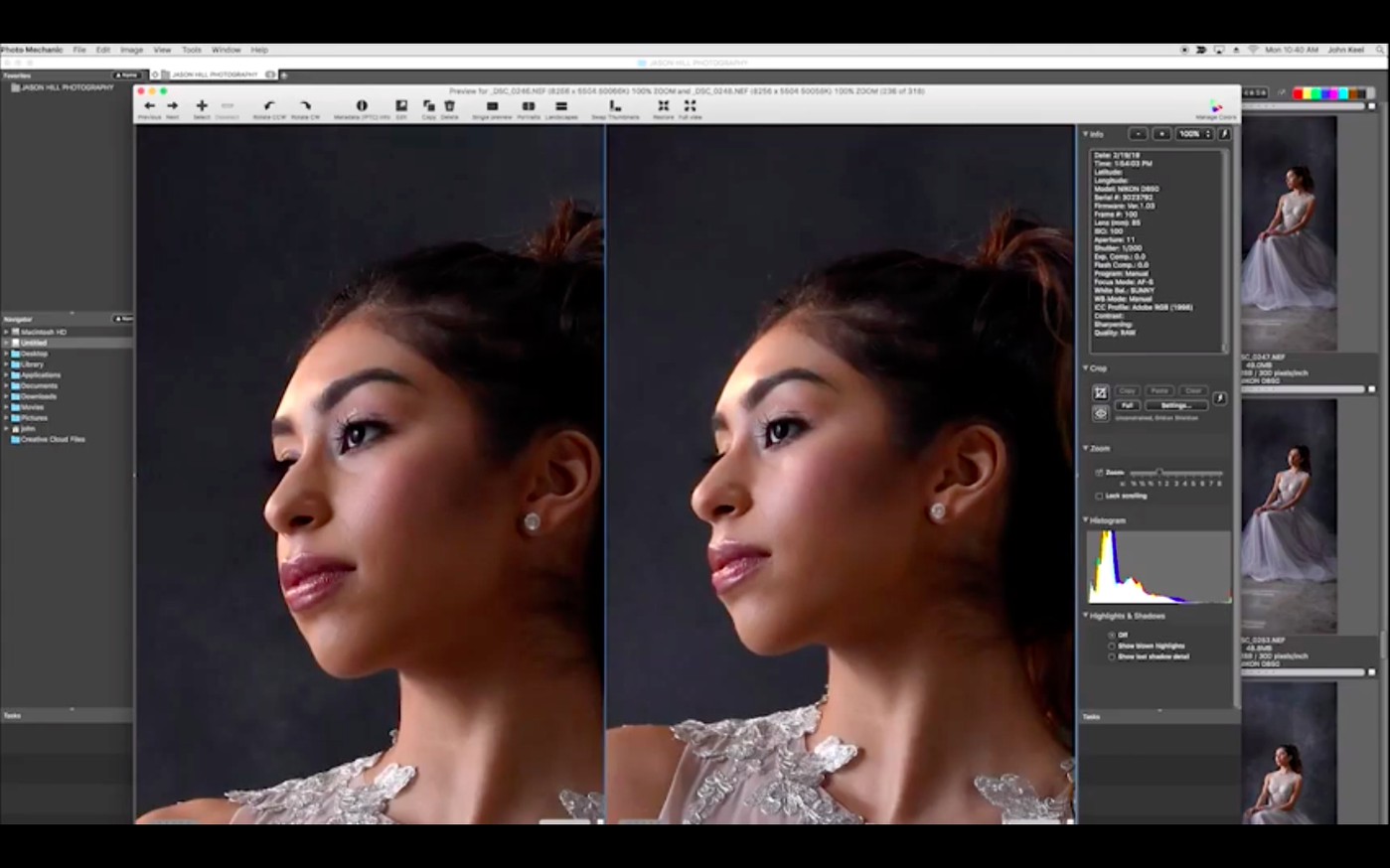
Full-screen culling with side-by-side comparison and colour labels
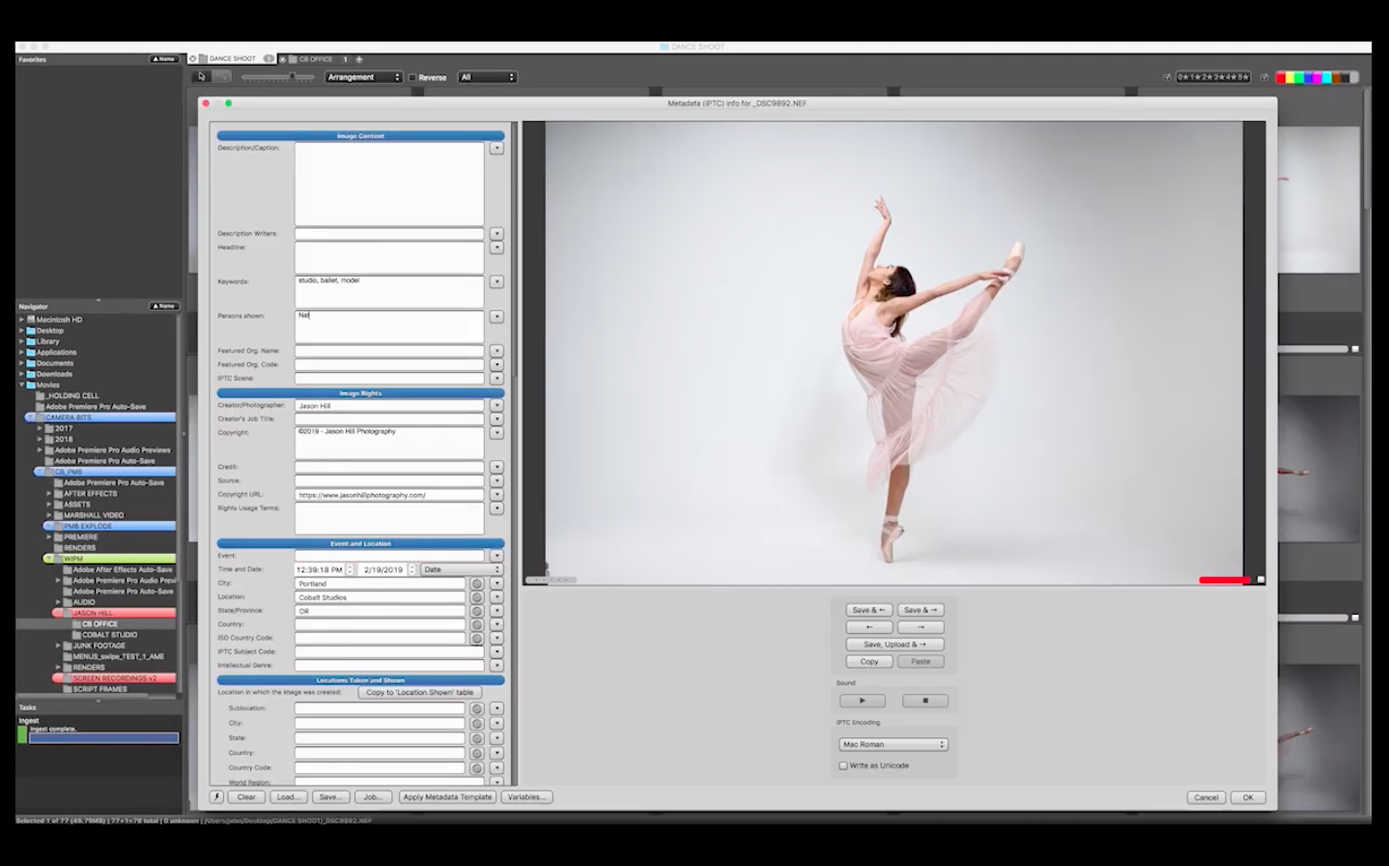
The app is a dedicated media browser built for culling and organising. You view images full-screen, compare pairs side by side, and mark keepers with colour labels or star ratings. The IPTC editor handles captions, keywords, location, and contact details in bulk. You can import GPS coordinates, optimise copies for web use, and upload selected files via FTP without leaving the window.
Sort a card before raw editing starts
Photo Mechanic suits working photographers and anyone who needs to sort a large shoot before the real editing starts. It does not replace a raw processor. It sits in front of one. The idea is to reduce a card full of shots to a folder of picks fast, with metadata already embedded, then hand those keepers off to Lightroom or Capture One. If ingest speed and straightforward keywording matter more than built-in adjustment sliders, it fits.
A culling workflow from card to picks
Insert the memory card. Photo Mechanic will open the ingest dialog if you have set it to do so. Pick a destination folder and choose a renaming template — something with the date and a sequence number works well. Tick the box to apply an IPTC stationery pad during ingest. That way every incoming file gets your copyright line, contact details, and a shoot keyword before you even see a thumbnail.
While files copy, the app builds previews in the background. Once the contact sheet fills, switch to the Preview window with the spacebar. Use the arrow keys to move forward. For any shot worth a second look, tap T to tag it. No hesitation — you are looking for focus, composition, and moments, not pixel-level sharpness. A shoot of 800 frames should take about ten minutes.
Next, filter the contact sheet to show only tagged images. Switch to side-by-side comparison with two similar frames. Arrow through the pair; whichever looks stronger gets the tag, the other loses it with Ctrl+T. By the end of this pass you have your shortlist. Apply star ratings in batches: select all the definite keepers, hit Ctrl+5. Select the maybes, hit Ctrl+3. Everything else can be batch-deleted or left unrated.
Now open the IPTC Stationery Pad. Fill in the description, event name, and location fields. Apply to all selected images. The work you did on ingest already handled the repetitive bits, so this pass adds story-specific detail. Select the five-star picks and export JPEGs to a subfolder using the Save As dialog, resizing and sharpening for web on the way out. You started with a full card and now have a named, keyworded, ready-to-edit folder of keepers — plus web previews to send an editor.
Build a reusable IPTC Stationery Pad for every shoot
Set up your IPTC Stationery Pad first. Open it from the Image menu, fill every field that applies to all your work, and save it as a snapshot. Make a second snapshot for the common shoots you do — weddings, sport, whatever repeats. Switching snapshots takes two clicks and saves typing the same photographer name a hundred times.
Customise the contact sheet labels. Go into Preferences, choose Contact Sheet, and set the label display to show filename, rating, and colour class. The default view hides too much. While you are there, increase the thumbnail size to fill the screen width with three or four columns. You want a fast visual scan, not a stamp collection.
Learn the single-key shortcuts. T for tag, numbers for ratings, F for full-screen preview, Z to zoom, I for the IPTC Info panel. There are about six keys you actually use. The rest can wait. If you come from Lightroom, the muscle memory will trip you up for a day, then click.
Check the cache location. By default, Photo Mechanic stores its render cache on your boot drive. If you work with large RAW files, point it to a folder on an external SSD with plenty of room. The setting lives under Preferences > Caching. A fast cache means instant previews on return visits to the same folder.
Send images straight to Lightroom or Capture One
Photo Mechanic does not want to be your editor. It passes images to whatever you use for raw processing. Right-click any thumbnail and choose your external editor from the list — Lightroom Classic, Capture One, Photoshop, or a folder watch script. The app writes XMP sidecar files by default, so star ratings, colour labels, and keywords travel with the files. Open the same folder in your raw processor and the metadata is already there.
It works well with macOS Finder and Spotlight. Because the app operates directly on the filesystem — no catalogue database — every renamed or tagged file is immediately visible in Finder searches. You can drag files from a Photo Mechanic contact sheet into a Mail compose window or a Messages conversation. The app respects macOS colour management, using the display profile set in System Settings for accurate previews.
For uploads, the built-in FTP client sends files directly to a photo desk or archive server. If you prefer cloud workflows, export JPEGs to a folder watched by a sync utility like Dropbox or a tool that automates delivery. The app does not try to embed cloud services; it just gives you clean, named files that any sync tool can handle.
Photographers who need cataloguing later sometimes pair it with Photo Mechanic Plus from the same developer, which adds a searchable catalogue layer on top of the browsing engine. But the base version slots into any workflow that already has a raw processor and a file system. It is the front door, not the whole house.
RAW browsing at speed versus Adobe Bridge
Adobe Bridge. Bridge is free with a Creative Cloud subscription and does much the same job — browsing, rating, metadata editing. The difference is speed. Bridge renders previews from RAW files slowly. Scroll through a folder of a thousand files and you will see grey thumbnails populating one by one. Photo Mechanic renders them as fast as you can scroll. If you cull on deadlines, the gap matters.
FastRawViewer. FastRawViewer specialises in raw histogram analysis and exposure evaluation before import. It shows you what the sensor actually captured, not the camera's embedded JPEG preview. Photo Mechanic works with the embedded preview for speed. For technical exposure checks, FastRawViewer goes deeper. For tagging, renaming, keywording, and sending picks to an editor, Photo Mechanic does more in one window.
XnView MP. XnView MP reads hundreds of formats and costs nothing. It browses, rates, batch-converts, and edits metadata. The trade-off is polish and responsiveness. The interface feels cross-platform rather than Mac-native, and large folders are slower to render. Photo Mechanic is leaner and more consistent under heavy loads. If you process a shoot every few weeks, XnView MP does the job. If you process a shoot before lunch, a photo mechanic mac download makes more sense.
Requirements
- macOS 13 or newer
- Apple Silicon Mac
FAQ
Does Photo Mechanic edit photos?
No. It handles metadata, ratings, and organisation. You send selected images to a raw processor or image editor for actual adjustments.
Can it read GPS data?
Yes. You can import GPS coordinates and embed them into your photos' metadata.
Comments 0
Sign in or create an account to leave a comment.
No comments yet…
If you’ve installed it, say how it went. Mention your Mac and macOS version — it helps the next person more than you’d think.