
Peakto – Al Media Organizer for macOS
Description
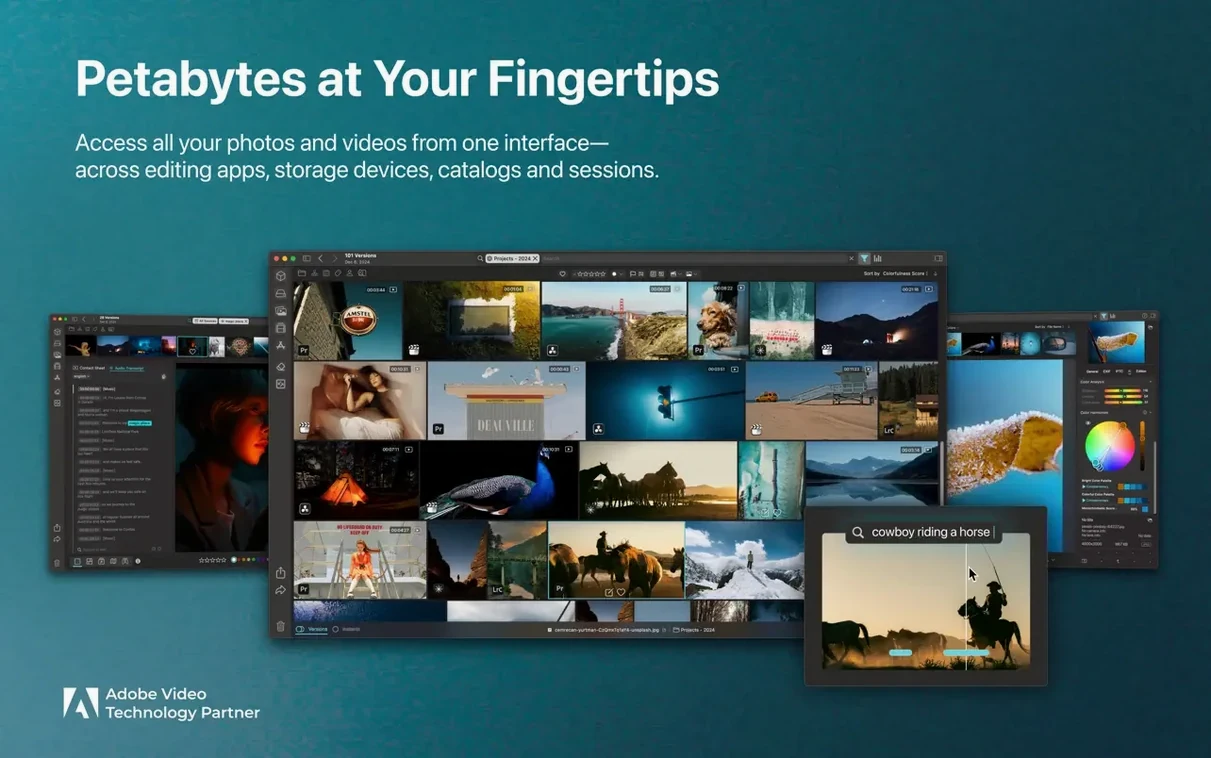
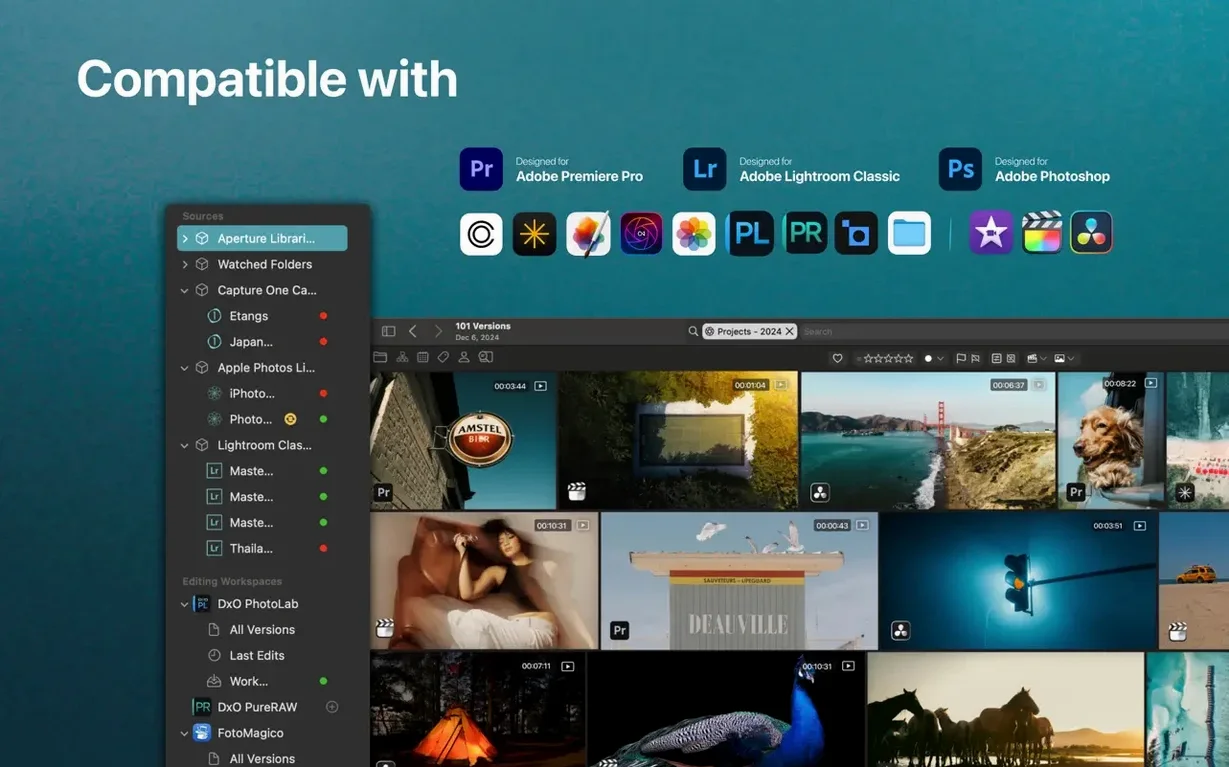
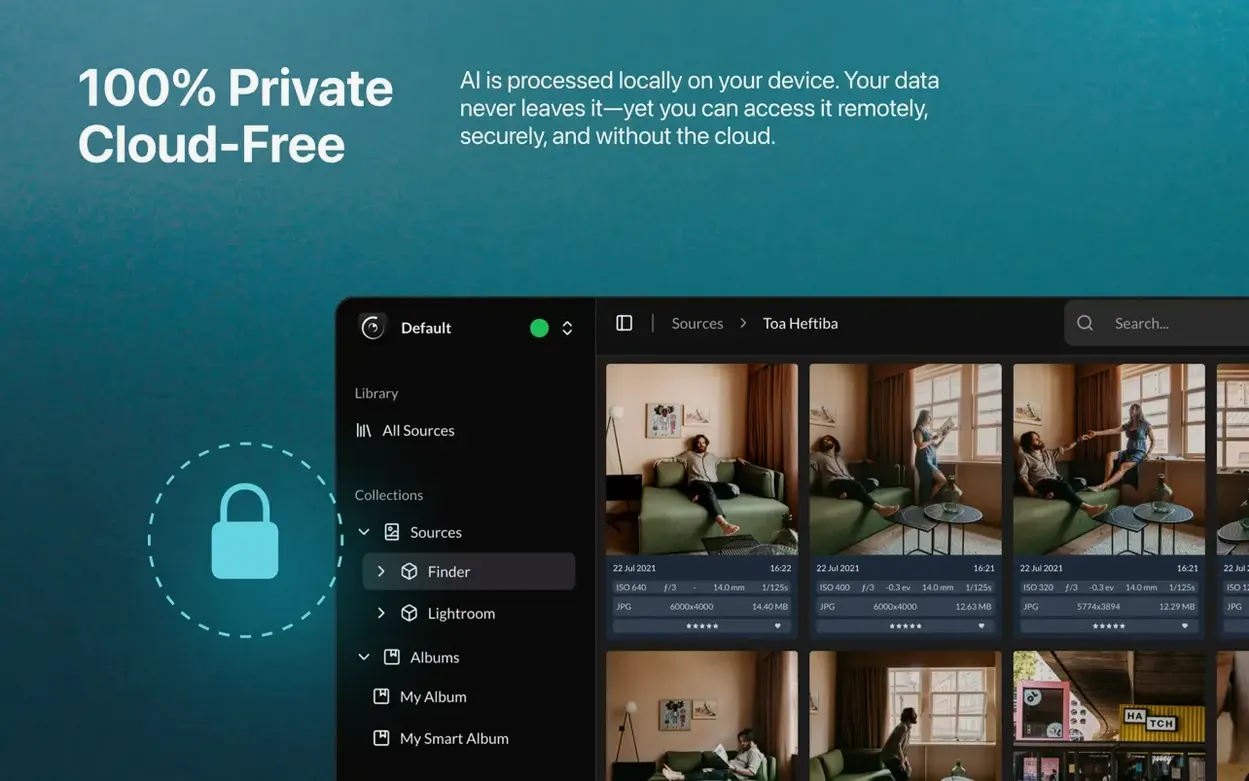
If you have ever used a Finder smart folder and wished it worked across your Lightroom catalogue, your Apple Photos library and a stack of loose folders — Peakto is built on that same instinct, but with AI doing the heavy lifting. It does not move your original files. It reads them where they live and builds a single, searchable index.
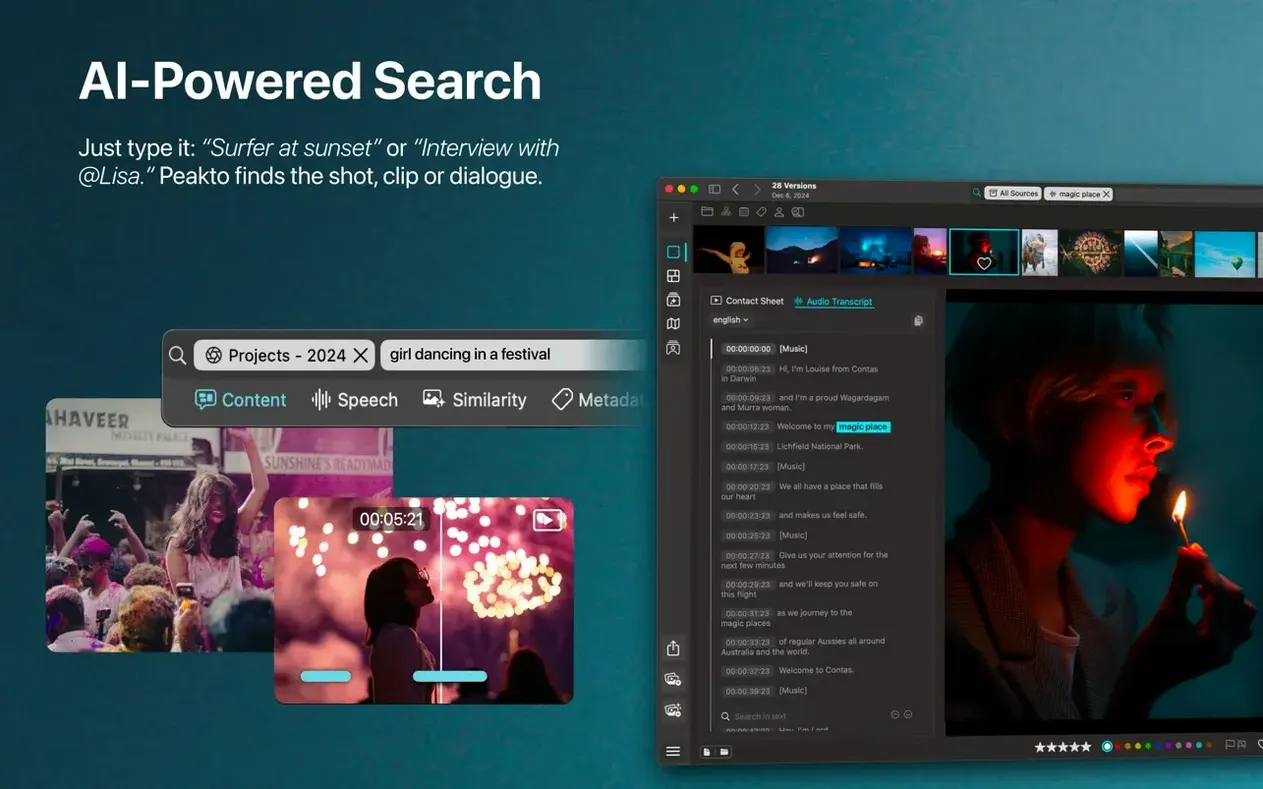
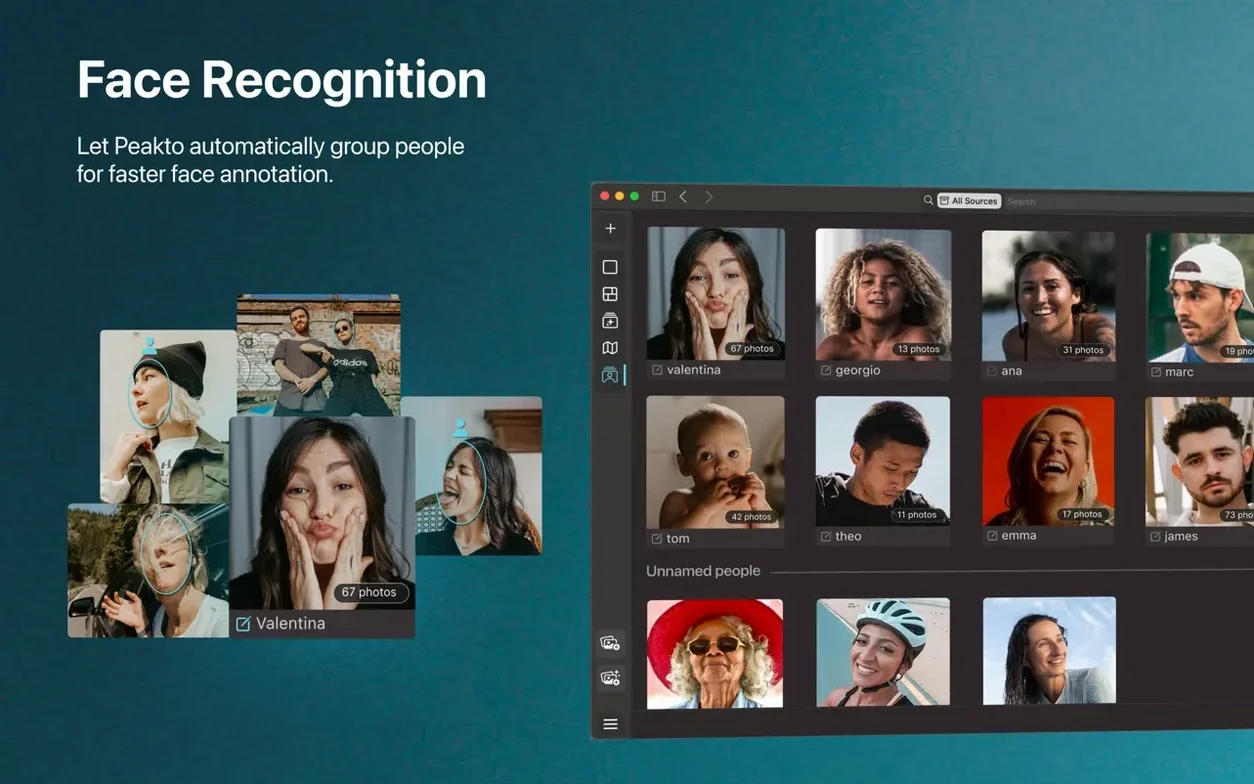
AI finds faces, objects and spoken words across all your media
- Unifying images and video from multiple sources in one window
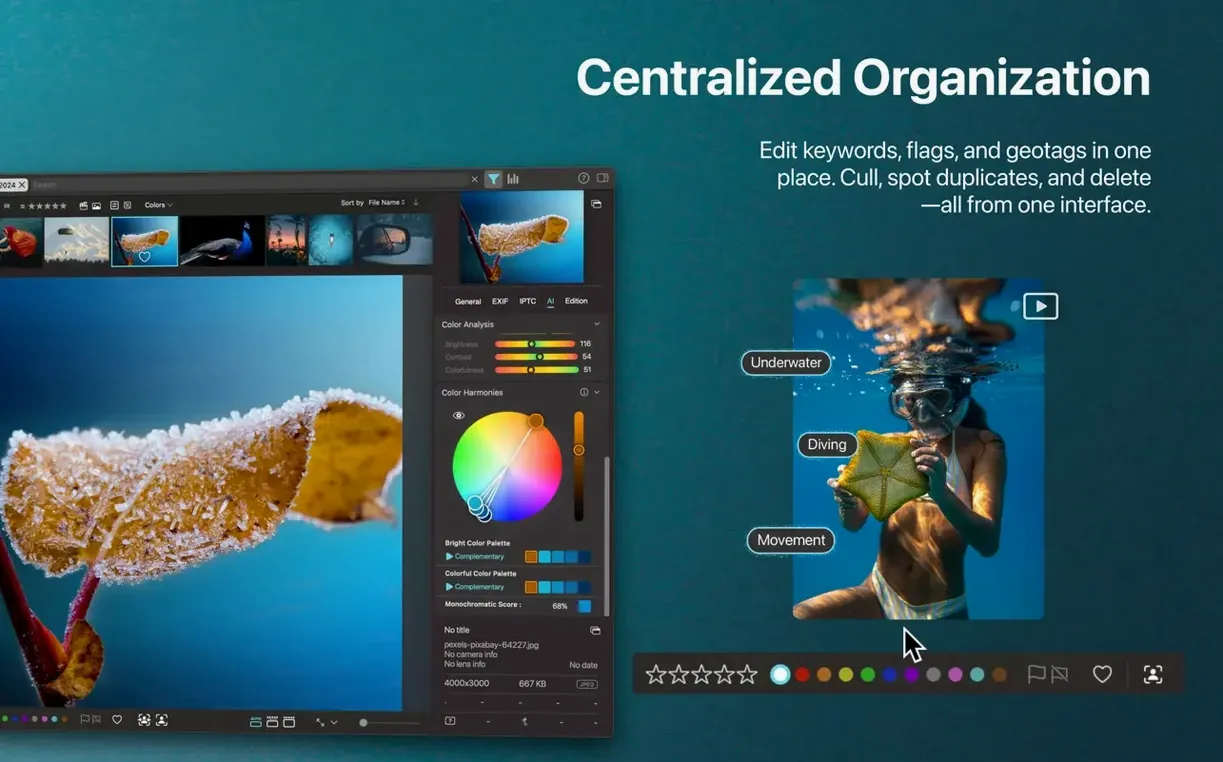
- AI tagging that finds faces, objects and scenes without manual keywording
- Auto-sorted category views that group by subject, colour or camera
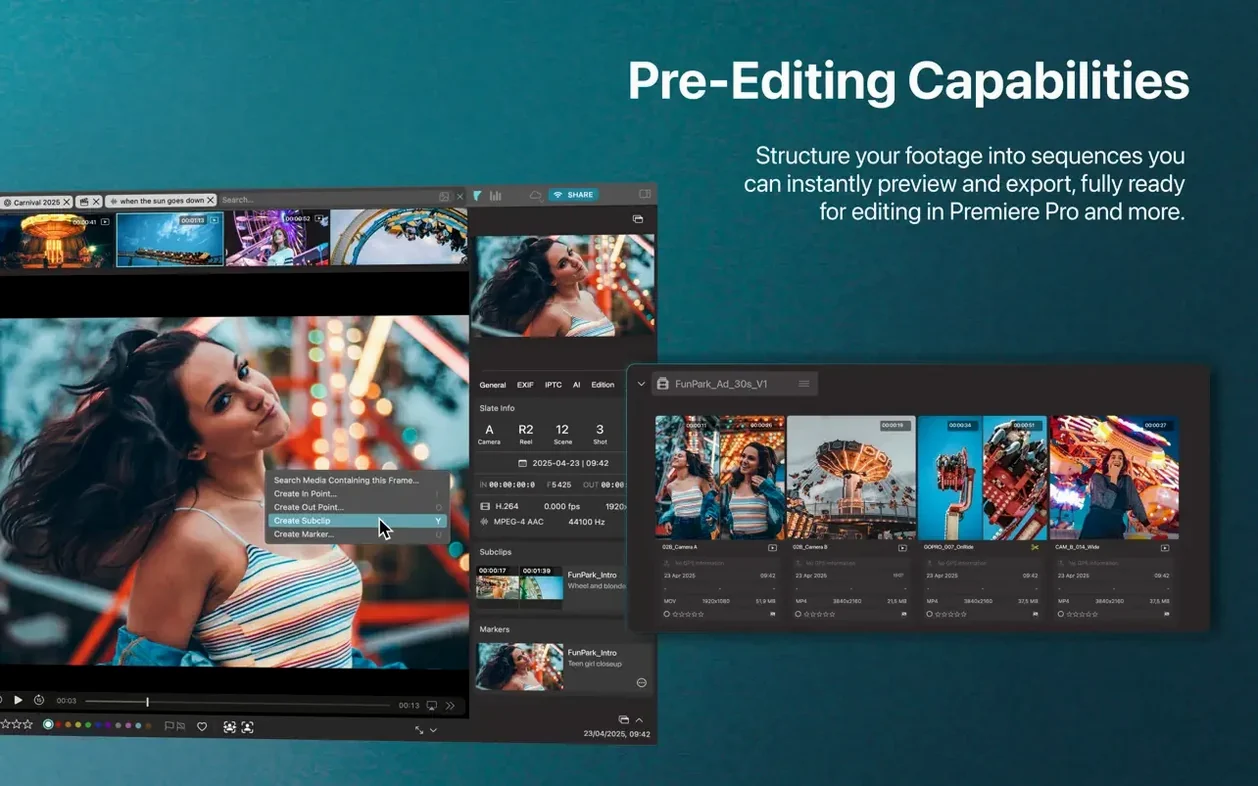
- Searching spoken words inside video files
- Batch exporting selections at full resolution
- Browsing geotagged shots on a map view
Needs Apple Silicon and a fast SSD to run smoothly
- Needs macOS 12.4 or later; built for Apple Silicon
- Fast external or internal SSD recommended for the database
- Meta-cataloguing means it reflects your libraries — it does not replace them
- Relay Mode is new and requires both machines to be running Peakto
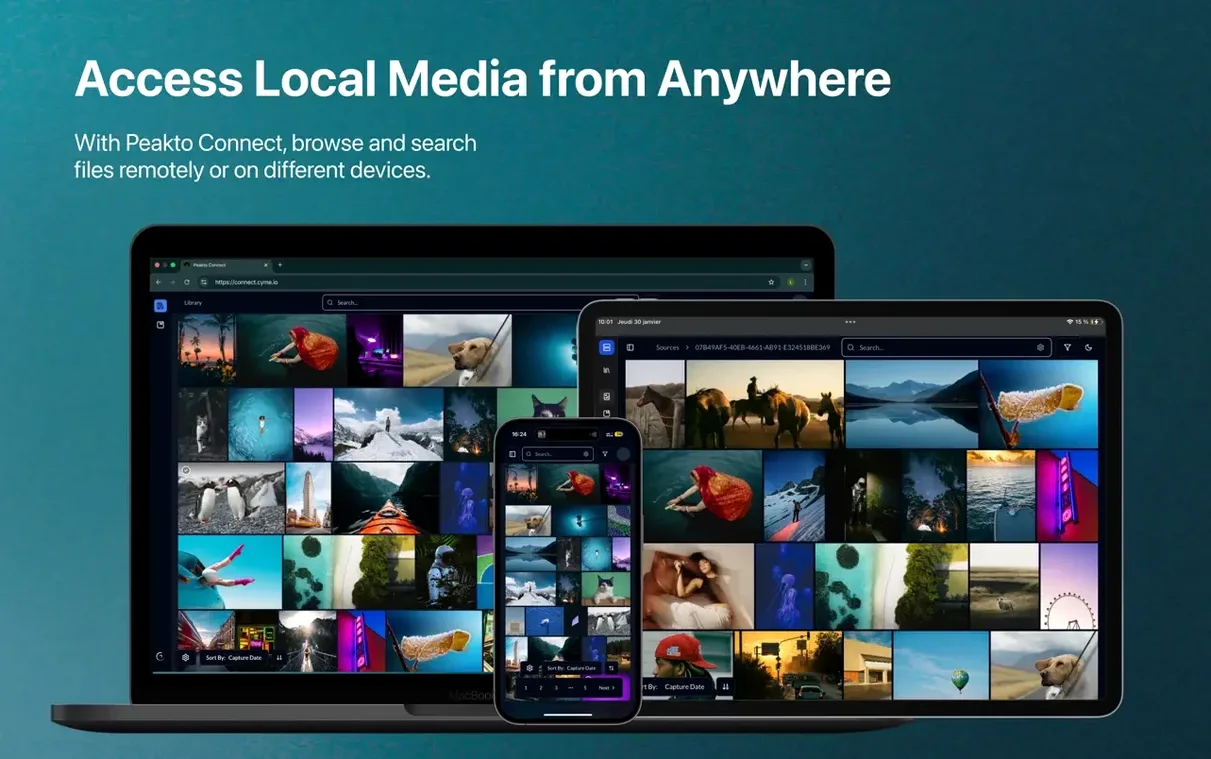
Peakto Connect gets a cleaner layout and fewer clicks
Version 2.7.10 tightened a few things that used to trip people up. The most visible change is Peakto Connect — the interface for browsing one Mac's catalogue from another got a cleaner layout. Fewer clicks to find a shared library, and the connection status is clearer now. If you tried it earlier and found the setup fiddly, it is worth another look.
Relay Mode arrived as an alternative to syncing everything through cloud storage. One Mac acts as host, the other connects directly. Your media stays put — no uploads, no duplication. Useful if you keep a master library on a studio machine and want to browse it from a laptop in the next room.
Under the hood, a handful of error-case workflows got fixed. The kind of thing that used to leave a spinner hanging when a source folder had moved. Now it fails more gracefully and tells you what is missing.
Exclude screenshot folders to quiet the category views
Out of the box, Peakto indexes everything it finds. That is thorough but can make the category views noisier than they need to be. Two adjustments that help immediately:
- Exclude screenshot folders. Peakto treats screengrabs like any other image, so your People view fills with webinar headshots and UI captures. Tell it to ignore those folders in the source settings and face detection becomes genuinely useful.
- Check your video import scope. By default it pulls in every video format macOS can decode. If you have a drive full of screen recordings or temp renders, the timeline gets cluttered. Trim the watched folders to your actual projects.
Also worth doing early: set the database location to an SSD before importing large libraries. Moving it later works, but the initial index is faster on fast storage and you avoid a rebuild.
Deleting originals leaves only ghost previews
The biggest one is treating Peakto like a backup tool. It is not. It catalogues what already exists — delete an original file from your Lightroom library or Finder folder, and Peakto's preview becomes a ghost. It cannot recover what is gone. Think of it as a lens over your existing storage, not a vault.
Another mistake: expecting instant AI results. The first indexing pass takes time, especially with video. People launch it, drop in a 4 TB drive, and wonder why face search is patchy half an hour later. Let it finish overnight. The metadata and previews populate in stages, and search accuracy improves once the whole index is built.
Finally, some users miss that exporting at full resolution depends on the source being available. If the external drive with the originals is unplugged, Peakto can still show previews, but exports will be limited to lower-resolution versions. Keep the drives connected when you intend to batch-export a selection.
What’s new
Adds a simpler Peakto Connect interface. Relay Mode lets you browse a remote Mac's catalogue without uploading media to the cloud. Fixes several error-case workflows.
Requirements
- macOS 12.4 or later
- Apple Silicon and Intel Macs
- 4 GB memory (8 GB recommended)
- 2 GB free disk space
- Fast SSD storage recommended for the Peakto library and database
- Original media files can remain on external drives
FAQ
Does Peakto copy or move my original media files?
No. It is a meta-cataloguer — it indexes your photos and videos where they are stored, without duplicating or relocating the originals.
Comments 0
Sign in or create an account to leave a comment.
No comments yet…
If you’ve installed it, say how it went. Mention your Mac and macOS version — it helps the next person more than you’d think.