
PlistEdit Pro for macOS
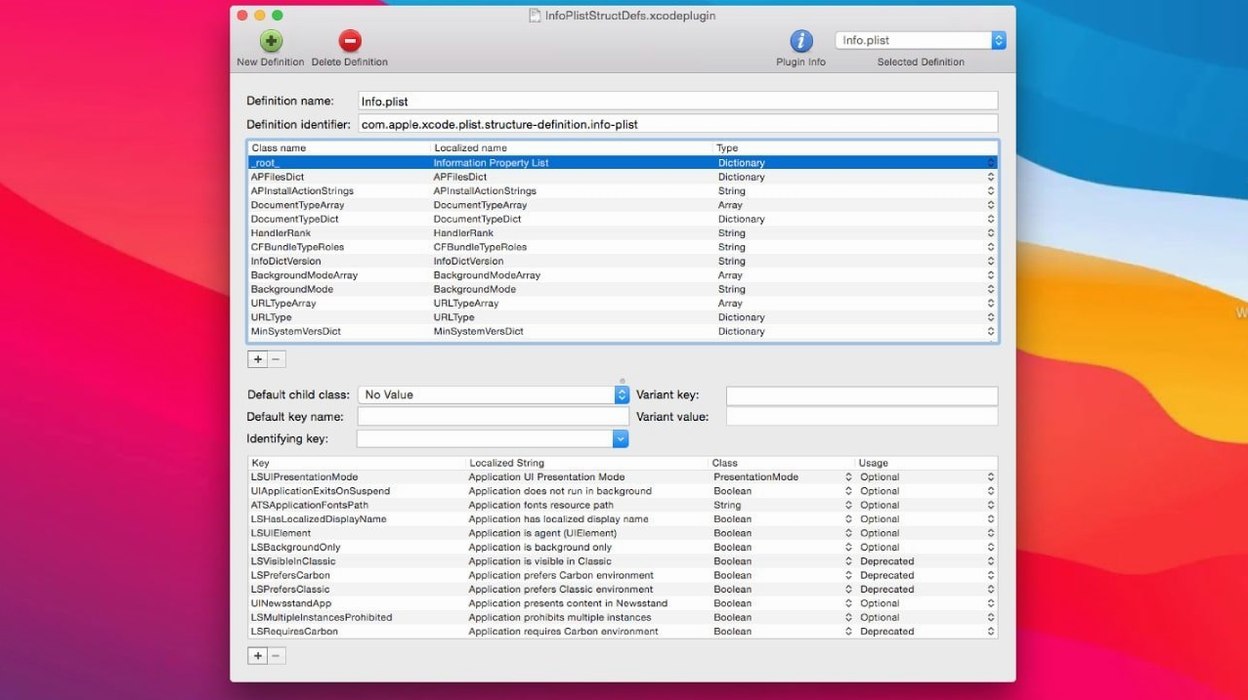
Description
A developer opens a build configuration file, needs to change one boolean flag deep inside a nested dictionary, and doesn't want to wrestle with Xcode just to flip a value. That's where PlistEdit Pro fits.
Turn .plist and JSON files into a structured outline you can edit
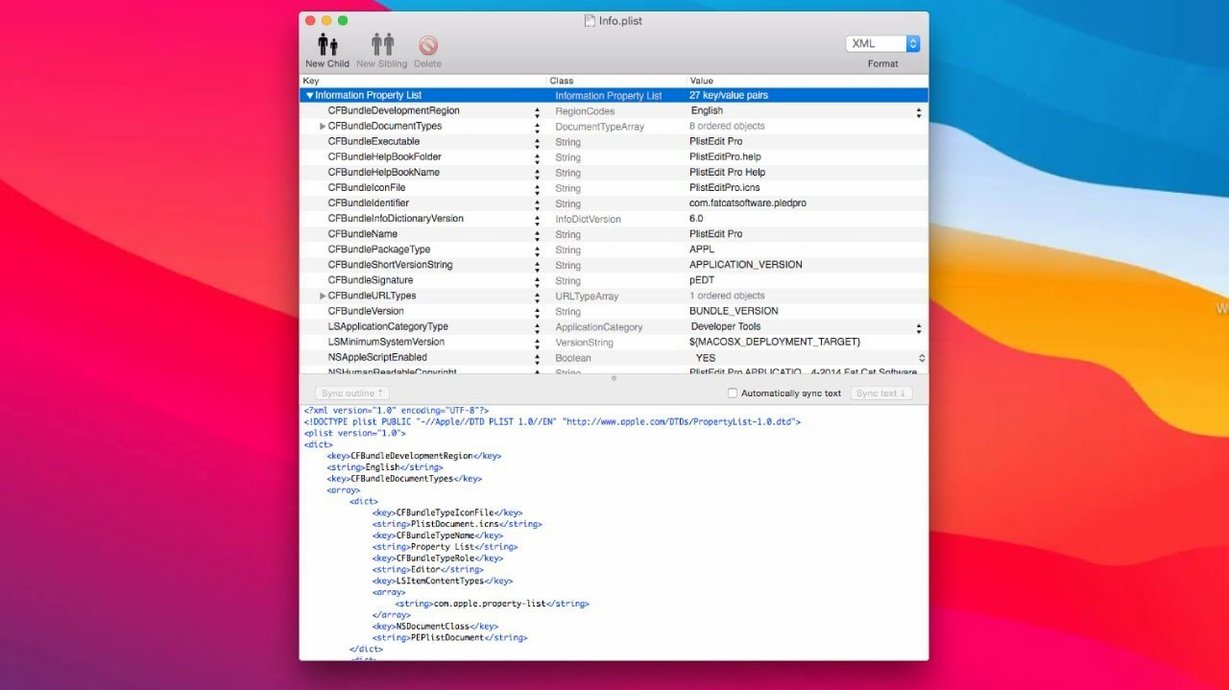
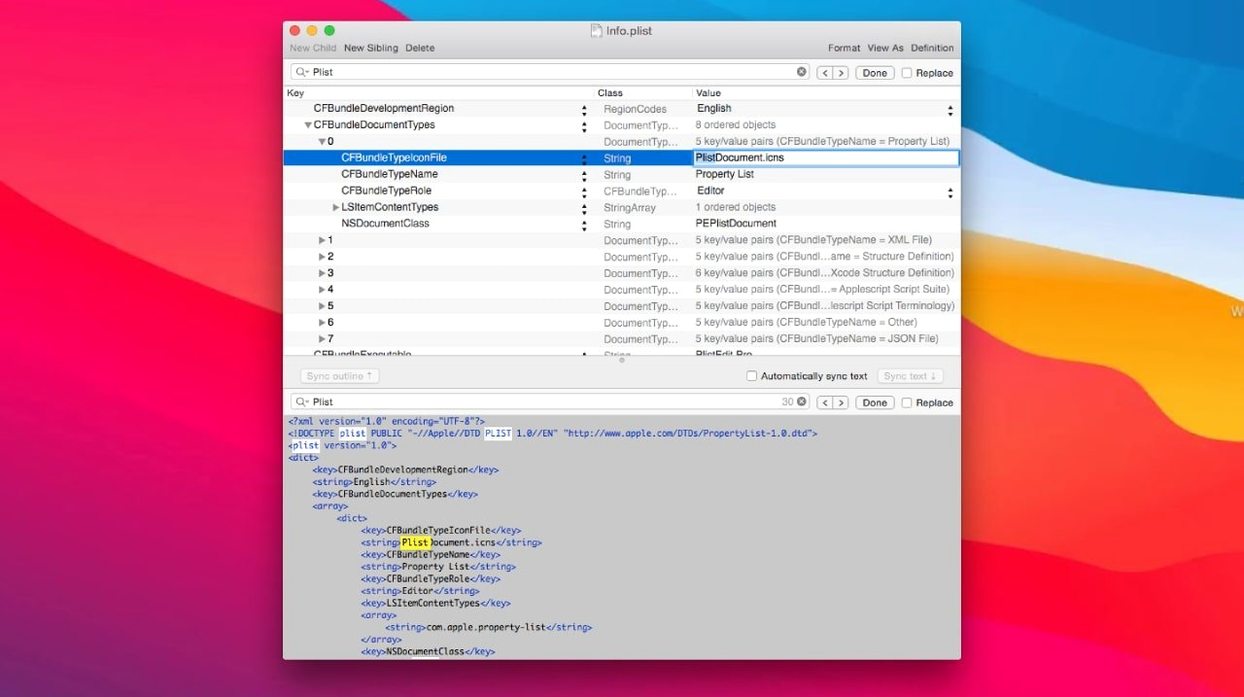
It's a dedicated editor for property list files—the .plist format macOS and iOS use for preferences, settings, and configuration. It also handles JSON. You get a structured outline view of the data, plus a plain-text view if you prefer working with the raw markup. The interface is built for the job: drag and drop keys and values to reorganise them, copy and paste between files, and navigate the whole tree from the keyboard. Find and replace covers single files or sweeps an entire folder, hunting for a specific key or value.
Built for devs who script plist edits from the command line
Mac and iOS developers are the core audience, but anyone who routinely picks apart .plist files will find it useful. The app includes a command-line tool called pledit for scripting. It requires macOS 14 or later and runs on both Intel and Apple Silicon Macs. Font customisation lets you set the display to something your eyes can tolerate at the end of a long day. Worth it if you spend real time inside plist files and want a tool that gets straight to the point.
The macOS 14 cut-off that dropped Monterey and Ventura support
Version 1.10.0 drew a line under older macOS releases. It needs macOS 14 or later, so anyone still on Monterey or Ventura stays on an older build. That cut-off came with under-the-hood changes that aren't flashy but keep the app running cleanly on Apple Silicon and recent Intel hardware.
The 1.1 update tidied things visually for macOS Tahoe. The preferences browser options—those checkboxes that used to sit in a panel—moved into a toolbar menu. Less clutter, same controls. The popover that asks whether to revert when a file changes on disk replaced an older dialog. It's a small change, but it interrupts your flow less when a background process touches a plist you're editing.
First days with PlistEdit Pro
Open the preferences browser early. It lives in the Window menu and shows every .plist macOS has stashed away. Browse a few entries to get a feel for how the outline view nests dictionaries and arrays. That's faster than hunting for files in Finder.
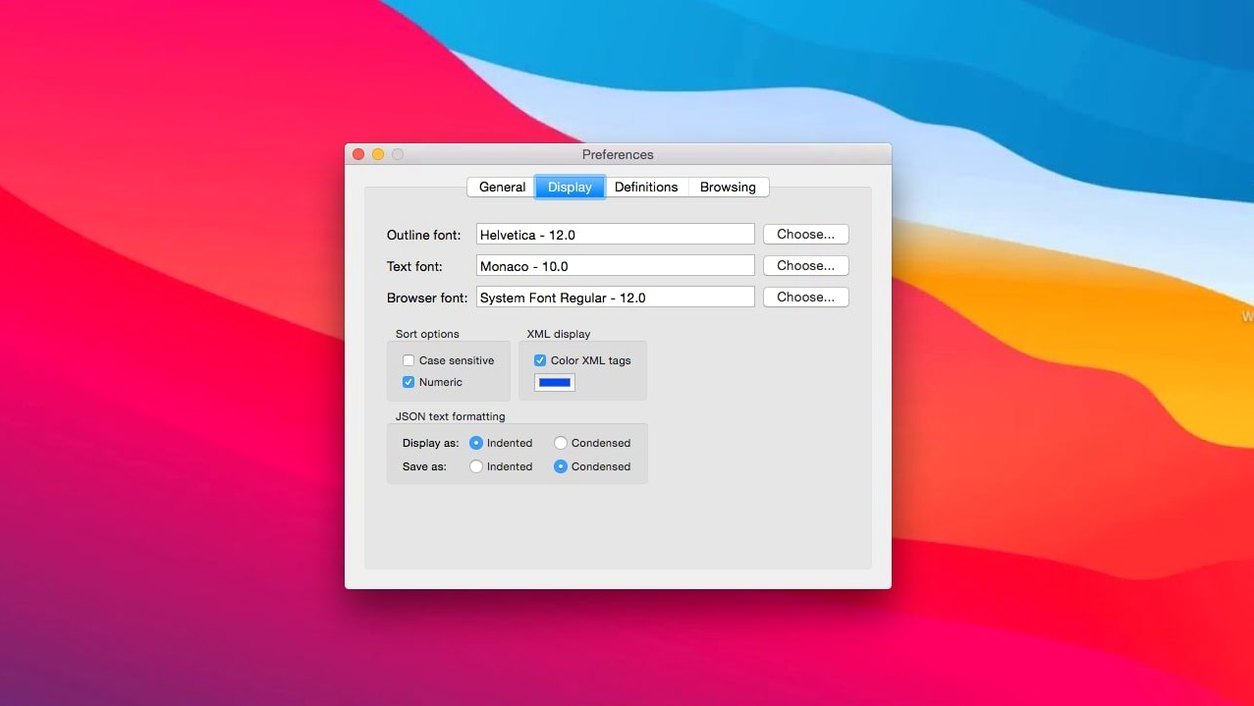
Set the font in Preferences before you do serious work. The default is functional, but a monospaced face like SF Mono makes raw plist and JSON text far easier to scan. The change applies to both the outline and plain-text views.
Drag a .plist file from Finder onto the dock icon to open it. Multiple files sit in tabs, and you can copy a dictionary subtree from one tab and paste it into another without flattening the structure. That saves time when you're transplanting settings between projects.
Scan entire folders of plist files with the hidden Find in Folder command
The folder search is hidden in the Find menu. Choose "Find in Folder" and point it at a directory of plist files. It scans every file for a key or value string and lists results in a flat pane. Double-click a result to jump straight to that entry. It beats grepping by hand because it understands plist structure.
Keyboard navigation is deep. Arrow keys expand and collapse nodes in the outline. Press Tab to cycle between key and value columns, then start typing to edit inline. Escape backs out of editing. You can reach most of the app without touching a mouse.
The pledit command-line tool ships inside the app bundle. Run it from Terminal to read or write plist values in scripts. AppleScript support works the same way—send commands to modify files without opening the GUI. Both are niche, but if you're batch-processing plists, they turn a manual chore into a one-liner.
Right-click any row in the outline to see type options: string, number, boolean, date, data, array, or dictionary. Changing a value's type is two clicks, and undo brings it straight back if you get it wrong. Multi-level undo tracks every edit, so you can retrace your steps through a messy session without worrying about what you changed eight minutes ago.
What’s new
Requires macOS 14 or later. Updates interface elements for macOS Tahoe. Moves the prefs browser options checkboxes into a toolbar menu. Changes the 'Ask to revert when file changes on disk' option to a small popover.
Requirements
- macOS 14 or later
- Runs on Intel and Apple Silicon Macs
FAQ
Can I search more than one file at a time?
Yes. You can search an entire folder of plist files for a specific key or value.
Does it include a command-line tool?
It does. The pledit tool lets you work with property list files from the terminal.
Comments 0
Sign in or create an account to leave a comment.
No comments yet…
If you’ve installed it, say how it went. Mention your Mac and macOS version — it helps the next person more than you’d think.
More in Mac Apps
All in Mac Apps-
 Plugin Alliance Brainworx bx_mastering studio
1.0.0
Apple Silicon
Plugin Alliance Brainworx bx_mastering studio
1.0.0
Apple Silicon
-
 PopClip
2026.8.1 fix EDiSO
Apple Silicon
PopClip
2026.8.1 fix EDiSO
Apple Silicon
-
 Pixelmator Pro
4.3
Apple Silicon
Pixelmator Pro
4.3
Apple Silicon
-
 Pixea Plus
8.3.0
Apple Silicon
Pixea Plus
8.3.0
Apple Silicon
-
 PhpStorm
2026.2.3
Apple Silicon
PhpStorm
2026.2.3
Apple Silicon
-
 PowerPhotos
3.4.8
Apple Silicon
PowerPhotos
3.4.8
Apple Silicon
-
 PhotoScape X Pro
4.3
Apple Silicon
PhotoScape X Pro
4.3
Apple Silicon
-
 Presentify
8.1.3
Apple Silicon
Presentify
8.1.3
Apple Silicon