Photomator for macOS
Description
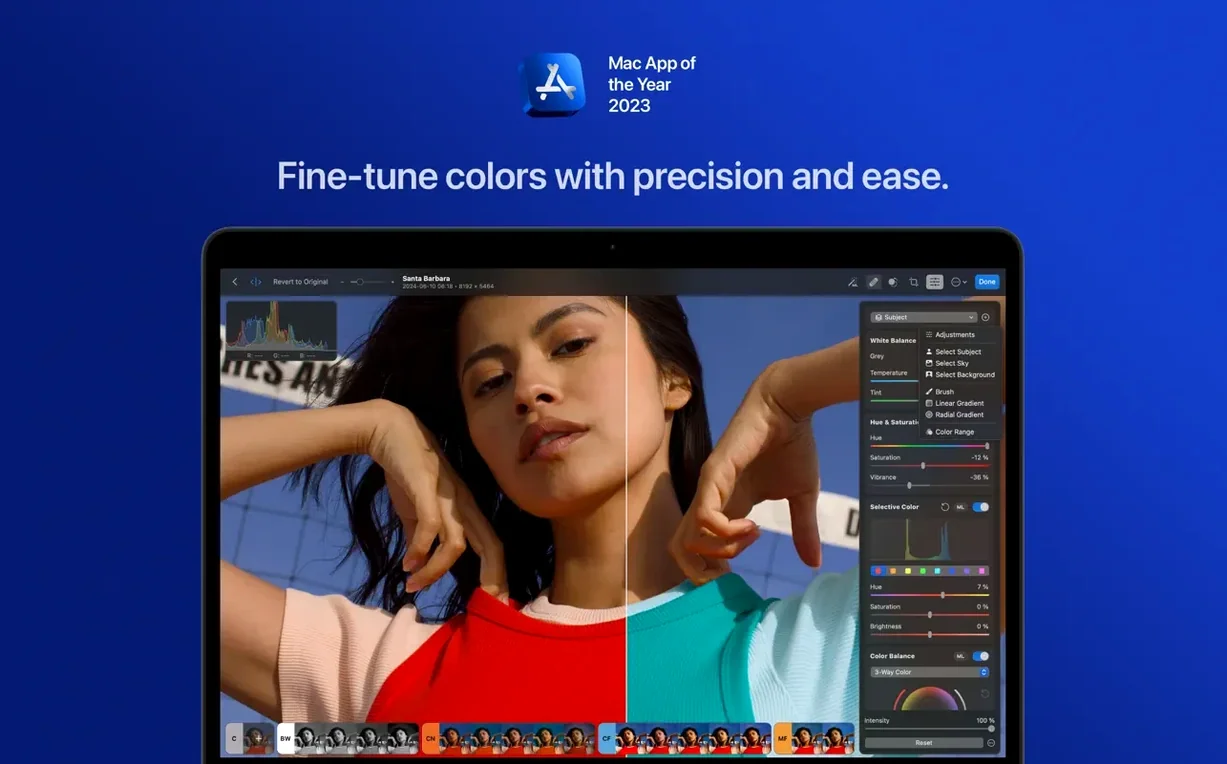
Most photo editors bury the tools you need under sliders and wizards. Photomator keeps them close. It is a Mac editor built for people who already know their way around a tone curve but still want the machine to handle tedious clean-up work.
| Version | Requirements |
|---|---|
| 3.4.15 | macOS 13 or later, Intel & Apple Silicon |
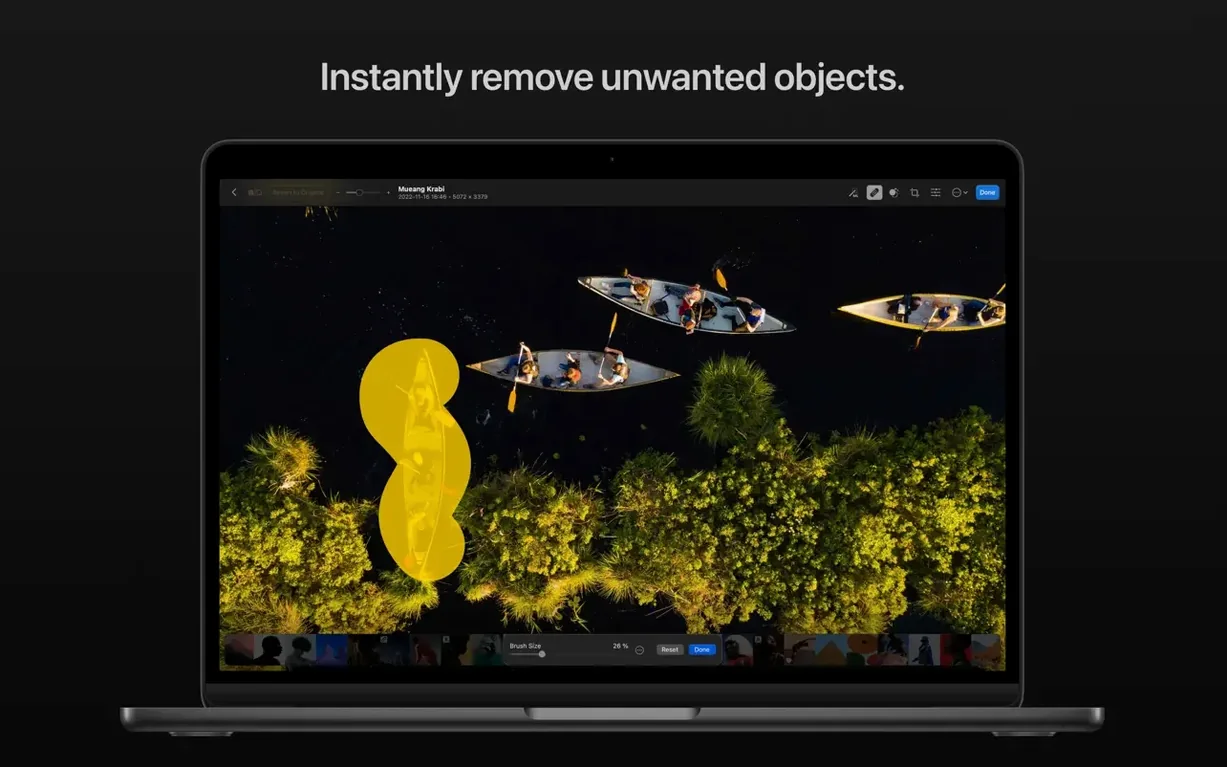
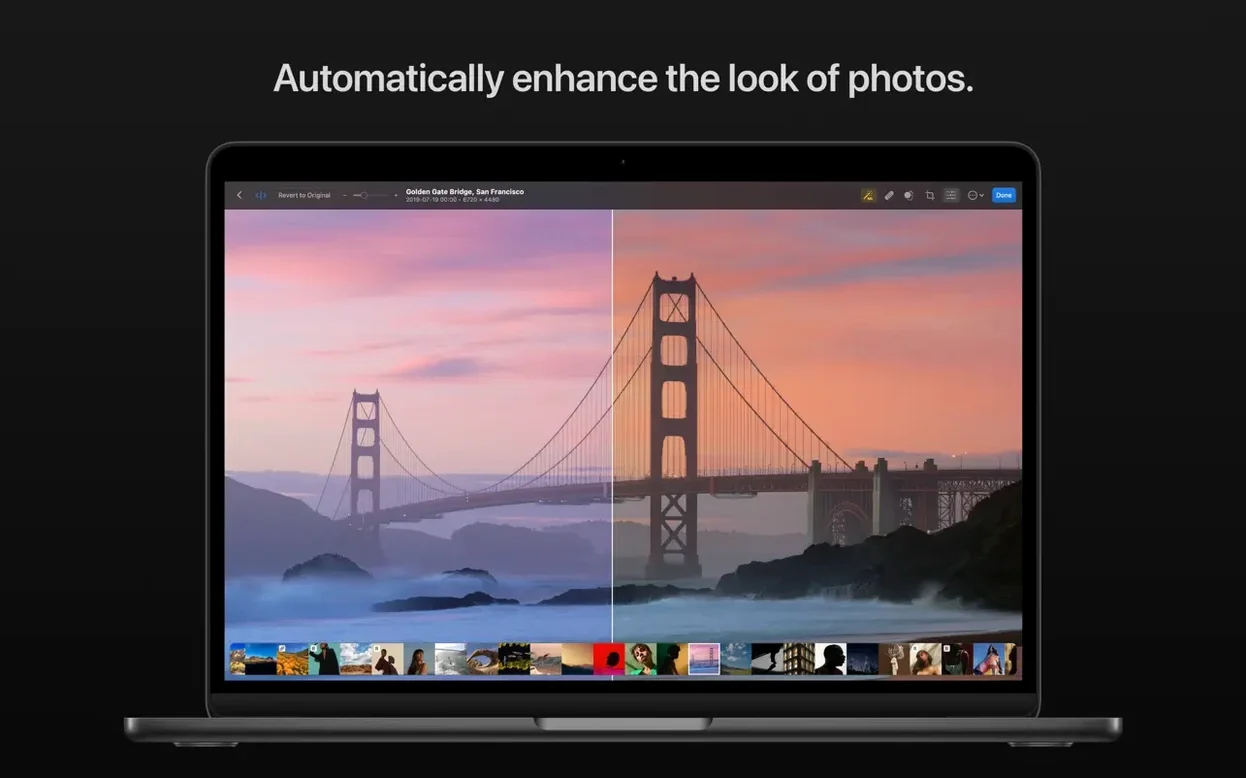
The repair and clone tools are the first things to learn. They are quick enough for dust spots and sensor marks, which makes culling a long shoot less painful. Smart Deband handles colour banding in skies and studio backdrops without turning the image to mush — a problem that cheaper smoothing filters introduce. For large prints, the upscale function gives you a practical resolution bump without leaving the app.
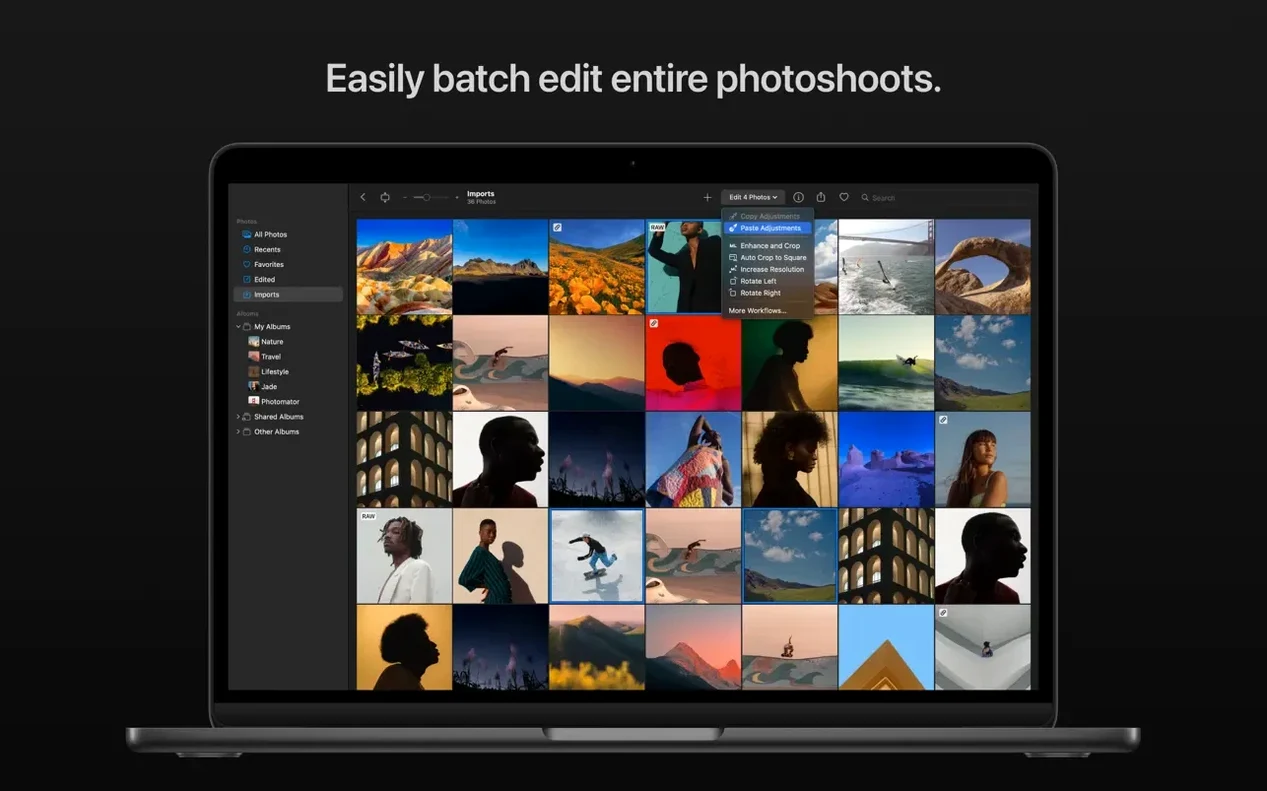
Batch editing works across RAW and rendered formats in the same pass, which saves a surprising amount of time when a whole set needs the same white-balance correction. The match-look tool pulls colour and tone from one photo and applies it to another; useful as a starting point for consistency, not a one-click miracle. You can also sync edits back to the Photos app or iCloud Drive if you prefer to keep your library tidy without duplication.
Leaves photo library management to Photos
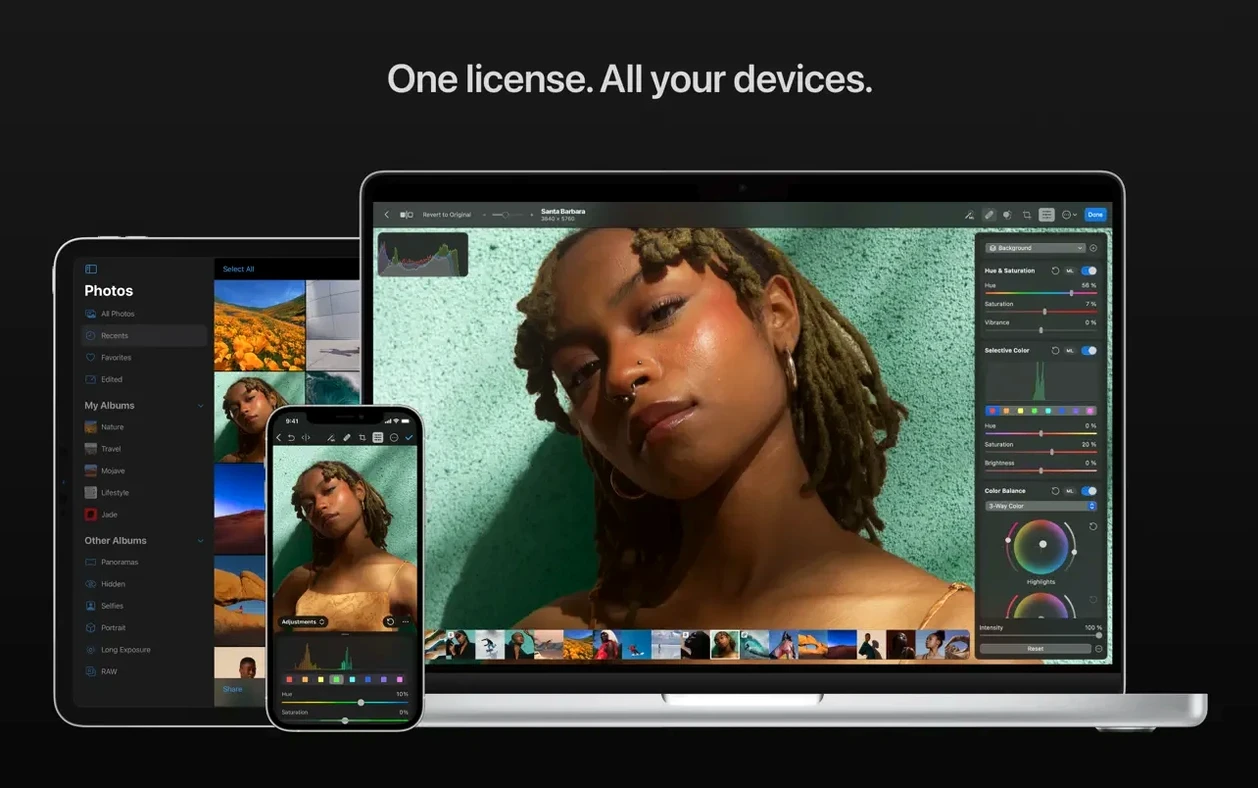
Photomator is not trying to be a library manager. It leaves that job to the Photos app or to a folder structure of your own making. The integration with Photos is tight: you can open an image, edit it, and see the changes reflected in your iCloud library on other devices. That matters if you do quick edits on a MacBook and later review them on an iPad.
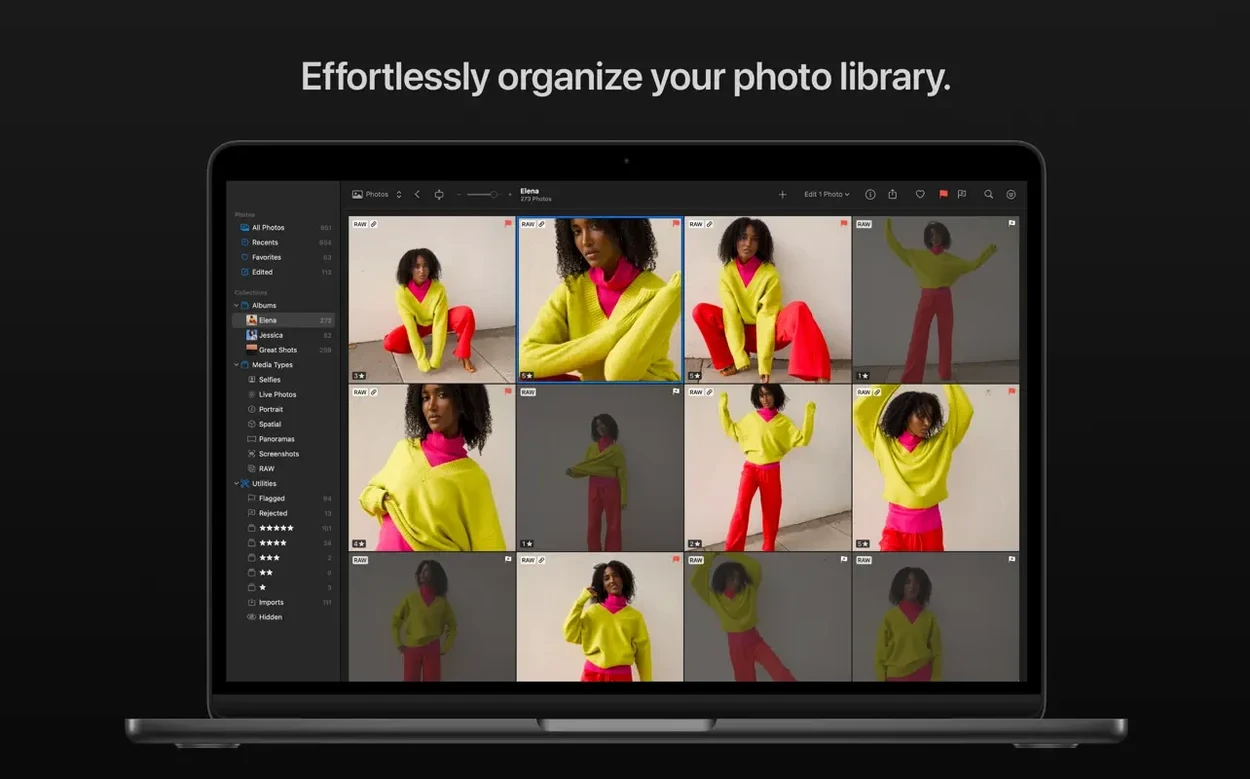
For Finder-based workflows, the app works as a standalone editor. Drag a folder of RAW files onto the dock icon and Photomator opens them in its browser. There is no catalogue to maintain, no import dialogue to wait through. That keeps things simple when you archive shoots by date and project name and just want to get on with corrections.
The real macOS tie-in is under the hood: Metal, Core ML, and Core Image. Denoise runs on the Neural Engine, which means it does not pin the CPU and does not take minutes to finish. On an Apple Silicon Mac, the heavy AI tasks — subject selection, sky masking, upscaling — feel responsive in a way that older OpenCL-based editors rarely manage. If you work on a Mac with a Pro or Max chip, the extra media engines keep things moving during batch passes.
Copying edits between photos uses the system pasteboard. You can copy adjustments from one window, switch to another, and paste — no export-and-import dance. The app also respects macOS colour management, so what you see on a calibrated display matches what goes out to a JPEG or TIFF. No surprises in print or on the web.
Thumbnail browsing stays fast with 50 MP RAW folders
Launch time is fast. Even loading a folder of 50-megapixel compressed RAWs, the browser fills thumbnails as you scroll rather than making you wait for a full directory scan. The interface stays fluid during adjustments; dragging a temperature slider gives near-instant feedback because the render pipeline leans on the GPU.
Memory use is reasonable. Editing a single 45 MP RAW file tends to sit around 1.2–1.8 GB of RAM. A batch of 30 files with Denoise queued will push that higher, but the app releases memory promptly when jobs finish. I have not seen the kind of slow memory creep that forces a restart after an hour of heavy retouching.
Stability is good on version 3.4.15. Crashes are rare and usually traceable to a corrupt RAW from an unsupported third-party converter, not to the app itself. Autosave is quiet and frequent enough that a rare quit does not lose work. The repair tool sometimes hesitates on very large healing areas — say, removing a power line across a whole frame — but a second pass cleans it up.
Denoise deserves a mention. Because it runs through Core ML, processing time scales with the Neural Engine speed. An M2 MacBook Air handles a noisy ISO 6400 shot in about 4–6 seconds. The same task on an Intel Mac takes longer and spins the fan, though the result is identical. Smart Deband and upscaling are similarly GPU-bound and do not bog down background apps.
Strips out compositing and keeps only photo adjustments
Photomator vs Pixelmator Pro. These two share a developer and a lot of underlying tech, but the purpose differs. Pixelmator Pro is a general image editor with layers, vector tools, and a full design toolkit. Photomator strips out the compositing and focuses entirely on photo correction. If you retouch portraits and landscapes and never touch a bezier curve, Photomator gives you the same Core ML engine with less interface to navigate. If you need layer masks and text, Photomator is not the right tool.
Photomator vs Adobe Lightroom Classic. Lightroom is a library-first application with a huge feature set and a subscription. Photomator does not attempt catalogue management, tethering, or plug-in support. What it does offer is a lighter, faster alternative for people who find Lightroom’s import system and database maintenance tiresome. For pure processing speed on a single image, Photomator often feels quicker because it does not carry the overhead of a catalogue. For a wedding photographer delivering 800 proofs with complex metadata, Lightroom still has the edge.
Photomator vs RawTherapee. RawTherapee is open-source and deep on demosaicing options, with fine-grained control over RAW decoding parameters. Photomator takes a different approach: it picks sensible defaults and gives you fewer knobs to turn. The trade-off is editing speed. RawTherapee can feel sluggish when you stack multiple tools, especially on high-resolution files. Photomator was built for the Mac’s graphics stack from the start and rarely keeps you waiting for a preview update. If you want absolute control over every demosaicing algorithm, RawTherapee is your tool. If you want to work at the speed of your decisions, Photomator fits better.
Warming 40 cool RAW files from a dawn shoot
Imagine a photographer who shoots dawn landscapes with a Fujifilm GFX. They return from a cold morning with 40 compressed RAW files, all slightly too cool and showing some chroma noise in the shadow areas of the foreground rocks.
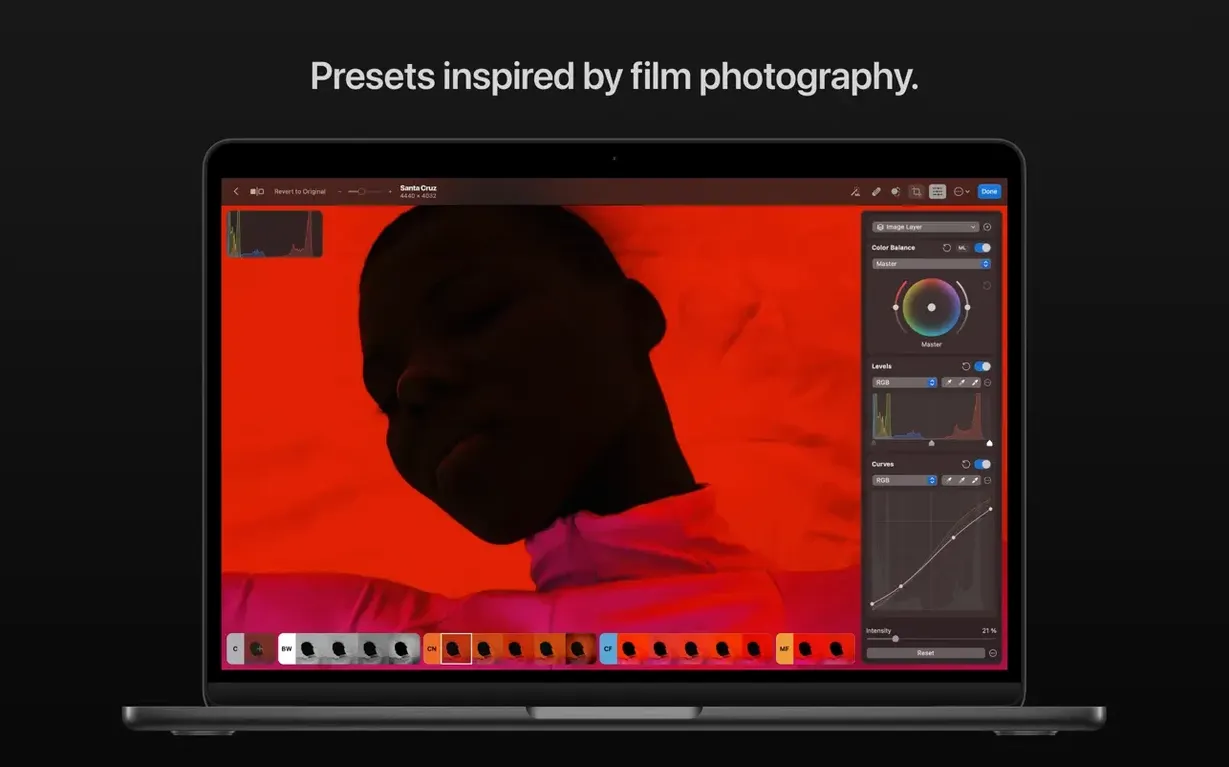
They open Photomator, drag the folder in, and apply a preset that lifts warmth and adds a gentle S-curve. The browser shows thumbnails updating in real time. They spot sensor dust on three frames — a quick pass with the repair tool fixes each in seconds. A shot with smooth dawn sky shows posterisation from the compression; Smart Deband cleans it without softening the cloud edges.
The keeper — a wide view with a stream in the foreground — gets Denoise at a moderate strength. While that runs, they copy the correction stack to two similar frames with the paste-edits command. The whole set is edited, exported as full-resolution JPEGs, and dropped into a client folder in under twenty minutes. No catalogue was created, no import dialogue appeared, and the Mac stayed cool enough to keep on a lap. That kind of session is where Photomator earns its place on the dock.
What’s new
- Adds compressed RAW support for Sony Alpha ILCE-7M5, FUJIFILM GFX 100S II and FUJIFILM GFX 100RF.
- Adds High Efficiency and High Efficiency Star RAW support for Nikon Z5II and Nikon Z50II.
- Adds RAW support for Panasonic LUMIX DC-S1RM2 High Resolution mode captures.
- Contains bug fixes and performance improvements.
Requirements
- macOS 13 or later
- Apple Silicon or Intel 64-bit Mac
FAQ
How many RAW formats does Photomator support?
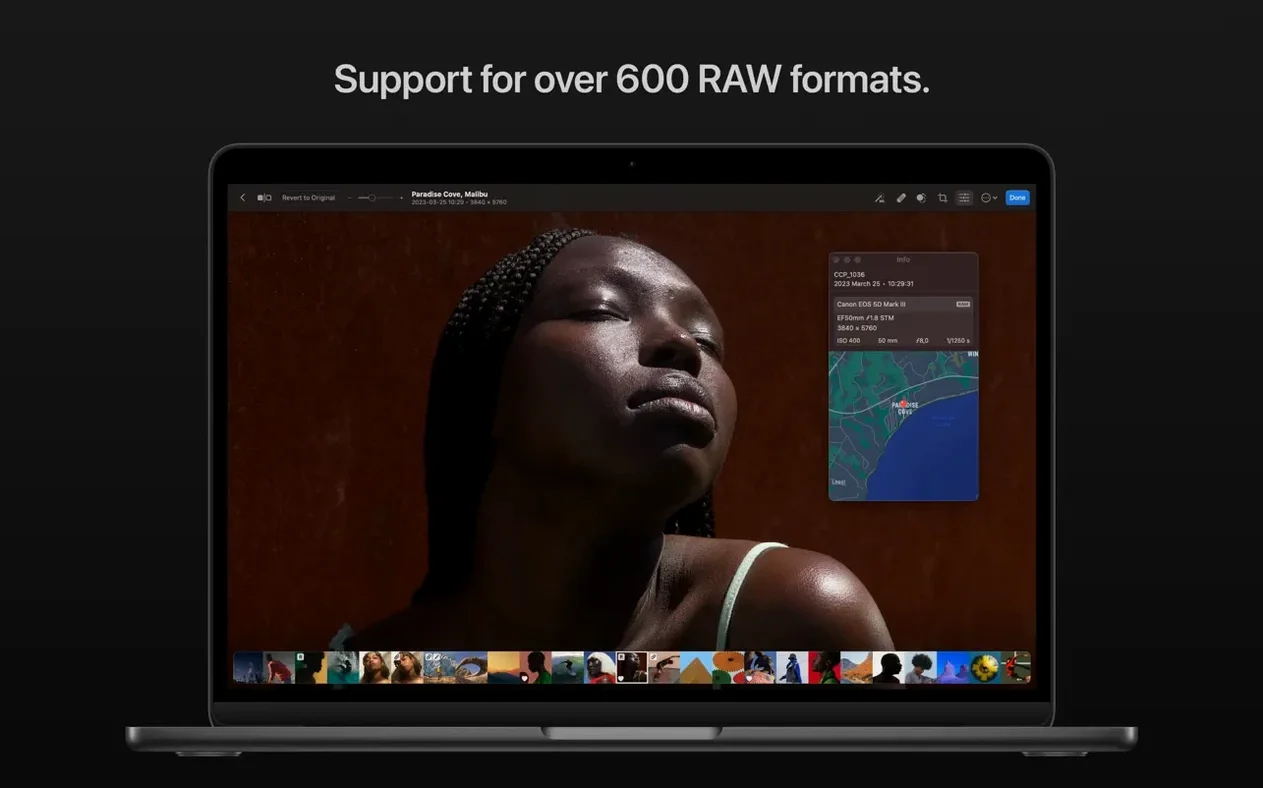
It supports over 650 RAW formats including Apple ProRAW and compressed Fujifilm RAF files.
Can Photomator remove objects from a photo?
Yes, it includes clone and repair tools designed for removing dust spots, sensor marks and unwanted small objects.
Does Photomator work with the Apple Photos library?
It can sync edits directly with the Photos app and iCloud Drive.
Comments 0
Sign in or create an account to leave a comment.
No comments yet…
If you’ve installed it, say how it went. Mention your Mac and macOS version — it helps the next person more than you’d think.