Permute for macOS
Description
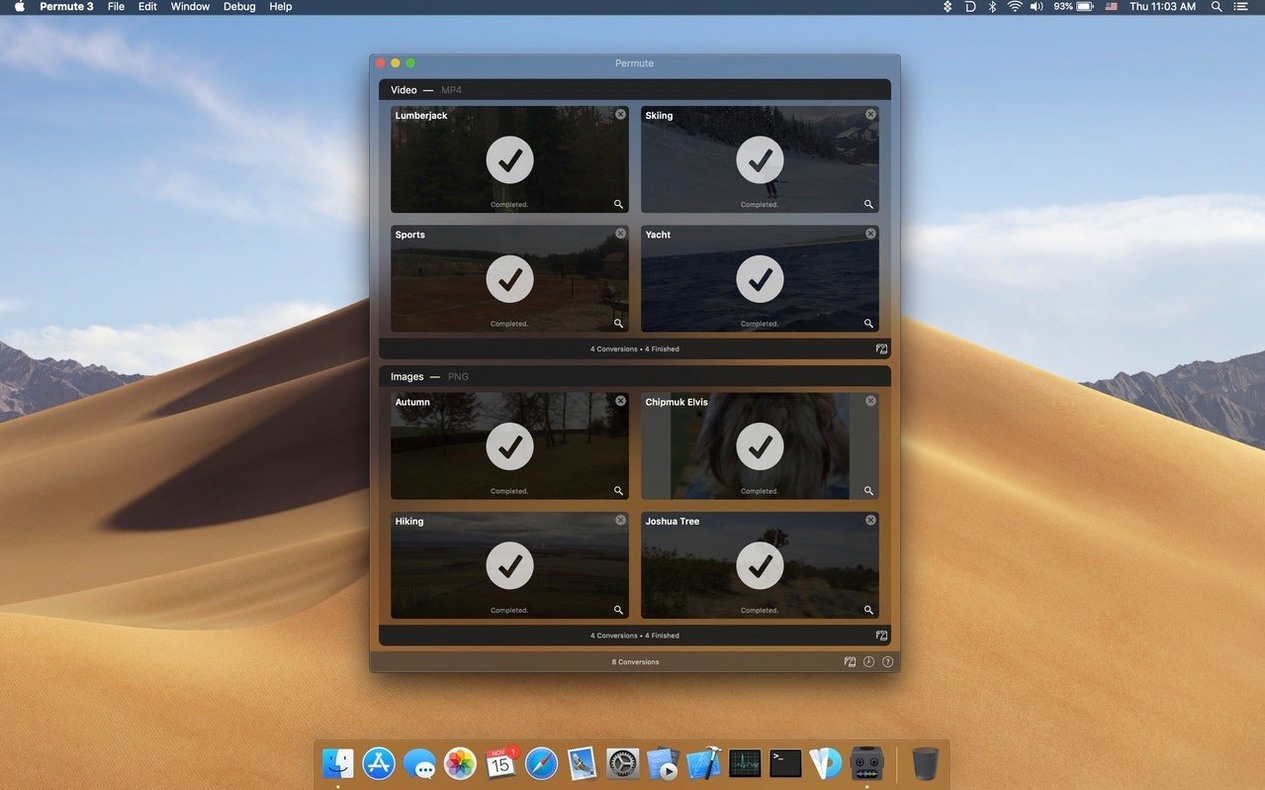
Permute is a macOS media converter that turns video, audio, images and other files into the format you actually need.
Apple Silicon only, macOS 26 required
The current version is built for Apple Silicon and requires macOS 26 or later. There is no Intel build. If your Mac runs on Apple Silicon and you keep the system reasonably up to date, you are fine. Older machines are out of luck.
Drag a file, pick a format, done
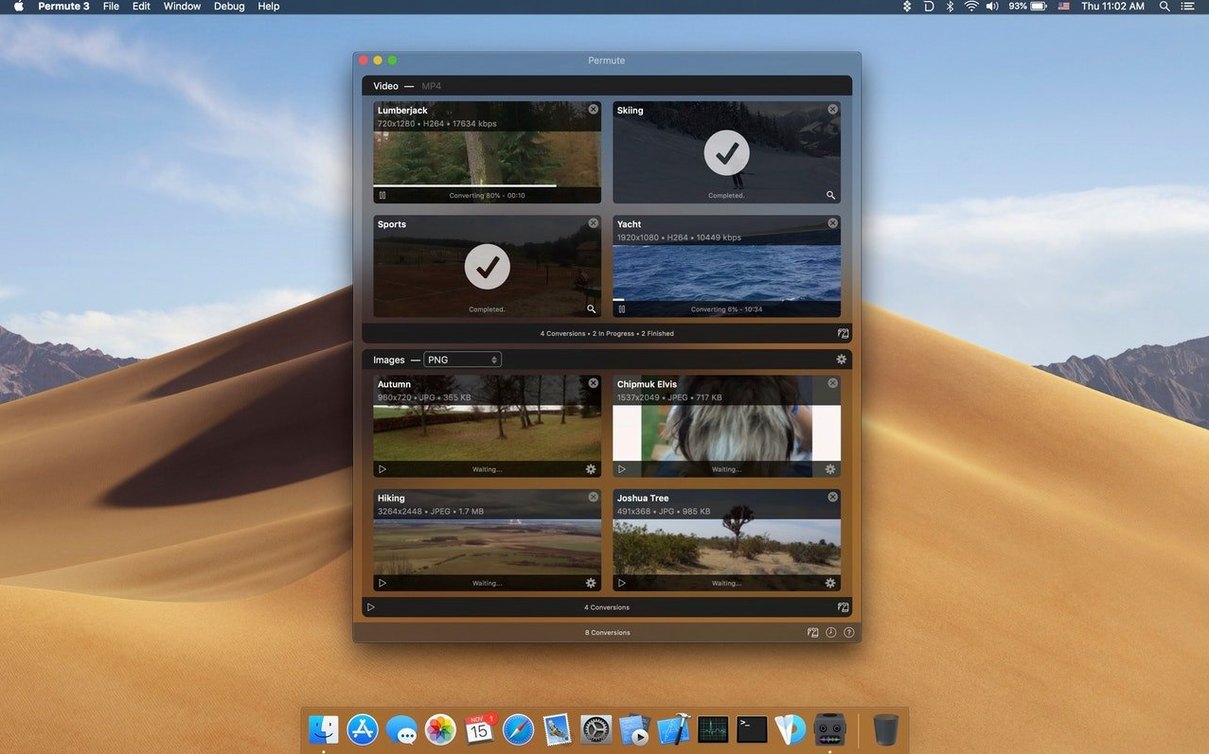
Drag a file in, pick the output format, and the app does the rest. It converts video to other video formats, strips the video track to create an audio file, and can even add a subtitle track when needed. Image conversion works the same way — choose a new format and go. The developer lists video, audio, images and more in the supported categories, with ISO creation tucked in as one of the less obvious options. The app speaks seventeen interface languages, from Arabic and Belarusian to Ukrainian and Swedish.
Permute, Adapter, and HandBrake scratch different itches
Three names come up when someone wants a drag-and-drop Mac converter: Permute, Adapter, and HandBrake. They scratch different itches.
Adapter feels the closest in spirit. Both apps let you throw a file at the window and pick an output from a tidy list. Adapter does video and audio and images, same as Permute, but the interface shows its age. It has not seen a meaningful update in years and occasionally trips on newer codecs. Permute keeps up with macOS changes and the single developer behind it pushes updates that track Apple Silicon properly. Adapter also lacks the subtitle-embedding and video-merging tricks.
HandBrake is the tool for people who want to fine-tune every knob. Bitrates, profiles, deinterlacing, frame-rate control — it is all there. Permute does not compete on that front. What Permute offers is speed of thought. You think "convert this to MP4" and the action takes one drag and one click. HandBrake makes you walk through a preset browser first. For bulk jobs where quality matters, HandBrake earns its place. For "I need this MOV as an MP3 right now", Permute wins.
ffmpeg via the command line deserves a mention too. It powers Permute under the hood — the app bundles FFmpeg libraries — so technically you can do everything Permute does by typing commands in Terminal. The difference is memory load. Remembering the flags for merging two clips with a subtitle track is not something most people want to do twice a month. Permute remembers the workflow for you.
Where Permute fits in your tool set
Permute does not try to be a media player or an editor. It sits between those tools and cleans up format problems.
A common macOS setup looks like this: you record something with QuickTime Player, trim it there, and then drop the result into Permute to shrink it before sharing. Or you pull a video from Photos, run it through Permute to strip the audio, and hand the resulting MP3 to GarageBand for a podcast intro. The app works with Finder tags and Quick Actions too — you can set up a right-click shortcut so a file goes straight into conversion without opening the main window.
If you use Automator or the Shortcuts app, Permute slots into a chain. A folder action can watch a desktop folder and convert anything that lands there, which pairs well with screen-recording tools that dump large ProRes files. It also respects the system Share menu, so sending a converted file onward to Mail or Messages is one extra click after the job finishes.
Converting a WAV, an MKV, and a folder of TIFFs at 10pm
Say you have three things on your desk at 10pm: a WAV file a colleague sent, a MKV screencast that needs subtitles burned in, and a folder of TIFF scans you want as JPEGs. Here is how a quiet half-hour with Permute looks.
You drag the WAV into the window. The preset bar at the top shows audio formats — MP3, AAC, FLAC, and a few others. You click MP3. The job appears in the queue with a small preview of the output name. One click on the play button in the toolbar and the conversion runs. Three seconds later the MP3 sits on your desktop, next to the original.
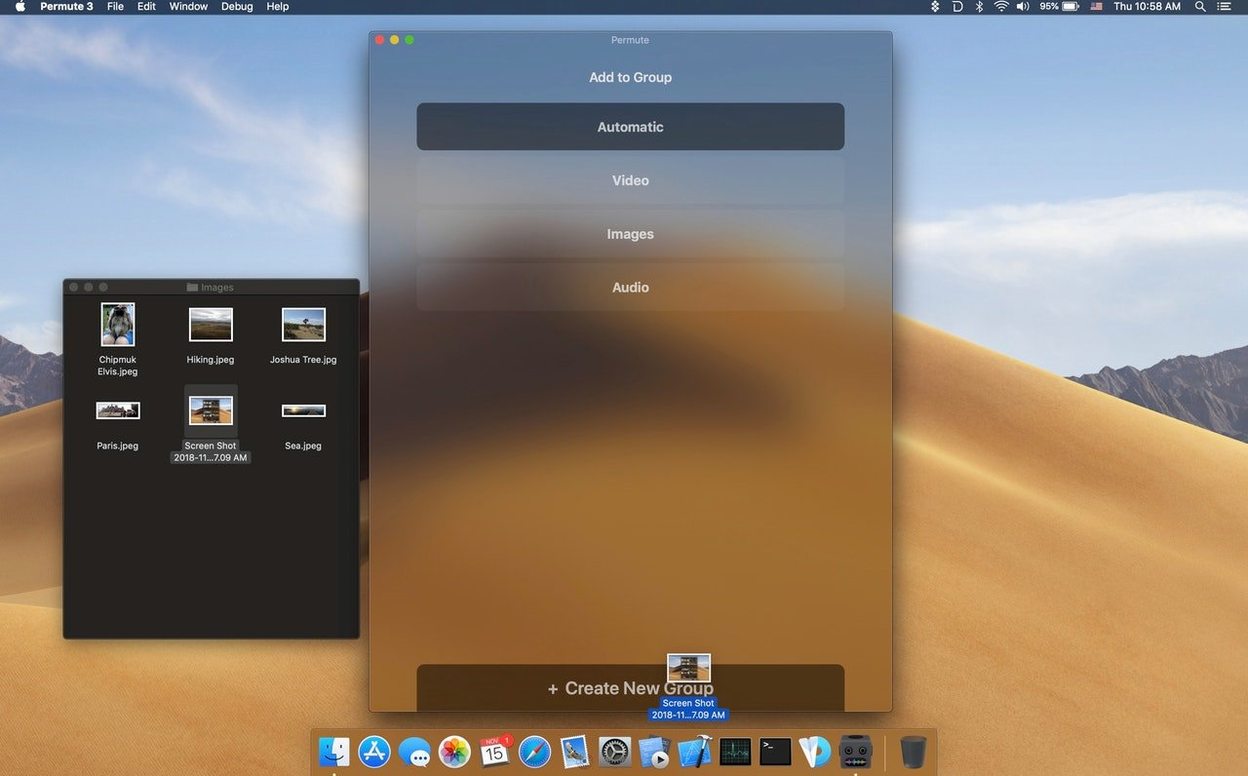
Next, the MKV. You drag it in and switch the output to MP4 from the video presets. Below the preset bar, a small "Subtitles" badge appears because the app detected an embedded SRT track. You click it, tick the checkbox to burn the track into the video, and start the job. The progress bar fills steadily. While it runs, you drop the folder of TIFFs onto the dock icon. Permute asks whether you want the whole folder processed; you say yes and choose JPEG as the target. The queue stacks up.
By the time the MKV finishes — about two minutes for a fifteen-minute clip — the JPEGs are already done. You have an MP4 with hard-coded subtitles ready to upload, a folder of lightweight images for a web gallery, and an MP3 you can chuck into a voice note thread. Fourteen clicks total, most of them drags.
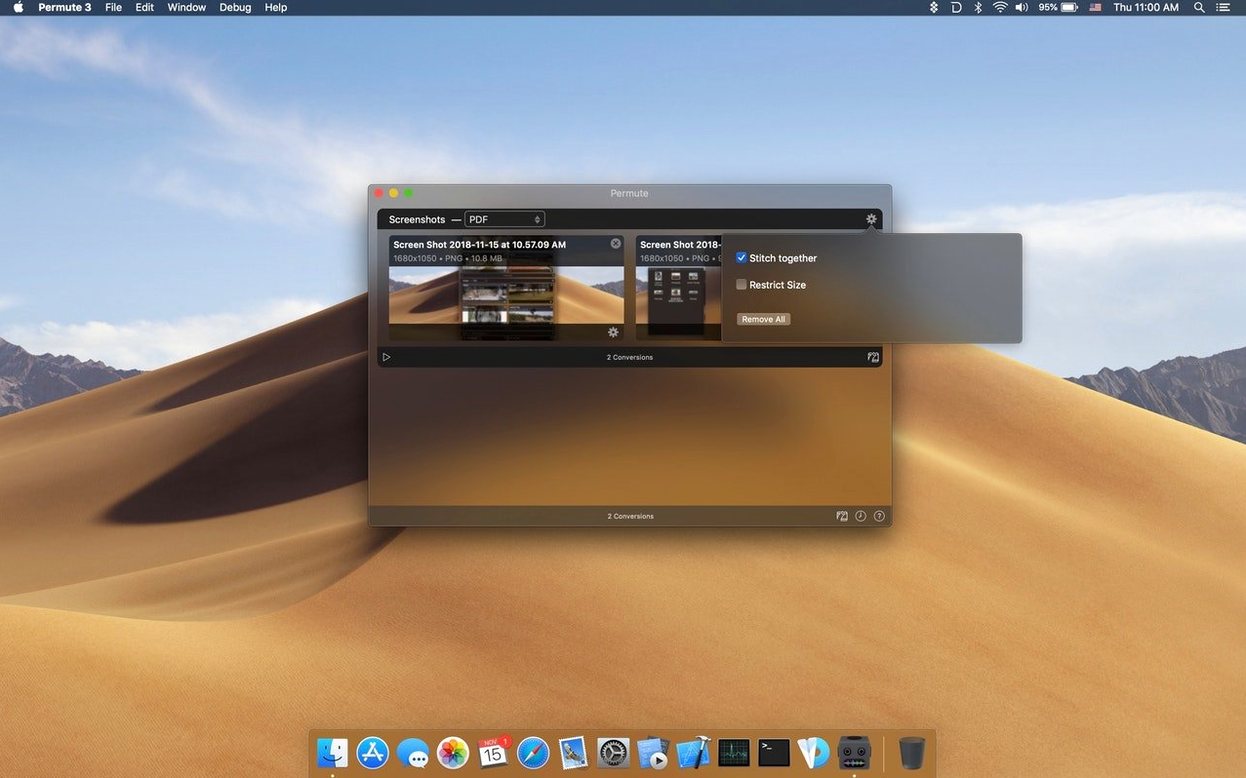
If the MKV had come with a separate SRT file instead of an embedded track, you would have merged them by dropping both files onto the window together. Permute recognises pairs and offers the subtitle option automatically. The merge feature works the same way for combining two video clips: drop both, pick a single output format, and the app stitches them end to end before converting.
Requirements
- macOS 26 or later
- Apple Silicon Mac
FAQ
Can Permute convert video files to audio only?
Yes. You can strip the video track and save the result as an audio file in whatever format you choose.
Does Permute handle ISO creation?
It does. One of the more unusual tricks is converting files straight to ISO format.
Comments 0
Sign in or create an account to leave a comment.
No comments yet…
If you’ve installed it, say how it went. Mention your Mac and macOS version — it helps the next person more than you’d think.